

How to Fix Android Auto Not Connecting After the One UI 9 Update
Android Auto stopped working after your Galaxy phone got One UI 9? Here’s what Google said about its fix, how to make sure you get it, and the wired and wireless workarounds worth trying while you wait.

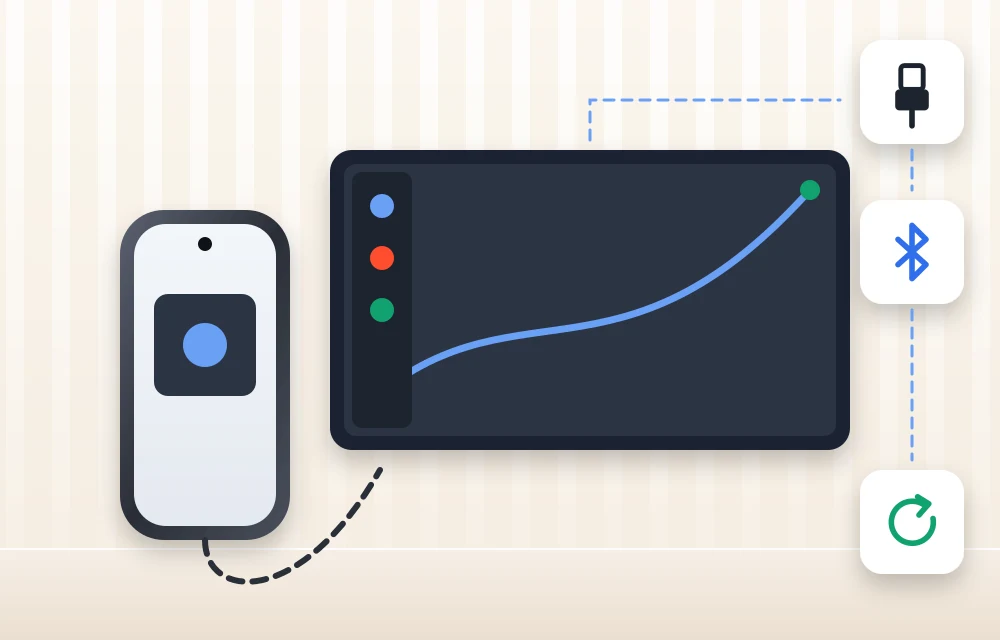
Samsung phone connected to a car dashboard screen for Android Auto
If your Galaxy phone updated to One UI 9 and Android Auto suddenly stopped working in your car, you’re not imagining it. Many Samsung owners have reported the same thing since the Android 17 based update arrived. Android Auto won’t start, it keeps disconnecting, or the car just shows a charging icon and nothing else.
The good news is that Google has acknowledged the problem and says a fix is rolling out. The less good news is that Google hasn’t said exactly how that fix reaches your phone. In this guide I’ll explain what’s going on, how to give yourself the best chance of getting the fix, and what you can try in the meantime for both wired and wireless Android Auto.
One thing up front: I’ve only included menu paths that Samsung or Google have published. Where I couldn’t confirm a path on One UI 9, I’ll tell you so you’re not hunting for a menu that may not exist.
Quick answer: Google has confirmed a fix for Android Auto connection problems on Samsung phones running One UI 9 (Android 17), and on November 3, 2026 it told 9to5Google that “a fix has been rolled out.” To make sure you have it, update Android Auto and Google Play services from the Play Store, install any pending Samsung system update, and test again in the car. If wired Android Auto still won’t start, pull down the Quick panel and switch the USB mode from charging only to “Transferring files / Android Auto.”
What’s going wrong with Android Auto on One UI 9
After updating to One UI 9, some Galaxy owners say Android Auto won’t connect at all, while others say it connects and then keeps dropping. According to Android Authority, switching to a USB cable didn’t help in the reported cases, so this isn’t only a wireless problem. 9to5Google also mentions choppy, stuttering performance for people who do manage to connect.
The reports cover several models. A Samsung US Community thread about the Galaxy S26 started around October 13, 2026. There are also reports from Galaxy A55 5G owners on Google’s Android Auto Help forum and from Galaxy S24 Ultra owners who saw the problem right after installing One UI 9. Meanwhile, phones still on One UI 8.5, including a Galaxy S25 Edge, connected normally, which points pretty clearly at the update.
That said, not every phone is affected. Plenty of Galaxy owners say Android Auto works fine for them on One UI 9. So if yours is broken, it’s a real bug, but it isn’t universal.
A quick note on One UI 9 itself: it’s Samsung’s software built on Android 17, and it’s still reaching more Galaxy phones each week. I couldn’t confirm the official release date or the full list of supported devices, so I’m not going to guess.
What Google has said about the fix
The first sign that Google was paying attention came on the Android Auto Help forum, where a Google Community Specialist replied that the report had been passed to the Android Auto team.
Then a Google spokesperson told Android Authority that a fix for what Google called an “Android 17 / One UI 9” issue was rolling out, and that “the issue should be resolved soon.” On November 3, 2026, Google went a step further and told 9to5Google that “a fix has been rolled out.”
Here’s what’s still missing. Google hasn’t published its own blog post or support page about this. It also hasn’t said which Android Auto app version, Samsung firmware or delivery method carries the fix, and it hasn’t given a timeline for every affected phone. That’s why the steps below cover every place the fix could plausibly come from.
How to make sure you get Google’s fix
These steps are what news outlets recommend after Google’s statement. They aren’t official instructions from Google, but they’re sensible and quick.
- Open the Google Play Store, search for Android Auto, and tap Update if an update is available.
- Check the Play Store for a Google Play services update as well and install it if one is waiting.
- Install any pending Samsung system update from your phone’s software update settings. I couldn’t confirm the exact menu name on One UI 9, but it lives in Settings.
- Check whether your car’s infotainment system has an update. Your car’s manual or the maker’s website should explain how.
- Test Android Auto in the car again.
Haven’t installed One UI 9 yet?
If you rely on Android Auto every day and your phone hasn’t moved to One UI 9 yet, it’s reasonable to hold off on the update until you’re confident the fix has reached people with your model. Waiting a little is a lot less annoying than losing navigation on your commute.
Report the problem to Samsung
Samsung moderators are asking affected users to file a report. Open the Samsung Members app and go to Get help > Send feedback > Error reports. The more reports Samsung gets, the easier it is to spot patterns across models.
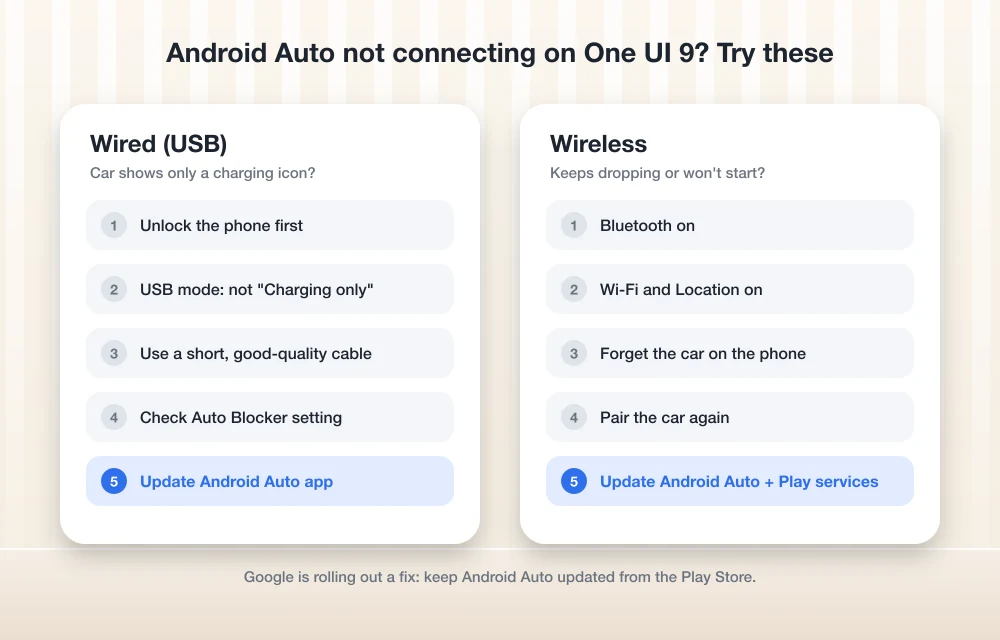
Fixes for wired Android Auto (USB)
Even with Google’s fix rolling out, some wired problems on Galaxy phones have nothing to do with this bug. These are worth checking because Samsung documents them officially.
Switch the USB mode away from “Charging phone only”
This is the big one if your car only shows a charging icon. Since One UI 8.0, Galaxy phones default to “Charging phone only” when you plug them in, and Samsung’s support page says this can stop Android Auto from starting. Here’s how to change it:
- Plug your phone into the car with the USB cable.
- Swipe down to open the Quick panel.
- Tap the “USB for charging phone” notification.
- Tap it again to see more options.
- Choose “Transferring files / Android Auto.”
Samsung’s screenshots come from a Galaxy S26 Ultra, but the page doesn’t say which One UI version it shows, so the labels may look slightly different on your phone.
Get past the lock screen first
Since Android 15 and One UI 7.0, your phone can’t be sitting on the lock screen when you connect, or Android Auto won’t start. Samsung’s troubleshooting guide suggests getting past the lock screen, unplugging and replugging the cable, and then setting the USB mode as shown above.
Try a shorter, better cable
Google’s Android Auto help page recommends a cable shorter than 3 feet (1 metre), no USB hubs or extension cables, and ideally the cable that came with your phone. Google also says that if Android Auto used to work, a new cable will likely fix it.
Samsung’s advice is similar: use a good cable that carries data, preferably an original Samsung one, because some cables only charge. To be honest, people hit by this specific One UI 9 bug said switching cables didn’t help, but a bad cable is so common that it’s worth ruling out.
Check Auto Blocker
Auto Blocker is a Samsung security feature that, when turned on, blocks commands sent over a USB cable. You’ll find it at Settings > Security and privacy > Auto Blocker, though Samsung notes menu names can vary by model and software version.
This isn’t a random suggestion. A past Samsung November security update made Auto Blocker block USB connections, which broke wired Android Auto for a lot of people. If you turn it off to test, I’d turn it back on afterwards, since it’s there to protect you.
What about “Default USB configuration” in Developer options?
You’ll see some sites suggest going to Developer options > Default USB configuration and setting it to file transfer. Samsung doesn’t document this for Android Auto, and the only source I found is a third-party site, which also says One UI may reset the setting. Treat it as an unofficial trick at best. I’d stick with the Quick panel method above.
Fixes for wireless Android Auto
Check the basics
According to Google, wireless Android Auto needs Android 11 or later plus a car or aftermarket stereo that supports wireless. One UI 9 is built on Android 17, so your phone is fine. If wireless never worked in your car, it’s worth confirming the car actually supports it.
Keep Bluetooth, Wi-Fi and Location on
Google’s setup guide says to keep Bluetooth, Wi-Fi and Location turned on during setup, pair with the car over Bluetooth the first time, and have the car in Park. Wireless Android Auto uses Bluetooth to start the connection and Wi-Fi to carry it, so having either one off can stop it cold.
Forget the car and pair it again
Google’s generic Android path is Settings > Connected devices > Connection preferences > Android Auto > Previously connected cars. I couldn’t find a Samsung page confirming this path on One UI 9, and Samsung’s Settings menus are laid out differently from stock Android. If you can’t find it, try the search bar at the top of Settings. It also helps to remove your phone from the car’s own Bluetooth list, following your car’s manual, before pairing fresh.
Fair warning: people affected by this bug said re-pairing didn’t fix it for them. It’s still useful if your connection was flaky before One UI 9.
Other tricks people are trying (not official)
These come from community posts, not Samsung or Google, so keep your expectations in check.
Clear Android Auto’s cache
A Samsung community post suggests Settings > Apps > Android Auto > Storage > Clear cache, with Clear data as a stronger option. There’s no official page for this on One UI 9, and affected users told Android Authority that clearing data and re-pairing didn’t help with this particular bug. Clear data also wipes your Android Auto settings, so you’ll need to set things up again.
Uninstall Android Auto updates
The person who started the Galaxy S26 thread said uninstalling Android Auto updates fixed it for them. That’s one person’s report, not an official fix, and I couldn’t confirm the exact One UI 9 menu for it. If you try it, remember to update Android Auto again later, since Google’s fix may arrive through an app update.
Battery optimization
A third-party site says battery optimization can cause Android Auto to disconnect. I couldn’t find a Samsung or Google page showing where that setting lives on One UI 9, so I’m not going to give you a path that might be wrong.
All the fixes at a glance
| Fix | Helps with | Source |
|---|---|---|
| Update Android Auto, Play services and Samsung software | Wired and wireless | News outlets, after Google confirmed the fix |
| Set USB mode to “Transferring files / Android Auto” | Wired | Samsung support |
| Get past the lock screen, then replug | Wired | Samsung support |
| Short data cable, no hubs or extensions | Wired | Google and Samsung support |
| Check Auto Blocker | Wired | Samsung support |
| Bluetooth, Wi-Fi and Location on, car in Park | Wireless | Google support |
| Forget and re-pair the car | Wired and wireless | Google (generic Android path) |
| Clear cache or uninstall Android Auto updates | Wired and wireless | Community reports only |
| Default USB configuration in Developer options | Wired | Third-party site only |
What I’d do right now
If I had an affected Galaxy phone, I’d start by updating Android Auto, Google Play services and my Samsung software, because that’s where Google’s fix is most likely to land. Then I’d check the USB mode in the Quick panel, since “Charging phone only” catches a lot of people out on its own. After that, I’d try a short original cable and glance at Auto Blocker.
If none of that works, file a report in Samsung Members and give it a few days. Google says the fix is out, and this kind of update bug usually fades once the patch reaches everyone. iPhone owners went through something similar with the iOS 26 Night Shift bug, so it’s not just a Samsung thing.
And once Android Auto is back, if you notice your phone getting hot on long drives, I’ve put together five fixes for Android Auto overheating that are worth a look.
Frequently Asked Questions
Has Google fixed Android Auto on One UI 9?
Google says yes. A spokesperson told Android Authority a fix was rolling out, and on November 3, 2026 Google told 9to5Google that a fix had been rolled out. Google hasn’t said which app version or update carries it, so update Android Auto, Google Play services and your Samsung software to be safe.
Why does my car only show a charging icon when I plug in my Galaxy phone?
Since One UI 8.0, Galaxy phones default to “Charging phone only” over USB, which can stop Android Auto from starting. Swipe down the Quick panel, tap the “USB for charging phone” notification, tap again for more options and choose “Transferring files / Android Auto.”
Which Galaxy phones have Android Auto problems on One UI 9?
Reports include the Galaxy S26, Galaxy A55 5G and Galaxy S24 Ultra after updating to One UI 9. Not every phone is affected, and phones still on One UI 8.5 connected normally in the reported cases.
Should I wait before installing One UI 9 if I use Android Auto?
If you rely on Android Auto daily and haven’t updated yet, waiting until the fix has clearly reached your model is a reasonable choice.
Will clearing Android Auto’s cache fix the One UI 9 problem?
Probably not. It’s a community suggestion with no official page, and affected users said clearing data and re-pairing didn’t help with this specific bug. It’s harmless to try, but Clear data resets your Android Auto settings.
You might also like
How to Update Android Apps
App updates are very important to let your device function properly with all the latest improvements tie up with the latest version of android. The all-time favorites like Clash of Clans, Asphalt, and many more games need frequent updates which they will automatically guide you through. Then what about those silent apps which never notify you…
How to Stop Google Play Store Auto Updating Apps Over WiFi
Have you ever faced a situation where you turn on WiFi after a long time and Google Play Store start updating installed apps continuously? This situation is irritating and consumes all the bandwidth while updating apps. Keeping the apps updated is always a good thing. But not that likeable in every situation. Sometimes, you may…
WiFi Speed Dropped? Here Are The Fixes For Sluggish WiFi Performance
WiFi routers became an essential part of our lives. Even in some rural areas we are seeing people using WiFi routers to connect their devices to the Internet. Today, I came up with a most common problem every WiFi user faces. It is sudden speed drops of WiFi signal resulting slow internet speed. There are…
The week in tech, minus the noise.
New reviews, fixes and the stories that matter — once a week, straight to your inbox.
We only use your email to send the newsletter. Unsubscribe any time. See our privacy policy.
Comments