

How to Take Screenshots Easily on Samsung Galaxy A3
Samsung has launched Galaxy A3 with a 4.5-inch qHD Super AMOLED display with a resolution of 960 x 540 pixels.The device is powered by 1.2GHz quad-core processor with 1GB of RAM. There is 16GB internal storage which is expandable via micro SD card. On the OS side, the device runs Android 4.4 KitKat out of…

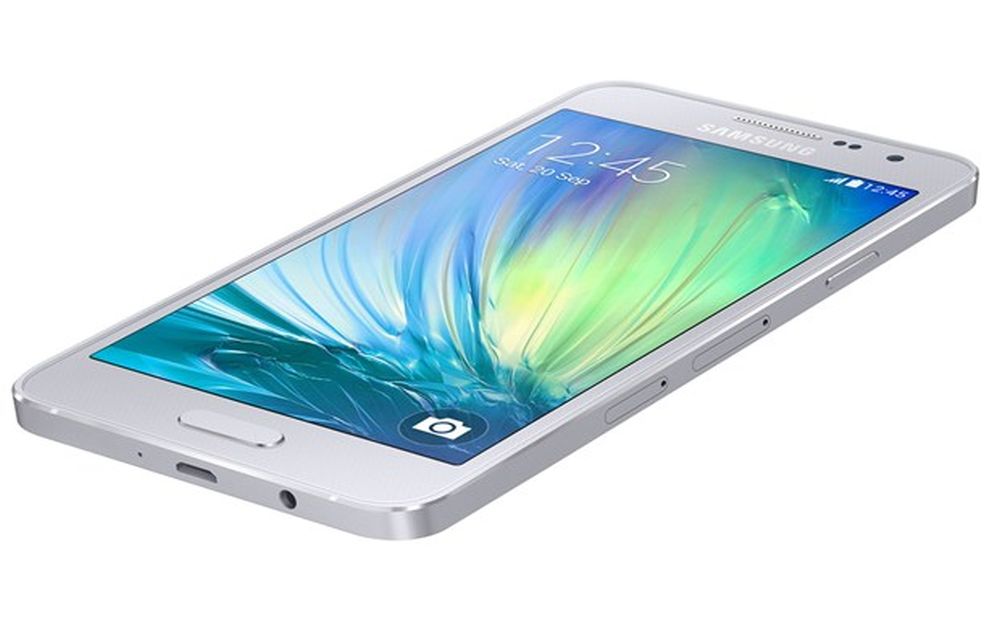
Samsung has launched Galaxy A3 with a 4.5-inch qHD Super AMOLED display with a resolution of 960 x 540 pixels.The device is powered by 1.2GHz quad-core processor with 1GB of RAM. There is 16GB internal storage which is expandable via micro SD card. On the OS side, the device runs Android 4.4 KitKat out of the box with Samsung’s TouchWiz UI. If you are the owner of the A3 device and looking for a way to capture screenshots on your device, here is our guide.
Samsung Galaxy A3 specifications
- 4.5-inch (960 x 540 pixels) qHD Super AMOLED display
- 1.2GHz quad-core processor
- Android 4.4 (KitKat)
- 1GB RAM
- 16GB internal memory, expandable up to 64GB with microSD
- 8MP rear camera with LED flash, 1080p video recording, and 5MP front-facing camera
How to Take Screenshots using Palm-Swipe Method
This feature is present in almost all of the latest Samsung TouchWiz phones.
1.First, you need to activate the gesture you want to use for taking screenshots of the device. To add a gesture go to the settings app and select the Motion menu.
2.From the Motion menu, go to Hand Motions and then check the Palm Swipe to Capture.
3.Close the settings app, head to the screen which you want to capture.
4.Now move your hand in front of the device like a knife edge to edge. If the action successfully registered, now try your luck by moving the hand by performing the same gesture. Now the device saves a screenshot for you. You can find the captured screenshot in Pictures > Screenshots folder
How to Take Screenshots using Hardware Buttons Method
1.Open your desired app or game screen you want to capture.
2.Now press and hold the Power and Home buttons together.
3.After successful hardware buttons pressing the device makes a capture sound.
4.Now you can find the captured screenshot in Pictures > Screenshots folder.
That’s all for now. Please do share your views in the comment box below.
More in How-to
How to Take Screenshots Easily On Samsung Galaxy S6 Edge Plus
Samsung Galaxy S6 Edge Android smartphone announced in March 2015. The device is feature packed and powerful to handle all tasks. The S6 is very sleek and ergonomic, it is very smooth and perfect in hands. The S6 Edge screen is a next-gen welcoming screen with great viewing angles and bright display. If you are…
How to Take Screenshots in Samsung Galaxy J7
Samsung Galaxy j7 is a device with a simple design and great hardware. The device was first introduced in June 2015 and still continuing its success story. This article only applies to the Samsung GalaxyJ7 owners. If you own a J7 and want to learn How to Take Screenshots in Samsung Galaxy J7, Continue reading and the others can take a diversion to:
How to Take a Screenshot on Android
In the early days of Android OS, we required some special access or may be the root privileges to take a screenshot on Android. However, those days are gone. We can now take a screenshot on Android by a variety of ways possible. How to Take a Screenshot on Android: Taking Screenshot of your Android…
The week in tech, minus the noise.
New reviews, fixes and the stories that matter — once a week, straight to your inbox.
We only use your email to send the newsletter. Unsubscribe any time. See our privacy policy.
Comments