

How to Enable or Disable Automatic Updates for iOS Apps
IOS app updates are always useful for keeping IOS apps up to date. You don’t want to pay attention to the app updates until you turn off the automatic updates. Turning on the automatic updates will assign the job to the iPhone itself. This great future may sometimes hit you badly, especially if you are…

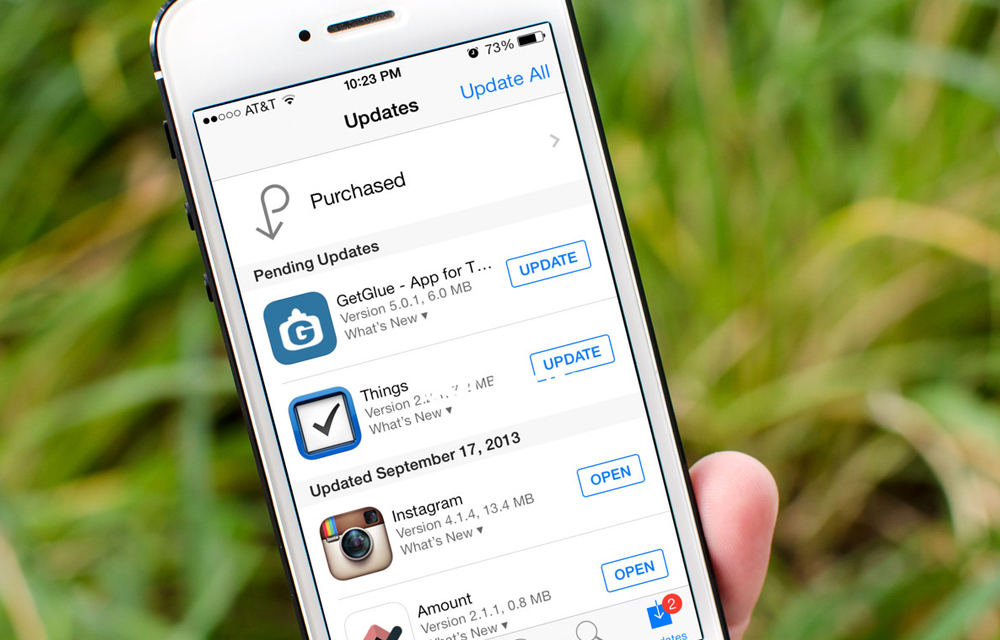
enable-disable-automatic-updates-for-ios-apps
IOS app updates are always useful for keeping IOS apps up to date. You don’t want to pay attention to the app updates until you turn off the automatic updates. Turning on the automatic updates will assign the job to the iPhone itself. This great future may sometimes hit you badly, especially if you are a mobile data user. The automatic updates will use a lot of mobile data to keep all the apps updated. As we are all browsing the internet with an irritating limit set by the mobile operators, we always try to eat the mobile data slowly like a precious food in our hand. But, what happens that if that food suddenly eaten by the IOS app updates?… We will get irritated and screams towards the device.
So, We wrote this article on How to enable or disable automatic updates for iOS apps. After reading this article, you will get a definitive idea about disabling and enabling the ios app updates to save your mobile data considerably. Carefully follow the steps given below to completely get the result which you are expecting.
How to Enable or Disable Automatic Updates for iOS Apps
- Go to the “Settings” by tapping the settings icon in your app screen.
- Find the “iTunes & App Store” on the left side of the settings screen and tap it.
- Once you are on “iTunes & App Store” window, You will see some options on the right side. Simply turn off the Update by sliding or tapping the button right to it.
NOTE: We are now looking to Turn on the Automatic updates only. But, there are other options which can be turned off from downloading automatically. You can turn off the automatic downloading of the Music, Apps, Books etc… which will help you to save your valuable mobile data.
The Green button will turn white once the automatic updates disabled. If you need to only save the mobile data and if you having a Wifi connection, you can turn off the automatic updates only for the mobile data by disabling “Use Cellular Data” option which is on the bottom of the screen.
Any of the above options can be again turned on by simply tapping on the same button which you used to disable them. It is recommended to turn off all the updates unless you need them because it can save a lot of mobile data which is very worthy to you.
More in How-to
How to Enable or Disable Auto iOS Updates?
Like Google, Apple also releases frequent iOS updates to ensure that iOS is bug-free and new features are also released through iOS updates. In the recently commenced WWDC 2019, Apple released the 13th iteration of its iOS operating software. iOS 13 packs multiple useful features. Some of the noteworthy features of iOS 13 are Dark…
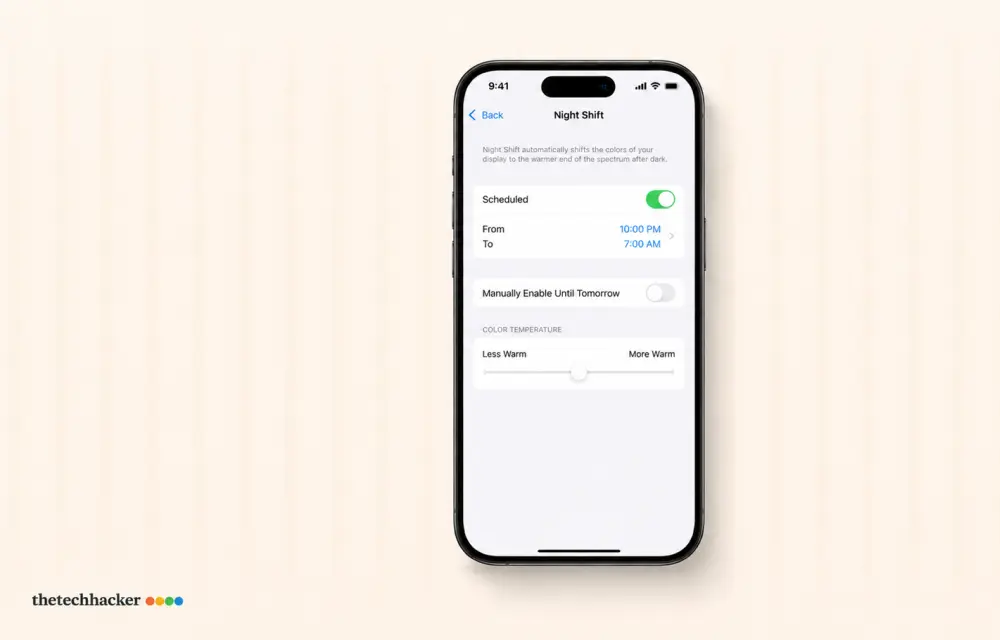
How To Fix iPhone iOS 26 Night Shift Auto Turn-Off
Discover how to prevent your iPhone’s Night Shift from turning off prematurely after the iOS 26 update with these easy steps.
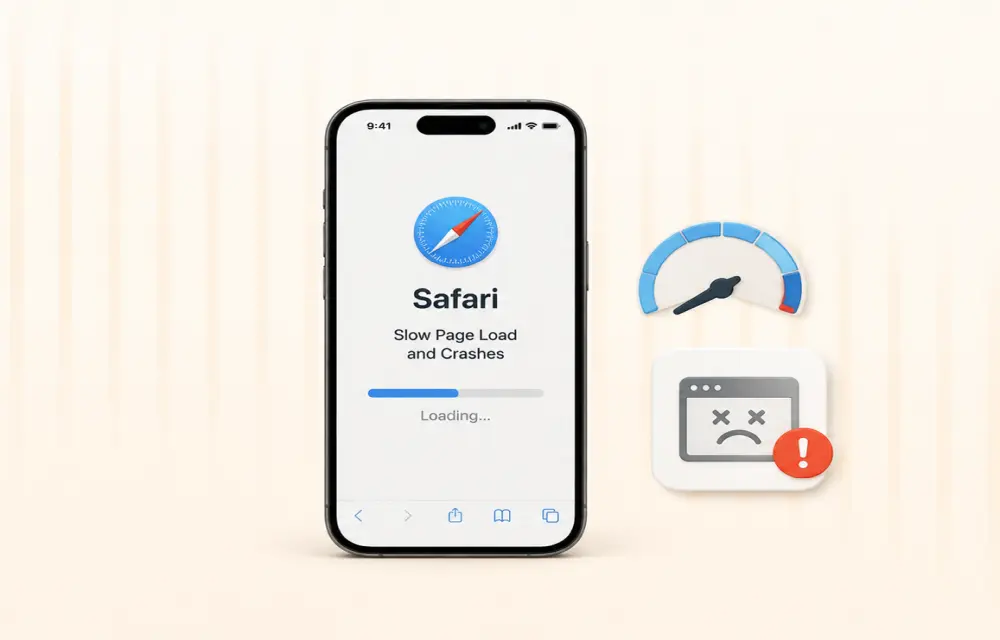
How to Fix Safari Slow Page Load and Crashes After iOS 26 Update
After installing iOS 26, many iPhone users are reporting that Safari has become noticeably slower. Pages take longer to load, scrolling feels laggy, and in some cases, the browser crashes altogether. While some performance dips are common after a major iOS update, the severity of these reports suggests deeper compatibility issues. The good news: most…
The week in tech, minus the noise.
New reviews, fixes and the stories that matter — once a week, straight to your inbox.
We only use your email to send the newsletter. Unsubscribe any time. See our privacy policy.
Comments