

Top 5 Ways To Turn Your iPad More Productive
The Apple products are always on the top of their quality and durability. The iPad is also not different from this. Alongside with a bunch of useful features and good performance, the iPad is a heart touching device. If you owning one, it will be great. Your sweet device can be sweetened more by turning…


Top 5 Ways To Turn Your iPad More Productive
The Apple products are always on the top of their quality and durability. The iPad is also not different from this. Alongside with a bunch of useful features and good performance, the iPad is a heart touching device. If you owning one, it will be great. Your sweet device can be sweetened more by turning it more productive.
It can be used more versatile if you make it a little more productive one. The productivity of any device is a great factor which in-built the popularity through the feature. So, we have listed some of those important methods to get the complete juice of your iPad and make it more productive and we are sharing the Top 5 ways to turn Your iPad more productive.
1. Reorganize the Apps
There are hundreds of built-in features and our own apps were poured on the screen. The Home screen will be a waste bin of those unused apps and features and we are accessing the most often used ones by navigating a long way. To increase the usability and easy to access of those ones, Reorganize the screen with the most used ones first and remove those often used ones and also make some changes in Settings to make it a better place to work with. This will considerably save your time.
2. Use an External Keyboard
Instead of using the onscreen keyboard on the iPad screen, try an External keyboard which is more comfortable than tapping on the screen. Most of you will be familiar with computer keyboards and some of you may be some good typists. So, it is always better to use the familiar keyboard for better typing speed and comfort. It will considerably increase the ease of use.
3. Workflow
Workflow is a great tool which implements a number of most useful features at one place. It greatly boosts the productivity of your device with the most useful features like PDF creator, GIF maker, Calculator, Tracking and all of your Favorite apps like Facebook, Dropbox. All of them arranged in categories and can be rearrange them as we decide. You can simply create workflows which connect apps together and automate the tasks you do on your device. A great tool which can help you in multiple ways with its elegant and extreme features. To be more productive on your iPad you must consider this one.
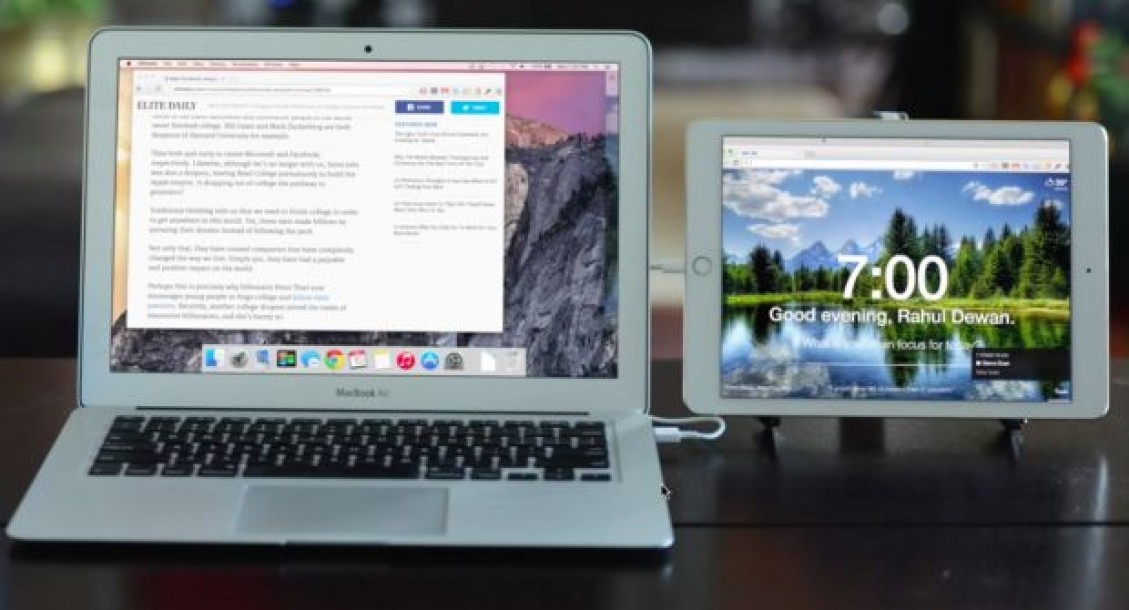
4. Use it as a Second monitor of your PC
Want a second monitor for your PC?. Why go for a PC monitor if you own an iPad. There are several apps available on the market which can connect your iPad as a second monitor of your PC. Air Display, iDisplay, REDFLY ScreenSlider are some of this kind. They can cheat the computer by implementing the iPad as a second monitor, thus, the PC displays the content on the iPad. A bad news is that most of such kind of apps are not available for free. you want to pay a small remuneration for the service they provide.
5. Airplane Mode to Charge Twice Faster
Airplane mode is not just a secure mode which blocks your access to certain features of the device. It has some good sides too. While on the airplane mode, the device completely set up for a secure environment by blocking the connectivity features like Call, wifi, Bluetooth and many other options which use most of the power inside the device. So, while we put it in the airplane mode alongside with charging it, we can definitely get a better charging speed. The results show that the iPad is charging almost Double faster than the normal charging in airplane mode. So, just Charge.
More in How-to
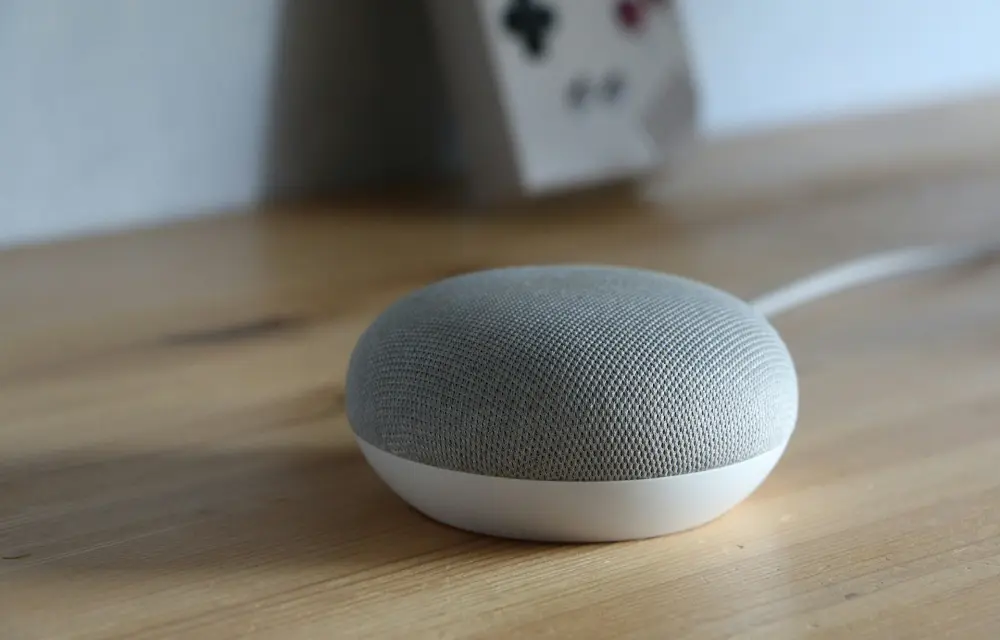
How to Use a Google Home as an External Bluetooth Speaker?
Technology is becoming more and more user-friendly. You don’t need to buy on an expensive Bluetooth speaker just to boost your iPhone or iPad audio. If you already own a Google Home or Nest Mini, you’re sitting on a perfectly capable external speaker that can be paired with your device in minutes. Google Home wasn’t…
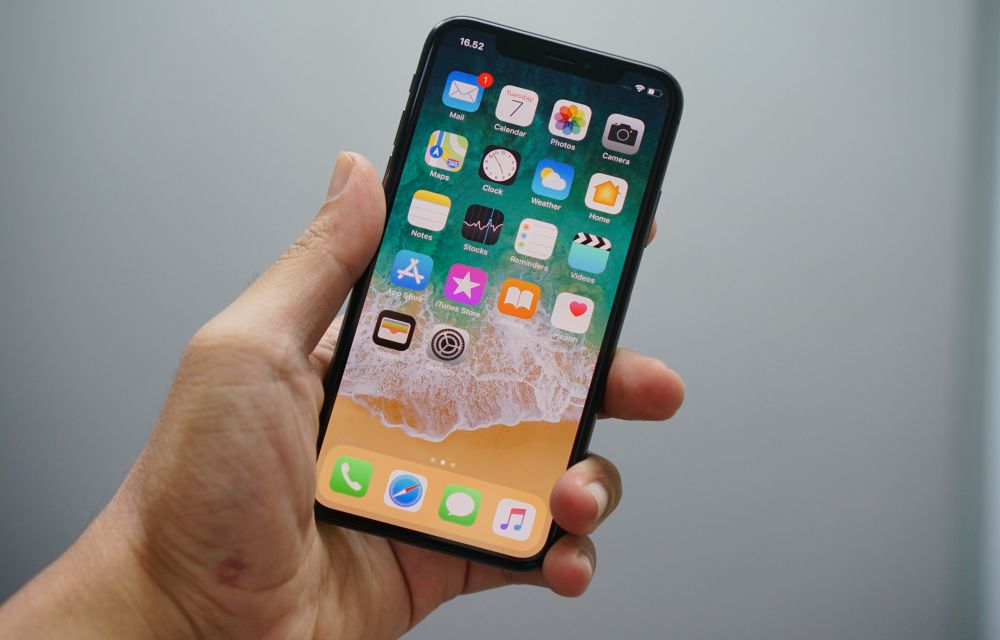
How to Take a Screenshot on iPhone, iPad, and iPod Touch
Sometimes we just need a screenshot. A screenshot is nothing but capturing of the screen at a present state. Reasons for taking screenshots is many, people just want to take a screenshot for remembering a thing on the screen or saving a sudden moment which is happened on screen. It is just like a print…
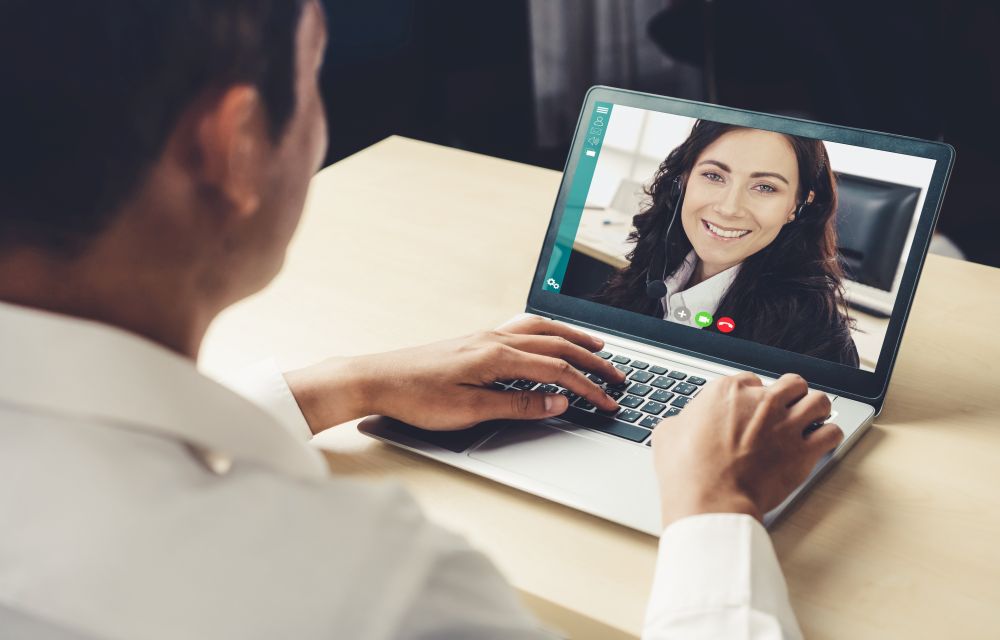
How to Change Zoom Background in Windows, Mac and iOS
Knowing how to change your Zoom background is quintessential to make your virtual meetings more productive. Additionally, while you work from home, there’s always a chance of your bedroom or home office being messy or cluttered. But that won’t be a problem if you change your Zoom background to something pleasant so that it feels…
The week in tech, minus the noise.
New reviews, fixes and the stories that matter — once a week, straight to your inbox.
We only use your email to send the newsletter. Unsubscribe any time. See our privacy policy.
Comments