

How to Turn On Advanced Data Protection for iCloud on iPhone, iPad and Mac
By default, a lot of what you store in iCloud is encrypted in a way that Apple can unlock, including your iPhone backups, photos and notes. That’s convenient if you forget your password, because Apple can help you get back in. But it also means that data could be handed over in response to a…

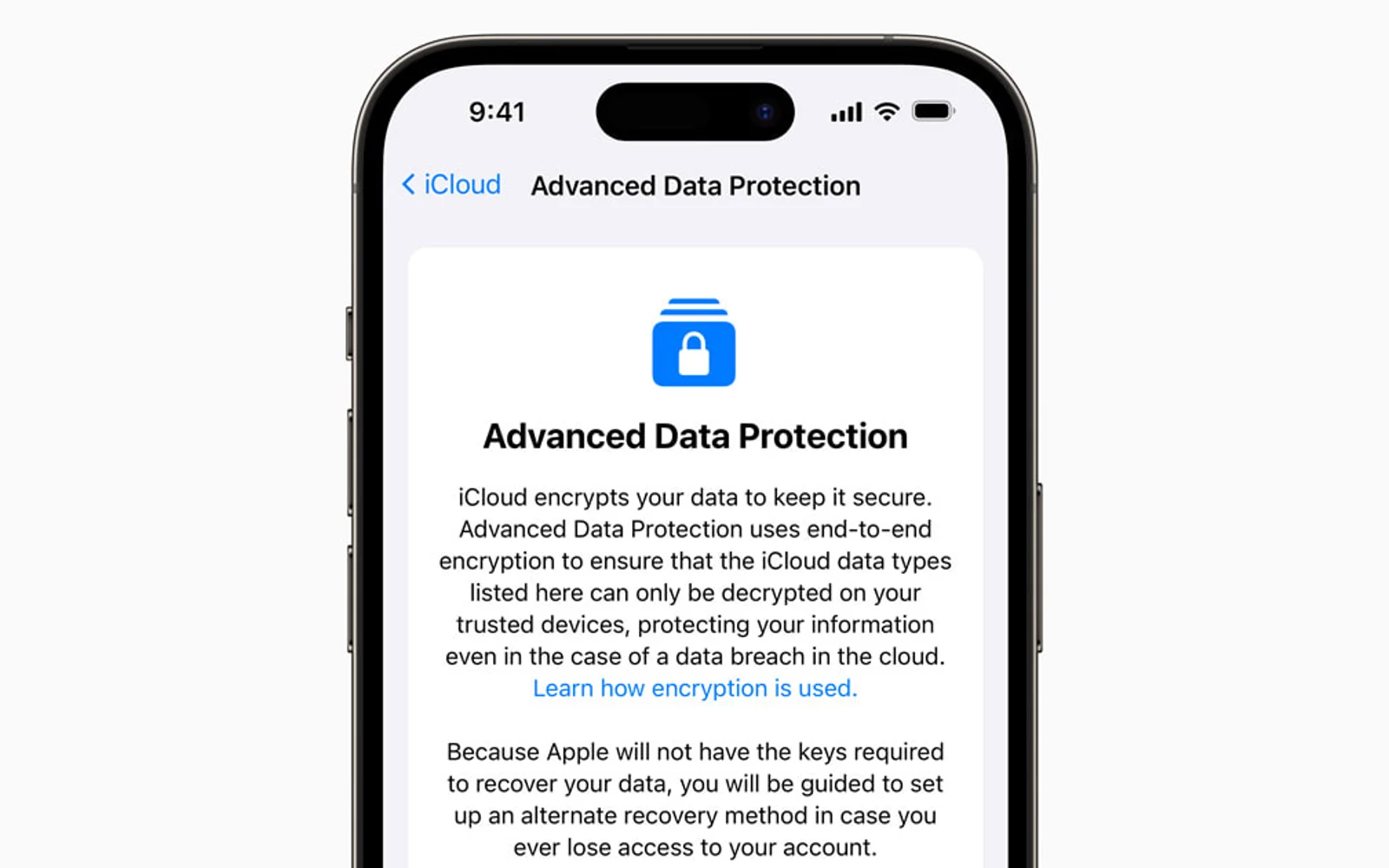
Image: Apple
By default, a lot of what you store in iCloud is encrypted in a way that Apple can unlock, including your iPhone backups, photos and notes. That’s convenient if you forget your password, because Apple can help you get back in. But it also means that data could be handed over in response to a legal request or exposed in a breach of Apple’s servers. Advanced Data Protection changes that by giving only your devices the keys. It’s a free setting, and US users can turn it on in a few minutes, but it has one big catch you need to understand first.
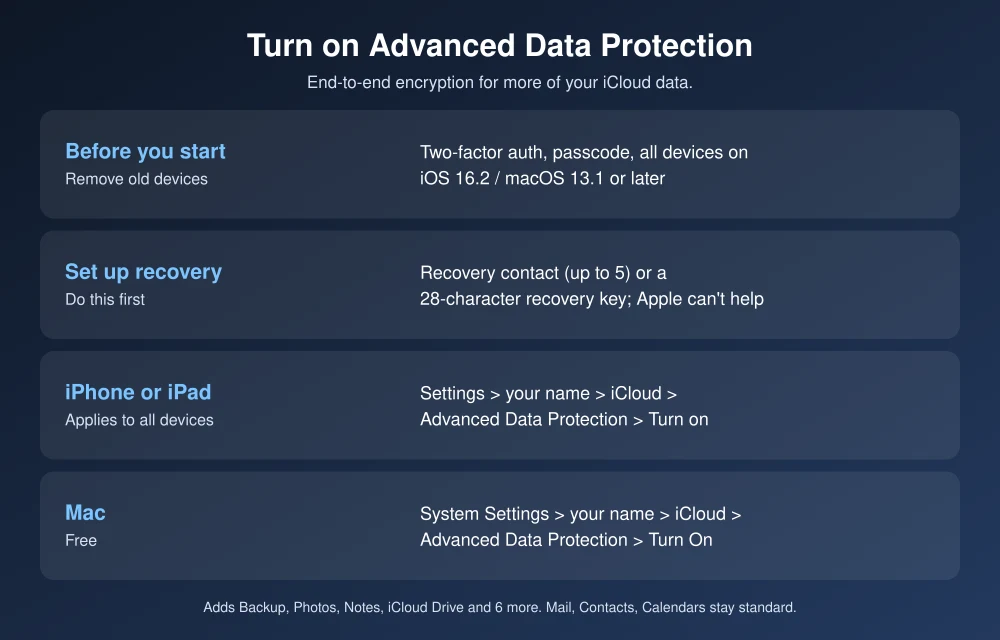
Quick answer: On iPhone or iPad, go to Settings, tap your name, then iCloud, Advanced Data Protection and Turn on Advanced Data Protection. On a Mac, open System Settings, click your name, then iCloud, Advanced Data Protection and Turn On. You’ll need two-factor authentication, a device passcode, every signed-in device updated (iOS 16.2, macOS 13.1 or later), and a recovery contact or recovery key, because Apple can’t recover this data for you.
What Advanced Data Protection actually protects
According to Apple’s iCloud data security overview, standard protection already end-to-end encrypts 15 categories, including Passwords and Keychain, Health, Messages in iCloud and payment information. Advanced Data Protection adds 10 more, for 25 in total:
- iCloud Backup, including device backups and Messages backups
- Photos and iCloud Drive
- Notes, Reminders, Voice Memos and Freeform
- Safari Bookmarks, Shortcuts and Wallet passes
Three things stay outside end-to-end encryption even with it on: iCloud Mail, Contacts and Calendars, because they need to work with standard email and calendar systems. Some metadata, like file modification dates, also stays under standard protection.
Before you start: what you need
From Apple’s setup guide:
- Two-factor authentication on your Apple Account.
- A passcode on your iPhone or iPad, or a login password on your Mac.
- Every device signed in to your account updated to at least iOS 16.2, iPadOS 16.2, macOS 13.1, watchOS 9.2, tvOS 16.2, HomePod 16.0 or iCloud for Windows 14.1. An old device you forgot about can block setup, so remove it from your account if you no longer use it.
- A recovery contact or recovery key. You’ll be guided to set one up.
Managed Apple Accounts (work or school) and child accounts can’t use it.
How to turn on Advanced Data Protection on iPhone or iPad
- Update to the latest iOS or iPadOS.
- Open Settings and tap your name.
- Tap iCloud, scroll down and tap Advanced Data Protection.
- Tap Turn on Advanced Data Protection.
- Follow the steps to review or set up your recovery contact or recovery key, then confirm.
How to turn it on on a Mac
- Choose Apple menu, then System Settings.
- Click your name, then iCloud.
- Click Advanced Data Protection, then Turn On.
- Follow the onscreen steps.
Turning it on from one device turns it on for your whole account and all your compatible devices.
Set up recovery first (this is the important part)
With Advanced Data Protection on, Apple doesn’t have the keys to your end-to-end encrypted data, so it can’t help you recover it. If you lose your devices and forget your passcode, you need one of these:
- Recovery contact: a trusted friend or family member with an Apple device who can give you a code. They can’t see your data. Set it up in Settings, your name, Sign-In & Security, Recovery Contacts. You can add up to five.
- Recovery key: a 28-character code. Set it up in Settings, your name, Sign-In & Security, Recovery Key. Apple warns that if you lose it, you could be locked out permanently. Write it down and store it somewhere safe offline, not in Notes, Photos or iCloud Drive.
Our advice: set up a recovery contact even if you also create a recovery key. Two ways back in is safer than one.
What changes after you turn it on
- iCloud.com access is off by default. You can turn web access back on, and Apple says a trusted device can approve temporary access when you need it.
- New devices need approval. When you sign in on a new device, encrypted data won’t sync until you confirm with your passcode, a recovery contact or your recovery key.
- Shared content stays end-to-end encrypted only if everyone you share with also has Advanced Data Protection on. Shared Albums, iWork collaboration and “anyone with the link” sharing aren’t covered.
How to turn it off
Go to Settings, your name, iCloud, and turn off Advanced Data Protection (or System Settings, your name, iCloud, Advanced Data Protection, Turn Off on a Mac). Your device uploads the needed keys to Apple and your account returns to standard protection.
Should you turn it on?
- Yes if you keep sensitive documents, photos or backups in iCloud and you’re comfortable managing a recovery contact or key.
- Think carefully if you often forget passwords or have older Apple devices you still use, since every device must be updated and Apple can’t rescue your data.
Pair it with the basics: our data breach checklist and credit freeze guide. And if iCloud ever seems down, check our guide to fixing Apple services not working.
FAQs
Is Advanced Data Protection free?
Yes. It’s a free iCloud setting for any eligible Apple Account with two-factor authentication.
What happens if I lose my recovery key?
Apple says it can’t provide your recovery key, and you could be permanently locked out if you lose it and can’t use your passcode or a recovery contact. Store it safely offline.
Does Advanced Data Protection encrypt iCloud Mail?
No. iCloud Mail, Contacts and Calendars aren’t end-to-end encrypted, even with Advanced Data Protection on.
Can I still use iCloud.com with Advanced Data Protection?
Web access is off by default, but you can turn it on, and a trusted device can approve temporary access.
Featured image: Apple.
Disclosure: TheTechHacker has no paid relationship with Apple or any company mentioned here.
More in How-to
How to Fix Safari Slow Page Load and Crashes After iOS 26 Update
After installing iOS 26, many iPhone users are reporting that Safari has become noticeably slower. Pages take longer to load, scrolling feels laggy, and in some cases, the browser crashes altogether. While some performance dips are common after a major iOS update, the severity of these reports suggests deeper compatibility issues. The good news: most…
How to block emails on iCloud mail?
iCloud mail is a good emailing service from the very popular Apple. iCloud mail is one of the services comes with every Apple user. An Apple ID is essential for every Apple device user including Mac, iPhone, and iPad. The iCloud email is a feature-rich email service with a decent user-interface. No matter whether it…

How to Enable or Disable Auto iOS Updates?
Like Google, Apple also releases frequent iOS updates to ensure that iOS is bug-free and new features are also released through iOS updates. In the recently commenced WWDC 2019, Apple released the 13th iteration of its iOS operating software. iOS 13 packs multiple useful features. Some of the noteworthy features of iOS 13 are Dark…
The week in tech, minus the noise.
New reviews, fixes and the stories that matter — once a week, straight to your inbox.
We only use your email to send the newsletter. Unsubscribe any time. See our privacy policy.
Comments