

How to Enable Voice Typing on Android Devices
Voice typing is a great way to interact with your device using your voice. The modern-day devices (Android 2.3 and Above) all consist of this great feature to make your device more productive. All you needed to speak the desired sentences. The device will automatically detect the voice and convert it into text on your text…


How to Enable Voice Typing on Android Devices
Voice typing is a great way to interact with your device using your voice. The modern-day devices (Android 2.3 and Above) all consist of this great feature to make your device more productive. All you needed to speak the desired sentences. The device will automatically detect the voice and convert it into text on your text fields. Voice typing is a great alternative to the traditional keyboards coming with the Android smartphones. It made a revolutionary change in typing by making the task so simple than the keyboard method.
There are two ways you can enable the voice typing on your device. The online typing and the offline typing. To enable offline voice typing, your smartphone must be running on Android 4.2 or above. Through offline voice typing, you can type without an internet connection.
Note: Normally, voice typing requires an Internet connection. If you need to use the voice typing offline, you have to download the required language pack from the “Google Voice Typing” settings. This will enable the offline voice typing feature.
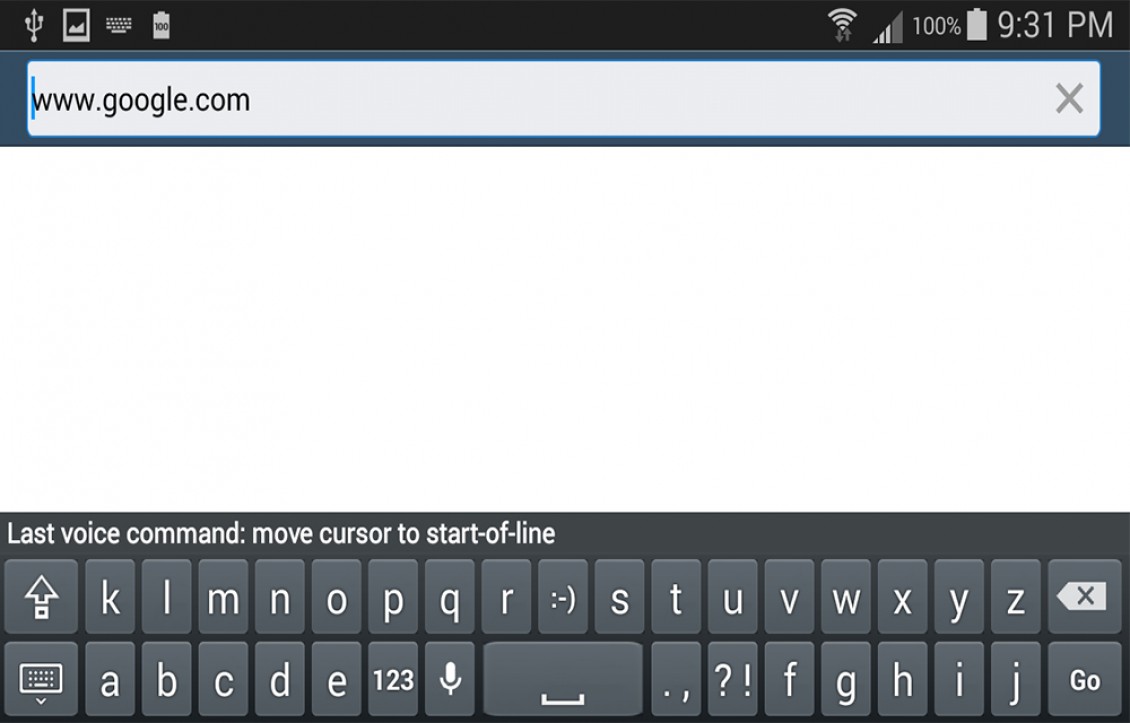
How to Enable Voice Typing on Android Devices Using Google Voice Typing
To enable voice typing on Android devices using google voice typing, Carefully follow the steps given below.
- Go to the Settings Screen of your device.
- Go to “Language and Input” option in the Settings screen.
- Select“Google Voice Typing.”
- Now, you enabled the google voice typing option as your Default input option.
- So, While typing anything, just select “Google Voice Typing” from the notification bar.
- Now, you will see a Mic in the middle which prompts you to speak.
- You can just start speaking, and it will start typing.
Now, Voice typing is active on your android smartphone. Try to make your voice clearer to get the exact results as per your intention. There is a chance of errors in the Voice typed text. They can be cleared later. It is always better than writing the whole content by repeatedly tapping on the screen. Moreover, the Voice type feature also let you speak in languages other than English. To change the speaking language, just tap on the “Gear” icon next to “Google Voice Typing” and select “Languages.” There you can select the available languages.
More in Android

How to Scan QR Codes on Android
QR code is the new way to interact with the world of information, scan and gain access to information linked to that code such as a link to a website, etc. This obviates the need to remember and type it in a web browser. Its importance is not just providing comfort to the user, but…

Android SD Card File Categories Explained
We see Android devices with various types of internal memory options. Some devices come with large internal memory capacities and some are very low with 8GB options. If you are an entertainment lover the low memory option is not sufficient to maintain data. Ultimately external SD card is the only option to expand the memory.…

How to Record Call on Android
There are many reasons you should have a call recorder on your phone. If you need to record a conversation for legal reasons, having a call recorder in your phone will make it easy. You might also need to remember something said during a phone call; a call recorder can help you do that. Or…
The week in tech, minus the noise.
New reviews, fixes and the stories that matter — once a week, straight to your inbox.
We only use your email to send the newsletter. Unsubscribe any time. See our privacy policy.
Comments