

How to Turn off Automatic App Updates in Android
If you are fed up with losing your mobile or Wi-Fi data to automatic app updates on Android, it is a good idea to turn them off before you lose much more. Also, a few updates turn out to be problematic. Some new versions can bring unwanted bugs that slow the app down or cause…

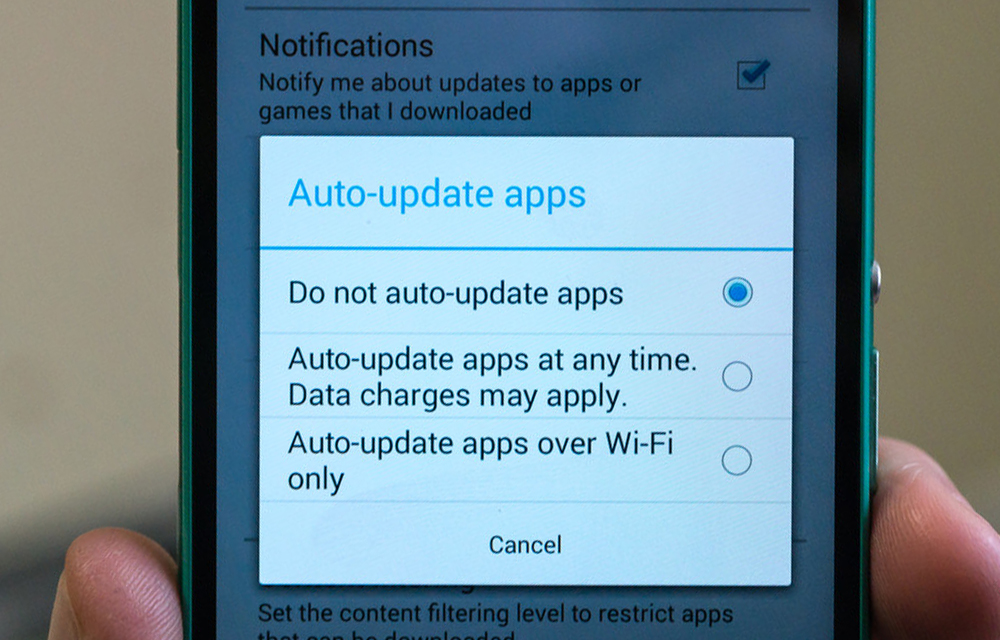
If you are fed up with losing your mobile or Wi-Fi data to automatic app updates on Android, it is a good idea to turn them off before you lose much more. Also, a few updates turn out to be problematic. Some new versions can bring unwanted bugs that slow the app down or cause errors while it is running. Reviews of a new version are available in the review section of the Google Play Store, so before updating an app you can check what other users are saying about that particular version. This is another reason to stop automatic app updates on Android. Luckily, you can turn the automatic updates feature on or off on Android.
So, in this article, we are going to share an effective way to turn off automatic app updates in Android. These simple steps will help you get rid of this problem in just a few minutes. So, let’s have a look.
How to Turn off Automatic App Updates in Android
The Google Play Store menu has changed over the years. The old Menu > Settings path is gone, and settings now live under your profile picture. Here are the current steps:
- Open the Google Play Store app on your smartphone.
- Tap your profile picture (or initial) in the top-right corner.
- Tap Settings.
- Tap Network preferences to expand it.
- Tap Auto-update apps.
- Select Don’t auto-update apps and tap OK if asked.
That’s it. You have successfully disabled automatic app updates on your Android smartphone.
Note: There are two other options there:
- Over any network: Apps update anytime, using either Wi-Fi or mobile data.
- Over Wi-Fi only: Apps update only when you are connected to a Wi-Fi network. This is recommended for anyone who wants to save mobile data but still keep apps up to date.
You can select any one of these to get a personalized app update setting.
How to turn off auto-update for a single app
If you are happy with automatic updates in general but want to keep one particular app on its current version, you can turn off updates just for that app:
- Open the Google Play Store.
- Search for the app and open its page.
- Tap the three-dot menu in the top-right corner.
- Uncheck Enable auto update.
The app will now wait for you to update it manually, even if auto-update is on for everything else.
Samsung Galaxy phones: check the Galaxy Store too
Samsung phones have a second app store, the Galaxy Store, which updates Samsung’s own apps separately from Google Play. To control it, open Galaxy Store, tap the Menu button, open Settings (the gear icon), and look for the Auto update apps option. Choose the setting that turns it off, or limit it to Wi-Fi only. The exact wording can vary between Galaxy Store versions.
How to update apps manually
Turning off auto-update does not mean you should stop updating. Updates often fix security problems, so check for them now and then:
- Open the Google Play Store and tap your profile picture.
- Tap Manage apps & device.
- Under Updates available, tap See details to pick the apps you want to update, or tap Update all.
Android also lets you manage app updates in a couple more ways. To know more, read our article on how to update android apps.
Still seeing apps update? Try these fixes
- Check you are on the right account: If you use more than one Google account on the phone, switch between them in the Play Store and check the setting on each one.
- System apps and Google Play services: Some Google system components, such as Google Play services and Google Play system updates, are updated separately and may still update in the background.
- Other app stores: If you installed apps from another store, such as the Galaxy Store, that store has its own update settings.
- Update the Play Store itself: If you cannot find the options above, your Play Store may be outdated. Open Play Store Settings > About and tap Update Play Store.
Tips
- Choosing Over Wi-Fi only is a good middle ground for most people: you save mobile data and still get security fixes.
- If an update breaks an app, some apps let you go back to the factory version from Settings > Apps by choosing Uninstall updates from the app’s menu. This option only appears for apps that came pre-installed on your phone.
- Read the “What’s new” section and the latest reviews on an app’s Play Store page before updating apps you rely on every day.
Frequently asked questions
Is it safe to turn off automatic app updates?
It is safe as long as you remember to update your apps manually from time to time. Outdated apps can miss important security fixes.
Will turning off auto-update stop Android system updates?
No. The Play Store setting only controls app updates. Android system updates are managed separately under Settings > System (or Software update on Samsung phones).
Why does the Play Store still update apps when I’m on mobile data?
Check that you selected Over Wi-Fi only or Don’t auto-update apps, and not Over any network. If you use more than one Google account, check the setting on each of them.
That’s all for now. We hope this guide helped you take control of app updates on your Android phone. Please do share your valuable feedback in the comment box below.
More in Android
How to Update Android Apps
App updates are very important to let your device function properly with all the latest improvements tie up with the latest version of android. The all-time favorites like Clash of Clans, Asphalt, and many more games need frequent updates which they will automatically guide you through. Then what about those silent apps which never notify you…
How to Fix the “Screen Overlay Detected” Error on Android Smartphones – Updated 2019
Screen Overlay Detected. An error that prevented you from using certain applications on your Android smartphone. The error will itself show you the solution, “You first have to turn off the screen overlay from Settings > Apps.” So, why don’t you just follow it and fix the issue? We are going to look at this…
How to Stop Google Play Store Auto Updating Apps Over WiFi
Have you ever faced a situation where you turn on WiFi after a long time and Google Play Store start updating installed apps continuously? This situation is irritating and consumes all the bandwidth while updating apps. Keeping the apps updated is always a good thing. But not that likeable in every situation. Sometimes, you may…
The week in tech, minus the noise.
New reviews, fixes and the stories that matter — once a week, straight to your inbox.
We only use your email to send the newsletter. Unsubscribe any time. See our privacy policy.
Comments