

How to Update Android Apps
App updates are very important to let your device function properly with all the latest improvements tie up with the latest version of android. The all-time favorites like Clash of Clans, Asphalt, and many more games need frequent updates which they will automatically guide you through. Then what about those silent apps which never notify you…

App updates are very important to let your device function properly with all the latest improvements tie up with the latest version of android. The all-time favorites like Clash of Clans, Asphalt, and many more games need frequent updates which they will automatically guide you through. Then what about those silent apps which never notify you about app updates or the latest available version? You should find them out and update to the latest available version for enjoying all the latest benefits and additions.
So, in this article, we are going to provide the methods to update android apps in your smartphone. Follow them carefully to update the whole device to the next level.
Set up automatic updates
Instead of updating each app separately, android has a built-in function that let the users update all of their apps automatically. Once they connected to the internet, the device will automatically start downloading and installing the latest available versions of the apps without prompting the users. To set up automatic updates, follow the simple steps given below.
Note: Setting up automatic updates will consume your Mobile or Wifi data without your knowledge. If you have a very limited internet connection, we do not recommend turning on automatic app updates in android.
Note 2: You should be signed in to your Google account to perform the operations in google play store. So, be sure to sign in.
- Open the Google Play Store app on your smartphone.
- Now, Tap Menu > Settings.
- Tap Auto-update apps option.
- Select an option from the displayed choices:
- Auto update apps at any time: This option will update apps any time, using either Wi-Fi or mobile data.
- Auto-update apps over Wi-Fi only: This option will only update apps when you are connected to Wi-Fi network (Recommended to those who want to save mobile data).
Set up automatic updates for specific apps
If you want to set up automatic updates for specific apps which are essential for you, here are the steps to do so.
- Open the Google Play Store app on your smartphone.
- Navigate to Menu > My apps & games.
- From the list of installed apps, select the app you want to update automatically.
- Tap More (The hamburger icon or three vertical dots).
- Then, Check the box next to “Auto-update.“
Now onwards, the selected app will be updated automatically when you’re connected to the internet. You could select any number of apps individually and can disable the auto-update by unchecking the box in the burger menu of specific apps.
Update apps manually
If you have a limited internet connection and want to update apps manually, here is the steps to do so.
- Open the Google Play Store app on your smartphone.
- Navigate to Menu > My apps & games in the paly store.
- There, apps with an update available will be labeled “Update.“
- So, tap Update All option to update all apps at once.
- To update one by one, tap the Update option next to each app.
Note: At the time of update, some apps with major updates may ask for additional permissions. So, be sure to allow them after reviewing the permissions needed.
After updating android apps in your smartphone, it is highly recommended to restart your smartphone for any changes to take effect.
More in Android
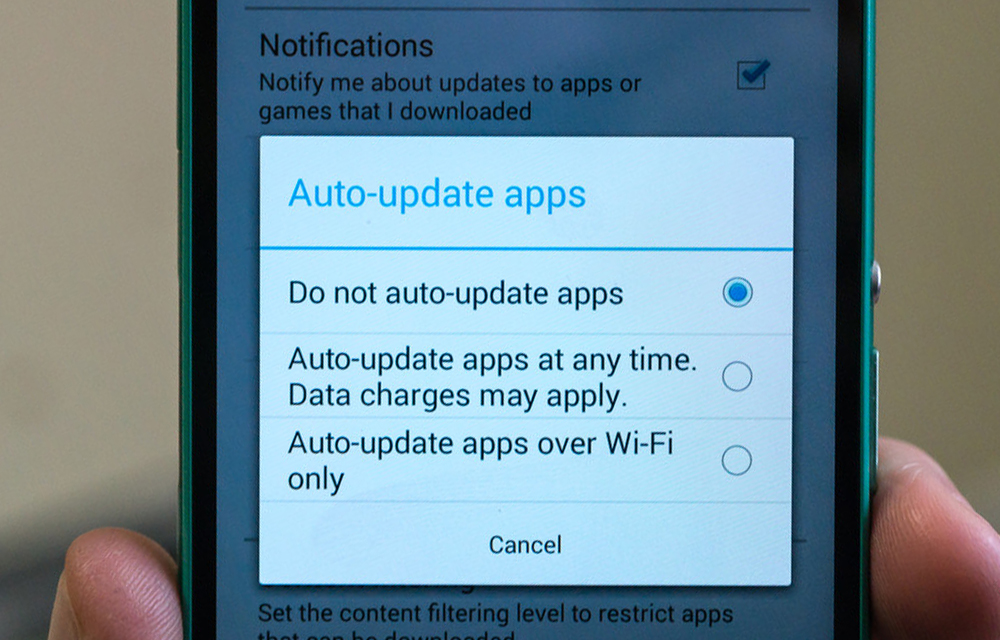
How to Turn off Automatic App Updates in Android
If you are fed up with losing your mobile or Wi-Fi data to automatic app updates on Android, it is a good idea to turn them off before you lose much more. Also, a few updates turn out to be problematic. Some new versions can bring unwanted bugs that slow the app down or cause…
Android N – The Next Android OS Update with New Features
Most awaited Android 6.0 Marshmallow is rolling worldwide. Before the Marshmallow gets rolling on all Android devices, the News about next Android software update rolling in the industry. The next Android update is code named as “Android N”.
Fix “insufficient storage available” error Message when Updating Android
Ever tried to update android devices? Ever got an error saying “insufficient storage available” while trying to update it? If so, this article is for you. In this article, you will get a basic idea about what the error implies and how to fix it with the step by step guide. Before we starting, there is…
The week in tech, minus the noise.
New reviews, fixes and the stories that matter — once a week, straight to your inbox.
We only use your email to send the newsletter. Unsubscribe any time. See our privacy policy.
Comments