

How to Fix Frozen App Store Problem on Mac
The App store is a great place for Mac and iPhone users. It’s a place to go for all the apps that you want, be it new or old. Apple has always maintained a reputation of being a company that produces things that are simple and that work. Even with this, there are bound to…

The App store is a great place for Mac and iPhone users. It’s a place to go for all the apps that you want, be it new or old. Apple has always maintained a reputation of being a company that produces things that are simple and that work.
Even with this, there are bound to be some problems here and there. One of the problems that has been reported by many Mac users is App store freezing. A download might get paused or the store might be unresponsive. If you have experienced any of these problems, here are some solutions.
Method 1: Force Quitting the App Store
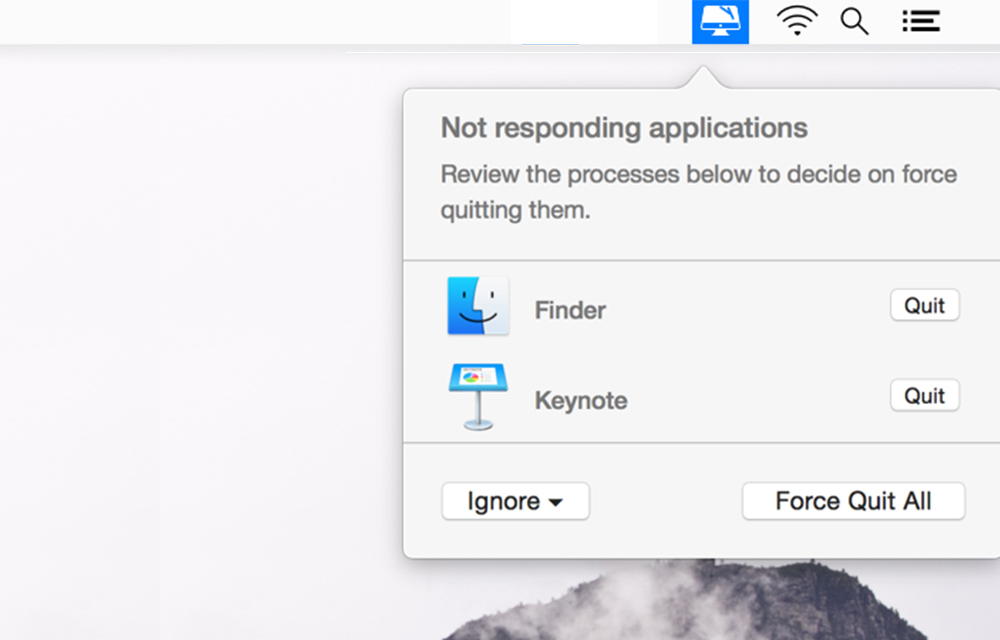
The first method would involve killing the app store and relaunching it again. There are different ways that you could do this on a Mac. Let’s look at these methods:
Use the Force Quit Window
Here you’re going to use the “command+option+esc” keys to open the force quit window. Once the window is open select the App store and choose force quit and that’s it.
Using the Dock
To do this you need to hold down the option key on your Mac keyboard. Look for the App store icon on the dock. Once you find it, right-click it and you’ll see the “Force quit” option. Click it and that’s it you’re done.
Using Activity Monitor
Activity Monitor is what Task manager is to windows. You can use this to force quit the App store as well. All you need to do is launch the software, click on the CPU tab and look for the App store process. You’re going to click on it to select it and then click on the “X” icon at the top to quit the process.
Method 2: Deleting the Cache Files
Cache files are normally used to help quickly load programs and provide you with what you need faster. There are times where the cache files are the problem and deleting these files might sometimes solve the problem.
Force quitting the App store might not always work so, you can use this method if it comes to that. What you need to do is to launch terminal and type in the command “open $TMPDIR.. /C/”. This command will open the temp folder for your applications.
You’ll need to look for the folder named “com.apple.appstore”. Once you find it, right-click on it and select “Move to Trash”. By doing this, you’ll have deleted the entire cache folder of the App store on your Mac.
Conclusion
Once you’re done trying these methods, the next thing to do would be to relaunch the app to see if the problem has been solved. Hopefully, the problem will have abated and you’ll get to enjoy downloading and updating apps as usual. Did this guide help you fix your problems? Do you have any other methods you know of? We’d like to hear from you so, please feel free to voice your opinion in the comments section below
More in Mac

How to fix ‘No camera available’ Error in MacOS
Mac systems come with a fully functional or polished version of the Macintosh Operating System. Apple conducts various tests and several beta versions of MacOSX before public release. It is a well-known fact that MacOSX is a less error-free operating system when compared to Windows. However, some errors can happen occasionally. One of the most…

Mac running slow? Speed up Mac with these easy fixes
Is Mac running slow? Speed up Mac with these easy fixes: Mac’s are fantastic machines designed for pure productivity. We can’t imagine a slow running mac. It is like a sports car with an old engine. Many people feel Mac won’t slow down. It is a myth and they will go slow down over time.…

How to Fix FaceTime Black Screen on Mac
As the world is going through a global pandemic, more people are relying on video calling services to connect with their loved ones, teachers, colleagues, etc. Apple product users mostly rely on the FaceTime application developed by them for a faster video calling experience. Even though there are several popular services such as Skype, Zoom,…
The week in tech, minus the noise.
New reviews, fixes and the stories that matter — once a week, straight to your inbox.
We only use your email to send the newsletter. Unsubscribe any time. See our privacy policy.
Comments