

How to Stop Google Play Store Auto Updating Apps Over WiFi
Have you ever faced a situation where you turn on WiFi after a long time and Google Play Store start updating installed apps continuously? This situation is irritating and consumes all the bandwidth while updating apps. Keeping the apps updated is always a good thing. But not that likeable in every situation. Sometimes, you may…

How to Stop Google Play Store Auto Updating Apps Over WiFi
Have you ever faced a situation where you turn on WiFi after a long time and Google Play Store start updating installed apps continuously? This situation is irritating and consumes all the bandwidth while updating apps. Keeping the apps updated is always a good thing. But not that likeable in every situation. Sometimes, you may need some internet to download some big files. As soon as you connect to the Wifi, the Play store started updating apps and consumed all the speed that your Wifi has. If you feel these updates irritating you can fix it easily.
As per Google, updates are necessary to improve apps performance and adds more features as well as bug fixes. Usually, an update contains bug fixes and adds more stability to the app performance. Frankly speaking, updating apps is a good thing, but it can slow down the internet speed while updating on WiFi. it is better to manually update apps than auto-updating. Yes, if you already don’t know, you can manually update the apps whenever it is convenient by just opening the Play store and navigating to the installed apps.
Manually updating the apps allows you to update it whenever you want without affecting other tasks. So, without any further explanations, let’s directly have a look at the steps.
Stop Google Play Store Auto Updating Apps Over WiFi
- Open Google Play Store and go to Settings.
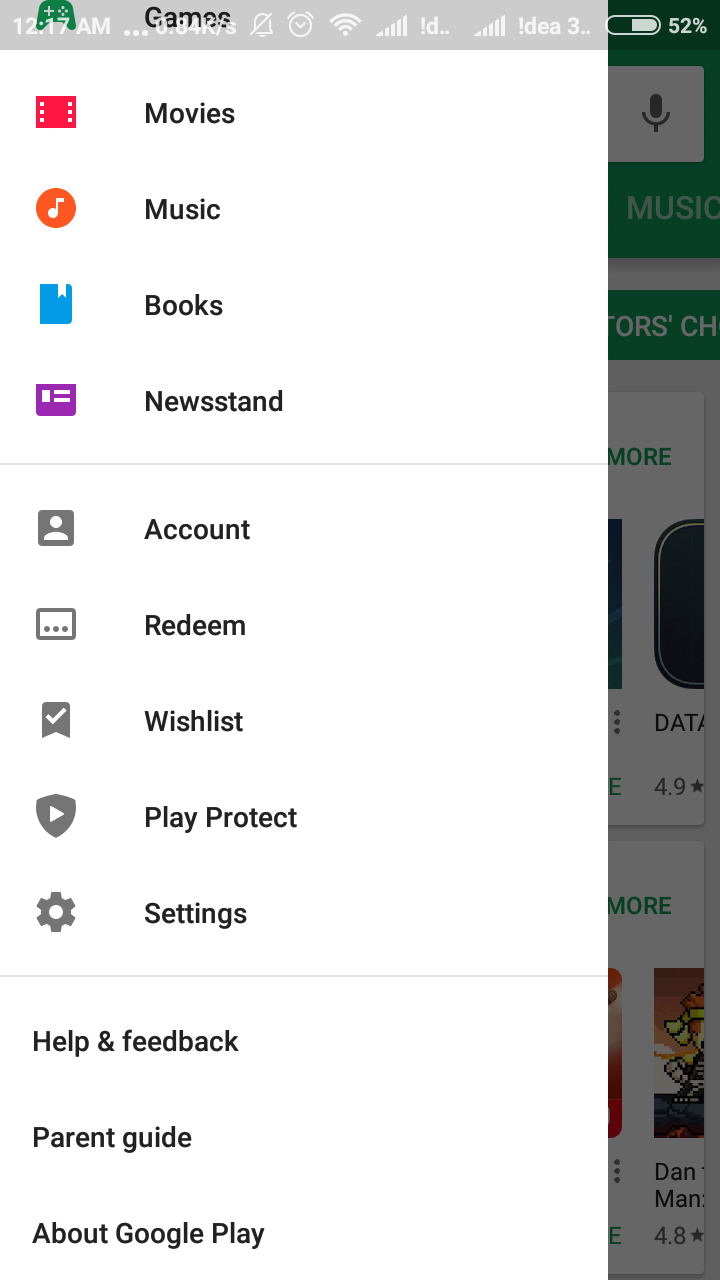
- If you have more than one account, go to the Primary Account which has apps.
- Now tap on the menu icon and go to Settings > Auto Updates Apps.
- Here, select “Do not Auto Update apps”.
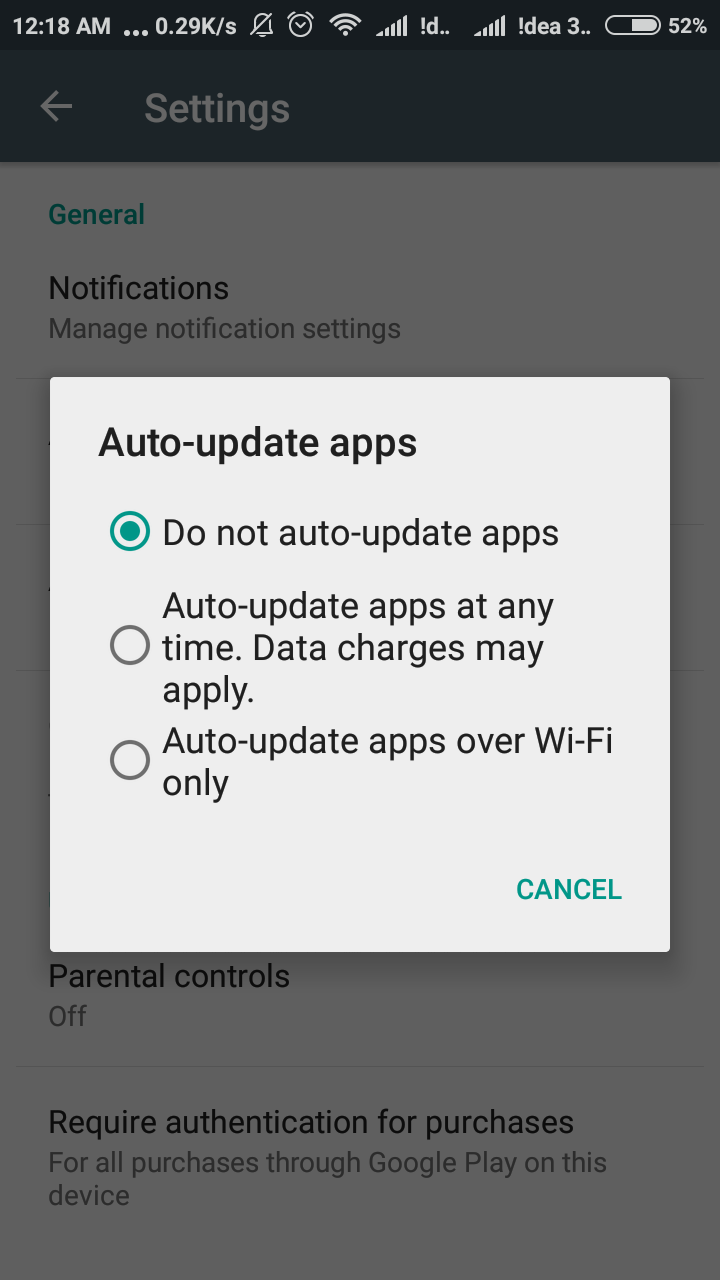
- After selecting “Do not Auto Updates” feature, now onward you always need to manually update all apps in the future.
That’s it. From now onwards no auto updates bugging on your Android.
If you want this feature again, follow the same process and change the task from “Do not Auto Updates” to “Auto-update Apps over Wifi”. But if you change this, the apps will again start to update automatically whenever you connect to a Wifi network.
By Restricting Data Usage
You can restrict the data usage
- Go to Settings > Data Usage (may vary on some devices like Security > Data Usage.)
- Restrict Background data > Select the App Google Play Store (Some devices will only have an option to “Allow Background Data” so choose it.)
- From there you can restrict Mobile data Usage by Google Play Store.
- Or you can go to Settings > Data Usage > WiFi > Select the App Google Play Store.
How to Manually Update Apps on Android
If you have chosen the above path and set your Android to manual update mode then this tutorial is for you.
- To manually update Android app open Google Play Store and go to My Apps section.
- Here, the Store will show the installed apps on your device in 4 different tabs.
- First tab contains update available apps list.
- Just click on the Update button to update a particular app from the list. Your app will start updating itself. Wait until it finishes.
That’s all for now, please share your views and feedback about the article in the below comment box.
More in Android
How to Turn off Automatic App Updates in Android
If you are fed up with losing your mobile or Wi-Fi data to automatic app updates on Android, it is a good idea to turn them off before you lose much more. Also, a few updates turn out to be problematic. Some new versions can bring unwanted bugs that slow the app down or cause…
How to Update Android Apps
App updates are very important to let your device function properly with all the latest improvements tie up with the latest version of android. The all-time favorites like Clash of Clans, Asphalt, and many more games need frequent updates which they will automatically guide you through. Then what about those silent apps which never notify you…
How to Fix “Google Play Services has stopped” Error
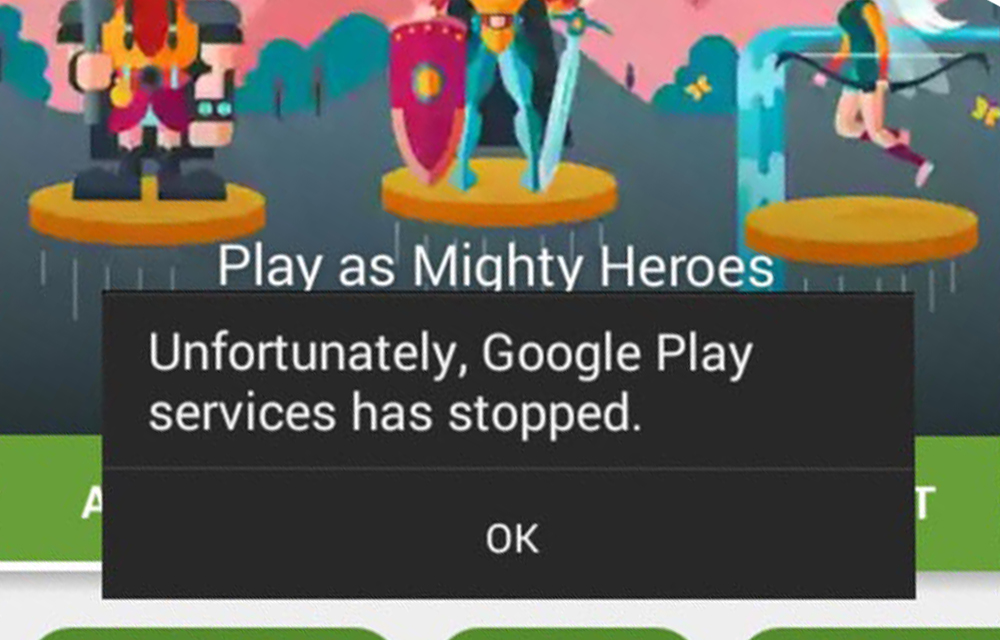
The error message “Google play services has stopped” reported by many of our readers is popping up in Android 5.0 or Android 5.1 Lollipop based phones and tablet. So, we are going to provide some of the effective methods to fix this issue. The error may happen due to many problems like a very old…
The week in tech, minus the noise.
New reviews, fixes and the stories that matter — once a week, straight to your inbox.
We only use your email to send the newsletter. Unsubscribe any time. See our privacy policy.
Comments