

How to Install New Keyboards on Your iPhone
Every smartphone comes with a pre-installed keyboard. Many people feel pre-built keyboards are quirky and for regular use. This is the main reason for third-party keyboards evolution. We have seen many keyboard apps available for ios. Some are developed for pure typing experience and some are for emoji. People like business professionals prefer keyboards like…


How to Install New Keyboards on Your iPhone
Every smartphone comes with a pre-installed keyboard. Many people feel pre-built keyboards are quirky and for regular use. This is the main reason for third-party keyboards evolution. We have seen many keyboard apps available for ios. Some are developed for pure typing experience and some are for emoji.
People like business professionals prefer keyboards like SwiftKey, and Google keyboard for better word predictions, auto correct, language support and many more productive features. Some people like gif, emoji supported apps like Kika emoji keyboard. Reasons are many to chose third-party keyboard over the default app. Now in this article, I will show how to install new keyboards on your iPhone.
Getting Started
First chose the third party keyboard app from the app store based on your preference.
For example, I will show how to install SwiftKey on an iPhone.
- Download the Swiftkey keyboard app you want from the App Store.
- Now open settings on your iPhone and go to General.
- Now, swipe down and tap on the keyboard.
- Here, tap on Add new keyboard.
- In this keyboards section, you will see a list of third-party keyboard apps installed on your phone. If you installed only one app, you will see the installed app only.
- Now tap on the Swiftkey app to activate.
- That’s all, now you got a new Swiftkey keyboard app activated on your iPhone.
In the first run, you will see default keyboard when you’re writing message or email. Now click on the globe icon in the keyboard to change the installed one.
Third-Party Keyboard apps for iOS
If you are new to third-party keyboards, please check our below-given list and pick a suitable one.
- SwiftKey: A very popular keyboard app with word suggestion, autocorrect, themes support, keyboard resizing options and great predictions support. It is one of the great keyboard app available for iOS and Android.
- Flesky: Flesky is known for its fastness. It is packed with many user-friendly options like stickers, GIF support, and powerful extensions.
- Touchpal Keyboard: TouchPal keyboard is a T9 predictive text keyboard app available for iOS devices. It has many features like gesture support, predictions, customizable keys, themes, and many languages support.
That’s all for now. Please do share your views and feedback in the comment box below.
More in iOS

How to fix iPhone Emoji Search Not Working in Keyboard on iOS 26
If you can’t find your favorite emojis, stickers, or GIFs from the iPhone keyboard search, you’re not alone. This issue has been reported by users on iOS 26 and later, where the emoji search bar either shows no results, behaves strangely, or fails to return the right stickers and emojis even though the keyboard itself…
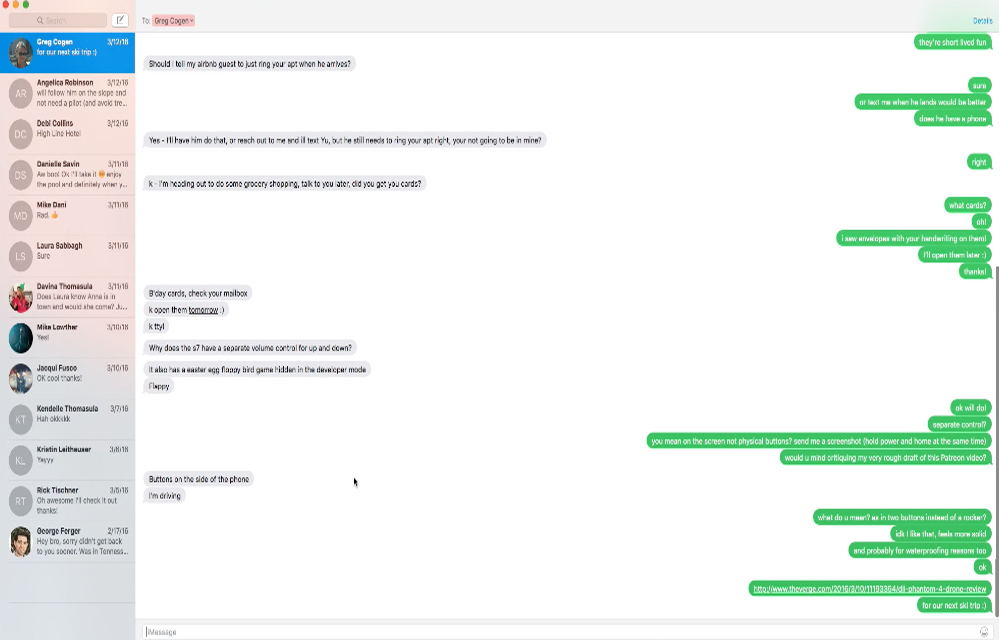
How to Text or Message from your Mac using iOS Devices (iPhone, iPad, etc.)
Even the domination of the touch screen had already happened, the 2 fingers can never beat the power of the 10 members in your hand. So, texting will be easier from your traditional Mac keyboard than the iPhone, iPad or iPod touch screens. If you ever wanted to find an easy solution for sending texts…
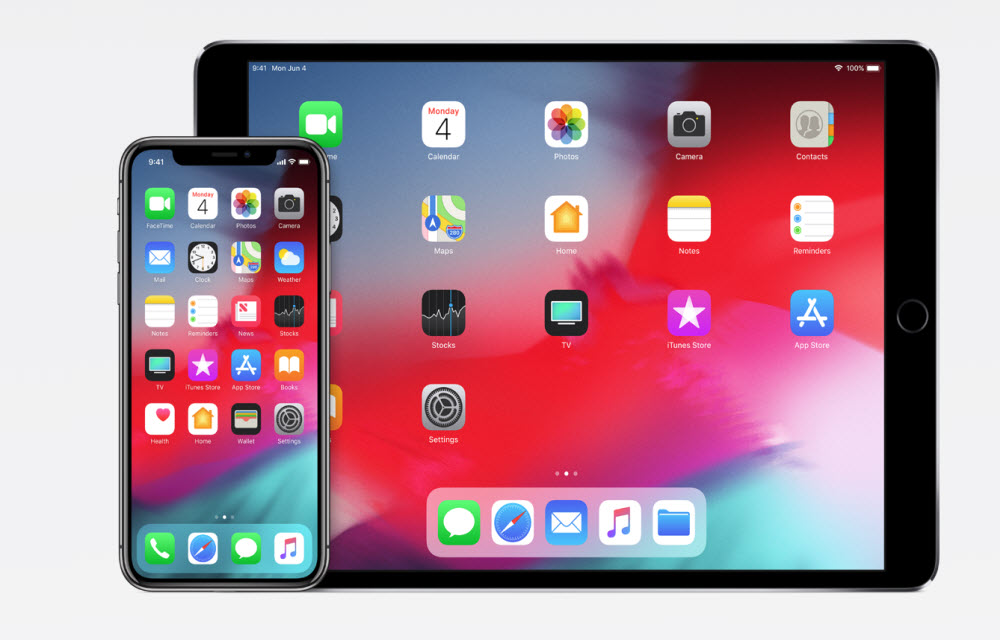
How to Install iOS 12 Beta on Your iPhone or iPad
Apple announced iOS 12, MacOS Mojave at the WWDC 2018. Most exciting part of the event is iOS 12 announcement. The new iOS 12 update has many more interesting features like Animoji, Group FaceTime and much more. Apple today announced iOS 12, the latest version of the most advanced mobile operating system, designed to make…
The week in tech, minus the noise.
New reviews, fixes and the stories that matter — once a week, straight to your inbox.
We only use your email to send the newsletter. Unsubscribe any time. See our privacy policy.
Comments