

How to Fix Windows 10 Adaptive Brightness Not Working
In the past few years mobile devices coming with the adaptive brightness which detects the light conditions in the environment and adjusts the screen brightness accordingly. This feature will save the user time by adjusting the screen brightness automatically, For example, if you are outside on a sunny day, the screen will automatically increase the…


How to Fix Windows 10 Adaptive Brightness Not Working
In the past few years mobile devices coming with the adaptive brightness which detects the light conditions in the environment and adjusts the screen brightness accordingly.
This feature will save the user time by adjusting the screen brightness automatically, For example, if you are outside on a sunny day, the screen will automatically increase the brightness to get visible. It works opposite in dark conditions.
Now the Windows also has this feature in advanced laptops. Unfortunately due to some buggy update, issues with the hardware the adaptive brightness not working in some machines. If you are facing this issue on your Windows 10 laptop, here is the fix.
1. Disable Power Saving Technology in Intel Graphic Panel
In some cases, the issue causes due to the Intel’s power-saving technology. To fix the issue, follow the below steps.
1. Right click on the Desktop and select Graphics Properties.
2. Here, select the Power option.
3. On the battery tab, click on Disable for the Power Saving Technology.
4. Now restart your laptop to make changes.
For AMD Hardware
This procedure is slightly different on AMD based machines.
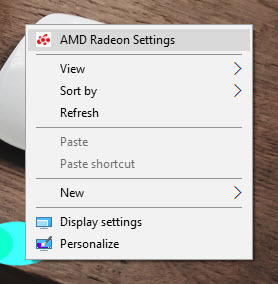
1. Open the AMD Radeon settings.
2. Here, go to the Power tab and select the PowerPlay option.
3. Now, uncheck the checkbox which represents Enable Vari-Bright option.
4. Restart the PC to make changes.
2. Reset the Power Plans to Default
In few cases resetting the power plans to default will fix the issue.
1. Open the command prompt with admin privileges.
2. Here in command prompt, type the following command and execute it.
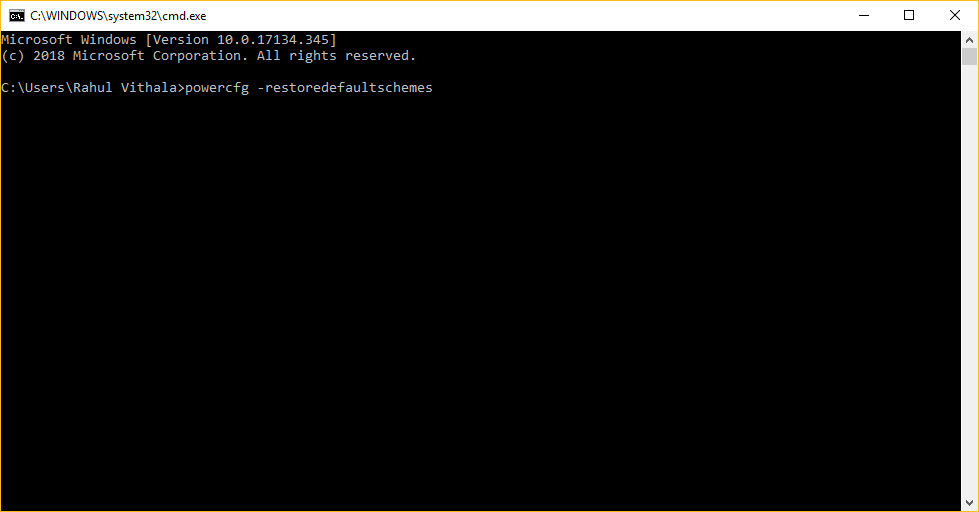
powercfg -restoredefaultschemes
3. Now restart the machine to made changes.
3. Update Graphic Card Drivers
Another solution for this issue is updating graphics card drivers. Latest drivers come with fixes for bugs and errors. You can update the graphics card driver as given below.
1. Open the command prompt and type the following command.
devmgmt.msc
2. Or you can directly launch the Device Manager by right-clicking on the This PC icon.
3. In the device manager, drop down the Display Adapters.
4. Now it will open the available graphics adapter name.
5. Now right click on the adapter name and click on the “Update Driver”
6. Now restart the system to make changes.
4. Registry Fix
If the adaptive brightness issue not fixed even after applying the above solutions, now try to fix the registry error.
1. Open run and type regedit. This will open the Registry Editor on your PC.
2. Now navigate to the following key.
HKEY_LOCAL_MACHINE\SOFTWARE\Intel\Display\igfxcui\profiles\Media\Brighten Movie3. After opening, check on the right panel and right click on the “ProcAmpBrightness” entry.
4. Here, change the Value Data to 0.
5. Now, navigate to the following key.
HKEY_LOCAL_MACHINE\SOFTWARE\Intel\Display\igfxcui\profiles\Media\Darken Movie
6. On the right panel and again right click on the “ProcAmpBrightness” entry.
7. Now set the Value Data to 0. This will disable the Dark Mode for Adaptive Brightness.
8. Now restart the system.
That’s all for now. Please do share your views in the comment box below.
More in Windows
How to Change Brightness in Windows 10
Protecting your eyes is more important than anything while using a computer. You should be extremely cautious about the screen brightness especially when staring at the screen for hours without any breaks. That’s why it is always recommended to take regular breaks every 20 minutes to allow your eyes and body to relax. But sometimes…
How to Fix Windows 11 Widgets Not Working
Windows 11’s Widgets panel gives quick glances at weather, news, stocks, and more right from your taskbar. But if clicking the icon does nothing, shows a blank screen, or fails to load, it’s a common technical glitch. Often tied to missing components like Edge WebView2 or the Windows Web Experience Pack, these fixes get most…
How to Fix WiFi Connected But No Internet on Windows 10
Microsoft has developed the leading operating system in the world which is named as Windows. The latest version of Windows was released a few years ago named as the Windows 10. Microsoft also announced that Windows 10 will be the last version of Windows. This means that the company will release updates but under the name…
The week in tech, minus the noise.
New reviews, fixes and the stories that matter — once a week, straight to your inbox.
We only use your email to send the newsletter. Unsubscribe any time. See our privacy policy.
Comments