

How to Stop Updates in Windows 10
Most people think that an operating system that is up-to-date is a secure one which is true to an extent. However, there are also many people who do not do a good job at updating their OS. Now, we have Microsoft with Windows 10 which is an operating system that automatically updates to the latest…


Most people think that an operating system that is up-to-date is a secure one which is true to an extent. However, there are also many people who do not do a good job at updating their OS.
Now, we have Microsoft with Windows 10 which is an operating system that automatically updates to the latest version. You don’t have to manually update your OS now because Widows 10 will do it for you. It will check, download, and install new updates on your computer.
If you think about it, this is quite a convenient feature for computer users. However, there is one problem. For other users, they don’t want updates according to Microsoft’s schedule. This is also the reason why there are users who have not yet updated their OS to Windows 10. And they probably have a very good reason as to why.
If you have Windows 10 running already, you can actually turn off the automatic updates. But this is only possible for Windows 10 Education, Enterprise, and Professional versions. In this post, we will learn some of the steps on how to stop updates in Windows 10 on your computer.
You Can Schedule When Your PC Restarts
Maybe you are getting annoyed by your computer restarting at times when you are busy using it for work. But don’t worry about that. Now, you get to schedule when your computer will restart at a time that is more convenient for you. What will happen is that when there is a new downloaded and installed update, Windows 10 will notify you to set a schedule for when you want your computer to restart.
Use an Internet Connection that is Metered
This is one of the best ways to stop Windows 10 from downloading updates automatically. You can make use of a metered internet connection. What you have to do is to limit your Wi-Fi data. What happens is that Windows 10 will not be able to automatically download updates.
To have a metered internet connection, do the following steps:
- Go to “Settings.”
- And then to “Network & Internet.”
- And then to “Wi-Fi”
- Lastly, to “Advanced Options”
- There, turn on “Set Metered Connection” option.
Stop Automatic Updates of Device Drivers
You won’t really be able to stop Windows 10 from updating your OS automatically. However, what you can do is to stop it from updating your device drivers automatically. You can do this by doing the following steps:
- Click “Start” button.
- Go to “Control Panel.”
- Go to “System.”
- And then to “Advanced System Settings.”
- This will open the System Properties window
- There, navigate to “Hardware” tab.
- Choose “Device Installation Settings.”
- You will be notified with a message, choose “No” radio button and Save Changes.
Do these steps and your device drivers won’t be updated automatically. It is one way that you can control the automatic updates of Windows 10.
Now you have an idea of how you can stop Windows 10 from updating automatically. Hopefully, you can follow the steps and have updates that are more convenient for your time and schedule where your computer won’t restart while you are working or busy with a project. The steps are very easy to follow and you won’t have a problem reversing it if you want your computer to update automatically.
That’s all for now. Please do share your valuable views and feedback in the comment box below.
More in Windows

Ways to Stop the Restart of your Computer After Installing Updates
It is known and really irritating that when we finish installing a new update for our computer or for any other device, we are asked to restart our device in order for any kinds of updates to be finished.
How to Fix Memory Integrity Problems After the Windows 11 Update
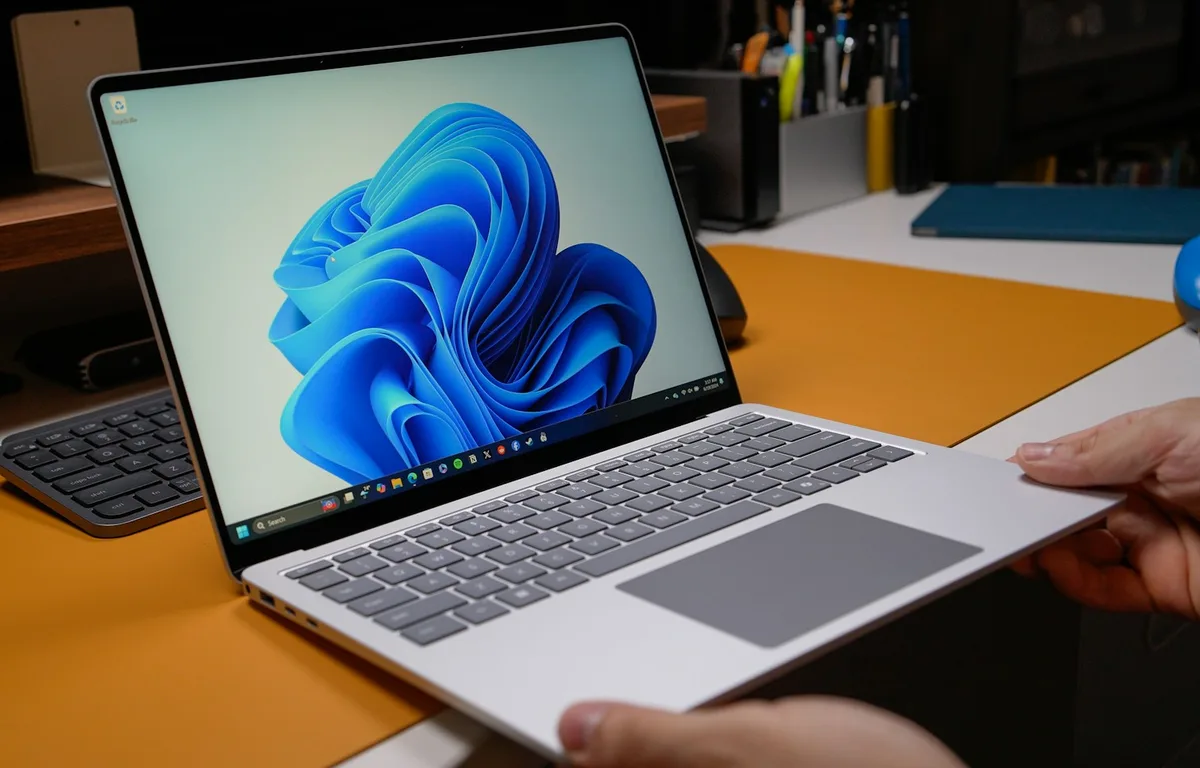
After installing this month’s Windows 11 update, some people opened Windows Security and found Memory Integrity switched on when they never touched it. Others ran into a warning about an incompatible driver, or a game or older tool that stopped behaving. That’s not a bug. Microsoft is now turning the feature on automatically for supported…
How to Fix Windows Hello Fingerprint Not Working After Reboot on Windows 11
Fingerprint login works great during your session but sometimes fails to recognize after a reboot. The sensor goes silent or Windows says it can’t recognize your print. This happens more than it should, especially after updates. Power management, driver glitches, or Enhanced Sign-In Security (ESS) are usually behind it. Here’s how to get it working…
The week in tech, minus the noise.
New reviews, fixes and the stories that matter — once a week, straight to your inbox.
We only use your email to send the newsletter. Unsubscribe any time. See our privacy policy.
Comments