

How to Install Spotify on Linux
Spotify doesn’t need any introduction and it is the finest music streaming service available online. The installation of Spotify is a pretty straightforward process for platforms like Windows, Mac, Android, and iOS. But when it comes to Linux, you have to depend on the commands to install Spotify. Spotify has been officially supporting the Linux…


How to Install Spotify on Linux
Spotify doesn’t need any introduction and it is the finest music streaming service available online. The installation of Spotify is a pretty straightforward process for platforms like Windows, Mac, Android, and iOS. But when it comes to Linux, you have to depend on the commands to install Spotify.
Spotify has been officially supporting the Linux platform and available for Ubuntu and Debian package. For other Linux distros, Spotify is yet to launch the official repositories.
Here are the Spotify words for Linux users.
Here you can find different ways of installing Spotify for Linux. Spotify for Linux is a labor of love from our engineers that wanted to listen to Spotify on their Linux development machines. They work on it in their spare time and it is currently not a platform that we actively support. The experience may differ from our other Spotify Desktop clients, such as Windows and Mac. You can tell us what you think and ask other users for help at the Desktop (Linux) board in The Spotify Community forum.
How To Install Spotify In Ubuntu
Installing Spotify on Ubuntu is a no brainer process. Snap is officially offering Spotify installation on Ubuntu. Few simple commands in the terminal will install on your Ubuntu machine.
snap install spotifyThat’s it. Now Spotify will install on your Ubuntu distro.
Debian Package
For Debian enter the below commands.
# 1. Add the Spotify repository signing keys to be able to verify downloaded packages
sudo apt-key adv --keyserver hkp://keyserver.ubuntu.com:80 --recv-keys 931FF8E79F0876134EDDBDCCA87FF9DF48BF1C90

# 2. Add the Spotify repository
echo deb http://repository.spotify.com stable non-free | sudo tee /etc/apt/sources.list.d/spotify.list

# 3. Update list of available packages
sudo apt-get update

# 4. Install Spotify
sudo apt-get install spotify-client
Spotify Use for Other Linux Distros
As clearly mentioned by Spotify in the official web page, the installation facility is available only for Ubuntu and Debian. If you are using a Linux distro other than Ubuntu and Debian, you can use the below method to enjoy Spotify.
Tomahawk is a unique music player that streams music from the Spotify, cloud, local library, downloads, radio, playlists, and Spotify. It is available for Linux distros like Linux Mint, Open Suse, Fedora, Arch Linux, Gentoo, Chakra, Exherbo, and Source Tarball.
That’s all for now. Please do share your valuable feedback in the comment box below.
More in Linux
How to Install Spotify in Ubuntu
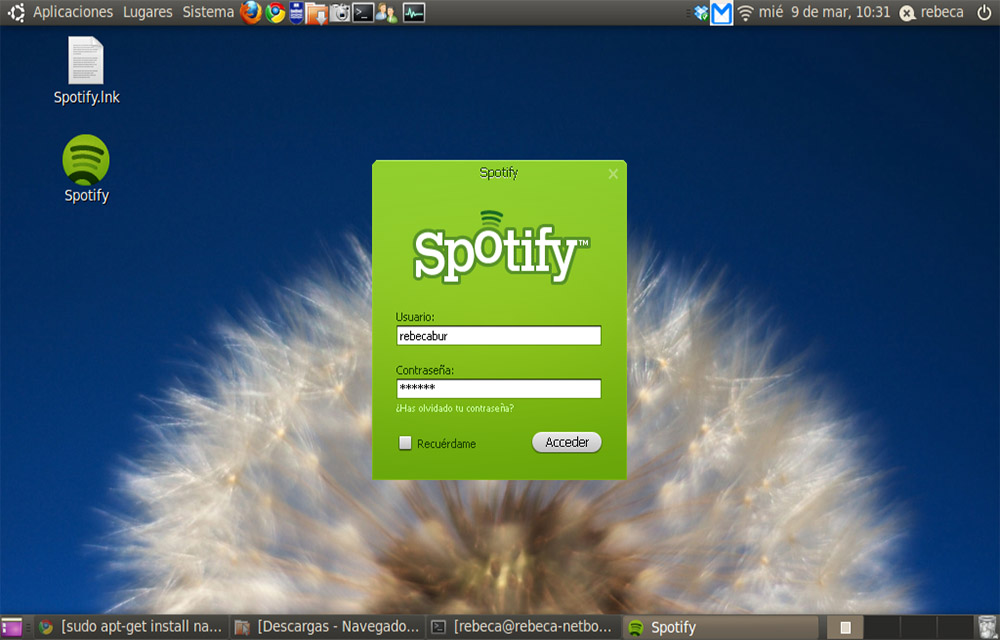
If you are an Ubuntu user and want to install Spotify in Ubuntu, it used to be a lot harder than on Windows. On Windows, installing software is usually just a matter of running an installer, while Linux works a little differently. If you are struggling to get your favourite music service on your Ubuntu…

How To Play Sega Saturn Games on Linux
We know Sega Saturn is a great gaming console in our childhood days. But unfortunately, it lost pace with the other platforms. The Sega Saturn games are very hard to find. If you are missing Sega Saturn games and planning to enjoy the game essence once again, you must be a Linux user first. If…

How to Install WebTorrent on Linux
WebTorrent is an excellent application available for cross-platforms. It works like a charm for viewing and streaming music using peer to peer Torrent protocol. The WebTorrent application is available for Linux, Mac, and Windows platforms. It is an open source torrent client built on Javascript and uses WebRTC for peer-to-peer connection support. The WebTorrent is…
The week in tech, minus the noise.
New reviews, fixes and the stories that matter — once a week, straight to your inbox.
We only use your email to send the newsletter. Unsubscribe any time. See our privacy policy.
Comments