

How to Transfer Photos Over WiFi From your Phone to Windows 10
Gone are those days when we used to connect cables to transfer photos from mobile to PC. Whether it is an Android or iPhone, the connecting of a phone to a PC takes so many steps. You have to enable USB Transfer mode, allow permissions to iPhone and sometimes USB creates connectivity issues. Luckily, the technology…

How To Transfer Photos Over WiFi From Your Phone To Windows 10
Gone are those days when we used to connect cables to transfer photos from mobile to PC. Whether it is an Android or iPhone, the connecting of a phone to a PC takes so many steps. You have to enable USB Transfer mode, allow permissions to iPhone and sometimes USB creates connectivity issues. Luckily, the technology changed a lot in the past 10 years and now we are transferring data wirelessly.
The importing of photos from a smartphone to a PC is a time taking task. You can manually transfer by connecting the USB cable. Even if there are a couple more solutions, I usually prefer wireless mode for transferring photos from smartphone to PC. If you want to have a hassle-free wireless option, the Windows is offering you a simple way to transfer photos over WiFi network. This article is about mobile to PC photos transfer workflow.
Photos Companion app designed for both iOS and Android platforms. With the help of this app, you can transfer photos over Wifi.
Developer Words
Photos Companion is an experimental app that works with Microsoft Photos on your Windows 10 PC to directly transfer photos and videos from phone to PC over Wi-Fi.
How it works?
- Open Photos app on your Windows PC.
- Now get to the Settings in Photos app and scroll down.
- Under the Extras section, enable the ‘Show additional preview features’ option.
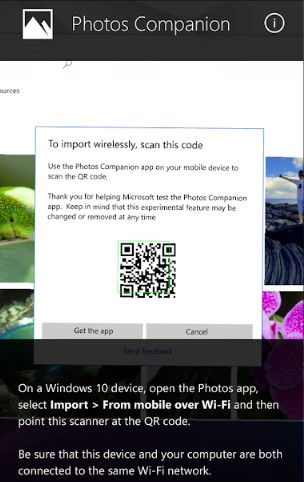
- Now, return to the main Photos app interface and click the Import button, here you will see a new option called “From mobile over Wifi.”
- Open Photos Companion app on your smartphone and scan the QR code. (In the initial run the app will ask for permission to access your camera, grant permission top open camera)
- Once you scan the QR code, the two devices start communicating each other and ready for photos transfer.
The default folder of transferred photos is Windows pictures folder. If you want to store the photos in another location, you can change it in the Windows Photos settings.
As you seen the developer words above, the app is under experiments and you may face few bugs during operation. But, however, I feel it is a great app to ditch the cables for photos transfer from mobile to Windows.
More in Windows

iMyfone Space Saver for iOS – Features and Guide
After few months of using an iPhone or iPad, most of us stuck out with slow down of the device operations due to lack of storage space. What can we do if our iPhone got stuck with storage? We usually decide to delete the unwanted files and photos from the storage.

10 Best Software to Fix Wifi Problems in Windows
I wish that things are sometimes very simple, especially on my PC and smartphone. It’s true that most stuff today is very simple to do, but if you didn’t know, your WiFi can also create some complications that need to be fixed. Also, it’s not just turn on your PC and hope that internet will…

Recover Lost iPhone Media, Messages Data Easily With Aiseesoft FoneLab-Review
Some times we accidentally deletes the data on iPhone which contains all photos, contacts, calendar, SMS messages, recordings, videos, voice mails, notes, and call history.
The week in tech, minus the noise.
New reviews, fixes and the stories that matter — once a week, straight to your inbox.
We only use your email to send the newsletter. Unsubscribe any time. See our privacy policy.
2 comments
It would have been helpful if thre was any mention if the comforting words that the developing "photos compendium" app does not send photos to another secret location also! Thanks.
I do not see any "Extras" option in Photos app on Win 10!