

How to Play Android Games Full Screen on PC (2026 Guide)
Playing Android games on a big PC monitor, with a keyboard and mouse or a controller, makes a lot of them more fun. The way to do it has changed a lot since this guide was first written: Microsoft shut down its Windows Subsystem for Android in March 2025, and Google now offers its own…


How to Play Android Games on a Full-Screen PC
Playing Android games on a big PC monitor, with a keyboard and mouse or a controller, makes a lot of them more fun. The way to do it has changed a lot since this guide was first written: Microsoft shut down its Windows Subsystem for Android in March 2025, and Google now offers its own official app for running Play Store games on Windows. This guide shows how to play Android games full screen on a PC in 2026, starting with the official option.
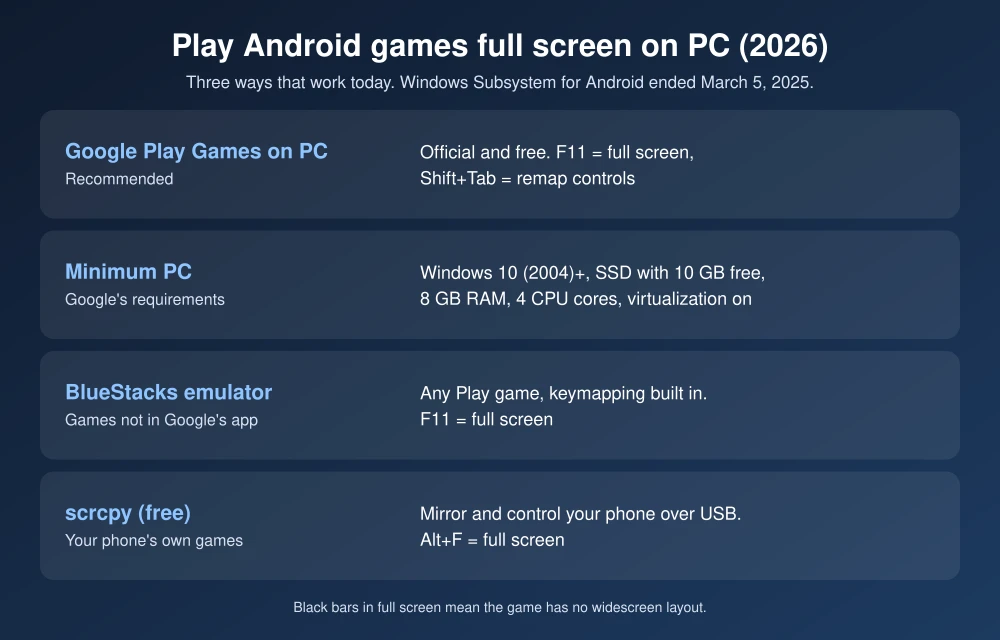
Quick answer: The easiest way is Google Play Games on PC, Google’s free Windows app. Install it from play.google.com/googleplaygames, sign in with your Google account and install a supported game; press F11 to switch to full screen and Shift+Tab to change controls. For games that aren’t supported, use an emulator like BlueStacks (also F11 for full screen), or mirror your phone to the PC with the free tool scrcpy. Windows Subsystem for Android no longer works; Microsoft ended it on March 5, 2025.
Option 1: Google Play Games on PC (official, recommended)
Google Play Games on PC runs a large and growing catalog of Android games natively on Windows, with your Google Play progress and purchases synced.
- Check that your PC meets Google’s minimums: Windows 10 (version 2004) or later, an SSD with 10 GB free, 8 GB of RAM, 4 physical CPU cores, Intel UHD Graphics 630 or similar, a Windows admin account, and hardware virtualization turned on.
- Download Google Play Games from play.google.com/googleplaygames and install it.
- Sign in with the Google account you use on your phone.
- Find your game in the app and click Install.
- Launch the game and press F11 to toggle full screen.
- Press Shift+Tab to open the in-game menu, where you can remap keyboard controls. Google added an “Aim and shoot” control for mouse aiming in shooters in early 2026.
If you see black bars at the sides in full screen, the game simply doesn’t support a landscape widescreen layout; that’s a limit of the game, not your PC.
Option 2: An Android emulator like BlueStacks
If a game isn’t available in Google Play Games on PC, an emulator runs a full Android system on Windows, so you can install almost any app.
- Download BlueStacks from its official website and install it.
- Sign in to the Play Store inside BlueStacks and install your game.
- Press F11 to switch to full screen.
- Use the built-in keymapping tool to assign keyboard keys or use a controller.
Emulators use more RAM and CPU than Google’s app, so close other programs for the smoothest gameplay. Turn on virtualization (VT-x or AMD-V) in your PC’s BIOS if the emulator asks for it.
Option 3: Mirror your phone to the PC with scrcpy
If you’d rather keep playing on your phone’s own copy of a game, scrcpy is a free, open-source tool that mirrors and controls your Android phone from a Windows, Mac or Linux PC with very low lag.
- On your phone, turn on Developer options and enable USB debugging.
- Connect your phone to the PC with a USB cable.
- Download scrcpy from its official GitHub page, unzip it and run it.
- Press Alt+F to go full screen, and use your mouse and keyboard to control the game.
The game still runs on your phone, so performance depends on the phone, and keep it charging while you play.
What about Windows Subsystem for Android?
Microsoft’s Windows Subsystem for Android and the Amazon Appstore on Windows stopped being supported on March 5, 2025. Older guides that tell you to install Android apps from the Microsoft Store no longer work.
Which option should you use?
| Option | Best for | Full screen |
|---|---|---|
| Google Play Games on PC | Supported Play games, best performance, synced progress | F11 |
| BlueStacks | Games not in Google’s PC catalog | F11 |
| scrcpy | Playing your phone’s own games on a big screen | Alt+F |
Looking for games to play? See our list of the best offline Android games, the best low-MB Android games, and the best Google Play Store alternatives.
FAQs
Can I play Android games on Windows 11?
Yes. Use Google Play Games on PC, Google’s official app, or an emulator like BlueStacks. Windows Subsystem for Android was discontinued on March 5, 2025.
How do I make an Android game full screen on PC?
Press F11 in Google Play Games on PC or BlueStacks. In scrcpy, press Alt+F.
Is Google Play Games on PC free?
Yes. The app is free; you only pay for games or in-app purchases, the same as on your phone.
Why are there black bars in full screen?
The game doesn’t support a widescreen landscape layout, so Google Play Games on PC shows black bars to keep its proportions.
Updated November 20, 2026: rewritten for Google Play Games on PC, current emulators and the end of Windows Subsystem for Android.
Disclosure: TheTechHacker has no paid relationship with Google, BlueStacks or any company mentioned here.
More in How-to
How to Record Android Gameplay
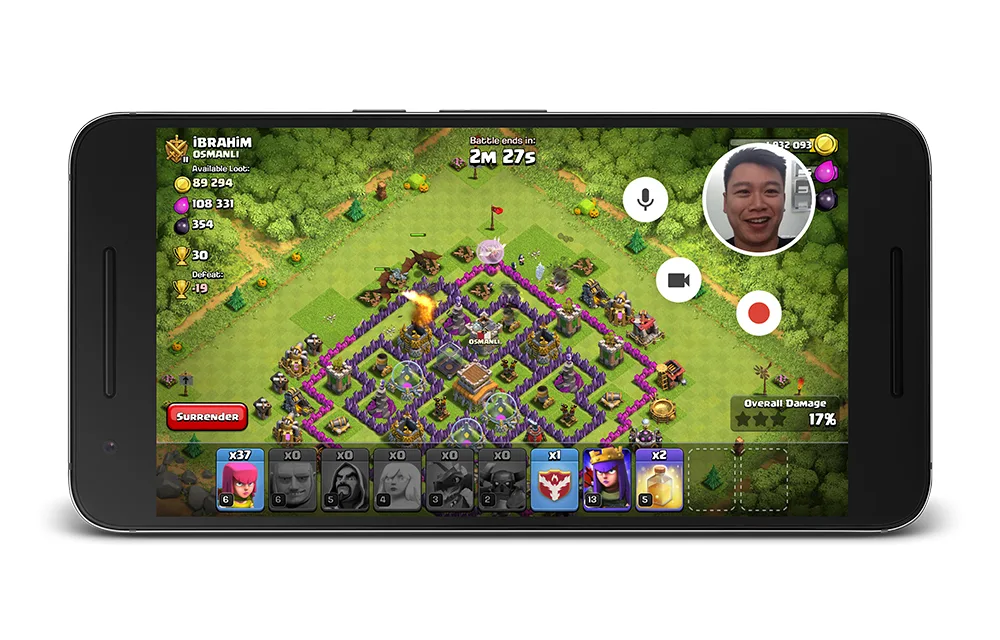
Android devices dominating the tech market for the past years. Gamers are all having a good time on the high-end devices which perform very well on the modern day games. All of you like games and you also like to share your skills on the games to the outer world. The best way is to record…

How to Enable Google Assistant Ambient Mode
How to Enable Google Assistant Ambient Mode: Smartphones are merely small computers. You can do anything done on a personal PC on your handheld device. You can make calls, socialize and play games on your 6-inch iPhone comfortably. Android users have the advantage of exclusive Google features which are not available in other mobile OS’s.…
How To Stimulate iOS and Run Apps on PC
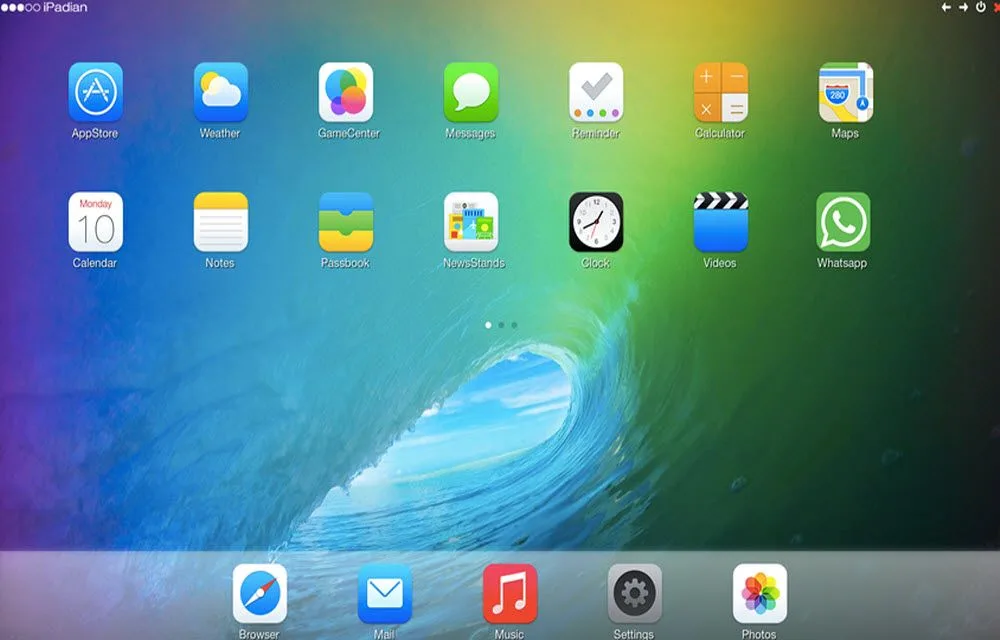
iOS is an independent robust operating system developed by Apple. For Android operating system we have various players to test, run play the games on a PC or a Laptop. But iOS we have only once choice to run iOS apps or games on PC. Meet iPadian, a good iOS simulator for Windows. The iPadian…
The week in tech, minus the noise.
New reviews, fixes and the stories that matter — once a week, straight to your inbox.
We only use your email to send the newsletter. Unsubscribe any time. See our privacy policy.
Comments