

How to Fix Error 0x80244018 when installing apps from Windows Store in Windows 10
We have already discussed an error when you fail to launch the Microsoft Store. But, there’s another type of error – which is specified with an error code which you will see it as “Error 0x80244018” when installing apps from Windows Store in Windows 10. Similar to what the solution was for launching the Microsoft…


How to Fix Error 0x80244018 when installing apps from Windows Store in Windows 10
We have already discussed an error when you fail to launch the Microsoft Store. But, there’s another type of error – which is specified with an error code which you will see it as “Error 0x80244018” when installing apps from Windows Store in Windows 10.
Similar to what the solution was for launching the Microsoft Store – it is quite easy. So, let us get right into it.
There are several reasons are causing the error when you try to install apps from the Windows store. Here are the possible reasons.
- A VPN or Proxy causing an issue while downloading apps.
- Antivirus solutions sometimes create issues while downloading files.
- The Background Intelligent Transfer Service might be disabled.
Method 1: Disable VPN or Proxy
A VPN or Proxy is the most common root cause of the problem. Normally, you have VPN or proxy enabled for privacy protection – but that becomes a problem when you try to install something from Microsoft Store.
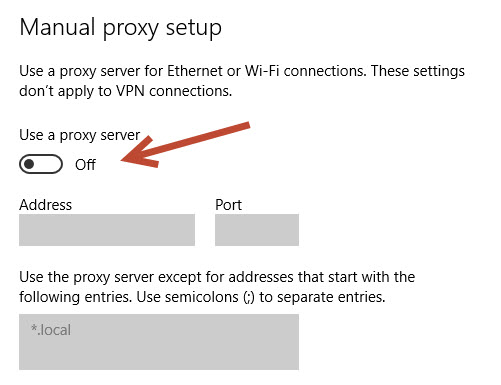
- To disable proxy, press Win + R to open up a Run dialog box. Next, type “ms-settings:network-proxy” and press Enter to open up the Proxy screen of the Settings app.
- Here, toggle the on the option to make it off.
To resolve the problem, just simply disable them and retry.
Method 2: Force to enable the BITS service
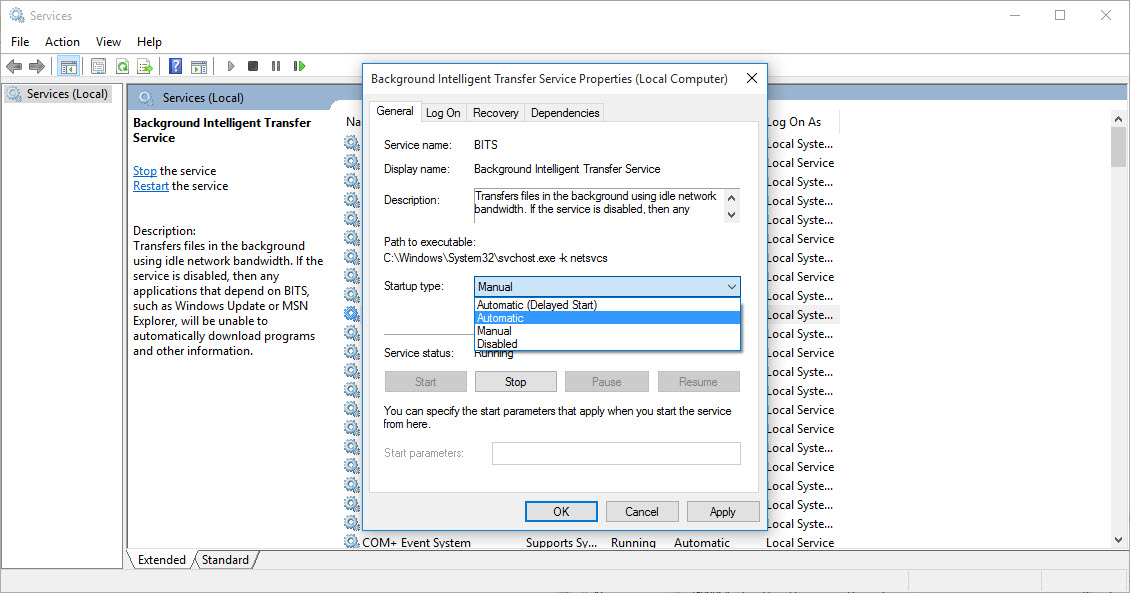
Background Intelligent Transfer Service is a built-in feature which is responsible for providing updates. If the service is not running or disabled, you might get the 0x80244018 error while downloading the Windows 10 apps. Enable the BITS service to fix the error, here is how to enable it.
- Open the run command by clicking Win+R key together and type the command services.msc
- Here, locate the Background Intelligent Transfer Service and right-click on it. Select Properties.
- Now, Change the Startup type to Manual and click on Start.
- Now click on Apply and click on Ok to save settings.
- Restart the PC to take the changes effect.
Method 3: Restart & Retry
Without applying any rocket science, you can simply restart your Windows PC and retry again. It could have been fixed after a reboot – you never know. Just try doing that!
Method 4: Disable Antivirus
If you have an Antivirus solution enabled, just disable it for a few minutes and try installing the app. If it’s possible to install apps while your AV is disabled – you need to check the permission for applications within the AntiVirus program to allow Microsoft Store permissions required to install the apps.
Method 5: Reset PC
The system files could have been corrupted – you can try resetting your PC while keeping your files intact. If you think that your PC has been infected with malware or virus – a reset can help as well.
Wrapping Up
The above-mentioned solutions should surely help when you encounter an error code. In case you get a different error code – do not panic. Just copy the error code and look it up on the Internet – you will find the solutions for it.
If you have any questions about the topic, let us know in the comments below.
More in Windows
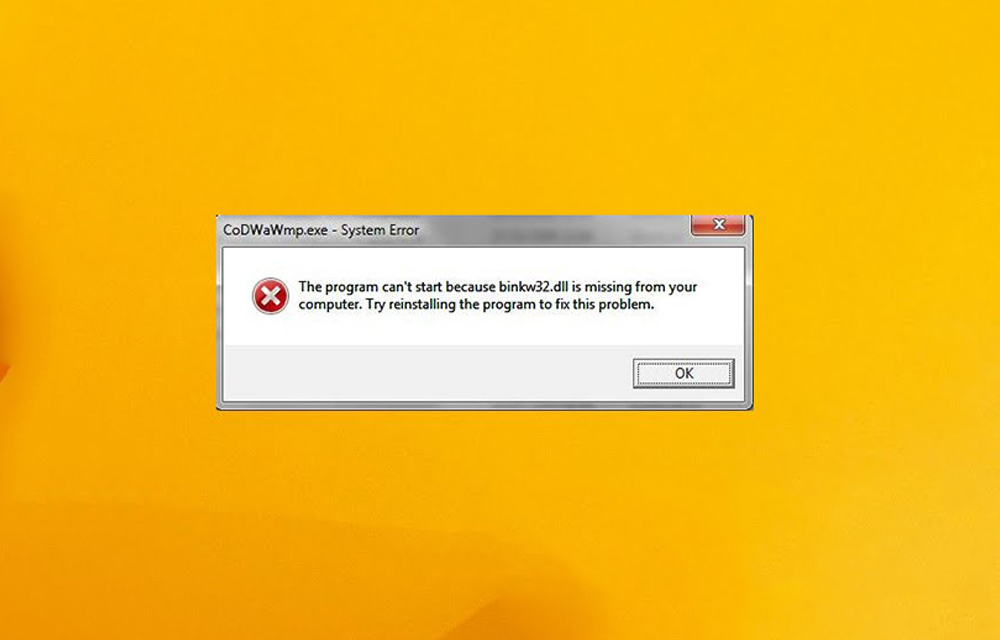
How to Fix Mss32.dll Missing Error
Dynamic Link Library or DLL is one of the most useful as well as the problematic file types in computers. Many times problems occur with the DLL files either when trying to run a newly borrowed game or while trying to install some applications. Mss32.dll such a file required by many applications especially the audio…

How To Fix 0xc00007b Error
You may have encountered the 0xc00007b error before. This error appears if an application was not able to start correctly. Windows users are plagued with this error every now and then. There are many reasons why the 0xc00007b error happens. In this post, we will look at the ways that you can fix this error. One…
How to fix autorun.dll Error in Windows 10
A very annoying thing that happens with computer users is the occurring of the message- ‘autorun.dll file not found‘. This is encountered when users try to install or update an application or programme. This error prevents the proper launching of a programme. There are many kinds of autorun.dll error that occur while installing a programme.…
The week in tech, minus the noise.
New reviews, fixes and the stories that matter — once a week, straight to your inbox.
We only use your email to send the newsletter. Unsubscribe any time. See our privacy policy.
Comments