

How To Fix Your Printer Has Experienced An Unexpected Configuration Problem 0x8007007e
There are lots of scanners and printers that we use these days. But, if you are an HP printer and scanner. There is a possibility that you might have faced error 0x8007007e on your computer. This is a very common error that often occurs with HP printers and Scanners. However, this is a minor problem.…

How to fix your printer has experienced an unexpected configuration problem 0x8007007e
There are lots of scanners and printers that we use these days. But, if you are an HP printer and scanner. There is a possibility that you might have faced error 0x8007007e on your computer. This is a very common error that often occurs with HP printers and Scanners. However, this is a minor problem. We can correct this error.
This error mainly occurs while scanning and printing from web browsers like Chrome or Firefox, etc. If you are facing errors like “Scan Failed with error 0x8007007e” or “Unexpected configuration problem 0x8007007e”.
How to fix your printer has experienced an unexpected configuration problem 0x8007007e
This particular error can occur if you are not using the latest drivers for the printer. Another possible reason for the error can be faulty updates. Furthermore, you might have shut down your PC while updating the drivers. Also, when you get the latest Windows updates from Microsoft. So, there is a possibility that the drivers for the Printer are not installed properly.
Steps to fix Unexpected configuration problem 0x8007007e:
There are various methods you can try to fix the 0x8007007e problem.
- Check if you are using the latest version. If not, update the Windows to the latest version.
- Update the HP printer drivers.
- Try to Run the HP Printer troubleshooter.
- You can download HP scan and doctor which will fix the problems if other methods are not successful.
- If updating the drivers don’t work for you, you can try to re-install the HP printer.
- Go to Control Panel, and try to restart Print Spooler Service.
- Another method that you can try. In the printer folder, delete the Spool files. (%windir%\system32\spool\PRINTERS)
To access the Print spooler service, follow the below steps.
- Click Start, click Run, type services.msc, and then click OK.
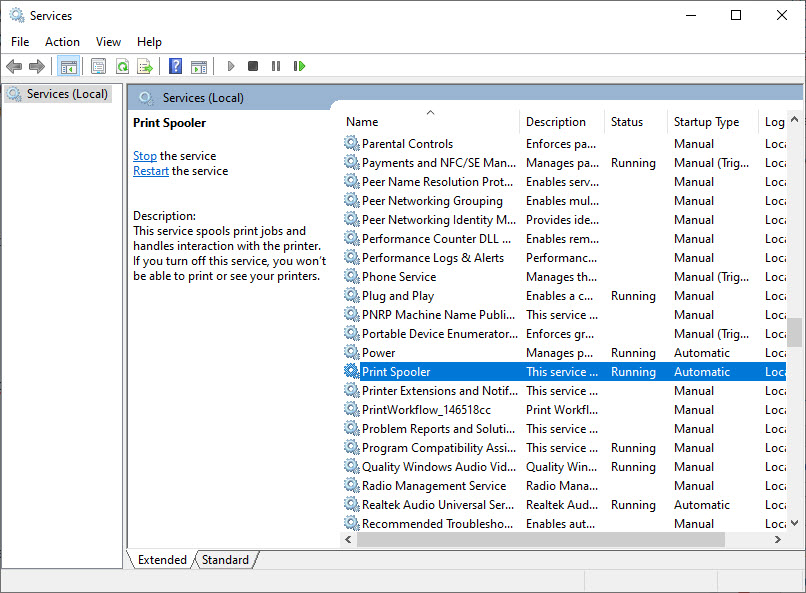
- Right-click the Print Spooler service, and then click Stop.
- Right-click the Print Spooler service, and then click Start.
We hope that you have found this article helpful and your problem is now fixed. If you liked the article, please share it with your friends and family. And, share on social media as well. In case you have any queries, feel free to ask us in the comment section below.
More in How-to
How To Fix “Printer Needs User Intervention” In Windows 10
Windows and printer is a deadly combination of productivity. But in cases, the combination is a nightmare too. There are some errors codes appear when you get a particular type of printer error. Previously we written few printer errors fixes such as 0x00000709 error, printer driver update problem, Printer Has Experienced An Unexpected Configuration Problem…
How To Fix Printer Has Experienced A Configuration Problem On Windows 10
Printers are user-friendly devices. Many modern printers come with a plug-and-play facility where users can install the printer on a computer with just a click. Windows 10 is the most user-friendly operating system after Windows 7. Most printers are compatible with Windows 10, and drivers will be automatically installed when you connect to the system.…
How to fix printer driver update problem in Windows 10
An update is a process to bring fixes and compatible versions from the manufacturer to sync with your Windows machine. These updates are necessary to maintain functionality up to date. When Microsoft releases a major update, many printer manufacturers release their updates compatible with the Windows version. Updating drivers is a regular process and everyone…
The week in tech, minus the noise.
New reviews, fixes and the stories that matter — once a week, straight to your inbox.
We only use your email to send the newsletter. Unsubscribe any time. See our privacy policy.
Comments