

How to Disable File and Printer sharing in windows 10
Windows 10 has a feature to share its printer access to other devices. It is a pretty useful feature to print the documents, images from devices in the same network. However, it has some own disadvantages as well. If you don’t want other users to give access to your printer to print documents then you…

How to Disable File and Printer sharing in windows 10
Windows 10 has a feature to share its printer access to other devices. It is a pretty useful feature to print the documents, images from devices in the same network. However, it has some own disadvantages as well. If you don’t want other users to give access to your printer to print documents then you can disable the access.
Disabling file and printer sharing in Windows 10 is a pretty simple process and no brainer.
How to Disable File and Printer sharing in windows 10
Follow the below procedure to turn on or off the Files and printer access on Windows 10.
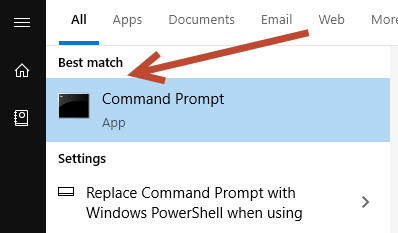
- Open the command prompt from the Windows search by typing “cmd“.
- Now type the following command in the command prompt to open “Network and Sharing” into the Control Panel.
Control.exe /name Microsoft.NetworkAndSharingCenter
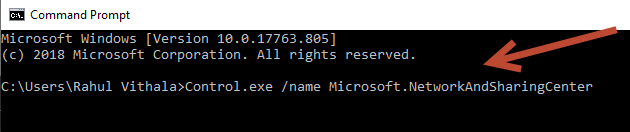
- After hitting the enter in cmd, it will open the “Network and Sharing” option directly in the control panel.
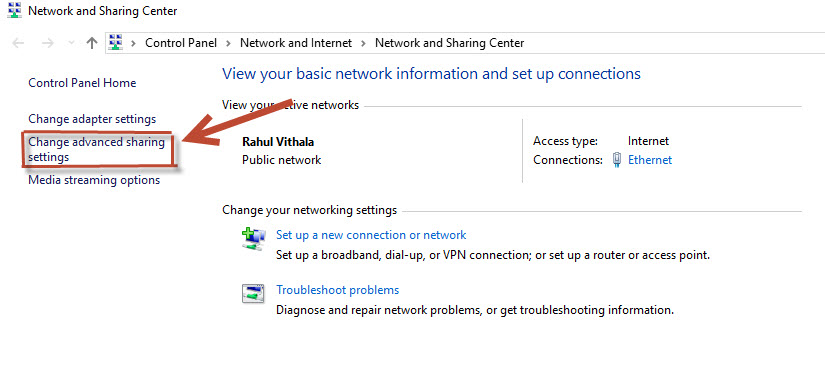
- Now click on ‘Change advanced sharing settings’ from the left menu.
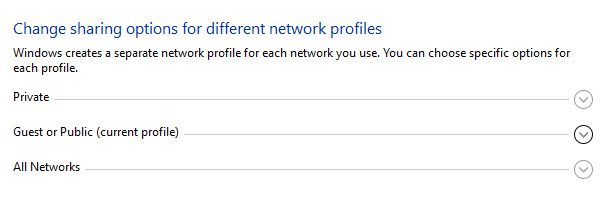
- Now it will show the different network profiles and here click on the current profile.
- Here you will see two options for “File and Printer Sharing” and select the one option according to your preference.
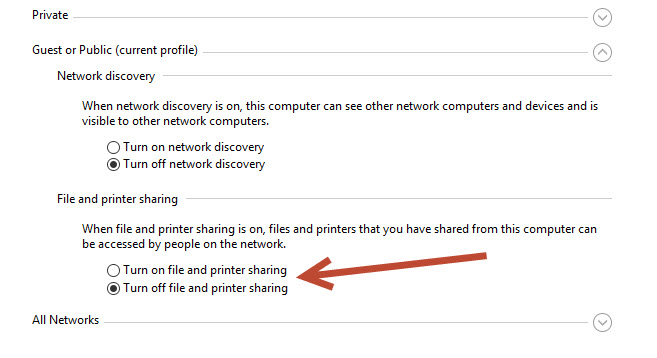 1. Turn On file and printer sharing.
2. Turn Off file and printer sharing. - Both options let you on/off the file and printer sharing option in Windows 10.
If the option is “On” and you want to turn off the File and Printer sharing, just click on the Turn off the option to stop giving access to others. If the option is “off” by default, you can turn on the access by selecting “Turn On file and printer sharing” in the above options.
Changing the settings in Windows 10 is very easy and anyone can tweak the options. From the above method, you can on/off the File and Printer sharing options easily.
More in How-to

How to Fix Microsoft Edge Crashing When Printing on Windows
If Microsoft Edge crashes, freezes or stops responding when you try to print, the quickest fix is to press Ctrl + Shift + P to print with the Windows system dialog instead of Edge’s own print preview. If that works, the problem is Edge’s print preview, and the fixes below will sort it out for…
How To Fix Your Printer Has Experienced An Unexpected Configuration Problem 0x8007007e
There are lots of scanners and printers that we use these days. But, if you are an HP printer and scanner. There is a possibility that you might have faced error 0x8007007e on your computer. This is a very common error that often occurs with HP printers and Scanners. However, this is a minor problem.…
How to share your Mac connected printer with Windows
Are you trying to share your Mac connected printer with Windows? Sharing a Mac connected printer is a pretty easy process. Many feel that the process is complicated and Mac settings are a bit tough to configure. In real, sharing a Mac connected printer with Windows is very easy and saves money. You don’t need…
The week in tech, minus the noise.
New reviews, fixes and the stories that matter — once a week, straight to your inbox.
We only use your email to send the newsletter. Unsubscribe any time. See our privacy policy.
Comments