

How to Set Up VPN on iPhone
VPN’s are the finest way to anonymize your online identity from data thieves. There are plenty of VPN services available with many features, multi-platform support at affordable prices. These services can prevent accessing your personal browsing history by ISP’s, blocks the govt spying activities and can also unlock restricted services in specific geo-locations. The use…
How to Set Up VPN on iPhone
VPN’s are the finest way to anonymize your online identity from data thieves. There are plenty of VPN services available with many features, multi-platform support at affordable prices. These services can prevent accessing your personal browsing history by ISP’s, blocks the govt spying activities and can also unlock restricted services in specific geo-locations.
The use of mobile devices over PCs and laptops is quite increased and many people are using iPhone and iPad devices when they go outside. Purchasing a VPN service is a quite easy process and we have suggested some best VPN services for Windows, Android, and iOS in the past. If you are planning to purchase a VPN service, then go through our online tutorials and pick the best VPN that suits your needs.
If you are already purchased a VPN and trying set up on iPhone, this tutorial will help you. Setting up a VPN on the iPhone is a quite simple process. In this article, we will show how to setup VPN on iPhone and iOS devices.
How to Set Up VPN on iPhone
- Download the VPN app by visiting the VPN website or by searching the name in the Apple App Store.
- Once you download the app now it is the time to configure the app in order to start using it.
- When you open the app for the first time it asks to enter your account credentials.
- Here enter the details of your account you got from the VPN website.
- After the successful Sign-in, just select the server you want to connect.
- Many VPN providers connect the nearby server by default while running for first time.
- If you want to use a VPN service for a particular geographical location, then choose the corresponding server from the list.
How to manually configure a VPN on iPhone/iPad
Another quick method of setting up a VPN service is configuring manually. Apple iOS has the best options to set up a VPN easily and manually in the iPhone or iPad.
- Open Settings on your iPhone or iPad.
- Tap on the General and then tap on the VPN.
- Tap on “Add VPN Configuration”.
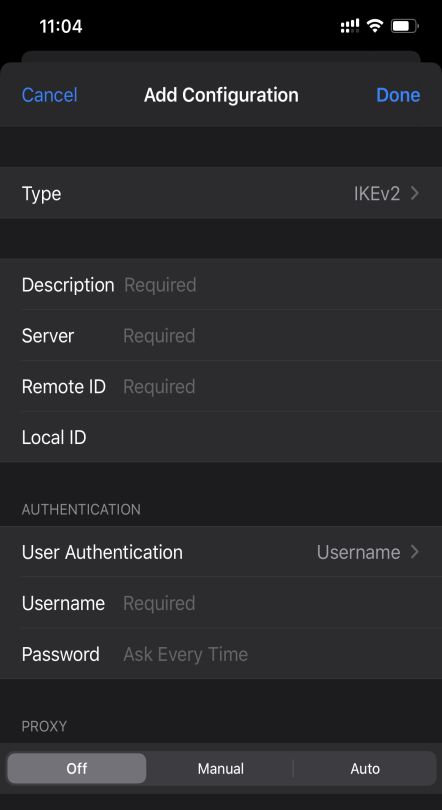
- Here, enter the details given by your VPN provider.
- You will see a set of options while manually configuring a VPN. However, it is pretty easy to enter the details if you have them in your hand.
- Once you enter all the details, now come back and toggle the option “On” to turn on the VPN service.
Do you have any comments or questions about setting up a VPN on your iPhone or iPad? Type in the comment box below to reach us.
More in How-to

How to setup VPN on PS4
PS4 is a fantastic gaming console and loved by millions of users. To improve the ping rate, access the players in different regions, and to protect the online play from online attacks, many users prefer VPN on PS4. Unfortunately, there is no straightforward process for the VPN setup on PS4. However, every popular VPN service…

How to set up and connect VPN on Windows 11
VPN (Virtual Private Network) is the most affordable and safe way to protect and hide your private information from Internet service providers (ISP). It can protect your IP address and encrypt internet history to prevent web browsers and others from accessing your connections VPN providers have so many Apps for their users to use these…
How to Setup a VPN on a Chromebook
Using a VPN is essential these days. No matter who you are, either a businessman or a student, security, and privacy for everyone. We already covered various articles about VPN in the past. You can check all our VPN related articles here. There are many reasons for using a VPN, it helps to protect your…
The week in tech, minus the noise.
New reviews, fixes and the stories that matter — once a week, straight to your inbox.
We only use your email to send the newsletter. Unsubscribe any time. See our privacy policy.
Comments