

How to Update Your Android Firmware?
One thing you need to know is that Android updates work in a different manner to what Apple offers. For example, if you have an iPhone which falls under the update window then you just need to know if an update has been released. Taking an example of iOS 13, all the supported iPhones received…


How to Update Your Android Firmware
One thing you need to know is that Android updates work in a different manner to what Apple offers. For example, if you have an iPhone which falls under the update window then you just need to know if an update has been released.
Taking an example of iOS 13, all the supported iPhones received their update on the same day. So you can install these updates right away.
But Android updates are not available at once for all devices. This is because each manufacturer takes its own time to push the update. Even Google might sometimes delay Android updates for their Pixel phones instead of ‘Day 1’ release.
So you need to understand that it is needed to keep your firmware updated for Android devices and keep checking if there is a new update which has arrived in last week or 15 days.
Receiving an update, however, is not at all difficult as it takes place over-the-air. Your manufacturer will send you an update which will be received by your phone and then you will be prompted to download and install it.
How to Update Your Android Firmware?
For updating firmware on your Android device, you will need to go to your device’s Settings app. Make sure to follow this path inside the Settings app to check for updates.
About Device > System Updates > Check for Updates. If a new update has arrived on the device, you need to make sure that it is downloaded and installed.
This will mean that you are on the latest firmware and this might be a security patch which Google releases every month for Android devices. It might also be a new Android version update which could drastically improve the look, feel and performance of your device. It is also recommended to be on the latest firmware version of your device as it is the most secure one for your device.
More in How-to
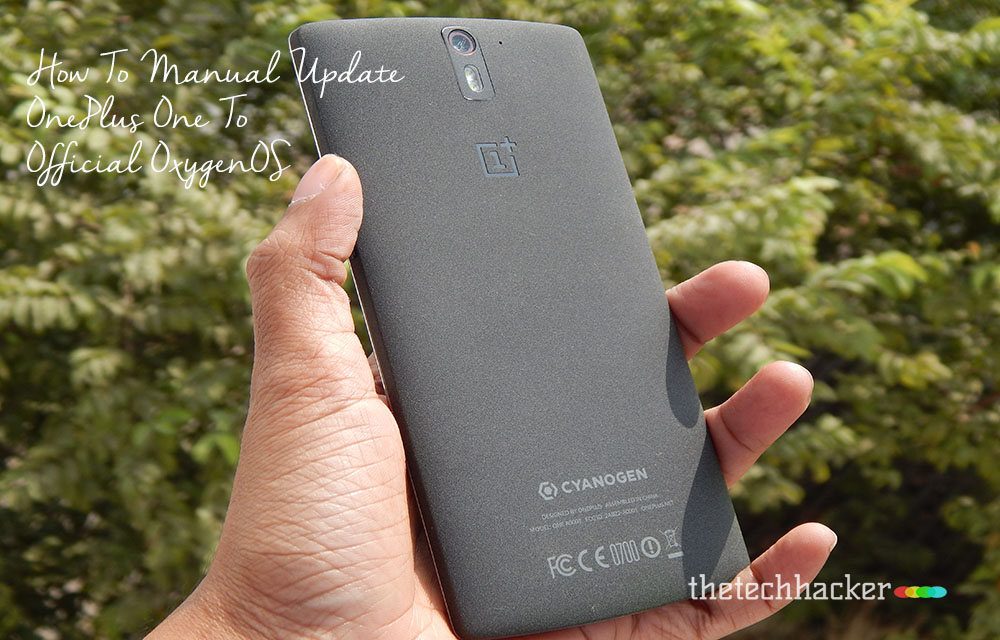
How To Manual Update OnePlus One To Official OxygenOS
The Long wait is over for OnePlus One owner, now finally company released official Android Lollipop build custom Android Lollipop build OxygenOS. This tutorial involves all steps to install OxygenOS on your OnePlus One device. Disclaimer: Please follow this guide at your own risk. Thetechhacker will not be responsible if your device gets damaged or…

How To Improve WiFi Router Signal Strength
WiFi became an essential part of our life. Now we can see a WiFi router in every house for wireless internet connectivity. It is evident that WiFi router comes with a limited range support based on hardware. It is frustrating when we receive poor WiFi signal even it is placed in an open location. If…
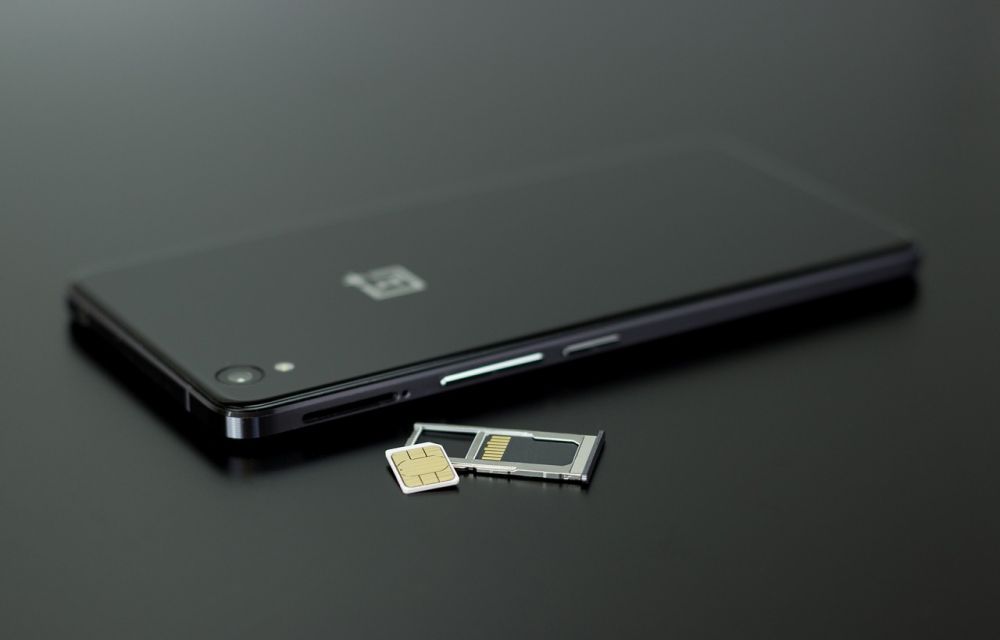
How to fix Android “not registered on a network” error
Android “not registered on network error” is a quite annoying problem when we try to insert the SIM card on Android device. It is the most common problem we usually see on Android-based smartphones. This error message pop-up when the user trying to make a call on the problematic smartphone. It happens when the device…
The week in tech, minus the noise.
New reviews, fixes and the stories that matter — once a week, straight to your inbox.
We only use your email to send the newsletter. Unsubscribe any time. See our privacy policy.
Comments