

How To Use TikTok On PC And Mac?
TikTok is a great app to become famous on the Internet. Also, it is a great app for personal entertainment. Small clips of videos are going viral among the millions of users by giving an infinite number of entertainment hours to its audience. As we all know, TikTok is available for Android and iOS platforms…


How To Use TikTok On PC And Mac?
TikTok is a great app to become famous on the Internet. Also, it is a great app for personal entertainment. Small clips of videos are going viral among the millions of users by giving an infinite number of entertainment hours to its audience.
As we all know, TikTok is available for Android and iOS platforms which means mobile platforms only. If you want to use TikTok on your PC or laptop, this guide will help you to install and use TikTok on PC and Mac.
- How to watch TikTok on PC or Mac?: Yes, watching of TikTok videos straight on your PC is possible by 2 different methods. You can watch them by visiting the official TikTok website on your browser.
How To Use TikTok on PC or Mac?
- Open Google Chrome browser in your PC or Mac and visit the official TikTok website.

- Now, tap on the Watch Now button available at the top right corner of the TikTok home page.

- It will open a new page, tap on the login button available at the top right corner of the page.

- Here, log in to your TikTok account by using available login options.
- In this tutorial, I’m using Google sign-in option to login into the TikTok account.
- Once you logged in, you can use the app to watch personalized video recommendations and upload any edited video too.
However, the browser version of TikTok doesn’t have full-fledged editing features as you see in the app version. If you want to edit videos you need to rely on the third-party video editing software.
How To Install TikTok App On PC or Mac via BlueStack?
Also, you can alternatively use emulator support to install Android apps on Windows or Mac platforms. Here are detailed steps of using Bluestack emulator to install TikTok on Windows or Mac.
- First, download and install the BlueStacks emulator from its official website and install it in your PC or Mac.
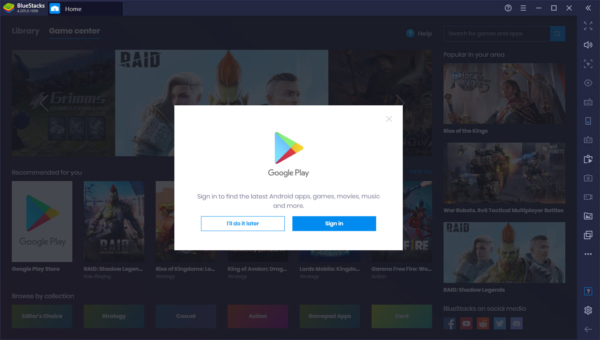
- After installing BlueStacks open it, you will see the Google Play Store, tap on it and log in using your credentials.
- After logging in, find the TikTok app on Google Play Store and install it.

- Open TikTok app and tap on the ‘Me’ button at the bottom right corner.
- Here, log in to your old TikTok account. Or you can sign-up for the service if you are a new user.
- After logging in, you can upload or record a video on TikTok.
That’s it. Now it is easy to watch TikTok videos on Windows or Mac platforms easily using the above methods.
Which method you used to watch TikTok on desktop platforms. Let us know your feedback in the comment section below.
More in How-to

Virtual Machine Applications To Run More Than One Operating System – Windows / Linux / Mac
While we cross through an App or a software program that would be useful for us but only run in different OS that what we are using, we will think that we are not lucky to use that App or Software. But, there is an easy solution to run more than one OS in same…

How to Remove Microsoft Word Macro Viruses from your Windows or Mac?
One of the most popular viruses which are disrupting the MS Office related products is a Macro virus. Unfortunately, MS office is a very popular office suite programs which are used by millions. The impact of the virus is also vast if it is infected in the program. Technically MS Office uses Macros to perform…

Locking and Unlocking Mac or PC With USB Drive
When you work with Mac or Windows-based laptop, you need to secure your system against hackers and thieves. Hence, you should lock and unlock the system appropriately. You can perform locking and unlocking using USB Drive with the help of third-party software such as Rohos Key Logon.
The week in tech, minus the noise.
New reviews, fixes and the stories that matter — once a week, straight to your inbox.
We only use your email to send the newsletter. Unsubscribe any time. See our privacy policy.
Comments