

How To Use WhatsApp QR Codes To Add Contacts
WhatsApp introduced QR codes system to share the contacts with each other by just scanning the codes. By using this feature adding people on WhatsApp is like adding icing on a cake. Before this feature is introduced, users are having a difficult process. People used to type the number and saving to the contacts list…

How To Use WhatsApp QR Codes To Add Contacts
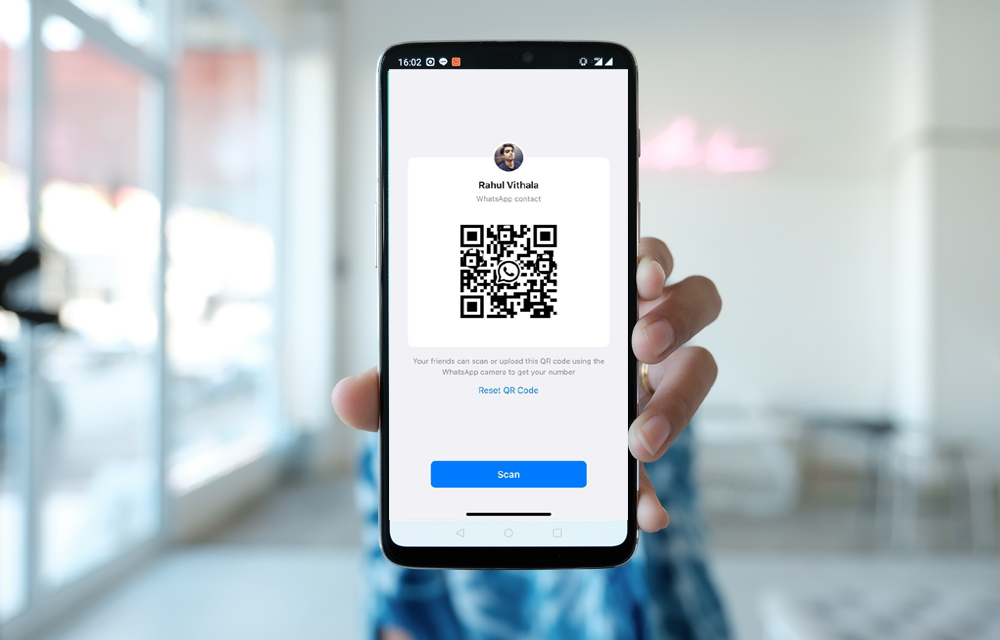
WhatsApp introduced QR codes system to share the contacts with each other by just scanning the codes. By using this feature adding people on WhatsApp is like adding icing on a cake. Before this feature is introduced, users are having a difficult process. People used to type the number and saving to the contacts list and then it is been added to the WhatsApp. Now you can add your friends or other people by scanning their WhatsApp QR code.
Before the official process introduced, people are relayed on the third-party services to create a QR code for WhatsApp. If you are new to this QR code system, we will guide you handle the QR codes on WhatsApp to add people effortlessly.
What is a WhatsApp QR Code?
As we know QR code is a compressed code of information which is readable by scanning on a supported device. WhatsApp QR codes are also a similar type of scannable codes which lets you share contact effortlessly by just scanning. When you want to share your contact, you will have to show your QR code and the other person will scan the code by using the WhatsApp app to add your contact.
WhatsApp is offering 3 QR code options for 3 individual tasks. Three QR codes are useful for generating personal QR code, group QR code and WhatsApp web QR code to use the WhatsApp on the desktop.
How to create a WhatsApp QR Code for your number
To generate a WhatsApp QR Code on your device, follow these steps.
- Open WhatsApp on your mobile. (Either Android or iOS)
- On Android, tap on the three-dot icon at the top and go to Settings. You will find the QR code icon next to your name, now tap on it.
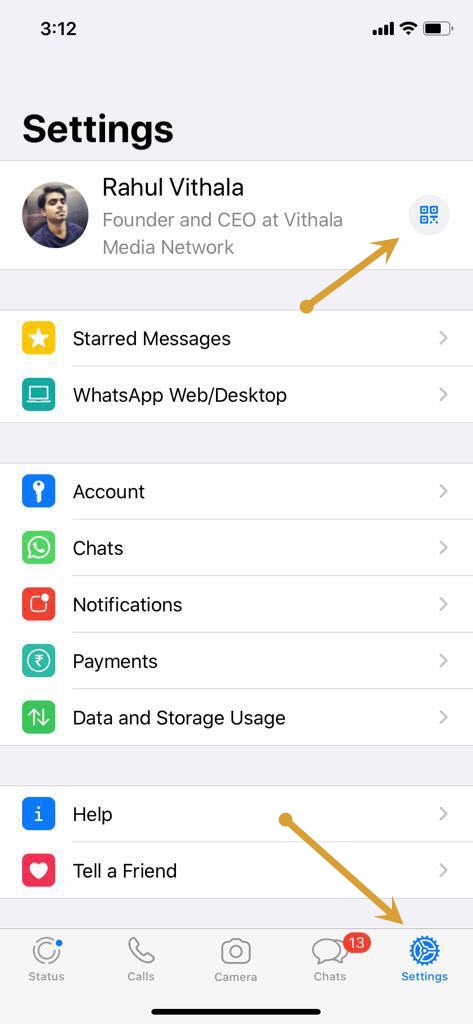
- On iOS, tap on the Settings tab at the bottom. Then tap on the QR icon next to your name.
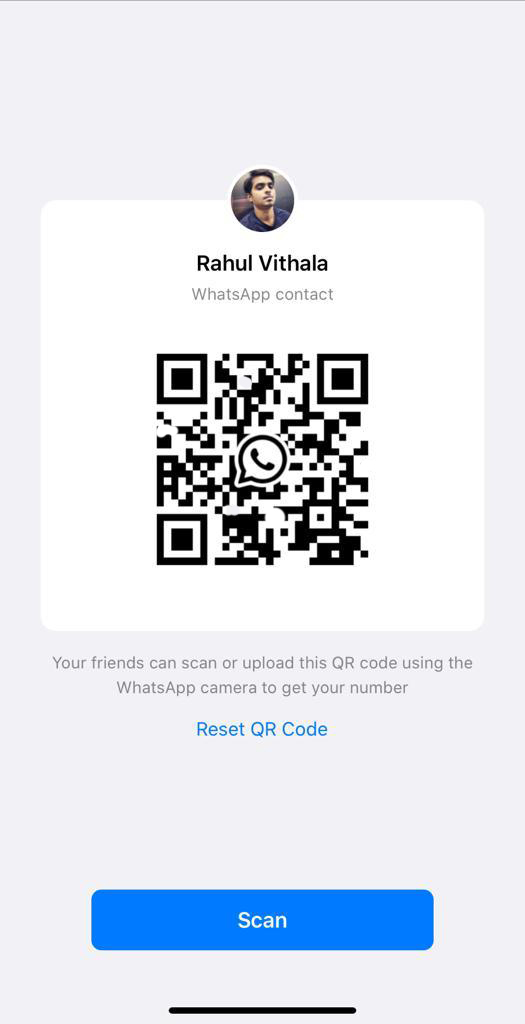
- Now, WhatsApp opens a big QR Code on your screen. If a person is ready to add your contact, they can scan the code directly on their WhatsApp.
How to add WhatsApp contact using QR Code
To add someone on WhatsApp using their QR code, you need to scan their code first on your device. Open WhatsApp Settings and tap on the QR icon.
- Android: On Android, tap on the Scan Code tab to open the scanning screen.
- iOS: On iOS, tap on the Scan button.
Now, point your camera towards the QR code to scan it. After a successful scan, the new contact will appear on the screen and now tap on “add contact” to save the number.
How To Share WhatsApp QR Code Online
If you want to share your QR Code details to others, the simplest possible way is taking a screenshot of the QR code screen. You can directly share the QR Code image by tapping the share icon at the top of the QR code screen on Android or iPhone.
By using share, you can share the image to almost all possible services like Messenger, Email, Telegram and etc.
Conclusion
WhatsApp QR Code offers a simple step to add new contacts without manually adding a contact method. Anyone can use this method to add new contacts easily on their smartphone. Let us know your valuable feedback in the comment section below.
More in How-to

How to Use Google for a Reverse Phone Lookup
To do a reverse phone lookup with Google, type the full phone number (with the area code) into the Google search box, in quotes, like “888-999-1212”. If the number belongs to a business, a public listing or a known scam, it usually shows up in the first few results. Google does not have a dedicated…

How to Find People on Snapchat
Snapchat is a great picture based messaging service which lets you share your self-destructive images with your friends. When you start using Snapchat you feel more interesting when you more friends and celebrity followers in your account. If you are new to Snapchat and struggling to find people this tutorial will help you. This article…

Easily Create Android App Using A Blog Or FB Pages With GoesApp
App creation is a tough task, it needs lot of programming skills and time. Without any programming knowledge any one create a Android app with goesapp, it is a web service which lets you create a Android app from website URL, blog or a Facebook page. How to create a Android app using Goesapp: To…
The week in tech, minus the noise.
New reviews, fixes and the stories that matter — once a week, straight to your inbox.
We only use your email to send the newsletter. Unsubscribe any time. See our privacy policy.
Comments