

ChatGPT Wallet: How It Works, Who Can Use It and How to Set It Up
OpenAI wants ChatGPT to do more than recommend what to buy. On Friday, November 13, it launched ChatGPT Wallet, a way for its AI agents, called dots, to actually pay for things on your behalf. You ask your dot to find a sweater or book a hotel, review the order, approve it with Face ID…


Photo by Vitaly Gariev on Unsplash
OpenAI wants ChatGPT to do more than recommend what to buy. On Friday, November 13, it launched ChatGPT Wallet, a way for its AI agents, called dots, to actually pay for things on your behalf. You ask your dot to find a sweater or book a hotel, review the order, approve it with Face ID or a fingerprint, and the dot checks out for you.
The timing isn’t subtle, with Black Friday less than two weeks away. But before you hand an AI your credit card, it’s worth knowing who can use Wallet right now, how it keeps your card number private, and what happens when an order goes wrong. I went through OpenAI’s announcement and its help documentation so you don’t have to.
Quick answer: ChatGPT Wallet lets OpenAI’s dot agents complete purchases using a saved credit card. It’s rolling out gradually to ChatGPT Pro subscribers in the US who are 18 or older, and it works with eligible US-issued American Express, Chase, Mastercard and Visa credit cards. Debit cards and virtual cards aren’t supported. You approve every purchase with biometric verification, and the store receives a one-time payment token instead of your real card number. Returns and refunds go through the store, and charge disputes go through your card issuer.
What ChatGPT Wallet is
According to OpenAI’s ChatGPT Wallet announcement, Wallet was built with American Express, Mastercard and Visa. OpenAI calls it the first wallet that lets agents pay without seeing your actual card details while requiring a security check on every purchase.
It only works inside conversations with a dot, OpenAI’s agent that can browse and take actions for you. It isn’t available in regular ChatGPT chats, Work or standalone Codex threads. OpenAI says 1.2 billion people use ChatGPT every week, and many already use it to research and compare products. Wallet is its attempt to close the loop and handle checkout too.
Who can use it right now
| Requirement | Details |
|---|---|
| Plan | ChatGPT Pro |
| Location | United States, with a US billing address |
| Age | 18 or older |
| Cards | US-issued American Express, Chase, Mastercard and Visa credit cards |
| Not supported | Debit cards, virtual cards |
| Approval | Face ID, Touch ID or another biometric check on a supported device |
Even if you tick every box, you might not see it yet. OpenAI says Wallet is rolling out gradually. It hasn’t announced a date for Plus or free users or for countries outside the US.
How a purchase works
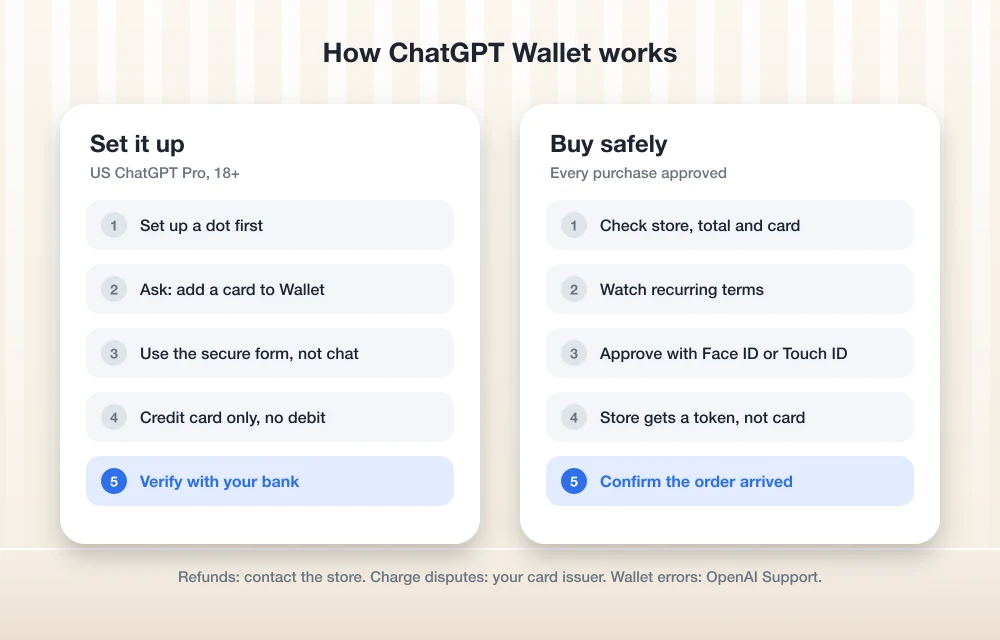
The flow has four steps:
- You ask your dot to find something, for example “Help me find a new sweater” or “Book me a hotel for my trip to Chicago next weekend.”
- When it’s time to check out, the dot shows a purchase request with the store, items, total, selected card and any shipping or subscription terms.
- You select Approve and confirm with Face ID, Touch ID or a fingerprint.
- The card network generates a payment token, a substitute card number with its own security code and expiration date, and the dot uses it to finish checkout.
Because of that token, the store and the agent never see your real card number. The number on your receipt may not match your physical card, which is expected. OpenAI says you keep your card’s existing rewards and dispute protections.
How to set up ChatGPT Wallet
OpenAI’s ChatGPT Wallet help guide describes two ways to add a card. You’ll need a dot set up first.
Option 1: Ask your dot
- In a conversation with your dot, type “Help me add a card to Wallet.”
- Open the secure card setup link that appears.
- Enter your card number, expiration date and security code in the secure form. For American Express, use the 4-digit code on the front.
- Review the Wallet terms and privacy notice, then select Add card.
Option 2: From Settings
- On mobile, open Settings from the left navigation.
- Select Wallet, then Add Card.
- Fill in the secure form and select Add card.
Your bank may ask you to verify the card with a code or an approval in its app. Chase cardholders need the Chase app installed and signed in with biometrics, and you have to be the primary cardholder, not an authorized user. Wait for the “Card added” message before you start shopping.
One rule matters more than the rest: only type card details and bank codes into the secure form, never into the chat itself. OpenAI repeats this throughout its guide, and it’s good advice for any AI app.
Is it safe?
The design has some real safeguards. Every purchase needs your biometric approval, the agent never sees your card number, and each approval leaves a record of exactly what you authorized. Purchases also go on a credit card, which in the US generally gives you stronger fraud and dispute protections than a debit card.
The risks are more practical than technical:
- Read the purchase request every time. Check the store, total, card and especially any recurring payment terms. If you agree to a subscription, the store can keep charging you under those terms.
- “Ready to check out” isn’t an order confirmation. OpenAI says it only means your approval went through. Look for the store’s confirmation before trying again, so you don’t order twice.
- Not every store works. OpenAI admits some sites may block agents or flag their purchases as suspicious, which can lead to declined or canceled orders.
- Watch for fakes. If a purchase request shows a seller you don’t recognize, decline it. Scammers love new payment features, and the same instinct that helps you spot an AI-generated video applies here: if something feels off, stop.
Who to contact when something goes wrong
| Problem | Contact |
|---|---|
| Order status, returns, refunds, cancellations | The store |
| Declined, pending or unrecognized charges | Your card issuer |
| Wallet errors, or a purchase different from what you approved | OpenAI Support |
| Recurring charges you want to stop | The store |
OpenAI doesn’t handle refunds itself. When you contact support, never share your full card number, security code or bank verification codes, and be wary of anyone who asks for them. Our guide to dealing with tech support scams covers the warning signs.
How to remove a card
Ask your dot to show your saved cards, then ask it to remove one using the last four digits. Check that the confirmation names the right card, then ask for the list again to make sure it’s gone. Removing a card doesn’t cancel past orders or close the card with your bank. You can also change your default card by asking, for example, “Make the card ending in 1234 my default.”
What’s next for ChatGPT Wallet
Right now you approve every purchase. OpenAI says that over time it expects people to delegate purchases entirely by setting limits such as a spending cap, purchase categories or time periods, with biometric checks and records still in place. It’s also working with payment companies such as Stripe and Adyen, and fraud prevention firms like Forter and Signifyd, so stores stop declining legitimate agent purchases.
For now, Wallet is a Pro-only test. If you’re shopping this season, our Black Friday 2026 tech deals roundup is the faster way to find a bargain, AI agent or not.
FAQs
Is ChatGPT Wallet free?
OpenAI hasn’t announced a separate fee for Wallet, but you need a ChatGPT Pro subscription to use it at launch.
Can I use a debit card with ChatGPT Wallet?
No. ChatGPT Wallet only supports eligible US-issued American Express, Chase, Mastercard and Visa credit cards. Debit cards and virtual cards aren’t supported at launch.
Does ChatGPT see my credit card number?
No. You enter it in a secure form, and after you approve a purchase, the card network creates a payment token for checkout. The agent and the store don’t see your actual card details.
Why don’t I see ChatGPT Wallet in my account?
It’s rolling out gradually to US ChatGPT Pro users who are 18 or older, and it only works in conversations with a dot. If you meet those requirements, it may not have reached your account yet.
Featured image: Vitaly Gariev on Unsplash.
Disclosure: TheTechHacker has no paid relationship with OpenAI, American Express, Mastercard, Visa, Chase or any company mentioned here.
More in How-to

How to Set Up Donations on Twitch
Twitch lately have been quite popular for streamers who love gaming. There are even people who moved to gaming as their careers as they were earning quite well with the online streaming thing. There are different genres available in-game streaming which can help you to get an amazing follower base. Donations are another way you…

Bing Chat not working on Edge or Windows? Best fixes to get it running today
Bing Chat, now powered by the latest ChatGPT-based model and integrated across Microsoft Edge and Windows, is drawing strong adoption, but users frequently report that it stops responding, fails to load, or throws generic “Something went wrong” errors. The good news is most issues are routine and fixable with a handful of browser, network, and…

How to Setup a VPN on a Chromebook
Using a VPN is essential these days. No matter who you are, either a businessman or a student, security, and privacy for everyone. We already covered various articles about VPN in the past. You can check all our VPN related articles here. There are many reasons for using a VPN, it helps to protect your…
The week in tech, minus the noise.
New reviews, fixes and the stories that matter — once a week, straight to your inbox.
We only use your email to send the newsletter. Unsubscribe any time. See our privacy policy.
Comments