

How to Connect Chromecast to Wi-Fi (2026 Guide for Every Model)
Your Chromecast is plugged in, the TV shows that big “set me up” screen, and nothing happens. Sound familiar? Or maybe it worked for two years and then you got a new router from your internet company, and now the TV just says it can’t find anything. Same problem in both cases. Your Chromecast has…

How to Connect Chromecast to Wi-Fi
Your Chromecast is plugged in, the TV shows that big “set me up” screen, and nothing happens. Sound familiar? Or maybe it worked for two years and then you got a new router from your internet company, and now the TV just says it can’t find anything. Same problem in both cases. Your Chromecast has to connect to Wi-Fi again, and the trick is knowing which Chromecast you’ve got, because the steps aren’t the same for every model. So in this guide I’ll show you how to connect Chromecast to Wi-Fi for each one, and what to try when it just won’t connect.
Back in September 2020, when I first wrote this post, you set up a Chromecast from a website. That’s gone now. Google moved everything into the Google Home app, quietly stopped selling the Chromecast with Google TV, and brought out the Google TV Streamer. Half of the old steps didn’t make sense anymore, so I rewrote the whole thing for 2026.
Quick answer: Plug the Chromecast into your TV and into power, open the Google Home app on a phone that’s on your Wi-Fi, tap Add (+), set up a new device, pick your Chromecast, then choose your Wi-Fi network and type the password. With a Chromecast with Google TV or a Google TV Streamer, you can also just pick the Wi-Fi network on the TV using the remote. Keep in mind a Chromecast only remembers one Wi-Fi network at a time.
First, Which Chromecast Do You Have?
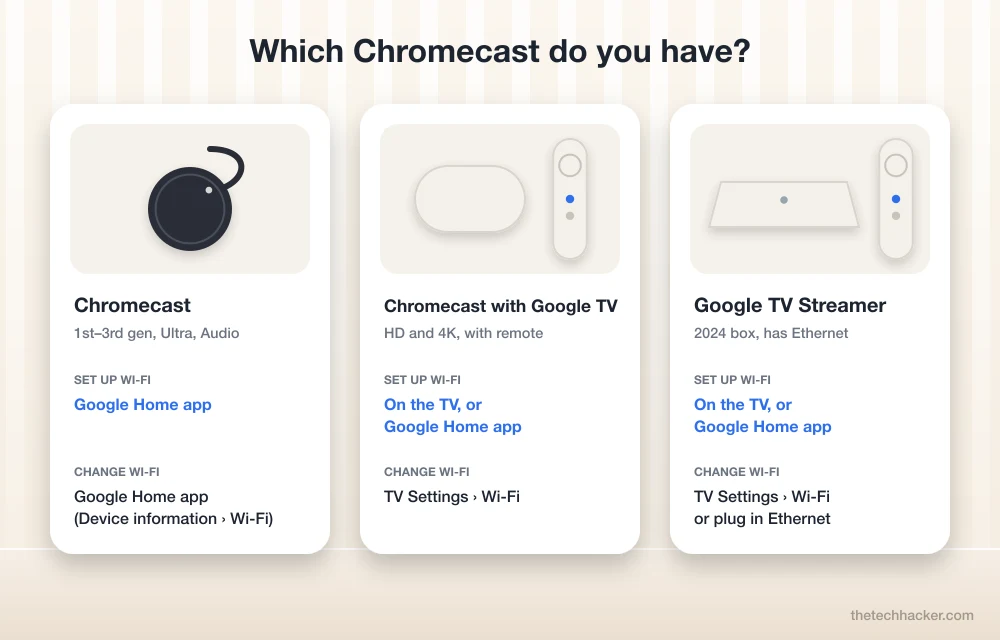
Take a look at the thing hanging behind your TV. If it’s a round puck on a short cable with no remote in the box, you have the classic Chromecast (2nd gen, 3rd gen, Ultra or the Audio one). The very first model from 2013 is different, it looks like a small HDMI stick, a bit like a fat USB drive. Both of these are set up only from the Google Home app on your phone.
Came with a little remote and looks like a flat oval? That’s the Chromecast with Google TV, in HD or 4K. And if it’s a small box that sits on the table and has an Ethernet port at the back, you’ve got the Google TV Streamer from 2024. Those two have their own menus on the TV, so you can do the Wi-Fi part right there with the remote.
| Model | How it looks | Where you set up Wi-Fi |
| Chromecast (1st, 2nd, 3rd gen), Ultra, Audio | 1st gen: small HDMI stick. Others: round puck on a short cable. No remote | Google Home app |
| Chromecast with Google TV (HD or 4K) | Oval dongle with a remote | On the TV or Google Home app |
| Google TV Streamer (2024) | Small box, remote, Ethernet port | On the TV, Google Home app or Ethernet |
Is an old Chromecast still worth using? Sure, it still connects and casts just fine. Google has ended security updates for a few of the older ones though, and the Chromecast with Google TV is off the shelves. If you’re buying something new today, the Google TV Streamer is what Google sells.
What You Need Before You Start
Not much, really. Your Wi-Fi name and password, and a phone (Android or iPhone, doesn’t matter) with the latest Google Home app, signed in to your Google account and sitting on that same Wi-Fi. Oh, and use the power adapter from the box. I know it’s tempting to plug the USB cable into the TV and keep things tidy, but a lot of TV USB ports simply don’t push enough power, and then the Chromecast keeps restarting halfway through setup.
How to Connect Chromecast to Wi-Fi (Chromecast 3rd Gen and Older)
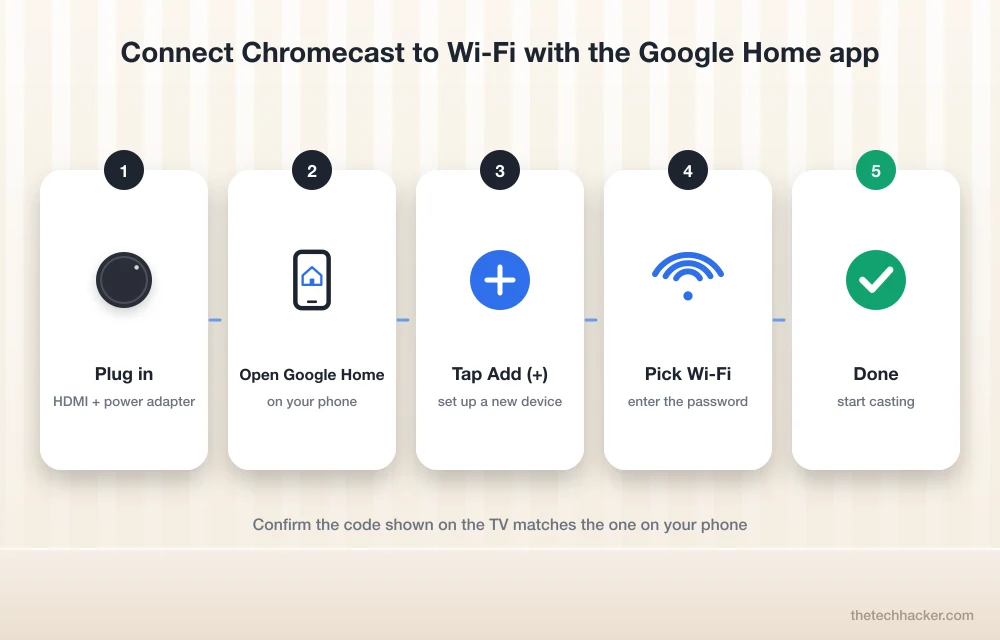
Start by pushing the Chromecast into any free HDMI port and connecting the power adapter. Port too tight behind a wall-mounted TV? Use the small HDMI extender that came with it. Grab the TV remote and switch to that HDMI input, and you should see the Chromecast welcome screen with a name like “Chromecast1234” on it.
Now pick up your phone and open the Google Home app. Tap the Add (+) button, choose to set up a new device, and select your home. The app goes looking for the Chromecast, which can take a few seconds, so don’t panic if nothing shows up straight away. When it finds it, you’ll see a code on the TV and the same code on your phone. If they match, confirm. Then it asks for your Wi-Fi network. Pick it, enter the password carefully (it’s case sensitive), give the Chromecast a name you’ll recognise like “Bedroom TV”, and finish.
That’s all. Open YouTube or Netflix, tap the little Cast icon and choose your TV. If you’d rather throw your own movie files on the big screen, have a look at our guide on casting from VLC to Chromecast.
Note: Using the original 2013 Chromecast? It can’t see 5GHz Wi-Fi at all, only 2.4GHz. If your router shows two network names, one of them usually ending in “5G”, pick the other one.
How to Connect Chromecast with Google TV or Google TV Streamer to Wi-Fi
These two are a bit friendlier because they have a remote and a real menu. Plug it in, switch the input, and pair the remote when the screen tells you to. After that the TV gives you a choice. You can scan the QR code with your phone and continue in the Google Home app, or ignore the phone and set everything up on the TV. I’d say the phone route is quicker, since you don’t have to type everything with the remote. Either way you end up choosing your Wi-Fi network, typing the password and signing in.
If you have the Google TV Streamer and the router is close, just plug in an Ethernet cable and forget about Wi-Fi. For 4K streaming, a cable is always more stable.
How to Change the Wi-Fi Network on Chromecast
This is the part that catches most people out. A Chromecast can remember only one Wi-Fi network. It won’t hop to a new router on its own, and it won’t remember your home Wi-Fi when you take it on a trip. You have to tell it to forget the current network first. The steps below match what Google’s own help page says.
Chromecast (3rd gen or older), Ultra and Audio
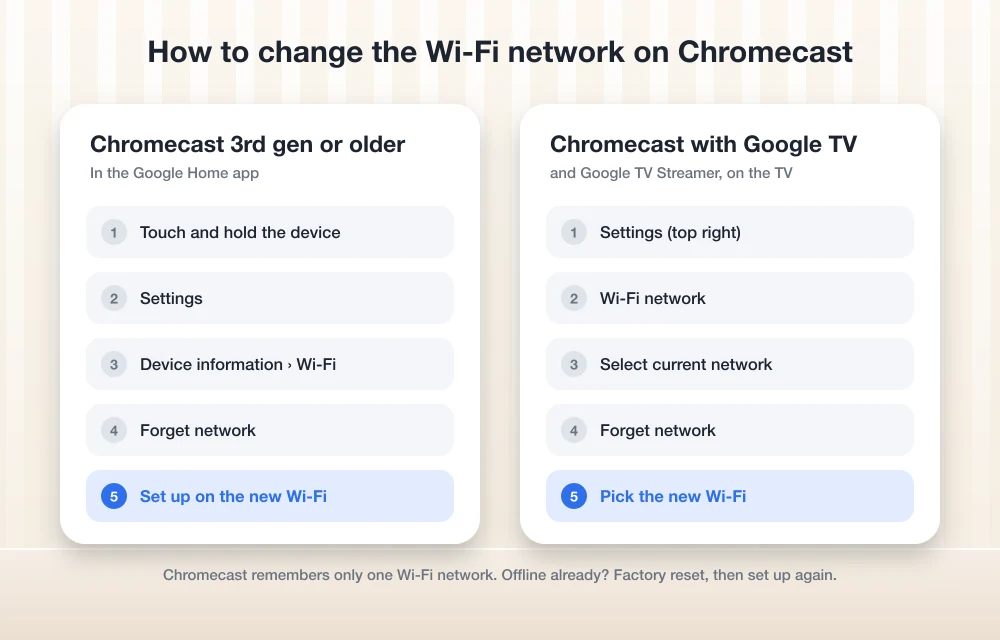
Make sure your phone is logged in with the same Google account you used for the Chromecast, otherwise you won’t see its settings. In the Google Home app, press and hold the Chromecast’s tile, open Settings > Device information > Wi-Fi and choose to forget the network. Once that’s done, set it up again on the new Wi-Fi, exactly like you did the first time.
Chromecast with Google TV and Google TV Streamer
Here you don’t even need the phone. On the TV, go to Settings in the top right corner, then Wi-Fi network, select the one you’re connected to and choose Forget network. Pick the new network, type its password, done.
What if you already swapped the router and the Chromecast is offline? Then the app has no way to reach it, so “forget network” won’t work. You’ll need a factory reset and a fresh setup. On a Chromecast 2nd gen, 3rd gen or Ultra, hold the button on the device until the light blinks orange and turns white, then let go. The original 2013 one needs around 25 seconds of holding, until the light goes from red to white. For a Chromecast with Google TV, hold the button on the back until the light blinks yellow, and release it when it turns solid white. If you can still get into its menu, Settings > System > About > Factory reset does the same thing.
Chromecast Not Connecting to Wi-Fi? Try These Fixes
Before anything else, check the power. If the Chromecast is running off the TV’s USB port, switch to the wall adapter. Sounds silly? It fixes more of these cases than you’d expect.
Next, give everything a proper restart. Pull the power from the Chromecast and the router, wait half a minute, plug them back in. While that’s happening, check your phone. Did it jump to mobile data? Is it on the guest network? If the phone and Chromecast aren’t on the same Wi-Fi, the app will never see it.
Position matters too. A TV is a big metal box and it blocks Wi-Fi, so a Chromecast stuck flat against the back of it gets a poor signal. The HDMI extender moves it out a little, and sometimes that’s enough to fix it.
Still no luck? Then the router might be the problem. Some routers have something called “AP isolation” or “client isolation” turned on, which stops devices on the same network from talking to each other. Useful in a café, useless at home if you want to cast, so switch it off. Update the Google Home app as well, and say yes when it asks for Bluetooth and nearby device permissions. Keep the factory reset for the very end.
Can You Use Chromecast on Hotel or Public Wi-Fi?
Most of the time, no. Hotel, airport and college Wi-Fi usually shows a login page first (techies call it a captive portal), where you type your room number or accept some terms. The Chromecast has no browser to open that page, so it just gets stuck there. It’s a common complaint, and there are a few ways around it.
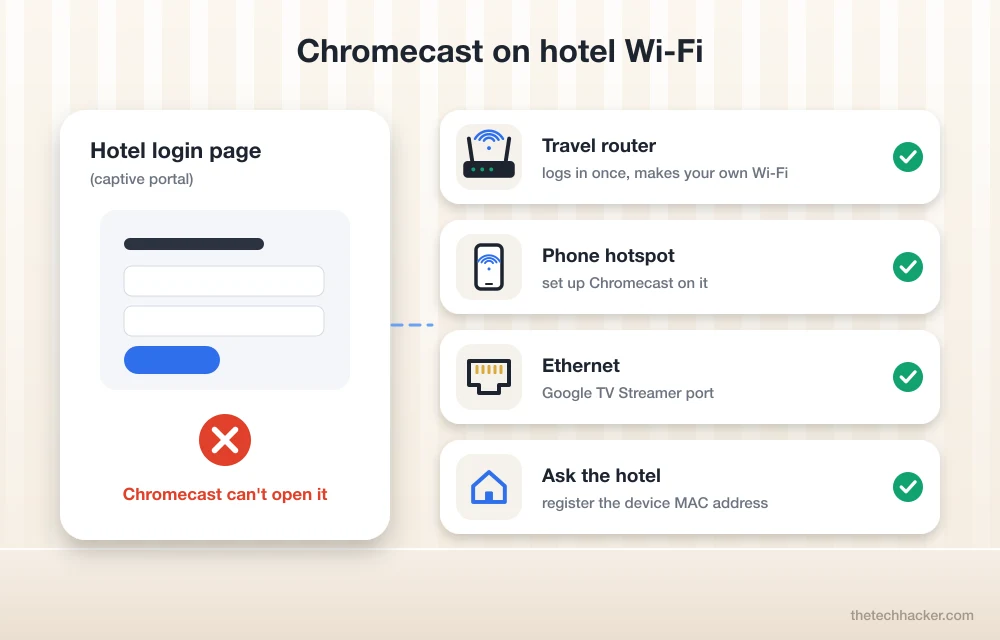
If you travel a lot, a travel router is worth buying. You log it in to the hotel Wi-Fi once, it creates your own little private network, and the Chromecast connects to that like it’s at home. Without one, you can set the Chromecast up on your phone’s hotspot, though you’ll need a second phone or tablet to cast from and it burns through mobile data. Some hotels are happy to register your device’s MAC address so it skips the login page, so just ask at the front desk. And if the room has a network port in the wall, the Google TV Streamer can use Ethernet directly.
Don’t have a Chromecast at all? You can still cast media to a smart TV without Chromecast, or mirror your Android screen if your TV supports it. Regular readers might remember our old Chromecast guest mode post as well, and if you’re an HBO fan, here’s how to watch HBO Max on Chromecast.
Frequently Asked Questions
How do I connect my Chromecast to a new Wi-Fi network?
You first make it forget the old one. For older Chromecasts that’s done in the Google Home app (Settings, Device information, Wi-Fi), and for Chromecast with Google TV or the Google TV Streamer it’s in Settings on the TV. After that, set it up again on the new network. If it’s already offline, a factory reset is the only way.
Why won’t my Chromecast connect to Wi-Fi?
Usually it’s one of four things: not enough power from the TV’s USB port, your phone sitting on a different network, weak signal behind the TV, or AP isolation switched on in the router. Plug it into the wall adapter, restart the router, and make sure the phone is on the same Wi-Fi.
Can Chromecast remember more than one Wi-Fi network?
No, only one. If you want to use it somewhere else, you’ll have to forget the current network and set it up again there.
Can I use Chromecast on hotel Wi-Fi?
Not if the Wi-Fi needs a login page, since Chromecast can’t open it. A travel router, your phone’s hotspot or an Ethernet cable will get you around it, or you can ask the hotel to register your device’s MAC address.
Do I need the Google Home app to set up Chromecast?
For the Chromecast 3rd gen and older, yes, because the old google.com/chromecast/setup page isn’t used anymore. Chromecast with Google TV and the Google TV Streamer can be set up on the TV with the remote, but the app makes it faster.
Final words: Connecting a Chromecast to Wi-Fi isn’t hard once you know which one you have. Phone app for the round puck, TV settings for the Google TV models, and remember it can only keep one network in its head. If yours still refuses, leave your Chromecast model and router name in the comments and we’ll try to figure it out with you.
More in Guides
How To Cast Media on A Smart TV without Chromecast?
In older times we settled listening to the radio and watching movies on the big screen. Today the media world is extended to every other part of our lives. From the theaters to our classrooms we are all dependent on the media content. Our homes as we know have become a mini-theater with that real…
How To Watch HBO Max On Chromecast?
HBO Max has quickly become one of the most popular streaming services out there, offering a wide range of movies and TV shows for viewers to enjoy. However, watching HBO Max on a small screen like a smartphone or laptop can sometimes be a bit of a bummer, which is why many people prefer to…
What to do before selling iPhone – Step by step guide
What to do before selling iPhone? It is an interesting topic if you are planning to sell your iPhone. Every year Apple launches the latest models of iPhones. It is a common act that many existing iPhone users are eager to update their phones with the latest model. In the mean process, the users trade…
The week in tech, minus the noise.
New reviews, fixes and the stories that matter — once a week, straight to your inbox.
We only use your email to send the newsletter. Unsubscribe any time. See our privacy policy.
Comments