

How To Fix Google Chrome Not Showing Most Visited Sites Thumbnails
Latest advanced browsers show most visited sites as thumbnails when you open the browser. Google Chrome is one such browser which has many advanced features with a clean interface. Chrome has support for showing thumbnails for most visited sites. Whenever we launch Chrome it shows the most visited sites as thumbnails to easily open them…

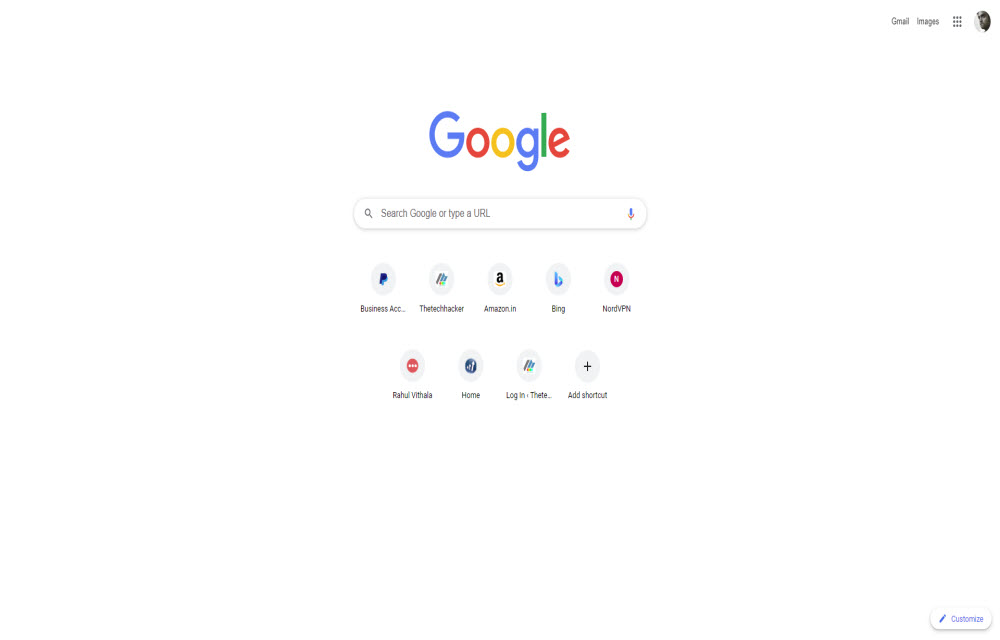
Fix Google Chrome Not Showing Most Visited Sites Thumbnails
Latest advanced browsers show most visited sites as thumbnails when you open the browser. Google Chrome is one such browser which has many advanced features with a clean interface. Chrome has support for showing thumbnails for most visited sites.
Whenever we launch Chrome it shows the most visited sites as thumbnails to easily open them with a single click.
If you are not experiencing the most visited sites thumbnails feature on Google Chrome, here we have a detailed guide to get back them.
We can get back the thumbnail feature using the following methods.
Method 1: Fix in Google Chrome Settings
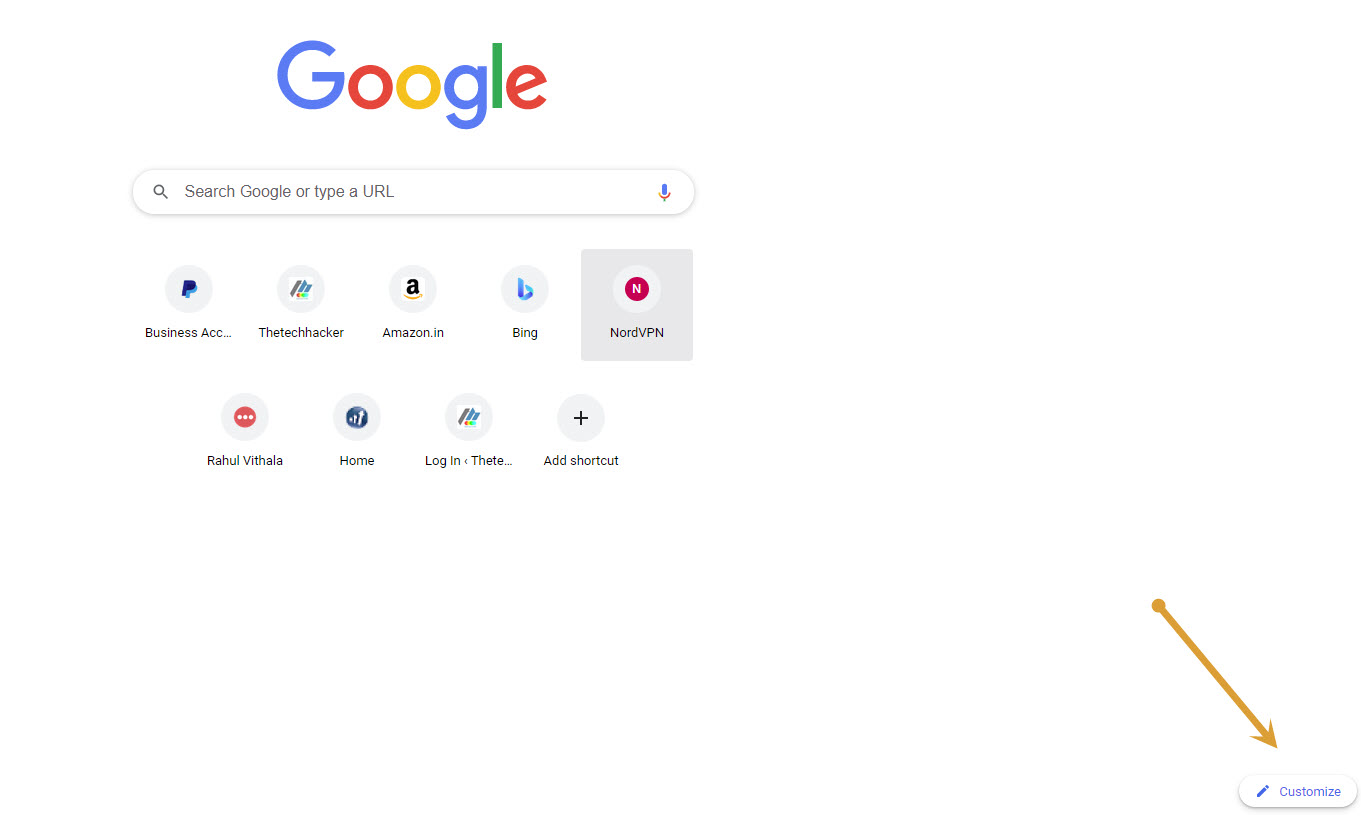
- Open Google Chrome and click on the Customize button on the startup page.
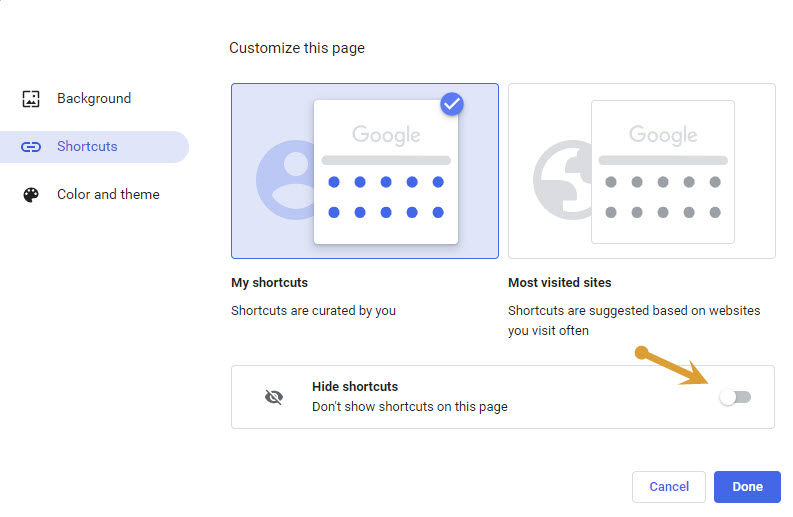
- Now click on the Shortcuts option on the left side of the window.
- Here, in the right side, turn off the toggle button option Hide shortcuts. By turning off, it will enable the shortcut thumbnails in the startup page.
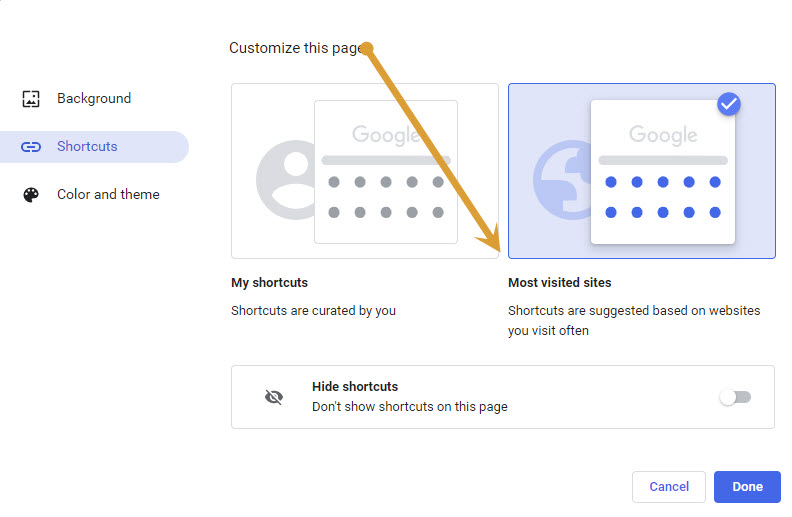
- Also, make sure to select “Most visited sites” option in the shortcuts.
- Now relaunch the Chrome by completely closing the program from the toolbar hidden icons.
If the option is already turned off and still not getting the shortcuts thumbnail, try the next method.
Method 2: Chrome Flags
Tweaking options in Chrome Flags may fix the issue. Follow the steps to modify the Chrome Flags to enable most visited sites thumbnails.
- Open Google Chrome, copy and paste the following URL in the address bar.
chrome://flags/#use-google-local-ntp - In the search bar, type “local ntp“.
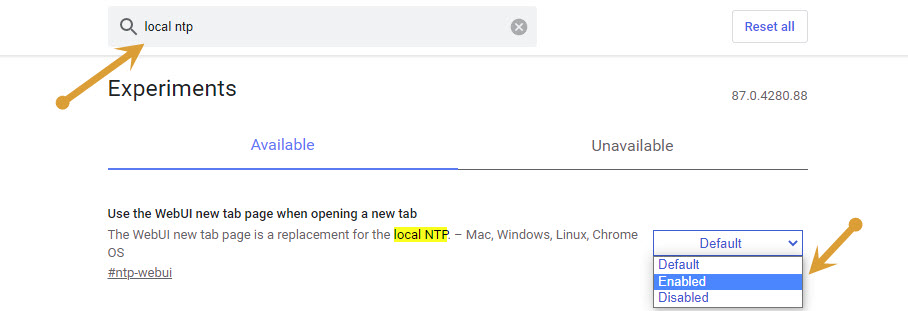
- Now, in the results, choose Enabled option from the drop-down menu.
- Now relaunch the Chrome and check the issue is fixed or not.
Method 3: Update Google Chrome
Updating Google Chrome with the latest version will fix the technical issue causing this error. To update Google Chrome follow the below steps.
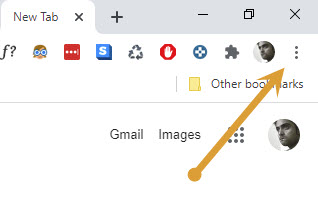
- Open Google Chrome and click on the 3 dots menu at the top right corner of the Window.
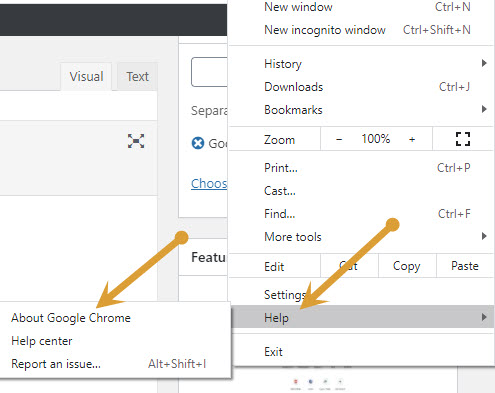
- Now, click on the Help option and then click on About Google Chrome option.
- After clicking on About Chrome, it will instantly start looking for the latest update and if any updates available it will automatically download and install.
Method 4: Reset Google Chrome
This is the last option to try if you are missing the “Most Visited Sites Thumbnail” option in Chrome. To reset Google Chrome, follow the below steps.
- Open Google Chrome, copy and paste the following in the address bar and hit enter.
chrome://settings/reset - Now, click on the Reset settings button to reset the Google Chrome to default settings.
Conclusion
These are the best practices to bring back the lost “Most Visited Sites Thumbnail” option in the Google Chrome. Let us know which method is worked for you in the comment section below.
More in How-to
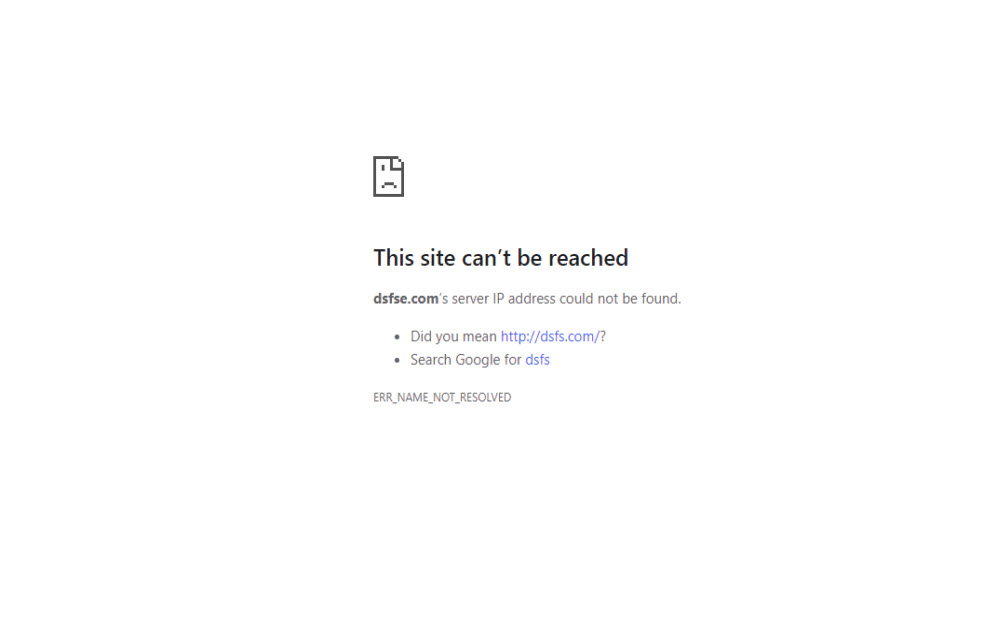
How to fix “This Site Can’t Be Reached” Chrome Error
This Site Can’t Be Reached is the common error in the Google Chrome browser. The error is caused by many reasons when your trying to open a website address in Google Chrome. If you are currently facing the error and trying to fix the issue, then you are in the right place. We are here…
How To Fix Google Meet ‘Camera is Off’ Error
Google Meet is a great video conferencing app and a strong contender to the Zoom. Technical errors are most common in apps and Google Meet also has some unwanted errors. The most common one is Camera is off error in the Google Meet. It is quite frustrating when you start a video session and suddenly…
How to fix you are not signed in error in Google Drive on Chrome
Google Chrome and Google Drive is a deadly combination of productivity and safe online storage. Their services are widespread and created trust in the user’s mindset and overcame the inadequate Internet systems. Google Drive is, obviously, a product of Google, regarding cloud spacing. As with every cloud space website, Google Drive offers you a possibility for…
The week in tech, minus the noise.
New reviews, fixes and the stories that matter — once a week, straight to your inbox.
We only use your email to send the newsletter. Unsubscribe any time. See our privacy policy.
Comments