

How To Use Signal App?
After the upsetting WhatsApp privacy policy update, many people ditched the WhatsApp and moved to the other alternatives. One of the best alternatives to the WhatsApp in terms of privacy and security is notable “Signal” app. The signal is well known for its privacy features. Also, the app became much popular with the Elon Musk…

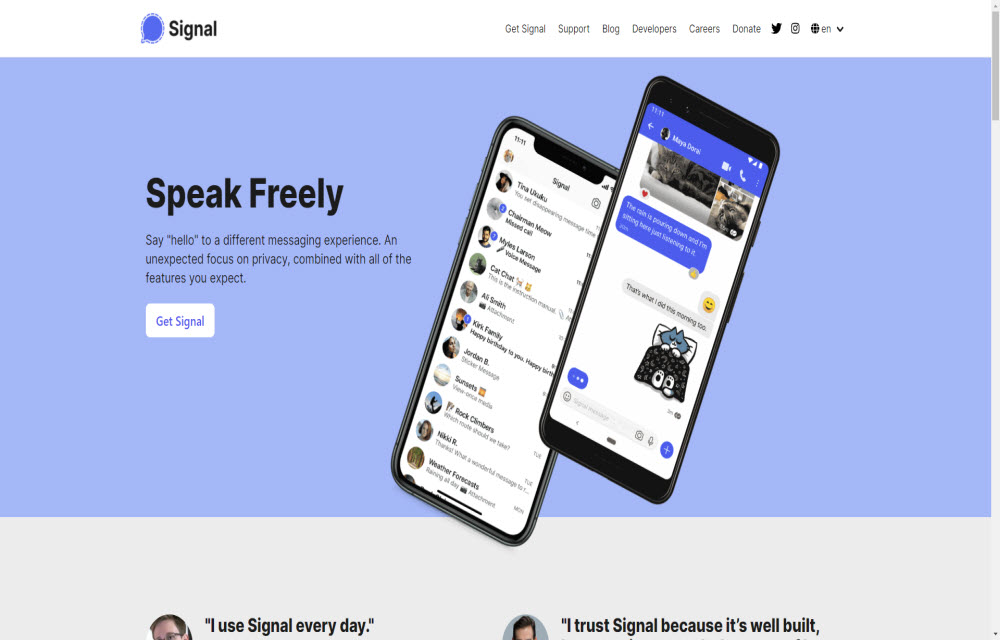
How To Use Signal App
After the upsetting WhatsApp privacy policy update, many people ditched the WhatsApp and moved to the other alternatives. One of the best alternatives to the WhatsApp in terms of privacy and security is notable “Signal” app. The signal is well known for its privacy features. Also, the app became much popular with the Elon Musk tweet suggesting the Signal as WhatsApp alternative right after the WhatsApp privacy policy update released.
Use Signal
— Elon Musk (@elonmusk) January 7, 2021
What makes Signal special?
Signal – Private Messenger app is available for multiple platforms like WhatsApp and other messaging apps. It is an encrypted messaging service which uses one-to-one and group messaging service. It is available for Android, iPhone, iPad, Windows, Mac and Linux.
Words from Developer
State-of-the-art end-to-end encryption (powered by the open-source Signal Protocol) keeps your conversations secure. We can’t read your messages or listen to your calls, and no one else can either. Privacy isn’t an optional mode — it’s just the way that Signal works. Every message, every call, every time.
How to use the Signal app for messaging?
Just like every other app installation, Signal takes a few seconds time to install on your device.
- Download and install the app on your device.
- Now, enter your mobile number to get started. You will get an OTP to authenticate the app. Once you verify the code, tap on Submit.
- After the above step, it asks you yo enter your details like name and surname.
- Next, create the PIN number and tap on next.
- That’s it. Now you will have a fully working Signal app on your device.
Android users have the additional advantage of using Signal for both encrypted messaging and SMS service.
How to compose a message on Signal?
To compose a new message on Signal, follow the below steps.
- Open the Signal app on your device.
- Now, tap on the pencil icon on the home screen. Or you can alternatively use the three-dot menu on the screen to compose a new message.
- Here, select the contact to create a conversation.
How to create a group on Signal?
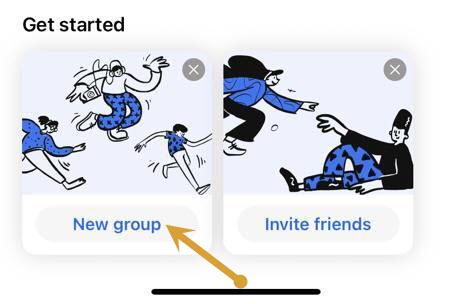
Creating a group on Signal is a simple process. On the home screen of the Signal app, you will see a “New group” option. Just tap on the option to create a new group.
Signal users can make encrypted calls to contacts without any hassle or any privacy leak issue. Trusted by millions, Signal is a worthy app to try and it is the best alternative to the WhatsApp.
Let us know your valuable feedback in the comment section below.
More in How-to
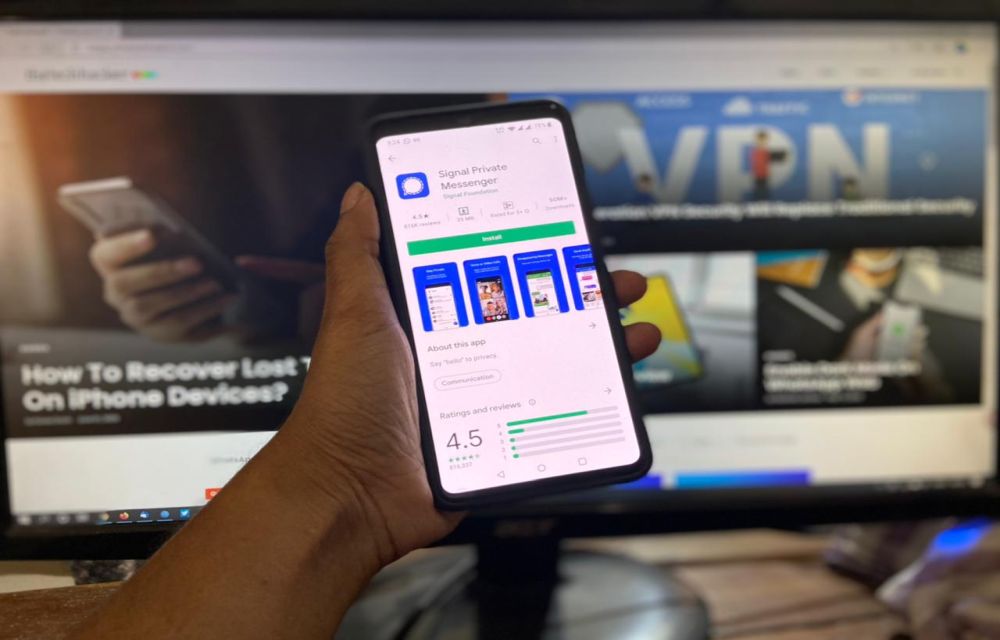
How To Use Signal Without Sharing Your Contacts?
After WhatsApp updated its privacy policy and Elon Musk tweet, the Signal app has got an enormous boost in downloads. Also, the privacy policy of Facebook is yet another reason for people are looking for an alternative to WhatsApp. Moving to a new messenger app is not an easy task for everyone. WhatsApp is the…
How to Transfer Your Signal Account to a New iPhone
When you upgrade a new phone, there are plenty of things you need to take care of. Mostly users worry about transferring existing data to the new device. One of the most important things is migrating important conversations in the messenger app to a new device. One such important and popular messenger app we are…

Roku Remote Not Working? Try These Fixes
Roku is a very popular name in the entertainment world with more than 500000+ movies and TV series. It is also popular for providing the affordable online streaming service which makes a normal TV into a smart TV. During enjoying a movie or TV series, the painful thing is Roku remote stopped working. There are…
The week in tech, minus the noise.
New reviews, fixes and the stories that matter — once a week, straight to your inbox.
We only use your email to send the newsletter. Unsubscribe any time. See our privacy policy.
Comments