

How to Stop Siri AI From Reading Your Apps With Excluded Apps in iOS 27.2
Siri AI in iOS 27 can read what’s on your screen, pull details out of your messages and act inside your apps. That’s useful until you remember it can also see your Signal chats, your banking app and your health notes. iOS 27.2 adds a simple fix: an Excluded Apps list that blocks Siri AI…


Image: Apple
Siri AI in iOS 27 can read what’s on your screen, pull details out of your messages and act inside your apps. That’s useful until you remember it can also see your Signal chats, your banking app and your health notes. iOS 27.2 adds a simple fix: an Excluded Apps list that blocks Siri AI from reading an app at all. The Electronic Frontier Foundation, which had pushed Apple for exactly this, called it a victory. This guide covers how to set it up, which apps to exclude, what stops working, and the closest option on Android.
Quick answer: On iOS 27.2 or later, go to Settings > Siri > Excluded Apps, tap Add Apps and pick the apps you want to block. Siri AI can then no longer read the contents of those apps, and onscreen awareness won’t work inside them. The trade-off is lost features: exclude Messages, for example, and Siri AI can’t read or reply to your texts anymore. On Android, the closest option is in the Gemini app under Settings > Personal Intelligence > Connected Apps.
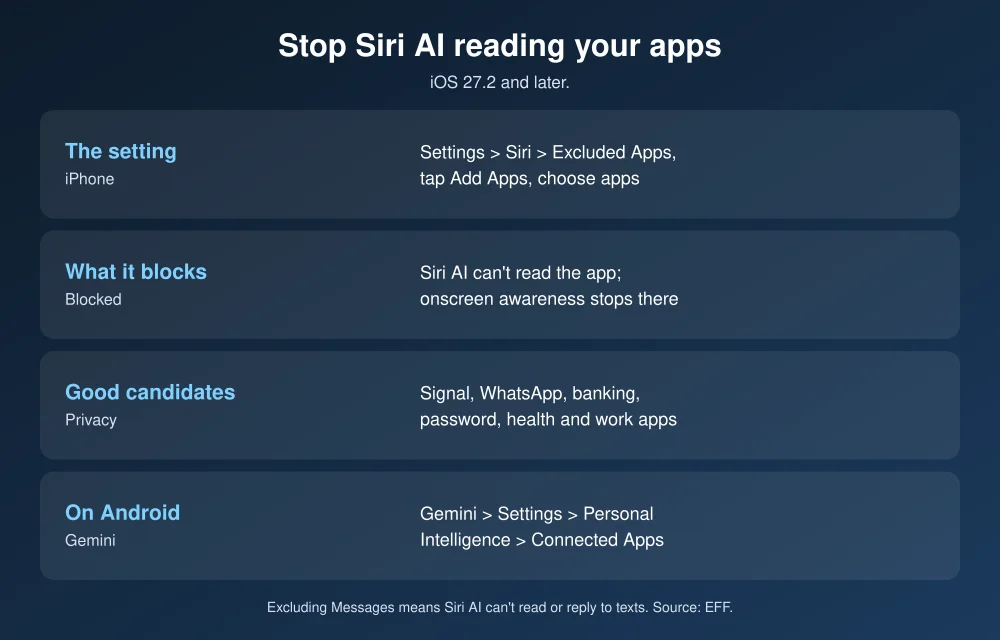
How to exclude apps from Siri AI on iPhone
- Update to iOS 27.2 or later. Go to Settings > General > Software Update. If the update doesn’t appear, see how to fix iOS 27.2 not showing up.
- Open Settings and tap Siri.
- Tap Excluded Apps.
- Tap Add Apps and select every app you want to block.
- Confirm. The apps now appear in your exclusion list.
To undo it, go back to the same list and remove the app. According to the EFF, this replaces the older approach, where you had to flip several toggles per app or turn off Siri AI entirely. MacRumors reports the same list also covers Search and suggestions.
What stops working when you exclude an app
- Siri AI can’t read the app’s content. That’s the point: if you exclude Signal and ask Siri about something on screen in Signal, it won’t be able to tell you.
- Onscreen awareness stops working in that app. Asking “what’s this?” while the app is open won’t work.
- App-specific Siri features go away. Excluding Messages means Siri AI can no longer read or reply to your messages.
The EFF argues that losing those features shows the setting is doing its job. Gadget Hacks reports that excluding an app doesn’t delete it, sign you out or change its own notification settings.
Which apps should you exclude?
Siri AI uses on-device processing where it can and Apple’s Private Cloud Compute servers otherwise. If you’d rather certain content never goes to an AI at all, these are the usual candidates:
| App type | Why exclude it | What you lose |
|---|---|---|
| Encrypted messengers (Signal, WhatsApp) | Keeps end-to-end encrypted chats out of AI processing | Asking Siri about those chats |
| Banking and investing apps | Balances, account numbers, transactions | Little; few people use Siri there |
| Password managers | Logins and secure notes | Nothing important |
| Health, therapy and period trackers | Sensitive health data | Siri answers based on that app |
| Work apps (Slack, Teams, email) | Your employer’s confidential data | Siri summaries of work messages |
For Apple’s own Health app, note that iOS 27.3 adds Siri AI access to Health data. See what’s changing in iOS 27.3 and the new Siri AI daily limits.
How to limit Gemini on Android
Android doesn’t have a per-app exclusion list as simple as Apple’s, but you can limit what Gemini reaches:
- Open the Gemini app, tap your profile photo, then Settings > Personal Intelligence > Connected Apps.
- Revoke access for any app you don’t want Gemini to use.
- To stop Gemini reading your screen, turn off Use screen and app data in Gemini’s settings.
The EFF notes that Gemini can still read notifications through some connected apps, and that Signal doesn’t support Gemini’s app access at all, which keeps its content out.
Go further on privacy
- Turn on Advanced Data Protection for iCloud so more of your iCloud data is end-to-end encrypted.
- Turn on Signal’s Screen Security setting, which also hides the app in the app switcher and blocks screenshots on your own device.
- If you’d rather not use Siri AI at all, you can turn it off and keep the older Siri.
FAQs
How do I stop Siri AI from reading my apps?
On iOS 27.2 or later, go to Settings > Siri > Excluded Apps, tap Add Apps and choose the apps. Siri AI can no longer access the contents of those apps.
What happens when I exclude an app from Siri?
Siri AI can’t read the app’s content, onscreen awareness stops working in it, and app-specific Siri features such as reading and replying to messages stop working for that app.
Should I exclude Signal or WhatsApp from Siri AI?
If you want end-to-end encrypted chats kept away from AI processing, yes. You’ll only lose the ability to ask Siri about content in those apps.
Is there an Excluded Apps setting for Gemini on Android?
Not an identical one. In the Gemini app, go to Settings > Personal Intelligence > Connected Apps to revoke app access, and turn off Use screen and app data to stop screen reading.
Featured image: Apple.
Disclosure: TheTechHacker has no paid relationship with Apple, Google or any company mentioned here.
More in How-to
How to Fix iPhone Siri Activating Randomly Without Saying “Hey Siri” on iOS 26
Has Siri started activating randomly on your iPhone after the iOS 26 update? You may suddenly see the Siri interface appear even though you did not say “Hey Siri” or intentionally touch the screen. Apart from being frustrating, unexpected Siri activation can interrupt your work, trigger unwanted actions, or create privacy concerns when the phone…

How To Enable Siri Suggestion In Mail App On iOS And macOS
Apple’s Siri suggestions can be helpful in many cases. Compared to the Google Assistant, Siri is a tough and worthy personal assistant and it proved in many ways. The integration with the third-party messaging apps is a noticeable feature which we can’t deny. The features are pretty useful to improve our productivity while messaging. Siri…
How to fix Siri does not respond or answers correctly
Having trouble with Siri after an iOS update? Here’s how to fix it!
The week in tech, minus the noise.
New reviews, fixes and the stories that matter — once a week, straight to your inbox.
We only use your email to send the newsletter. Unsubscribe any time. See our privacy policy.
Comments