

How to Get Emojis in Windows 10
Emojis are an integral part of our conversations. If you have been using your smartphone for messaging your friends, colleagues, etc., you might find it difficult to chat without emojis. A single emoji can express your feelings that will take multiple words otherwise. So there is no doubt that emojis makes our life easier and…


Get Emoji in Windows 10
Emojis are an integral part of our conversations. If you have been using your smartphone for messaging your friends, colleagues, etc., you might find it difficult to chat without emojis. A single emoji can express your feelings that will take multiple words otherwise. So there is no doubt that emojis makes our life easier and saves a lot of time. With that being said, most of the popular messaging applications including WhatsApp provides a desktop app for Windows 10. So if you are using any of these applications, it won’t be a problem to insert emojis in your chat messages. All you have to do is using the in-built emoji picker.
However, it is not the case for every single application out there. For example, you may be using a custom chat app developed by your business for internal chat purposes which does not have an emoji feature built in. In such circumstances, the only way you can use emojis in your chat is using the built-in Windows 10 emoji picker. Yes you heard it right. Windows 10 comes with an emoji picker that will allow you to insert an emoji in almost any text area on your operating system. In this article we are going to take a look at that.
How to Insert Emojis in Windows 10
In order to insert an emoji in almost any textarea inside Windows 10, all you have to do is the following:
- Click on the text area where you want to get the Emoji.
- Simply press Win + . (dot) or Win + ; (semicolon). It will bring the emoji picker.
- And click on any emoji that you would like to insert.
That’s all, as simple as that, you have successfully inserted your favorite emoji into the text box no matter where you choose it to be. It will even work on the search box on your taskbar or the browser address bar. Give it a try.
More in Windows
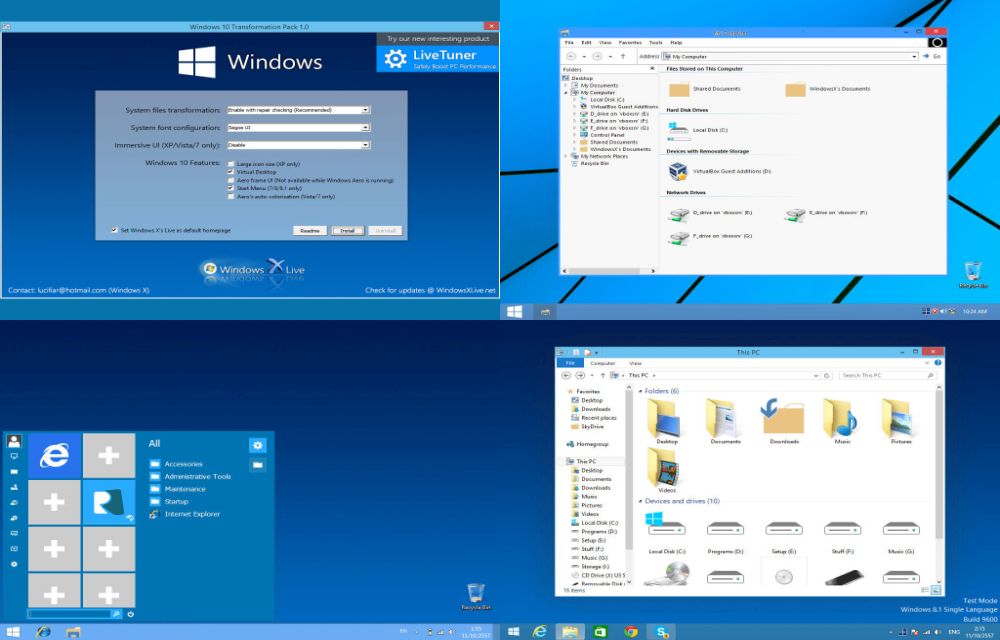
Transform Your Old Windows Look Into Windows 10
Recently Microsoft revealed its latest operating system Windows 10. An event held in San Francisco, Microsoft announced the Windows 10 operating system officially. Windows 10 is most advanced OS with a broad range of new features and new styles.
Enable Always On Top Behavior For Windows Using Window On Top
In work sometimes we need to keep a windows or program top of the all windows. But when you operate other windows your desired window automatically goes to background. This can be very unpleasant sometimes especially when you are doing some important job which needs reference from one window for another. You can get rid…
How to Go Back to Windows 8 from Windows 10
Windows 10 is the latest windows release from the Microsoft. But, something not right in the OS and it has the curse of many problems and buggies that causing some serious problems while using the OS. Automatic app deletion and the Chrome crashing issue was the most discussed problems among them. If you were upgraded…
The week in tech, minus the noise.
New reviews, fixes and the stories that matter — once a week, straight to your inbox.
We only use your email to send the newsletter. Unsubscribe any time. See our privacy policy.
Comments