

Best Tips For Freeing Up Storage Space On Your iPhone
Are you an iPhone user? So this article will definitely help you. Many iPhone users are frustrated by the problem of running out of storage space, which prevents them from receiving new messages, and files, or even saving new images and videos. If you’re experiencing this problem, don’t worry; there are various ways to free…
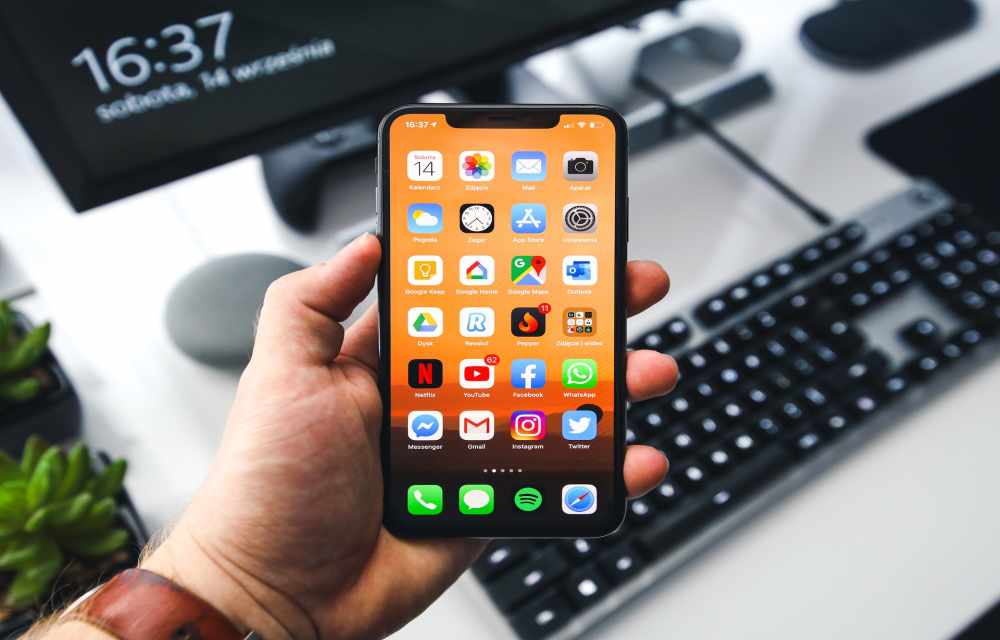
Best Tips For Freeing Up Storage Space On Your iPhone
Are you an iPhone user? So this article will definitely help you.
Many iPhone users are frustrated by the problem of running out of storage space, which prevents them from receiving new messages, and files, or even saving new images and videos. If you’re experiencing this problem, don’t worry; there are various ways to free up space on your iPhone. In this post, we’ll look at how to clean up unwanted files and apps so you can make the most of your device’s storage space. You may resolve the storage full error warning and have enough space for all of your photographs, videos, and other files by following these simple steps. Let’s get started and regain some storage space on your iPhone!
1. Enable Optimize iPhone Storage
- Open “Settings” on your iPhone.
- Scroll down and tap on “Photos.”
- In the “Photos” settings, find and select “Optimize iPhone Storage.”
- Once you tap on “Optimize iPhone Storage,” a pop-up message will appear. This message will inform you that enabling this feature will allow your iPhone to keep smaller, space-saving versions of photos and videos on your device, while the full-resolution versions will be stored in iCloud.
- Tap on “Enable” to confirm and activate “Optimize iPhone Storage.”
- Your iPhone will now begin the process of optimizing the storage. This may take some time, depending on the number of photos and videos on your device and your internet connection speed.
- Once the optimization is complete, you will notice that your iPhone has freed up space, and you can now save new photos, videos, and files without any storage issues.
- To check the progress and storage status, go back to “Settings,” tap on “General,” then select “iPhone Storage.” Here, you’ll see a breakdown of your storage usage and how much space “Optimize iPhone Storage” has saved.
2. Store App Data on iCloud
- Open “Settings” on your iPhone.
- Scroll down and tap on your Apple ID profile at the top of the Settings page.
- In the Apple ID settings, select “iCloud.”
- Scroll down and find the “Apps Using iCloud” section.
- Look for the app you want to store data on iCloud and toggle the switch next to it to enable “iCloud Backup” for that specific app.
- If prompted, confirm the action by tapping “Enable” or “Turn On.”
- Repeat the process for other apps you wish to store data on iCloud.
3. Clear or Upgrade iCloud Account
- Go to “Settings” on your iPhone.
- Tap on your Apple ID profile at the top of the Settings menu.
- Select “iCloud” from the list of options.
- Click on “Manage Storage.”
- Review the list of apps using iCloud storage to identify which ones are taking up the most space.
- Tap on any app to see a breakdown of its data and storage usage.
- To clear app data from iCloud, tap “Delete Data” and confirm the action.
- If you want to upgrade your iCloud storage, go back to the main iCloud settings screen.
- Tap “Buy More Storage.”
- Choose the storage plan that suits your needs and follow the on-screen instructions to complete the upgrade.
4. Reset your iPhone
If none of the above methods worked for you, we are giving the last suggestion of resetting your iPhone. But this step will totally erase all your data on your iPhone. In order to do this, navigate to “Settings” > “General” > “Reset” > “Reset All Settings.” Remember that this step will reset your Wi-Fi passwords, all the media on your phone, and other settings. Before starting, make a backup of your critical data to avoid loss.
Conclusion
Managing storage space on your iPhone is crucial to ensure optimal performance and smooth functioning. Enabling “Optimize iPhone Storage” and storing app data on iCloud are practical solutions to free up space and keep your device running efficiently. By taking advantage of these features, you can have more storage available for new memories and experiences without worrying about running out of space. Keep your iPhone clutter-free and enjoy a seamless user experience.
More in How-to

How To Download iPhone Photos From iCloud To Your Mac
Apple has a fantastic storage option called iCloud to save our precious documents, photos and many more in their cloud storage. The free plan allows you up to 5GB of space and whereas the paid subscription model lets you use 50GB, 200GB and up to 1TB of online storage. Most of the people are using…
How to Fix Apps Crashing While Multitasking After iOS 26 Update
The latest iPhones are powerful enough to handle heavy multitasking without breaking a sweat. So when your device starts crashing, freezing, or stalling while switching apps after the iOS 26 update, it feels especially frustrating. This issue can stem from several sources: a bug in the iOS build, misconfigured background refresh settings, insufficient storage, or…

How to Record Zoom Meeting on iPhone
Sometimes we need a recording of an important online meeting. Whether it is a business meet or a friend’s reunion, some memories need to be stored. Video conferencing is fully evolved after the COVID-19 effect on our lives. Many people are using the Zoom video conferencing program for their online meetings and we today learn…
The week in tech, minus the noise.
New reviews, fixes and the stories that matter — once a week, straight to your inbox.
We only use your email to send the newsletter. Unsubscribe any time. See our privacy policy.
Comments