

Apple Watch App on iPhone Crashing? Here’s How to Fix It
The Watch app on your iPhone keeps crashing? You tap it, it opens for a second, and then disappears. Sometimes it freezes instead. Either way, it’s annoying. This usually happens because of a software glitch, bad sync data, or a version mismatch between iPhone and Apple Watch. After iOS updates, the Watch app can get…

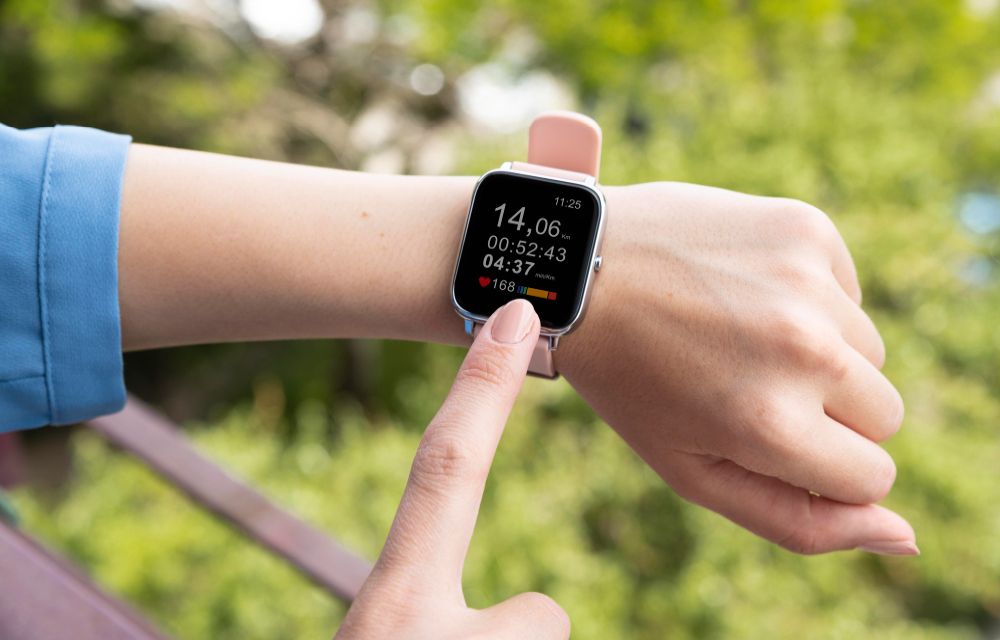
Apple Watch App on iPhone Crashing
The Watch app on your iPhone keeps crashing? You tap it, it opens for a second, and then disappears. Sometimes it freezes instead. Either way, it’s annoying.
This usually happens because of a software glitch, bad sync data, or a version mismatch between iPhone and Apple Watch. After iOS updates, the Watch app can get unstable if something in the sync pipeline breaks.
The good news? You can fix it.
Why the Watch App Crashes
The Watch app depends on a constant connection between your iPhone and Apple Watch. It handles Bluetooth, Wi-Fi, notifications, and health data sync.
If any part of that connection fails, the app can crash.
Common reasons include:
-
iOS and watchOS version mismatch.
-
Corrupted app cache or sync data.
-
Low storage on iPhone.
-
Background app refresh issues.
-
Problems after a major software update.
How to Fix Apple Watch App Crashing on iPhone
Fix 1: Force Close the Watch App
Sometimes the simplest fix works.
-
Open the App Switcher.
-
Find the Watch app.
-
Swipe it up to close it.
-
Wait a few seconds.
-
Open the app again.
If it still crashes, move to the next step.
Fix 2: Restart Your iPhone
A restart clears temporary memory and minor system glitches.
-
Hold the Side button and Volume button.
-
Slide to power off.
-
Wait 10 seconds.
-
Turn the iPhone back on.
Now try opening the Watch app again.
Fix 3: Update iOS and watchOS
Outdated software is one of the most common reasons for this problem.
-
Go to Settings > General > Software Update on iPhone.
-
Update your Apple Watch from the Watch app if possible.
Make sure both devices are running the latest version.
Fix 4: Offload and Reinstall the Watch App
If the app data is corrupted, reinstalling helps.
-
Go to Settings > General > iPhone Storage.
-
Find Watch.
-
Tap Offload App.
-
Reinstall it.
If that doesn’t work, delete the app and install it again from the App Store.
Fix 5: Reset All Settings
This won’t delete your photos or apps, but it can clear system conflicts.
-
Go to Settings > General > Transfer or Reset iPhone.
-
Tap Reset.
-
Choose Reset All Settings.
You may need to set up Face ID, Wi-Fi, and Wallet again.
Fix 6: Erase and Re-pair the Watch
If nothing else works, start fresh.
-
Erase the Apple Watch from its settings.
-
Delete the Watch app from your iPhone.
-
Reinstall it.
-
Pair the watch again.
This usually fixes deep sync problems that normal resets can’t touch.
How to prevent it from crashing every time?
-
Keep iOS and watchOS updated.
-
Restart your iPhone once a week.
-
Keep at least a few GB of free storage.
-
Reset sync data after major updates if needed.
Final Word
If the Apple Watch app keeps crashing, the issue is usually software-related, not hardware-related. Start with a restart, then update, reinstall, and reset settings if needed.
More in iOS
How to fix iPhone Copy-Paste Not Working Between Apps on iOS 26
Universal Clipboard is one of Apple’s most useful Continuity features, but it does not always work perfectly. On iOS 26, some users have reported a copy-paste failure where the iPhone still copies content, but the Paste option does not appear across apps or devices. In many cases, the issue appears to be linked to a privacy permission…
Copy and Paste Between iPhone and Mac Not Working? 9 Fixes for Universal Clipboard
You copy a link on your iPhone, walk over to the Mac, press Command + V, and… nothing. Or worse, it pastes something you copied an hour ago. If that sounds like your day, you’re dealing with Universal Clipboard, the Apple feature that’s supposed to make copy and paste between iPhone and Mac feel like…
How to Fix Reminders Not Syncing on iPhone, Mac and Apple Watch
Reminders sync between your iPhone, iPad, Mac and Apple Watch through iCloud. When they stop syncing, it’s almost always because Reminders is turned off in iCloud on one device, the devices are signed in to different Apple Accounts, or your reminders are saved to a non-iCloud list. Check those three things first and most people…
The week in tech, minus the noise.
New reviews, fixes and the stories that matter — once a week, straight to your inbox.
We only use your email to send the newsletter. Unsubscribe any time. See our privacy policy.
Comments