

How to Fix Reminders Not Syncing on iPhone, Mac and Apple Watch
Reminders sync between your iPhone, iPad, Mac and Apple Watch through iCloud. When they stop syncing, it’s almost always because Reminders is turned off in iCloud on one device, the devices are signed in to different Apple Accounts, or your reminders are saved to a non-iCloud list. Check those three things first and most people…
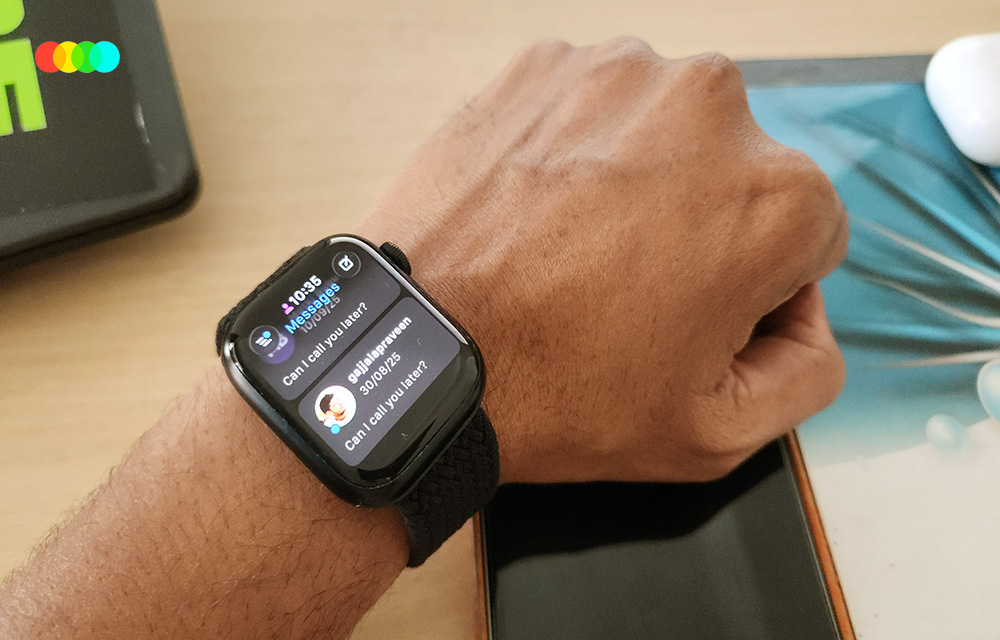
How to Fix Apple Watch Reminders Not Syncing With iPhone
Reminders sync between your iPhone, iPad, Mac and Apple Watch through iCloud. When they stop syncing, it’s almost always because Reminders is turned off in iCloud on one device, the devices are signed in to different Apple Accounts, or your reminders are saved to a non-iCloud list. Check those three things first and most people are back in sync within minutes.
In this article, we will show you how to fix Reminders not syncing between iPhone, iPad, Mac, iCloud and Apple Watch, with the most likely fixes first. If you’ve already tried the basics and the issue still persists, jump to the “Still not working?” section.
Quick checks before you start
- Make sure every device is connected to Wi-Fi or mobile data.
- Open the Reminders app on each device and leave it open for a minute. Sync often kicks in when the app is in front.
- Go to iCloud.com on a computer, sign in and open Reminders. Whatever you see there is what iCloud has. A device that doesn’t match it is the one with the problem.
Fix 1: Check that Reminders is turned on in iCloud
If iCloud Reminders is off on even one device, that device keeps its own local copy and never syncs.
On iPhone or iPad:
- Open Settings and tap your name at the top.
- Tap iCloud, then tap See All under the list of apps saved to iCloud.
- Make sure Reminders is turned on.
On Mac:
- Open System Settings and click your name at the top of the sidebar.
- Click iCloud, then open the full list of apps that use iCloud (See All).
- Make sure Reminders is turned on.
If it’s already on, turn it off, wait a few seconds and turn it back on. When asked, choose to keep the reminders on the device. This forces a fresh download from iCloud and fixes a lot of stuck syncs.
Fix 2: Use the same Apple Account everywhere
Reminders only sync between devices signed in to the same Apple Account (formerly Apple ID). Families sharing an iPad or a Mac often run into this.
- iPhone/iPad: Settings, then your name. Note the email shown.
- Mac: System Settings, then your name.
- Apple Watch: Open Settings on the watch and tap your name.
If one device uses a different account, sign out and sign in with the right one, then turn on Reminders in iCloud as shown above.
Fix 3: Save reminders to an iCloud list
Reminders can also live in Gmail, Outlook/Exchange or “On My iPhone” lists. Those never sync to your other Apple devices through iCloud, and the Apple Watch may not show them at all.
- Open the Reminders app and look at the list headings. Lists under iCloud sync; lists under other accounts or “On My iPhone” don’t sync through iCloud.
- Go to Settings > Apps > Reminders (on older iOS, Settings > Reminders) and set Default List to an iCloud list.
- Move important reminders into an iCloud list.
If the app shows an Upgrade button for old lists, tap it. Upgraded iCloud reminders are what current devices expect.
Fix 4: Fix Apple Watch reminders not syncing with iPhone
The Apple Watch gets reminders from your iPhone and iCloud. If your watch shows old or missing reminders, rebuild its copy:
- Open the Watch app on your iPhone.
- Go to My Watch > General > Reset.
- Tap Reset Sync Data.
This deletes the contacts, calendars and reminders stored on the watch and downloads them again. Nothing is deleted from your iPhone or iCloud. Keep the watch on its charger near the iPhone afterwards, as the full resync can take a while.
Also keep Bluetooth and Wi-Fi turned on on your iPhone so the watch stays connected.
Fix 5: Turn off Low Power Mode and check data access
Low Power Mode cuts back background activity, which can delay iCloud sync.
- Go to Settings > Battery and turn off Low Power Mode on iPhone or iPad. On Mac, check the Battery settings for Low Power Mode.
- If you sync over mobile data, go to Settings > Cellular (or Mobile Data) and make sure Reminders is allowed to use mobile data.
- Turn off any VPN or content blocker for a moment and test sync again.
Fix 6: Check iCloud storage and Apple’s system status
If your iCloud storage is full, some data can stop syncing. Go to Settings > [your name] > iCloud and look at the storage bar. Free up space or upgrade your plan if it’s full.
Sometimes the problem isn’t on your side at all. Search for Apple’s System Status page and check whether iCloud Reminders shows an issue. If it does, just wait for Apple to fix it.
Fix 7: Update and restart every device
Sync bugs often appear right after a major update and get fixed in the next point release.
- iPhone/iPad: Settings > General > Software Update.
- Mac: System Settings > General > Software Update.
- Apple Watch: Watch app on iPhone > General > Software Update.
Also check that Set Automatically is on under Settings > General > Date & Time. A wrong date or time can confuse sync. Then restart the iPhone first, followed by the iPad, Mac and Apple Watch.
Fix 8: Check Focus and notification settings
Sometimes reminders do sync, but alerts don’t show up on one device, which feels like a sync problem.
- Check whether a Focus (Do Not Disturb, Sleep, Work) is on. Focus can silence reminder alerts on your iPhone and Apple Watch.
- Go to Settings > Notifications > Reminders and make sure notifications are allowed.
- For the watch, open the Watch app on iPhone, tap Notifications > Reminders and choose to mirror your iPhone alerts.
Still not working?
If Reminders still won’t sync after all of the above, try these stronger fixes:
- Make a tiny change. Edit or create one reminder in an iCloud list. A fresh change can push a stuck sync along.
- Sign out of iCloud and back in on the device that’s out of sync. Choose to keep a copy of your data when asked. Do this on one device at a time, and check iCloud.com first so you know your reminders are safe in iCloud.
- Unpair and re-pair the Apple Watch. Open the Watch app, tap All Watches, tap the info button next to your watch and choose Unpair Apple Watch. The iPhone makes a backup that you can restore when you pair again.
- Check the Completed list. If reminders seem to have vanished on one device, open the Completed list in the Reminders app. Completed reminders are hidden from normal lists, so a reminder ticked off on another device can look like it didn’t sync.
- Contact Apple Support if a single device still refuses to sync. There may be an account-side problem they can fix.
FAQs
Why is my Reminders app not syncing between iPhone and Mac?
Usually Reminders is turned off in iCloud on one device, the Mac uses a different Apple Account, or the reminders are in a list that isn’t stored in iCloud. Fixes 1 to 3 cover all three.
Will Reset Sync Data delete my reminders?
No. It only clears the copy stored on the Apple Watch and downloads it again. Your reminders on iPhone and iCloud are not touched.
How long does Reminders take to sync?
Normally a few seconds. After you turn iCloud Reminders back on or reset sync data on the watch, give it a few minutes, and longer if you have lots of reminders.
Why do reminders show on my iPhone but not on my Apple Watch?
The watch may have stale sync data, or the reminders may be in a non-iCloud list such as Gmail or Outlook. Use Reset Sync Data (Fix 4) and move them to an iCloud list.
Why are shared reminders not syncing?
Shared lists must be iCloud lists, and everyone needs to accept the invite with the Apple Account they use on their devices. Ask the owner to re-share the list if it still doesn’t update.
That’s how you can fix Reminders not syncing on iPhone, iPad, Mac and Apple Watch. If your issue still persists after trying these steps, let us know in the comment section below, along with which devices are affected, and we will try to help.
More in iOS
Copy and Paste Between iPhone and Mac Not Working? 9 Fixes for Universal Clipboard
You copy a link on your iPhone, walk over to the Mac, press Command + V, and… nothing. Or worse, it pastes something you copied an hour ago. If that sounds like your day, you’re dealing with Universal Clipboard, the Apple feature that’s supposed to make copy and paste between iPhone and Mac feel like…
Apple Watch App on iPhone Crashing? Here’s How to Fix It
The Watch app on your iPhone keeps crashing? You tap it, it opens for a second, and then disappears. Sometimes it freezes instead. Either way, it’s annoying. This usually happens because of a software glitch, bad sync data, or a version mismatch between iPhone and Apple Watch. After iOS updates, the Watch app can get…
How to fix iPhone Copy-Paste Not Working Between Apps on iOS 26
Universal Clipboard is one of Apple’s most useful Continuity features, but it does not always work perfectly. On iOS 26, some users have reported a copy-paste failure where the iPhone still copies content, but the Paste option does not appear across apps or devices. In many cases, the issue appears to be linked to a privacy permission…
The week in tech, minus the noise.
New reviews, fixes and the stories that matter — once a week, straight to your inbox.
We only use your email to send the newsletter. Unsubscribe any time. See our privacy policy.
Comments