

What Does “Low Disk Space” Mean on iPhone? (And How to Clear It)
You try to take a photo, and the camera refuses. You try to update iOS, and it says there’s not enough space. Somewhere in between, you see a warning about storage and start wondering: what does low disk space mean on iPhone, and how serious is it? Don’t worry, it is one of the most…

What Does Low Disk Space Mean on iPhone
You try to take a photo, and the camera refuses. You try to update iOS, and it says there’s not enough space. Somewhere in between, you see a warning about storage and start wondering: what does low disk space mean on iPhone, and how serious is it? Don’t worry, it is one of the most common iPhone problems, and in most cases you can fix it in ten minutes without losing anything important. In this guide, we explain the low disk space iPhone warning in simple words and show you exactly how to clear it.
Quick answer: “Low disk space” on iPhone means the phone’s internal storage is almost full. Your iPhone keeps everything (iOS, apps, photos, videos, messages and cached files) on that storage, and when free space runs low, iOS shows warnings like “iPhone Storage Almost Full” or “Not Enough Storage”. It has nothing to do with RAM or iCloud. Free up a few gigabytes and the warning goes away.
What Does Low Disk Space Mean on iPhone?
Your iPhone doesn’t have a hard disk like old computers, but people still call its storage the “disk”. It is the flash storage you chose when you bought the phone: 128GB, 256GB, 512GB or 1TB. Unlike most Android phones, iPhones don’t have a memory card slot, so once this space is used up, there’s nowhere else for new data to go.
Here is something many people don’t know. iOS doesn’t actually show a message with the words “low disk space”. You will see one of these instead:
- iPhone Storage Almost Full, a notification or banner in Settings.
- Not Enough Storage, usually when you try to install an app or an iOS update.
- Cannot Take Photo, when the Camera has no room to save a new picture or video.
All three mean the same thing: low disk space. The phrase “low disk space” is what most of us type into Google, and it comes from computers, where Windows and macOS really do use those words.
According to Apple’s support page on iPhone storage, iOS already tries to free space on its own when it runs low. It removes things it can download again or doesn’t need, like cached files and temporary data. The warning shows up only when that automatic cleanup isn’t enough. So when you see it, your iPhone is really asking for your help.
What Happens When Your iPhone Is Low on Storage?
A full iPhone keeps working, but small things start to break:
- The Camera can’t save photos or record videos.
- iOS updates refuse to download, because an update needs several gigabytes of free space to install.
- Apps can’t update, and some apps crash or lose their cache.
- Messages, WhatsApp and other chat apps can’t download new photos and videos.
- The phone can feel slower, because iOS keeps cleaning in the background.
If your iPhone says storage is full but you can clearly see free space in Settings, that is a different problem. We covered it in our guide to fixing iPhone low storage when you still have free space.
iPhone Storage vs iCloud Storage: Not the Same Thing
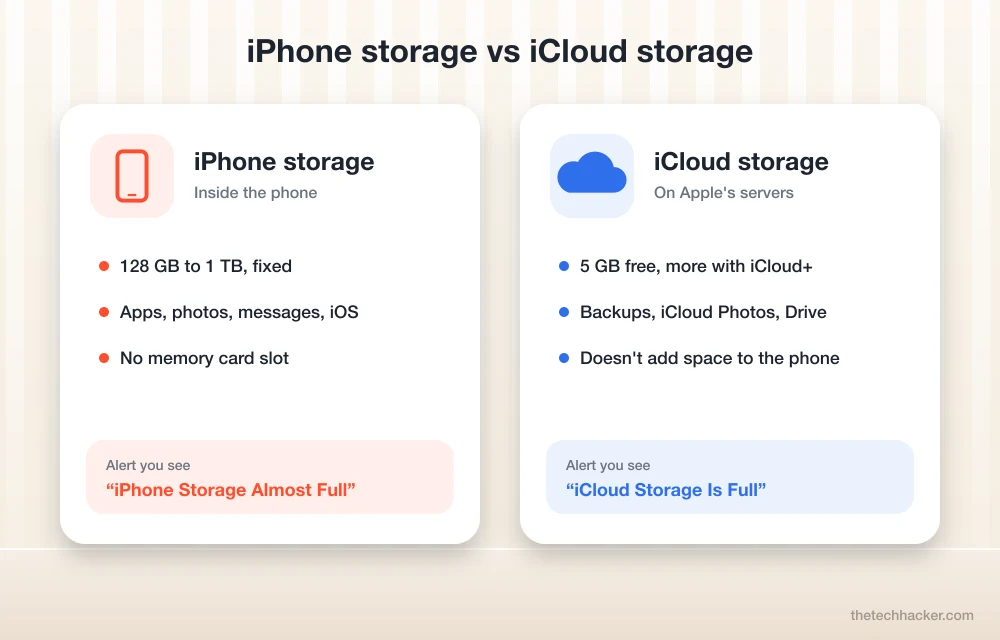
This confuses a lot of people, so let’s clear it up. Your iPhone storage is the space inside the phone. iCloud storage is space on Apple’s servers (5GB free, more with iCloud+). They are separate.
- “iPhone Storage Almost Full” means the phone itself is full.
- “iCloud Storage Is Full” means your iCloud account is full, and backups or iCloud Photos uploads will stop.
Buying more iCloud storage does not add space to your phone. But it can help indirectly. With iCloud Photos turned on, the “Optimize iPhone Storage” option keeps smaller versions of photos on the phone and the full-size originals in iCloud. We explain that below.
How to Check What’s Using Your iPhone Storage
Before deleting anything, check what is actually taking the space. It takes 30 seconds.
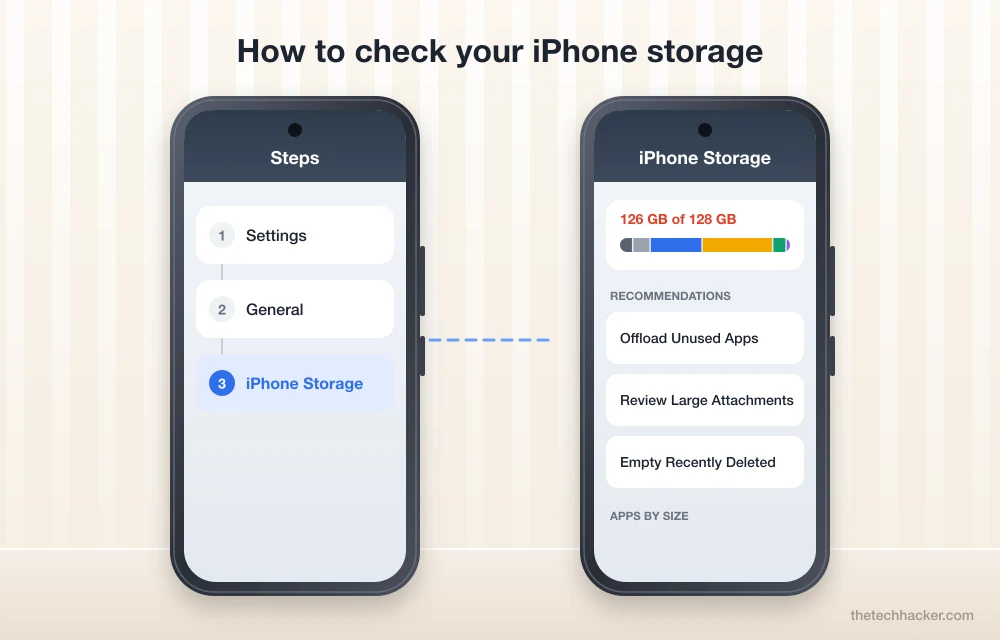
- Open Settings.
- Tap General.
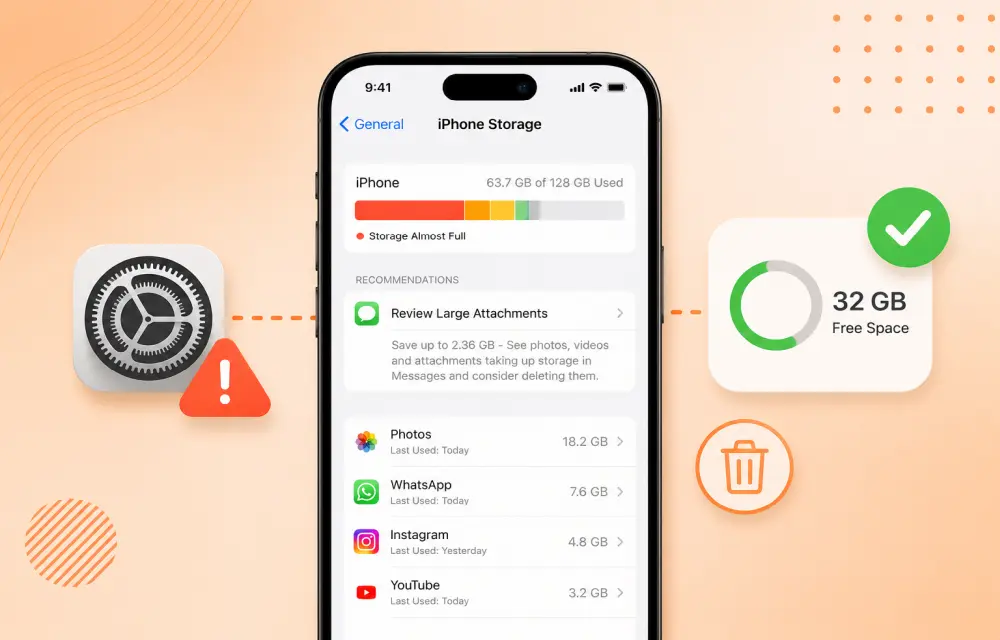
- Tap iPhone Storage. Give it a few seconds to calculate.
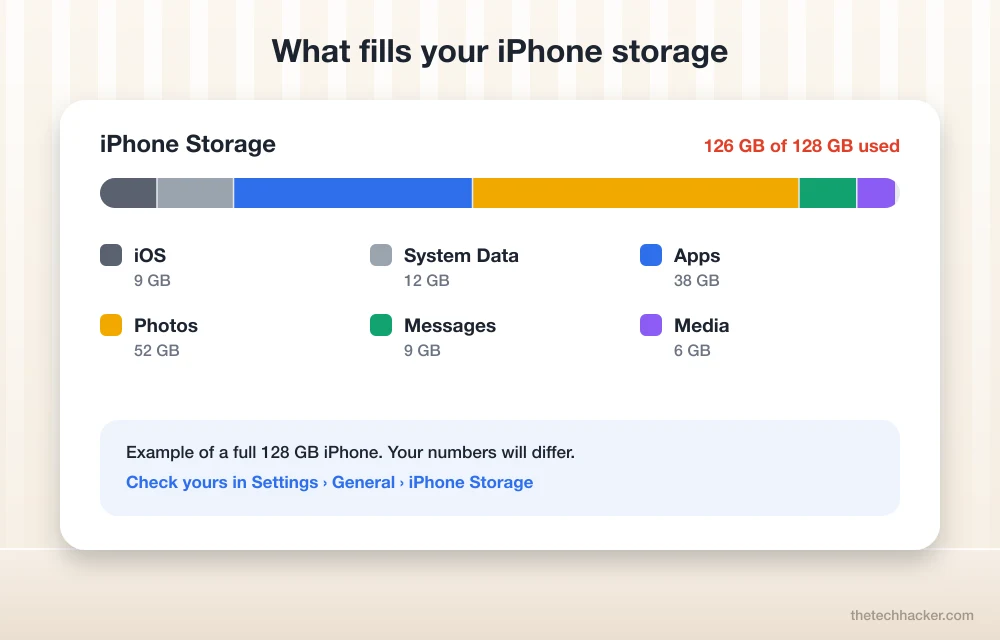
At the top, you’ll see a coloured bar showing Apps, Photos, Media, Messages, iOS and System Data. Below it, iOS lists recommendations and then every app sorted by size. In most cases, the biggest space users are Photos, a couple of big apps (games, video editors, offline maps) and Messages with years of attachments.
How to Fix Low Disk Space on iPhone (9 Ways)
Start from the top. The first few steps usually free the most space with the least effort.
1. Follow the recommendations in iPhone Storage
The recommendations on the iPhone Storage screen are made for your phone. Common ones are “Offload Unused Apps”, “Review Large Attachments” and “Empty Recently Deleted”. Each one shows how much space it will save, so you can pick the biggest win first.
2. Offload apps you don’t use
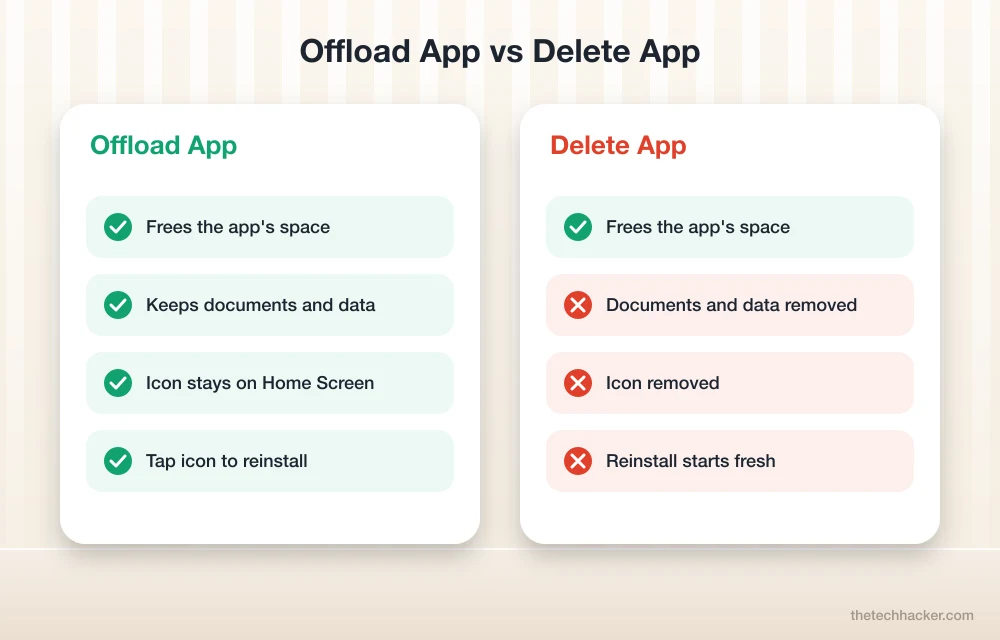
Offloading removes the app but keeps its documents and data. When you need it again, tap its icon and it downloads back with everything as it was. To offload one app, tap it in the iPhone Storage list and choose Offload App. To let iOS do it automatically, turn on Offload Unused Apps (Settings > Apps > App Store on recent iOS versions).
3. Empty “Recently Deleted” in Photos
Deleted photos and videos are not gone right away. They stay in the Recently Deleted album for about 30 days and still take space. Open Photos, go to Albums, scroll to Recently Deleted, and delete them for good. Make sure you don’t need any of them first.
4. Turn on Optimize iPhone Storage
If you use iCloud Photos, go to Settings > Apps > Photos (Settings > Photos on older iOS) and select Optimize iPhone Storage. Your originals stay safe in iCloud, and the phone keeps lighter versions. This alone can free tens of gigabytes on a phone full of videos. It does need enough iCloud space.
5. Clean up Messages
Messages quietly grows over the years. Go to Settings > Apps > Messages (or Settings > Messages on older iOS) and change Keep Messages from Forever to 1 Year. Also use “Review Large Attachments” in iPhone Storage to delete old videos and GIFs. Do the same in WhatsApp under Settings > Storage and Data > Manage Storage.
6. Remove downloaded videos and music
Offline episodes in Netflix, Prime Video or YouTube, and downloaded playlists in Spotify or Apple Music, can take many gigabytes. Delete what you have already watched or listened to. You can download them again anytime.
7. Clear Safari history and website data
Go to Settings > Apps > Safari > Clear History and Website Data. This signs you out of some websites, so keep your passwords handy.
8. Restart your iPhone
It sounds too simple, but a restart lets iOS clear temporary files and recalculate storage. If the numbers in iPhone Storage look wrong, restart once and check again.
9. Big System Data? Back up and restore (last resort)
System Data includes caches, logs, Siri voices and other files iOS manages itself, and you can’t delete it directly. It normally shrinks on its own. If it stays very large for days, the last resort is a full backup, then Erase All Content and Settings, then restore from the backup. Only do this if you are confident your backup is complete.
How Much Free Space Should You Keep?
Apple doesn’t publish an exact number. As a practical rule, we suggest keeping at least 5 to 10 GB free, or around 10% of your total storage. That leaves room for iOS updates, new photos and app caches, and you won’t see the warning every week. If you keep running out even after cleaning, your next iPhone should probably have the next storage size up.
Frequently Asked Questions
What does low disk space mean on iPhone?
It means your iPhone’s internal storage is almost full. iOS shows this as “iPhone Storage Almost Full” or “Not Enough Storage”. You need to free some space so the phone can save photos, install updates and run apps properly.
Does buying iCloud storage fix low disk space on iPhone?
Not directly. iCloud storage is separate from the storage inside your phone. But with iCloud Photos and “Optimize iPhone Storage” turned on, your full-size photos and videos live in iCloud, which can free a lot of space on the phone.
Will offloading an app delete my data?
No. Offloading removes the app itself but keeps its documents and data. Reinstall it from the same icon and everything comes back. Deleting an app removes both the app and its data.
Why is System Data so big on my iPhone?
System Data holds caches, logs, temporary files and other data iOS manages. It grows and shrinks on its own, and iOS clears it when space is needed. If it stays very large, restart the phone, clear Safari data and remove offline media. A backup and restore is the last option.
How much free storage should I keep on my iPhone?
Keep at least 5 to 10 GB free, or about 10% of your total storage. This gives iOS room for updates, caches and new photos, so the phone stays fast and the warning doesn’t come back.
Final words: Low disk space on iPhone sounds scary, but it simply means the phone is full. Check iPhone Storage first, follow the recommendations, clean up Photos and Messages, and offload the apps you don’t use. Most people get back 10 GB or more in a few minutes. If you are still stuck, tell us your iPhone model and storage size in the comments and we’ll help you out.
More in iOS
How to Fix iPhone Showing Low Storage Space When You Still Have Free Space
If your iPhone keeps showing a Low Storage Space warning even though you clearly have enough free space, the issue is usually caused by an iOS storage indexing glitch, cached files, or a software bug rather than a real storage shortage. In many cases, the warning appears while the phone is still calculating storage or misreading how…
How to Fix Software Update Failed on iPhone?
An iOS update can fail for simple reasons like low free storage, slow internet, VPN/firewall interference, or a partially downloaded update file stuck in storage. The fixes are straightforward, clear residual update packages that free up space, and if over‑the‑air keeps failing, update via a computer using Finder, iTunes, or the Apple Devices app. Why…
Can’t Update iPhone XR? Try These Fixes
If you are unable to update your iPhone XR, then you are in the right place. Running into update errors on an iPhone XR is more common than it should be, and it usually occurs due to 3 reasons: not enough free space, a partial download that got stuck, or the wrong update channel selected.…
The week in tech, minus the noise.
New reviews, fixes and the stories that matter — once a week, straight to your inbox.
We only use your email to send the newsletter. Unsubscribe any time. See our privacy policy.
Comments