

How to Fix iPhone Freezing When Moving Widgets in iOS 27
Is your iPhone freezing when you drag widgets between Home Screen pages on iOS 27? Here’s which iOS 27 bug Apple has fixed, which one it hasn’t acknowledged, and what you can do right now.

Fix-iPhone-Freezing-Moving-Widgets-iOS-27
If your iPhone freezes the moment you drag a widget to another Home Screen page, you’re not alone. Since iOS 27 arrived, people have been running into a Home Screen that locks up, flickers or even restarts while it’s in editing mode. It turns a simple tidy-up into something that feels risky.
There’s a second iOS 27 bug that often gets mixed up with this one. The touchscreen stops responding after you pull down Notification Center and Control Center at the same time. Both bugs make your iPhone feel frozen, but Apple has handled them very differently.
In this guide, I’ll separate the two, tell you exactly what Apple has and hasn’t confirmed, and walk you through the fixes and workarounds that make sense right now.
Quick answer: The touchscreen bug (opening Notification Center and Control Center together) was acknowledged by Apple and listed as fixed in iOS 27.0.1, so updating takes care of it. The freeze when moving widgets between Home Screen pages has not been acknowledged by Apple, and I couldn’t confirm that any iOS version fixes it yet, including iOS 27.2. Until Apple says otherwise, update to iOS 27.2, move widgets one at a time and slowly, and force restart your iPhone if the Home Screen locks up.
Two different iOS 27 bugs, two different answers
Before you try anything, it helps to know which bug you’re actually dealing with. Here’s the short version.
| Bug | What it looks like | Acknowledged by Apple? | Fixed in |
|---|---|---|---|
| Widget freeze | Home Screen freezes, flickers or restarts while you move widgets between pages in editing mode | No | Not confirmed in any version so far |
| Touchscreen unresponsive | Taps stop working after Notification Center and Control Center open at the same time | Yes | iOS 27.0.1 |
So if your problem is the touchscreen one, the fix is simple: update. If it’s the widget freeze, you’re in workaround territory for now, and I’ll explain the best ones below.
Which iPhones this applies to
iOS 27 runs on iPhone 11 and later, including iPhone 16e, iPhone 17e, iPhone Air, iPhone 18 Pro and Pro Max, and the foldable iPhone Duo. It also runs on iPhone SE (2nd and 3rd generation).
That means older phones like the iPhone 8 and iPhone X can’t run iOS 27 at all. If you’re using one of those and seeing freezes, it’s a different problem from the ones in this article, and the iOS 27 fixes here won’t apply.
Symptoms: how to tell which bug you have
Bug 1: Freezing when moving widgets between Home Screen pages
This one shows up only when you’re editing the Home Screen, the mode where icons jiggle. According to user reports, the Home Screen freezes, flickers or restarts when you:
- Drag a widget from one Home Screen page to another
- Switch pages using the page dots while you’re in editing mode
People have reported it on the iPhone 18 Pro and Pro Max as well as older models, including an iPhone 13 Pro. It reportedly doesn’t happen on iOS 26, which points to something that changed in iOS 27.
Apple hasn’t acknowledged this bug. It isn’t listed in the iOS 27.0.1 release notes, and I couldn’t find any Apple statement about it. It was still being reported on iOS 27.0.1 and in a beta of iOS 27.2. I wasn’t able to read Apple’s full iOS 27.2 notes, so I can’t tell you whether 27.2 fixes it. I’d rather say that plainly than guess.
Bug 2: Touchscreen stops responding after opening Notification Center and Control Center together
This bug is triggered by quick swipes down from the top corners of the screen, so Notification Center and Control Center open at almost the same moment. Users described what happens next like this:
- The Camera and Flashlight buttons on the Lock Screen get stuck at the top of the screen
- You can’t swipe between Home Screen pages
- Taps simply stop registering
Apple did acknowledge this one. The iOS 27.0.1 release notes say that opening both “simultaneously may cause the touchscreen to become unresponsive,” and list it as fixed. The notes don’t limit it to specific iPhone models, so any iPhone on the original iOS 27 release could be affected.
One thing worth ruling out: if your screen only stops responding or goes dark during phone calls, that’s usually a different issue. I’ve covered that separately in my guide to fixing the iPhone proximity sensor not working properly.
Quick fix: force restart your iPhone
When the Home Screen locks up mid-edit, a force restart is the fastest way out. Users who hit the widget freeze report that it clears the problem. It won’t stop the bug from coming back, but it gets your phone working again in a few seconds.
A force restart is different from a normal restart. You use a button combination to reboot the iPhone even when the screen isn’t responding to touch, which is exactly the situation you’re in with both of these bugs.
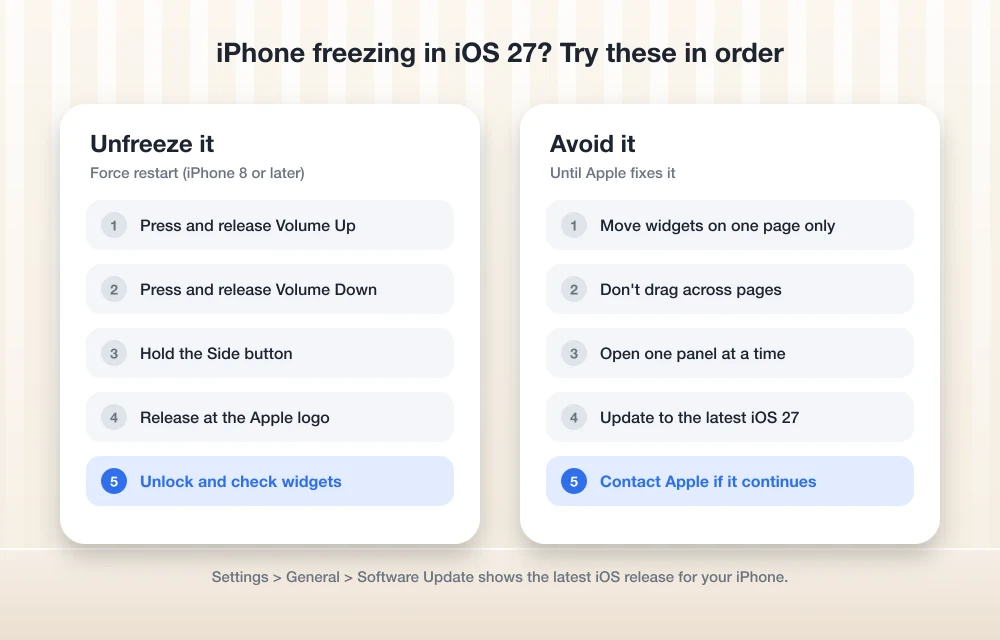
On any iPhone that runs iOS 27, including the iPhone SE (2nd and 3rd generation), the steps are the same:
- Press and quickly release the Volume Up button.
- Press and quickly release the Volume Down button.
- Press and hold the Side button.
- When the Apple logo appears, let go of the Side button.
Keep holding the Side button even if the screen goes black or you see the power-off slider. It can take 10 seconds or more before the Apple logo shows up.
Once your iPhone is back on, don’t jump straight back into rearranging widgets. Update first, then use the workarounds below.
Update to the latest iOS 27 release
This is the single most useful step for both bugs. It fully fixes the touchscreen bug, and it gives you the best chance with the widget bug if Apple has quietly addressed it.
Apple says the latest version right now is iOS 27.2. Its iOS 27 update history page lists iOS 27, 27.0.1 and 27.2. You might also hear about iOS 27.1, but that version was released only for the iPhone Duo, so don’t worry if you don’t see it on your phone.
Here’s how to update:
- Open Settings.
- Tap General.
- Tap Software Update.
- If an update has already downloaded, tap Update Now or Update Tonight.
To stay on top of future fixes, turn on automatic updates. In the same Software Update screen, you can choose Automatically Install or Automatically Download. Apple explains the options on its update your iPhone support page.
I’d keep automatic downloads on at the very least. Since Apple hasn’t acknowledged the widget bug, a fix could arrive in any future update, and you’ll get it without having to check.
Workarounds while editing your Home Screen
Until Apple confirms a fix for the widget freeze, these user-suggested workarounds can reduce how often it happens. To be clear, none of these come from Apple. They’re what people affected by the bug have found helpful.
Move one widget at a time, slowly
The freeze seems to happen when the Home Screen is juggling a lot during an edit. Drag a single widget, let go, and give the screen a moment to settle before you move the next one. It’s slower, but it’s far less annoying than a frozen phone.
Avoid switching pages with the page dots while editing
Since switching pages using the page dots in editing mode is one of the reported triggers, I’d skip it for now. Instead, drag the widget gently toward the edge of the screen and let the page change on its own, or rearrange things in smaller steps.
Remove a misbehaving widget and add it back
If one particular widget keeps causing trouble every time you touch it, remove it from the Home Screen completely, then add it again fresh. Users report this helps when a single widget seems to be the trigger.
Keep the widget’s app updated
Widgets belong to apps, so an outdated app could make a shaky situation worse. Check the App Store for updates to any app whose widget is acting up. If you’re also seeing the apps themselves crash, not just the Home Screen, my guide on fixing apps crashing while multitasking has more steps that may help.
Avoiding the touchscreen bug if you can’t update yet
If you’re stuck on the original iOS 27 release for now (maybe you’re waiting for Wi-Fi or enough free storage to download the update), the simplest way to avoid the touchscreen bug is to change how you swipe.
Since it’s triggered by quick swipes down from the top corners that open Notification Center and Control Center together, open one at a time and let it fully appear before doing anything else. If the screen does lock up, a force restart should get you going again. Then update to iOS 27.2 as soon as you can, because Apple has already fixed this one.
When to contact Apple
Most people won’t need to go this far. But I’d reach out to Apple Support if:
- You’ve updated to iOS 27.2 and the touchscreen still stops responding, since Apple says that bug was fixed in 27.0.1
- Your iPhone freezes outside of Home Screen editing, such as in normal use or in specific apps
- A force restart doesn’t bring the phone back, or it keeps restarting on its own
- Your iPhone has been dropped or exposed to water, which could point to a hardware problem rather than iOS 27
When you contact Apple, mention your exact iOS version and what you were doing when the freeze happened. That makes it much easier for them to tell a known software bug from something else. If Safari is part of the problem too, my guide on fixing Safari slow page loads and crashes covers fixes to try first.
What I’d do right now
If I had an iPhone on iOS 27 showing either of these problems, here’s my plan. First, update to iOS 27.2 through Settings > General > Software Update. That alone takes care of the touchscreen bug, which Apple has officially fixed.
For the widget freeze, I’d be patient. Apple hasn’t acknowledged it and I can’t confirm any version fixes it, so treat Home Screen editing gently for now. Move widgets one at a time, avoid flipping pages with the dots while editing, and keep a force restart in your back pocket. With automatic updates on, you’ll get the fix as soon as Apple ships one, and I’ll update this guide when Apple confirms it.
Frequently Asked Questions
Has Apple fixed the iOS 27 widget freeze?
Not as far as I can confirm. Apple hasn’t acknowledged the bug where the Home Screen freezes when moving widgets between pages, and it isn’t in the iOS 27.0.1 notes. It was still being reported on 27.0.1 and in an iOS 27.2 beta, and I couldn’t confirm whether iOS 27.2 fixes it.
Which iOS version fixed the touchscreen bug with Notification Center and Control Center?
Apple listed it as fixed in iOS 27.0.1. The release notes say opening both at the same time may cause the touchscreen to become unresponsive. Updating to the latest version, iOS 27.2, includes that fix.
Can the iPhone 8 run iOS 27?
No. iOS 27 runs on iPhone 11 and later, plus iPhone SE (2nd and 3rd generation). If you have an iPhone 8 and see freezing, it isn’t caused by these iOS 27 bugs.
Why don’t I see iOS 27.1 on my iPhone?
iOS 27.1 was released only for the foldable iPhone Duo. On other iPhones, the update after iOS 27.0.1 is iOS 27.2, which Apple lists as the latest version.
How do I update my iPhone to iOS 27.2?
Go to Settings > General > Software Update. If the update has already downloaded, tap Update Now or Update Tonight. You can also turn on Automatically Install or Automatically Download on the same screen.
More in How-to
How to Fix Apps Crashing While Multitasking After iOS 26 Update
The latest iPhones are powerful enough to handle heavy multitasking without breaking a sweat. So when your device starts crashing, freezing, or stalling while switching apps after the iOS 26 update, it feels especially frustrating. This issue can stem from several sources: a bug in the iOS build, misconfigured background refresh settings, insufficient storage, or…
How to Fix iPhone Proximity Sensor Not Working Properly After iOS 26
After the iOS 26 update, a growing number of iPhone users are reporting issues with the proximity sensor. In some cases, the screen does not turn off during voice calls. In others, features like Always On Display behave oddly in low-light conditions. If your iPhone’s proximity sensor feels “broken” or inconsistent after updating, you are…
How To Fix iPhone iOS 26 Night Shift Auto Turn-Off
Discover how to prevent your iPhone’s Night Shift from turning off prematurely after the iOS 26 update with these easy steps.
The week in tech, minus the noise.
New reviews, fixes and the stories that matter — once a week, straight to your inbox.
We only use your email to send the newsletter. Unsubscribe any time. See our privacy policy.
Comments