

How to Fix iPhone 18 Pro and Pro Max Speaker Crackling and Popping
Hearing crackles, pops or ticks from your iPhone 18 Pro or Pro Max earpiece? Here’s how to tell software from hardware, which settings to check, and when to take it to Apple.

Fix-iPhone-18-Pro-Speaker-Crackling
Got a brand new iPhone 18 Pro and now the earpiece keeps crackling, popping or ticking at you? You’re not alone, and no, you’re not hearing things. Owners started posting about this pretty much from launch day on September 18, 2026, and the reports are still coming in.
Here’s the annoying bit. Nobody outside Apple actually knows what’s causing it. A few owners say iOS 27.0.1 changed nothing. A few others say their replacement phone does exactly the same thing. And Apple? Not a word in public so far.
So I’m not going to pretend I have a magic fix. What I can do is help you work out whether it’s software or hardware, walk you through the settings worth checking, and tell you when it’s time to just take it to Apple.
Quick answer: Update your iPhone 18 Pro to the latest iOS 27 release (Apple lists iOS 27.2 as the latest version), restart it, and test the earpiece, bottom speaker and Bluetooth audio across different apps to see where the crackle shows up. If it continues, back up and use Reset All Settings at Settings > General > Transfer or Reset iPhone > Reset > Reset All Settings. If the noise still won’t go away, or you hear it from the bottom speaker in every app, book a Genius Bar appointment for a repair or replacement.
What the iPhone 18 Pro Speaker Crackling Sounds Like
All of this comes from owners, not Apple. People describe a faint tick, a crackle, a pop or a little click. In most cases it’s the earpiece, the tiny speaker up top that sits against your ear on calls. The big speaker at the bottom seems fine for most people.
When does it happen? That’s the weird part. On calls, sure. But also while scrolling, when a notification comes in, when the keyboard slides up, when you tap the screen to wake it, even when you flip Airplane Mode or drag the brightness slider quickly. Some owners hear it with nothing playing at all.
Since it lines up with stuff happening on the screen and not with actual sound, a lot of owners think it’s a software bug. I’d lean that way too. But that’s a hunch, not a fact.
What We Know and What We Don’t
Quick status check, as of writing. There’s a lot of guessing online, so I’ve kept this to what’s actually known.
| Question | Status |
|---|---|
| Are owners reporting crackling and popping? | Yes, since launch in September 2026 |
| Has Apple commented publicly? | No statement or support article that I could find |
| Did iOS 27.0.1 fix it? | Owners say no |
| Do iOS 27.1 or 27.2 mention a speaker or audio fix? | Not confirmed |
| Do replacement units have the same issue? | Some owners say so; not confirmed |
| Is the cause software or hardware? | Unknown |
| How many phones are affected? | Unknown; forum posts can’t tell us |
Because nobody knows the cause, I can’t promise any of the steps below will kill the crackle. What they will do is rule out the simple stuff. And if you do end up at Apple, you’ll walk in with a proper story instead of “it makes a noise sometimes”. Trust me, that helps.
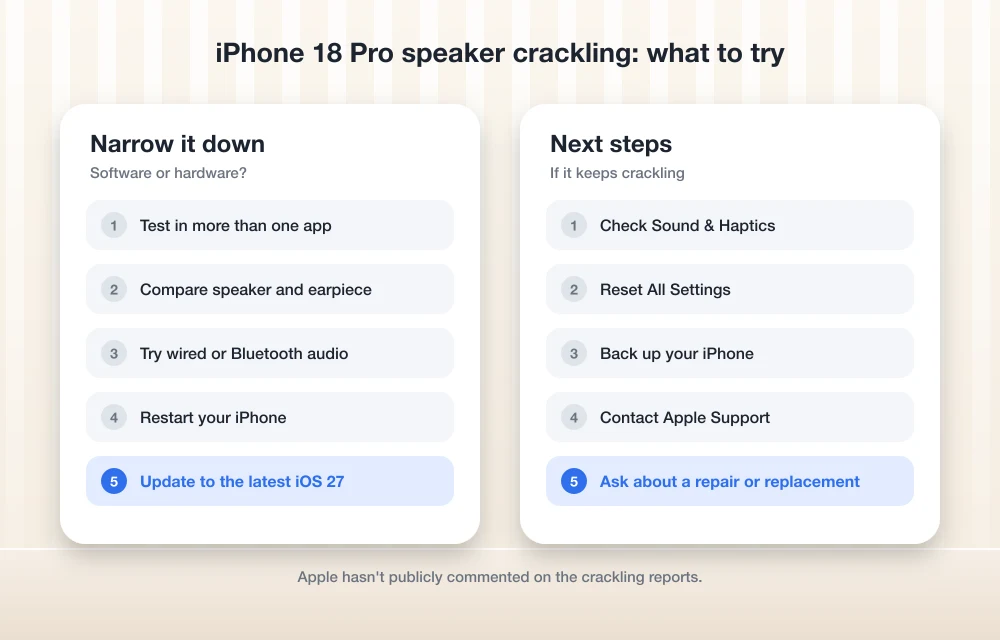
Software or Hardware? How to Tell
Don’t touch any settings yet. Give it ten minutes of testing first. It’s also exactly what a Genius Bar tech will ask you about, so you may as well know the answers.
Test the earpiece vs the bottom speaker
Call someone and listen normally through the earpiece. Then put that same call on speaker. After that, play a song or a YouTube video through the bottom speaker at medium volume.
Crackle only from the earpiece? That’s the same thing most owners describe. Pops and distortion from the bottom speaker too, in every app? That’s worse, and it points more towards hardware.
Try different apps
Try a normal call, a FaceTime audio call, a call in a messaging app, a voice note, and some music. If the noise shows up in just one app, it’s probably that app and not your phone. That kind of app-only glitch is more common than you’d think. We wrote about one recently in our guide to fixing WhatsApp crashes in specific group chats.
Test with Bluetooth
Pair some Bluetooth earbuds and repeat the call and the music. Clean sound through the earbuds but crackling from the phone’s own earpiece means the trouble is on the phone’s speaker side. Could be the speaker, could be how iOS drives it. If the earbuds crackle as well, I’d look harder at the app or the software.
Any earbuds will do for this. If you’re after a pair anyway, my Spigen Audio SA-TW P10 review is a good place to start.
Listen for the screen triggers
Find a quiet room. Nothing playing. Hold the top of the phone to your ear and scroll, open the keyboard, pull down a notification, nudge the brightness. If you hear ticks with no audio on, it’s not your music or your call. Note down which actions set it off.
| What you notice | What it might point to |
|---|---|
| Crackle in one app only | That app or its audio settings |
| Earpiece only, tied to scrolling, keyboard or notifications | Matches the widely reported pattern; cause unconfirmed |
| Earpiece and bottom speaker, in every app | More likely hardware; book a repair |
| Bluetooth clean, built-in speakers crackle | Problem is on the phone’s speaker side |
| Bluetooth crackles too | More likely the app, stream or software |
Fix 1: Update to the Latest iOS 27
Apple’s security releases page shows iOS 27.2 as the newest version. Owners say 27.0.1 didn’t help, and I couldn’t find anything in Apple’s notes for 27.1 or 27.2 that mentions speakers or audio.
Update anyway. It’s free, it takes a few minutes, and if this really is a software bug, that’s where the fix will land. Open Settings, go to Software Update and install whatever’s newest. Stay on Wi-Fi and keep it plugged in.
iOS 27 has had a couple of other early bugs on these phones as well. If your Home Screen is freezing too, check out our guide on fixing iPhone freezing when moving widgets in iOS 27. One more thing: I wouldn’t put beta software on your main phone just to chase this.
Fix 2: Restart Your iPhone
Yes, really. Apple itself tells you to restart before you try any kind of reset. It clears out temporary glitches and doesn’t touch your settings. Switch it off, wait a few seconds, switch it on, then repeat your earpiece tests.
If the phone is frozen and won’t switch off the normal way, force restart it: press and quickly release Volume Up, press and quickly release Volume Down, then press and hold the Side button until the Apple logo appears.
Fix 3: Check Your Audio and Sound Settings
To be clear, none of these is a confirmed fix. I’m including them because a weird setting can make audio sound off, and because what you find here is handy info if you end up at Apple.
Phone Noise Cancellation (not on iPhone 18 Pro)
Lots of older guides say to switch off Phone Noise Cancellation. Don’t bother looking for it on the iPhone 18 Pro. Apple’s audio settings guide says that option, under Settings > Accessibility > Audio & Visual, only exists on iPhone 12 and older.
Mono Audio and Balance
While you’re in Settings > Accessibility > Audio & Visual, look at Mono Audio and the Balance slider. Balance should be dead centre. Flip Mono Audio on and off while you test. No difference? Put them back how they were.
Sounds & Haptics
Now open Settings > Sounds & Haptics. You’ll find Keyboard Feedback (Sound and Haptic), Lock Sound and System Haptics in there.
Remember how owners hear the ticks when the keyboard pops up, when notifications land and when they tap the screen? So here’s a little experiment. Switch off the Keyboard Feedback sound and haptic, Lock Sound and System Haptics for a day. If the ticks calm down or stop, you know they’re tied to those system sounds or vibrations. Not a cure, but a really useful clue for Apple. You can turn them back on later.
Fix 4: Back Up and Reset All Settings
Still crackling after an update and a restart? Reset All Settings is the next software step. Apple calls it “rarely necessary,” so think of it as your last software move, not your first.
What happens: your photos, apps and data stay put. But Sounds & Haptics, Accessibility, Bluetooth pairings, Wi-Fi passwords, Face ID, Apple Pay cards and Apple Watch pairing all go back to default. Setting them up again takes a little while.
Apple recommends a backup first, so you can get your old settings back if this doesn’t help. The full details are on Apple’s reset settings support page.
- Back up your iPhone.
- Open Settings and tap General.
- Tap Transfer or Reset iPhone.
- Tap Reset, then tap Reset All Settings.
- Confirm, let the phone restart, and test the earpiece before you re-pair Bluetooth devices or change any settings.
That last step is important. Test straight away. If the crackle’s gone before you change anything, a setting was involved. If it’s still there on fresh settings, your setup probably isn’t the problem.
When to Book a Genius Bar Repair or Replacement
I’d book an appointment with Apple if any of these sound like you:
- You hear crackling or distortion from the bottom speaker as well as the earpiece.
- The noise happens in every app, including over speakerphone.
- It’s still there after updating to the latest iOS 27 and doing Reset All Settings.
- It’s getting louder or more frequent, or it’s making calls hard to hear.
Your phone is only a few weeks old, since these went on sale on September 18, 2026. So check what your warranty covers before you pay for anything. I couldn’t confirm Apple’s booking links or warranty wording for this piece, so book through Apple’s official support channels.
Go in prepared. Jot down which speaker crackles, which apps and actions set it off, your iOS version, and everything you’ve tried. Even better, record the noise with a second phone held up to the earpiece. Intermittent ticks have a funny habit of going silent the second a technician listens.
One heads-up. Some owners say their replacement had the same problem. I can’t confirm that. If it happens to you, report it again anyway, because every report adds to Apple’s record, and that matters if a fix or a repair programme shows up later.
What I’d Do Right Now
If it’s just a faint tick from the earpiece, I’d update to the latest iOS 27, run the tests, try the Sounds & Haptics experiment and give Apple some time. They haven’t said anything yet, so a bit of patience is part of the deal.
If it’s loud, hits the bottom speaker too, or makes calls hard to hear, don’t sit on it. Back up, reset all settings once, and if that doesn’t sort it, book the Genius Bar while the phone is still brand new. I’ll update this post as soon as Apple confirms a cause or ships a fix.
Frequently Asked Questions
Is the iPhone 18 Pro speaker crackling a software or hardware problem?
Nobody outside Apple knows yet, and Apple hasn’t publicly acknowledged the issue or confirmed a cause. Many owners suspect software because the ticks happen during screen actions like scrolling or opening the keyboard. If the crackle affects the bottom speaker in every app, a hardware fault is more likely.
Did iOS 27.0.1 fix the iPhone 18 Pro earpiece crackling?
Owners say it didn’t. I also couldn’t confirm whether Apple’s notes for iOS 27.1 or iOS 27.2 mention any speaker or audio fix. It’s still worth updating to the latest iOS 27, which Apple lists as iOS 27.2.
Will Reset All Settings delete my photos or apps?
No. According to Apple, it doesn’t delete photos, apps or data. It does reset Sounds & Haptics, Accessibility, Bluetooth pairings, Wi-Fi passwords, Face ID, Apple Pay cards and Apple Watch pairings, so back up first.
Where is Phone Noise Cancellation on the iPhone 18 Pro?
It isn’t there. Apple says Phone Noise Cancellation, found at Settings > Accessibility > Audio & Visual, is only available on iPhone 12 and earlier models.
Should I ask for a replacement iPhone 18 Pro?
If the crackle survives an update and Reset All Settings, or it affects the bottom speaker too, book a Genius Bar appointment. Some owners say their replacement had the same issue, which isn’t confirmed, so report it again if that happens to you.
More in How-to
How to Fix iPhone 18 Pro and Pro Max Overheating
Is your iPhone 18 Pro or Pro Max running hot? Here’s how to tell normal warmth from a real problem, what Apple’s temperature guidance says, and the checks to try before you book a repair.
How to Fix iPhone 18 Pro Max No Service or SOS on AT&T
Is your iPhone 18 Pro Max stuck on SOS or No Service on AT&T? Here’s how to tell if it’s the issue Apple has acknowledged, what to try first, and how to get a replacement.
How to Fix “Headphones Not Recognized” on iPhone After iOS 26 Update
After the iOS 26 update, a small but noticeable group of iPhone users started reporting a strange issue: wired headphones are no longer being recognized properly. Some are stuck in speaker-only mode, while others see their headphones connect and disconnect randomly. Although most complaints are about wired headphones, a few Bluetooth users are facing similar…
The week in tech, minus the noise.
New reviews, fixes and the stories that matter — once a week, straight to your inbox.
We only use your email to send the newsletter. Unsubscribe any time. See our privacy policy.
Comments