

Best Password Managers for Families and Small Businesses (2026)
I compared 1Password, Bitwarden, Dashlane and the built-in Apple and Google options using official vendor pages, so you can choose the right password manager for your family or small team.
Password-Managers-Featured
Most families I know run on a password “system” that’s really just one person’s memory. One parent knows the bank login, the kids know the streaming passwords, and the Wi-Fi password lives on a sticky note on the fridge. Sound familiar? Plenty of small offices aren’t much better, honestly. A shared spreadsheet called “logins” is way more common than anyone wants to admit.
A password manager cleans up that mess. It keeps every login in an encrypted vault, fills passwords in for you, and lets you share the right ones with the right people without texting them around. The tricky bit is picking one, because family and team plans change a lot.
So a quick note on how I put this together. I based features and prices on the vendors’ own official pages, and where I couldn’t confirm something, I just say so. All prices are in USD and can change at any time (they do, a lot), so check the vendor’s page before you pay.
Quick answer: For most US families, Bitwarden Families is the best value I could confirm: $3.99 a month billed annually for up to 6 people, each with a full Premium account. 1Password Families ($5.99 a month list price, up to 5 members) is the pick if you want unlimited shared vaults and its Watchtower breach alerts. For a small team of up to 10, 1Password’s Teams Starter Pack is a flat $24.95 a month, and Dashlane Business makes sense if you need single sign-on. The free Apple and Google tools can work for a household that lives in one ecosystem, but as far as I know neither has a business admin console.
What to Look for Before You Pick One
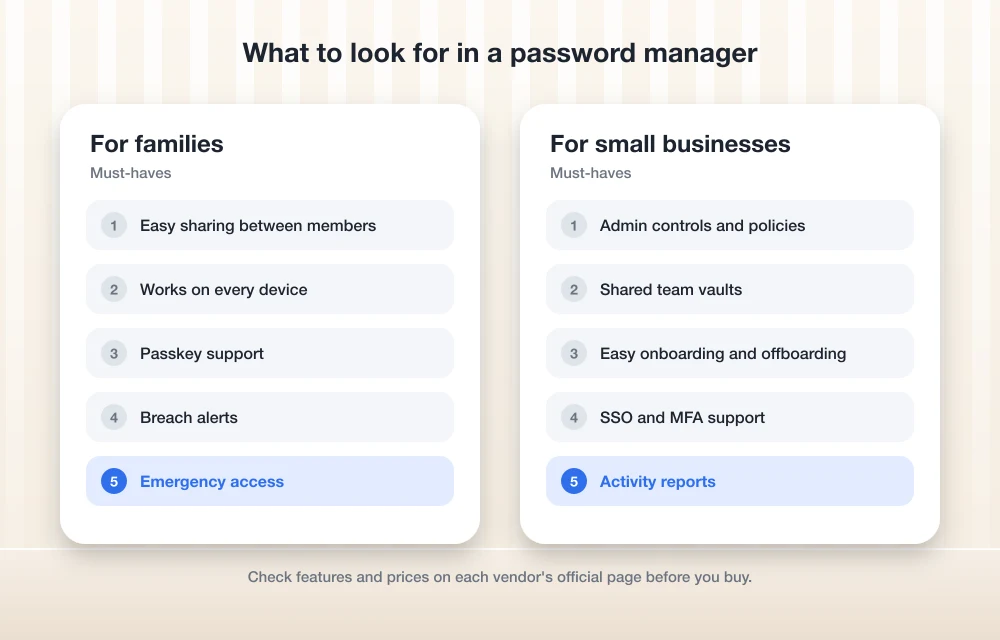
Forget the marketing for a minute. This is the stuff that actually matters when you’re protecting a household or a small team.
Zero-knowledge encryption
“Zero-knowledge” just means your vault gets encrypted on your own device with a key made from your master password. So the company storing your data can’t read it. If they get hacked, the attackers walk off with scrambled junk instead of your logins.
Look for that phrase on any vendor’s security page. I’ll be real, I didn’t re-check every company’s security docs for this update, so give that page a quick read yourself before you commit. Security companies get breached too. That’s exactly why this design matters.
Sharing that fits how you actually live
A good family plan lets each person keep a private vault and share only some things, like the streaming logins or the health insurance portal. 1Password, for example, says each family member can keep items private while sharing others through shared vaults.
Bitwarden makes the point that family members don’t have to live together. Handy if you look after logins for a parent in another state (I know a lot of people who do this).
Admin controls and recovery
Somebody has to be in charge. In a family, that’s usually whoever gets the call when Grandma forgets her master password. In a business, admin controls let you add and remove people, set permissions, and cut off access the day someone leaves.
Growing teams might also want SSO (single sign-on, where staff log in with their work account) and SCIM (a standard that automatically adds and removes users based on your company directory).
Breach alerts
A breach alert tells you when one of your passwords has popped up in a leak, or when you’re reusing a weak one. 1Password calls its version Watchtower. Dashlane lists phishing alerts on its Business plan. And honestly? These little nudges are what finally get people to change that password they’ve been using since 2012.
Two-factor authentication and hardware keys
Two-factor authentication (2FA, sometimes called MFA for multi-factor) adds a second check on top of your password, like a code or a physical key. The US Cybersecurity and Infrastructure Security Agency has some plain-English guidance on strong passwords that’s honestly worth forwarding to your family group chat.
Hardware security keys, those small USB or NFC devices built on the FIDO standard, are the strongest kind of second factor. I couldn’t confirm which of these apps let you protect the vault itself with a hardware key, though, so check each vendor’s help pages if that’s important to you.
Works on every device in the house
Your family probably has a mix of iPhones, Android phones, a Windows laptop, maybe a Chromebook floating around. The password manager has to run on all of them. Otherwise someone drifts right back to the sticky notes. 1Password lists apps for macOS, iOS, watchOS, Windows, Android and Linux. For the others, just check the download page against the devices you actually own.
Passkeys, Explained Simply
A passkey is a newer way to sign in that swaps your password for a pair of digital keys. The website keeps one key (the public one). Your phone, computer or password manager keeps the other (the private one), and you approve each sign-in with your fingerprint, face or device PIN.
Why should you care? Well, there’s nothing to type, so there’s nothing for a scammer to grab with a fake login page. A passkey only works on the real site it was made for. That’s a big deal for families, because a convincing fake login page is exactly the thing that fools a busy parent or a less techy grandparent.
Here’s the thing though. Not every website supports passkeys yet, so you’ll be living with passwords for a while. Keeping passkeys in a cross-platform password manager also means they aren’t stuck on one brand of phone. I believe all the paid apps below support passkeys, but I couldn’t confirm the specifics on each vendor’s page for this update, so treat that as something to double-check.
The Password Managers I’d Consider
1Password
1Password’s Families plan covers up to 5 members, with unlimited shared vaults and simple admin controls. Everyone can keep their own stuff private and share the rest.
List price is $5.99 a month for Families and $3.99 for Individual. When I checked the pricing page there was also a first-year promo at $4.49 and $2.99 a month, billed yearly, but promos come and go. Both personal plans include Watchtower breach alerts and a 14-day free trial.
For small businesses, the Teams Starter Pack is $24.95 a month for up to 10 users, paid annually. You get sharing, security alerts, role-based permissions and developer tools, plus a 14-day trial. Once you outgrow that, the Business plan is $8.99 per user per month.
My take? That flat Starter Pack price is kind of a sweet spot for a small office. Ten people for under $25 a month is an easy expense to justify.
Bitwarden
Bitwarden is where I’d point most budget-conscious families. The Families plan covers up to 6 users, and every one of them gets a full Premium account. You also get unlimited shared collections (that’s Bitwarden’s name for shared folders), 10 GB of total storage and a family admin dashboard.
Bitwarden announced its current pricing on January 20, 2026. Premium is $1.65 a month ($19.80 billed annually) and Families is $3.99 a month ($47.88 billed annually). Bitwarden also lists built-in TOTP codes, which are those timed 6-digit codes a lot of sites use for two-step login, so you’re not juggling a separate authenticator app for those accounts.
On the business side, the standout perk is that Bitwarden’s business plans include a free Families plan for every user. Pretty nice. I couldn’t confirm current Teams and Enterprise prices on Bitwarden’s official business pricing page though, so check that before you budget.
Dashlane
Dashlane has trimmed its business lineup. It doesn’t sell its Starter, Team or Standard plans anymore. Its Business plan, which Dashlane calls “Password Management,” is $8 per user per month billed annually, and there’s an optional “Credential Protection” add-on at $4 per user per month. Enterprise pricing is a custom quote.
The Business plan crams a lot in: SSO, SCIM, phishing alerts, phone support, a VPN and a free Friends & Family plan for each user. That last one is a genuinely nice employee perk, I think. I couldn’t confirm Dashlane’s standalone personal or family prices, so check its pricing page if you’re only buying for your household.
Apple Passwords and Google Password Manager
If your whole household is on iPhones and Macs, Apple’s Passwords app is already sitting on your devices. All on Android and Chrome? Google Password Manager is built right in. For a lot of families that’s the honest answer, because the best password manager is the one people will actually use.
One caveat. I couldn’t verify Apple’s or Google’s feature pages for this update. Going from memory, both support passkeys and some kind of sharing with family members, Google has a Password Checkup feature for spotting leaked passwords, and Apple’s app works on Windows through iCloud for Windows. As far as I know, neither has a business admin console, so I wouldn’t run a company on them. Mixed households (one iPhone, two Androids, a Windows PC) usually do better with a cross-platform app.
Proton Pass and Keeper
Both are worth a look, but I couldn’t confirm their current plans or prices for this guide. My understanding is that Proton Pass leans on encryption and email aliases (throwaway addresses that forward to your real inbox), and that Keeper has family and business tiers with breach monitoring sold as an add-on. Treat all that as unverified and check Proton’s and Keeper’s own pricing pages before you decide.
Side-by-Side Comparison
This is what I could actually confirm on official pages. “Not confirmed” means I couldn’t verify it, not that the feature doesn’t exist.
| App | Family option | Small business option | Confirmed highlights |
|---|---|---|---|
| 1Password | Families: up to 5 members, $5.99/mo list price | Teams Starter Pack: $24.95/mo for up to 10 users (annual); Business: $8.99/user/mo | Watchtower breach alerts, role-based permissions, 14-day trial, apps for macOS, iOS, watchOS, Windows, Android, Linux |
| Bitwarden | Families: up to 6 users, $3.99/mo ($47.88/yr) | Business plans include a free Families plan per user; business prices not confirmed | Built-in TOTP codes, 10 GB family storage, family admin dashboard |
| Dashlane | Free Friends & Family plan with each Business seat; standalone price not confirmed | Business: $8/user/mo (annual); Credential Protection add-on $4/user/mo; Enterprise custom | SSO, SCIM, phishing alerts, VPN, phone support |
| Apple Passwords | Not confirmed | No business console (from memory) | Built into Apple devices |
| Google Password Manager | Not confirmed | No business vault (from memory) | Built into Chrome and Android |
| Proton Pass | Not confirmed | Not confirmed | Not confirmed |
| Keeper | Not confirmed | Not confirmed | Not confirmed |
Which One Should You Pick?
For families
If you want the most people for the least money, Bitwarden Families is tough to argue with. Six seats, full Premium for everyone, and your relatives don’t have to live under your roof.
If five seats is plenty and you like the idea of Watchtower nagging everybody about weak passwords, 1Password Families is a great fit. The 14-day trial lets you see if the family actually sticks with it (mine needed some convincing, to be fair).
All-Apple or all-Google house? Just start with what you’ve already got. You can always move to a paid app later.
For small businesses
Under 10 people, I’d look really hard at 1Password’s Teams Starter Pack, since the price is flat and predictable. If you already use a company directory and want SSO and automatic onboarding, Dashlane Business lists both. Bitwarden is appealing if a free family plan for every employee matters to you, once you’ve confirmed its current business pricing.
A password manager is only one layer, though. If you’re building out security for a small company, my roundup of cybersecurity tools small businesses need covers the rest of it.
How to Move Your Family or Team onto a Password Manager
The software’s the easy part. Getting everyone to actually use it, that’s the real job. Menu names are different in every app, so follow your vendor’s help center for the import screens. This is the order I’d go in.
- Set up the admin account first. Pick a long master password (a passphrase made of several random words works well), turn on two-factor authentication, and set up whatever account recovery option the app gives you.
- Run a small trial. Start with just you and one other person. If there’s a free trial, like 1Password’s 14 days, this is when to use it.
- Import existing passwords. Export your saved logins from your browser or old password manager, usually as a CSV file, and import them following the vendor’s instructions.
- Delete the export file. That CSV has every single password in plain, readable text. Delete it right after importing and empty your trash or recycle bin. Seriously, don’t skip this.
- Create shared vaults. For a family, think “Streaming,” “Bills” and “Wi-Fi and devices.” For a team, sort things by role or department. Keep personal stuff private.
- Invite everyone and sit with the less techy folks. Ten minutes next to a parent while they set up their phone saves you weeks of “what’s my password again?”
- Fix the important passwords first. Change email passwords before anything else, because email is how every other account gets reset. If your team’s email setup itself needs some work, check out my guide to secure enterprise email solutions. After that, move on to banking and anything with saved payment details.
- Turn off the old saving habit. Stop your browser from saving new passwords, or your logins end up split across two places.
- Plan for people leaving. In a business, pull the person’s access the day they go and change any shared passwords they knew.
My Final Take
You don’t need the perfect password manager. You need one your family or team will actually open every day. For most households I’d start with Bitwarden Families or 1Password Families. For a small office, 1Password’s Starter Pack or Dashlane Business, depending on whether you need SSO.
Whatever you go with, turn on two-factor authentication for the vault, start saving passkeys where sites let you, and double-check current prices on the vendor’s site before paying. And if you’re after more easy wins, here are some simple ways to improve your digital safety that go nicely with a password manager.
Frequently Asked Questions
Is a free built-in password manager good enough for my family?
It can be, if everyone’s in the same ecosystem, like all iPhones or all Android and Chrome. Mixed households usually do better with a cross-platform app like 1Password or Bitwarden. As far as I know, neither Apple nor Google has a business admin console, so I wouldn’t lean on them for a company.
How many people can share a family password manager plan?
Going by their official pages at the time of writing, 1Password Families covers up to 5 members and Bitwarden Families covers up to 6 users. I couldn’t confirm the current limits for the other apps, and plans and prices change a lot, so check each vendor’s pricing page before you pay.
What is the difference between a passkey and a password?
A password is something you type, and a fake login page can steal it. A passkey uses a pair of digital keys: the website keeps a public key and your device or password manager keeps a private one, which you approve with your fingerprint, face or PIN. Since it only works on the real site, it’s much harder to phish.
Does a business password manager plan also cover my family?
With some vendors, yep. Bitwarden says its business plans include a free Families plan for every user, and Dashlane says its Business plan includes a free Friends & Family plan for each user.
Is it safe to export my browser passwords to move them?
It’s fine if you’re careful. The exported CSV file has every password in plain text, so import it right away, then delete the file and empty your trash or recycle bin.
You might also like

Top 5 Cybersecurity Tools Small Businesses Need in 2026
Cybersecurity tools are very much essential for all businesses in 2026. Despite growing awareness, many small and medium businesses struggle to secure themselves from cyberattacks. Generally, small businesses assume they are too small to be a target, but research shows that majority of SMBs prone to cyber attacks because they lack a robust defense system.…

10 of the Best QuickBooks Alternatives
It’s no secret that Quickbooks is one of the most popular accounting programs. QuickBooks is one of the most well-known small and medium-level business accounting solutions, especially in the US. With certain packages, it offers simple inventory management tools for small businesses. However, like with any system, there are advantages and disadvantages to selecting QuickBooks…

Top 5 Lead Management Software for High-Conversion Sales Pipelines in USA (2026 Guide)
The speed, visibility, and follow-up discipline are key components to a high-conversion sales pipeline. When leads are sitting too long in a spreadsheet or lost between marketing and sales, your conversion rate can drop quickly. Lead management software centralizes leads, assigns leads to the appropriate sales reps, tracks interactions with leads, and helps your team…
The week in tech, minus the noise.
New reviews, fixes and the stories that matter — once a week, straight to your inbox.
We only use your email to send the newsletter. Unsubscribe any time. See our privacy policy.
Comments