

Do You Still Need Antivirus on Windows 11 and Mac in 2026?
Windows 11 and macOS both ship with built-in malware protection that’s on by default. Here’s what it covers, what paid suites add, and who should still pay for one.


Image by Joshua Woroniecki on Unsplash
So one question I get asked a lot is “Should I buy antivirus?” And it almost always comes right after some pop-up offered a “free scan” that nobody asked for.
Here’s the thing. Windows 11 and macOS both come with real malware protection now, and it’s already switched on. For a lot of people that’s enough, as long as you’ve got a few good habits on top. But I’ll be real, some households and small offices do still get real value out of a paid suite.
I’m going to go through what’s built in, what the paid apps actually add, and how you can figure out which group you fall into. I’ll also point out where the key settings live, so you can check your own computer in a few minutes (seriously, it doesn’t take long).
Quick answer: Most people on Windows 11 or a Mac don’t need to buy a separate antivirus app. Windows Security (Microsoft Defender Antivirus, SmartScreen, Smart App Control, ransomware protection and a firewall) and macOS’s Gatekeeper, notarization and XProtect already handle the core job of blocking and removing malware. A paid suite makes sense if you want extras like identity monitoring, parental controls, a VPN or a password manager in one bundle, or if you need to manage security across several family or office devices.
What Windows 11 Already Gives You
Windows 11 has an app called Windows Security. You don’t have to install anything. It’s just part of Windows, and you can open it by typing “Windows Security” into the Start menu search. Microsoft’s guide to the Windows Security app says it includes Microsoft Defender Antivirus, Windows Firewall and Smart App Control.
Microsoft Defender Antivirus. This is the actual antivirus bit. Real-time protection keeps scanning your device for threats in the background, so you don’t need to remember to run scans yourself. Want to check one specific file or folder? Right-click it in File Explorer and scan it. On Windows 11 you might have to hit “Show more options” first before the scan option shows up (a little annoying, I know).
SmartScreen. SmartScreen checks websites and downloads against lists of known bad sites and files. It’s there to catch phishing, which is fake sites trying to steal your logins, plus malware and potentially unwanted apps. Those last ones aren’t exactly viruses, but they tend to drag junk in with them. In Microsoft Edge, SmartScreen can also flag known tech support scam sites. If your browser has ever suddenly screamed that your PC is “locked,” I wrote a full guide on how to deal with tech support scam pop-ups.
There’s more tucked under that same heading too. SmartScreen covers Microsoft Store apps as well, and there’s phishing protection that warns you if you type your Microsoft account password into a suspicious site or app.
Smart App Control. When this is on, Windows lets you know when an app isn’t trusted. I think of it like a bouncer at the door, but for programs.
Ransomware protection. Ransomware is the nasty stuff that scrambles your files and then demands money to give them back. Windows has a feature called Controlled folder access that stops untrusted apps from changing files in protected folders. Honestly, it’s one of the most useful settings in Windows Security. And it might not be turned on for you, so go check.
Windows Firewall. The firewall keeps an eye on network traffic coming in and going out of your PC, and it blocks suspicious activity.
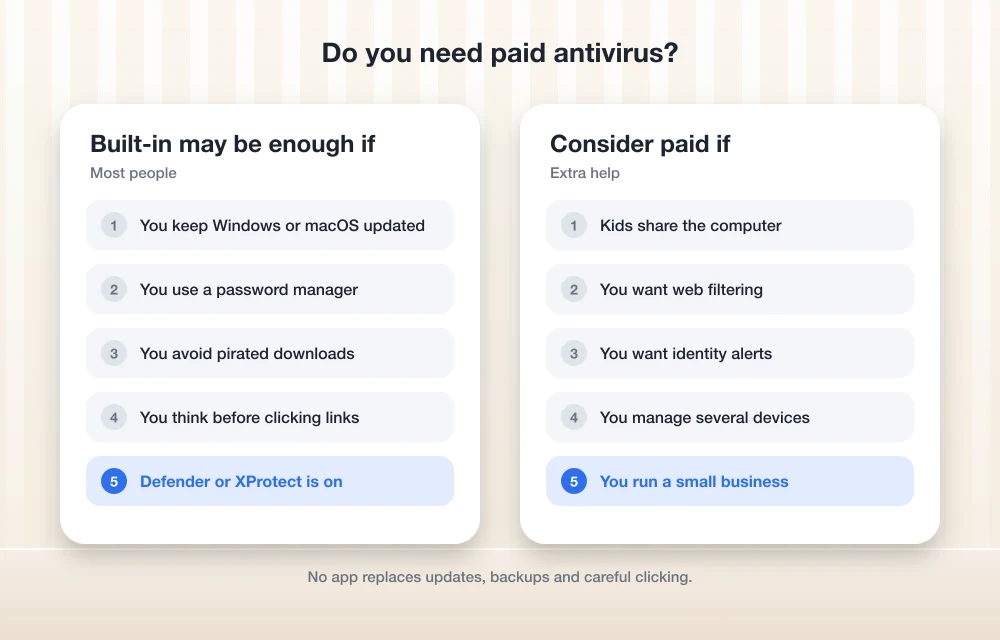
How to Check Your Windows Security Settings
This takes about five minutes. This is what I’d look at:
- Open the Start menu, search for “Windows Security” and open it up.
- Click Virus & threat protection, then Manage settings. Make sure real-time protection is switched on.
- Head back and click App & browser control, then Reputation-based protection settings. Check that the SmartScreen options are on.
- Go back to Virus & threat protection and find the Ransomware protection section. Turn on Controlled folder access.
- Use Protected folders to add any other folders you care about. If a program you trust ends up blocked, use Allow an app through Controlled folder access to let it through.
Microsoft’s own ransomware advice actually goes a step further. It says to keep Windows updated, leave Windows Security on, turn on Controlled folder access, and keep your files in OneDrive. OneDrive has built-in ransomware detection and recovery, plus file versioning, so you can roll a file back to an earlier copy if something goes sideways. That last part? Honestly my favorite safety net.
What macOS Already Gives You
Apple builds malware defense into macOS in layers. Apple’s Platform Security guide on protecting against malware describes it as stopping malware from launching, blocking it from running, and cleaning up anything that already ran.
Notarization. This is Apple’s malware-scanning service for apps that come from outside the App Store. Developers send their software to Apple, Apple scans it, and if there’s no known malware it hands out a ticket. Software has had to be notarized by default since macOS Catalina.
Gatekeeper. Gatekeeper checks apps before they open. It teams up with notarization to stop unknown or flagged software from launching.
XProtect. This is the antivirus baked into macOS. It uses signatures (basically fingerprints of known malware) to detect and remove malicious software and keep it from running. It also checks for infections every so often. Apple points out that it doesn’t restart your Mac automatically.
If macOS decides an app is malware, it tells you the app can’t be opened and moves it to the Trash. That’s just the system doing its job, so don’t panic.
How to Check Your Mac Malware Protection
- Open System Settings and click Privacy & Security.
- Scroll down until you see Allow apps downloaded from.
- Pick App Store if you want the strictest setting, or App Store and identified developers if you grab apps from trusted developers’ websites.
You’ll also see an Open Anyway button in here when macOS blocks an app. Please be careful with that one. Apple itself says overriding security settings to open an app is “the most common way that a Mac gets infected with malware.” So if some random download wants you to click Open Anyway, I’d stop and ask why.
What Paid Security Suites Add
Paid suites still scan for malware, sure. But that’s not really what you’re paying for these days. You’re mostly paying for the extras sitting around the antivirus.
Depending on the plan, you might get web protection that blocks dodgy sites in any browser, identity or dark web monitoring that pings you if your details turn up in a data leak, a VPN, a password manager and parental controls. A lot of them also let one person manage protection on several devices from one account. That sounds minor until you’re the one looking after a whole family’s stuff.
The catch? Every company slices these features into different tiers, and the details change a lot. A VPN that’s in one brand’s mid-tier plan might only show up in another brand’s top plan. If the VPN is the main reason you’re interested, read my take on whether a VPN is worth it for US users before paying extra for one inside a bundle.
| Feature | Windows 11 (built in) | macOS (built in) | Typical paid suite |
|---|---|---|---|
| Real-time malware scanning | Microsoft Defender Antivirus | XProtect | Yes |
| Blocking untrusted apps | Smart App Control, SmartScreen | Gatekeeper and notarization | Varies by product |
| Ransomware folder protection | Controlled folder access | Not a separate setting in Apple’s malware guide | Varies by product |
| Identity or dark web monitoring | Not part of Windows Security | Not part of Apple’s malware protection | Some plans |
| VPN | Not part of Windows Security | Not part of Apple’s malware protection | Some plans |
| Parental controls | Not part of Windows Security | Not part of Apple’s malware protection | Some plans |
| Cost | Included with Windows 11 | Included with macOS | Subscription; check vendor pricing |
Who Should Actually Pay for Antivirus
Families with kids. This is the strongest case, by far. Kids click things. They download game mods, fall for “free skins” offers, and install whatever their friend told them to. A suite with parental controls and web filtering that you manage from one parent account can save you a lot of worry.
People who download a lot. If you’re regularly pulling software, files or media from all over the web, an extra layer of web protection and a second opinion on downloads isn’t a bad idea. Be honest with yourself on this one, though.
Small businesses. The built-in tools protect each computer well. What they don’t give you is one dashboard showing whether every laptop in the office is up to date and protected. If you need that kind of central management, a business-focused product is worth paying for. I’ve gone into some options in more depth elsewhere on the site.
Who can skip it? If you’re an adult who keeps your computer updated, installs apps from official stores or well-known developers, and doesn’t click random pop-ups, the built-in protection is probably enough for you. And that’s a lot of people.
Paid Options Worth a Look
Quick heads-up before the list. I couldn’t confirm current prices or exactly which features are in which plan when I was writing this, so I left prices out on purpose. These companies shuffle plans and intro deals around all the time, so always check the official pricing page and look at what the renewal price will be before you buy. That renewal number is the one that bites.
1. Bitdefender
Bitdefender sells a few different consumer security plans in the US. If you’re eyeing it, compare the tiers on its official site and see which ones come with extras like a VPN, identity features or parental controls, and how many devices each plan covers. For families, that device count matters a lot.
2. Norton 360
Norton 360 is Norton’s bundled suite line, and plenty of US families already know the name. Before signing up, check Norton’s official products page to see which tier actually has the identity monitoring, VPN or parental controls you want. Otherwise it’s easy to just end up on the biggest plan by default.
3. McAfee+

McAfee+ is McAfee’s lineup of plans for individuals and families. Same story as the others: the real decision happens in the differences between plans. Look closely at device limits and which privacy and identity extras come with each level.
4. Malwarebytes
If you’ve ever had to clean up an infected computer, you’ve probably run into Malwarebytes. I’d look at it if what you mostly want is strong malware protection without a giant bundle attached. Check its pricing page to see what each plan covers and which platforms it supports.
5. Microsoft Defender for individuals
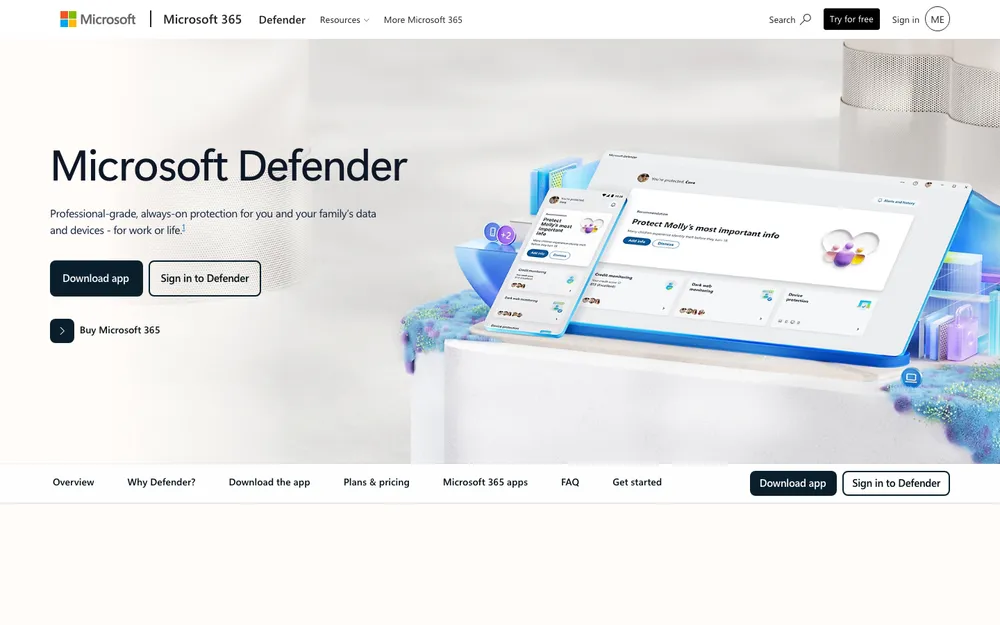
Don’t confuse this with Microsoft Defender Antivirus, the free one built into Windows. Microsoft Defender for individuals is a separate app that’s been tied to Microsoft 365 Personal and Family subscriptions. Microsoft has changed what’s in it more than once, and I couldn’t confirm what it does right now or which devices it still supports. If you already pay for Microsoft 365, check Microsoft’s official page to see what you actually get today before leaning on it.
Safe Habits That Matter More Than Any App
This is the part I wish more people heard. Most infections and account takeovers don’t happen because somebody had the wrong antivirus. They happen because somebody clicked, typed or approved something they shouldn’t have.
Keep Windows and macOS updated. Updates patch security holes, and Microsoft lists keeping Windows updated as a first step against ransomware. Turn on automatic updates and just let them install already.
Get your software from official places. So the Microsoft Store, the Mac App Store, or the developer’s own website. And on a Mac, treat that Open Anyway button as a red flag, not a shortcut.
Use a password manager and give every account its own unique password. That way if one site gets breached, the damage stays there. I put together a guide to the best password managers for families and small businesses if you want help choosing one. Oh, and turn on two-step sign-in anywhere a site offers it.
Back up your files. OneDrive’s version history is a lifesaver on Windows, and honestly any regular backup beats no backup. If ransomware ever does sneak through, a backup turns a disaster into an annoying afternoon.
Be suspicious of anything that feels urgent. Real companies don’t lock your screen and tell you to call a phone number. Pop-ups yelling about viruses, requests for gift cards, “act now” emails… those are classic scam moves. Close the tab. Not sure? Ask someone you trust.
My Take
If you’re on Windows 11 or a Mac, I’d stop paying for antivirus just out of habit. Spend five minutes checking the built-in settings instead, turn on Controlled folder access on Windows, and leave Gatekeeper alone on your Mac.
Pay for a suite when you actually need what it brings, like parental controls for the kids, identity alerts, or one spot to manage every device in the house or office. Either way, your habits are going to do more to keep you safe than any app will.
Frequently Asked Questions
Is Microsoft Defender Antivirus enough for Windows 11?
For most home users, yeah. Windows Security comes with Microsoft Defender Antivirus and its real-time protection, along with SmartScreen, Smart App Control, ransomware protection through Controlled folder access, and Windows Firewall. Just pair it with updates, backups and some careful habits.
Do Macs need antivirus?
Most Mac users don’t need a separate antivirus app. macOS already has Gatekeeper, notarization and XProtect, which block known malware and remove it. The biggest risk is you overriding those protections with Open Anyway for apps you don’t trust.
How do I turn on ransomware protection in Windows 11?
Open Windows Security, go into Virus & threat protection, find the Ransomware protection section and switch on Controlled folder access. You can add more folders under Protected folders, and allow trusted apps if they get blocked.
Is Microsoft Defender for individuals the same as Microsoft Defender Antivirus?
Nope. Microsoft Defender Antivirus is built into Windows at no extra cost. Microsoft Defender for individuals is a separate app linked to Microsoft 365 subscriptions, and its features have changed over time, so check Microsoft’s official page to see what it includes now.
Who should pay for an antivirus suite?
The people who get the most out of a paid suite are families with kids who want parental controls, folks who download a lot from all over the web, and small businesses that need central management across their devices.
Featured image: Joshua Woroniecki on Unsplash.
You might also like

Do Your Mac Actually Need Antivirus Software?
Do your Mac actually need Antivirus software? If you search this term on Google you’ll see lots of arguments, discussions, and debates. Finally, you get tired in finding the right answer for your question. Mac is a prestigious Operating system from the house of Apple. They claim that the Mac operating system is most advanced…

Avast Premier 2014 Review-Budget Friendly And Powerful
When it comes to PC security there’s always been some debate on whether you really need an antivirus program on Windows machines or not.

Best Portable Antivirus for Windows
In earlier times, having antivirus software was not very common, as there was lesser malware that could harm the computers. So, only the elite people could afford that expensive software. But, at present, there are lots of malware and to tackle them, multiple numbers of antivirus software are also there. And, as the number or…
The week in tech, minus the noise.
New reviews, fixes and the stories that matter — once a week, straight to your inbox.
We only use your email to send the newsletter. Unsubscribe any time. See our privacy policy.
Comments