

How to Fix Memory Integrity Problems After the Windows 11 Update
After installing this month’s Windows 11 update, some people opened Windows Security and found Memory Integrity switched on when they never touched it. Others ran into a warning about an incompatible driver, or a game or older tool that stopped behaving. That’s not a bug. Microsoft is now turning the feature on automatically for supported…

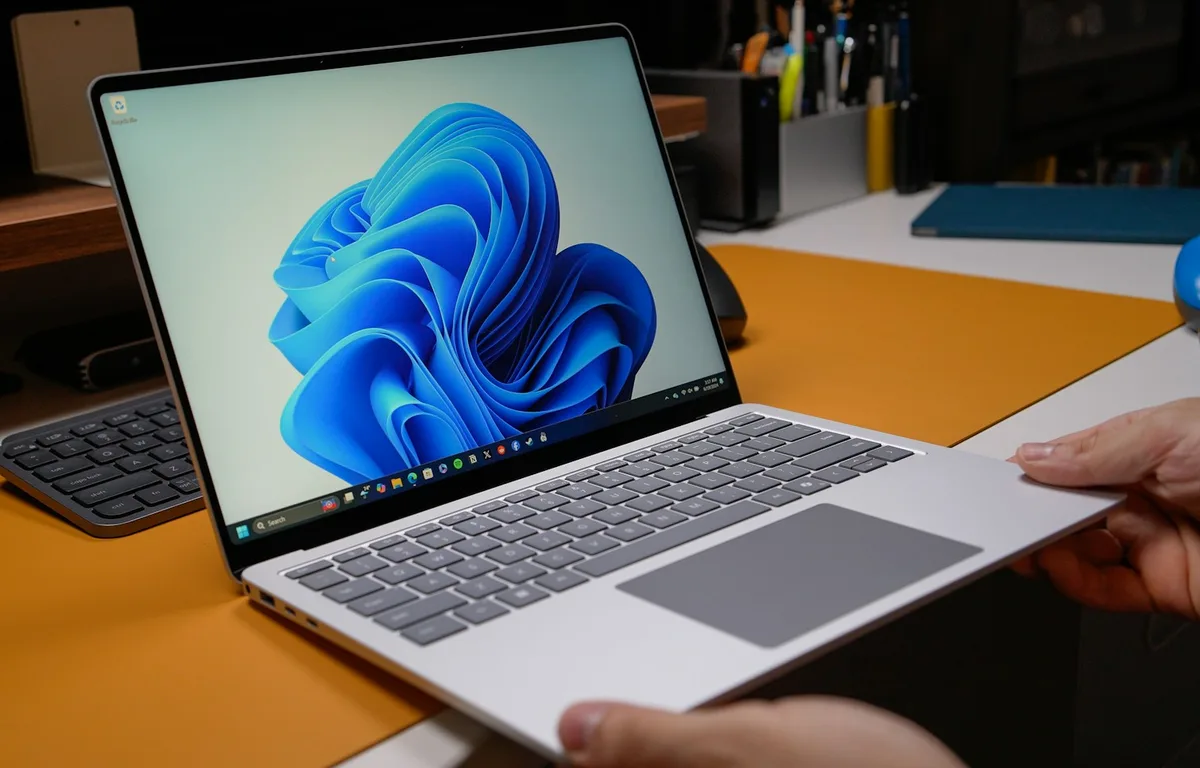
Photo by Daniel Romero on Unsplash
After installing this month’s Windows 11 update, some people opened Windows Security and found Memory Integrity switched on when they never touched it. Others ran into a warning about an incompatible driver, or a game or older tool that stopped behaving. That’s not a bug. Microsoft is now turning the feature on automatically for supported PCs during updates.
The good news is that most problems trace back to one driver, and Windows tells you which one. I’ll start with how to check what happened on your PC, then go through the fixes in the order I’d try them.
Quick answer: Open Windows Security > Device security > Core isolation details to see whether Memory Integrity is on. If Windows lists an incompatible driver, update it from the device maker or Windows Update, or remove the app or device that uses it. If Memory Integrity won’t turn on, enable virtualization in your UEFI/BIOS. You can switch it off with the same toggle, but that lowers your PC’s protection, so only do it if a specific app or game needs it.
Why Memory Integrity turned on by itself
Microsoft first described the change in its October Release Preview notes for Windows 11 versions 25H2 and 26H2. It said supported PCs “might now have memory integrity (HVCI) enabled during updates,” and that this is meant to improve security and prepare devices for advanced Windows security features “while respecting existing user or IT administrator choices.” It’s a gradual rollout, so not every PC gets it at the same time.
Memory Integrity, also called Hypervisor-protected Code Integrity (HVCI), runs in an isolated, virtualized environment and checks code before Windows runs it. According to Microsoft’s core isolation support page, that makes it harder for malicious drivers to take over your PC. The catch is that old or badly written drivers can’t run alongside it.
1. Check whether Memory Integrity is on
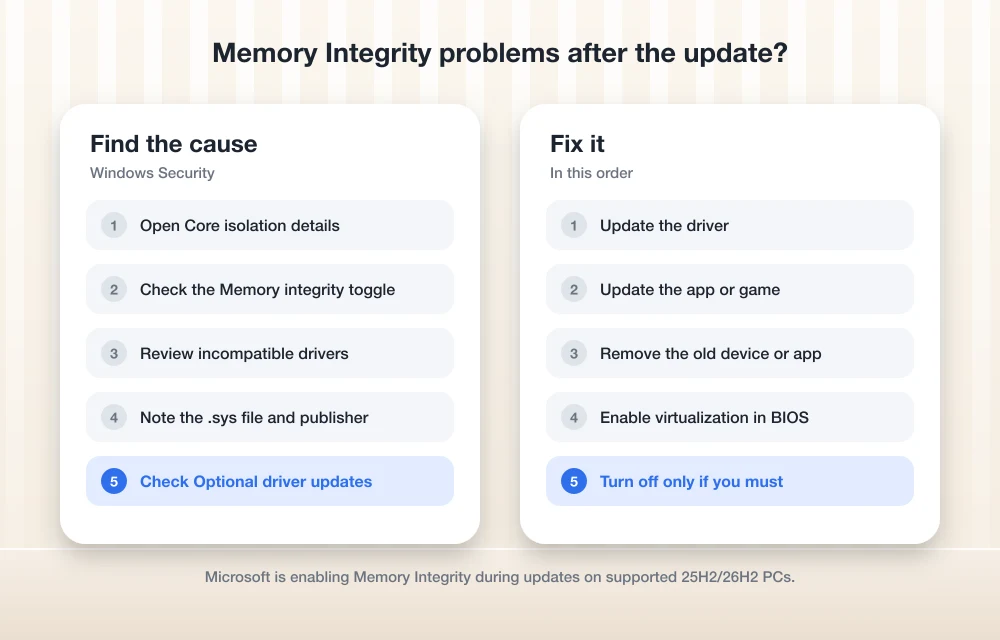
Open the Start menu, search for Windows Security, then go to Device security > Core isolation details. The Memory integrity toggle shows its current state. If it’s off and there’s a message about incompatible drivers, Windows tried to turn it on and stopped because of a driver.
2. Find the incompatible driver
On the same page, select Review incompatible drivers. Windows lists the driver file names, usually ending in .sys, along with details such as the publisher. Write down the file name and the published name. That tells you which device or app is causing the conflict, whether it’s an old printer, a USB adapter, an RGB lighting tool or an anti-cheat component.
3. Update the driver
Microsoft’s advice is to check with the device manufacturer for an updated driver. Start with Windows Update: go to Settings > Windows Update > Advanced options > Optional updates and open Driver updates. If nothing shows up there, go to the manufacturer’s support site and download the latest driver for your model. Restart, then go back to Core isolation and check whether the warning has cleared.
4. Update the app or game that broke
If a specific program stopped working after the update, look for a newer version of it. Games with anti-cheat software and utilities that install their own drivers often release updates when Windows security features change. Install the update, restart, and try again.
5. Remove the device or app that uses the driver
If no updated driver exists, Microsoft says you may be able to remove the device or app that uses it. Uninstall the app from Settings > Apps > Installed apps, or unplug the hardware and remove it from Device Manager. This is common with old hardware whose maker stopped shipping drivers years ago. Restart and check Core isolation again.
6. Turn on virtualization if Memory Integrity won’t enable
If you want Memory Integrity on but the toggle won’t stay on, check your firmware settings. Microsoft notes that hardware virtualization has to be enabled in your UEFI or BIOS. The setting is usually called Intel VT-x, Intel Virtualization Technology, AMD-V or SVM Mode. It varies by PC maker, so check your manual if you can’t find it.
7. Turn Memory Integrity off, if you really need to
If an essential app or device has no fix and you need it working today, you can switch the feature off. In Windows Security > Device security > Core isolation details, turn the Memory integrity toggle off and restart. You need to be signed in as an administrator.
Before you do, keep in mind that this removes a layer of protection against malicious drivers. Some PC gamers have reported lower frame rates with it on, but Microsoft’s core isolation page doesn’t mention a performance cost, so I’d only turn it off when something specific is broken, not as a general speed tweak. Treat it as temporary, and turn it back on when the driver or app gets an update. Make sure the rest of your protection is solid in the meantime. Our guide to antivirus for Windows 11 and Mac covers what’s worth running.
Other Windows 11 update problems this month
If the November update itself won’t install, see our guide to fixing KB5132061 not installing. If your PC shows a black screen after updating to the latest version, our Windows 11 26H2 black screen fix walks through the recovery steps.
FAQs
Why did Memory Integrity turn on after a Windows 11 update?
Microsoft says supported PCs on Windows 11 25H2 and 26H2 might now have memory integrity (HVCI) enabled during updates, as part of a gradual rollout to improve security, while respecting existing user or IT administrator choices.
Is it safe to turn off Memory Integrity?
Your PC will keep working, but it loses a protection that makes it harder for malicious drivers to take control. It’s better to update or remove the incompatible driver and leave Memory Integrity on.
How do I find which driver is blocking Memory Integrity?
Go to Windows Security > Device security > Core isolation details and select Review incompatible drivers. Windows lists each driver’s file name and publisher.
Why can’t I turn Memory Integrity on?
Usually an incompatible driver is blocking it, or hardware virtualization is turned off in your UEFI or BIOS. Fix the driver or enable virtualization, then restart and try again.
Featured image: Daniel Romero on Unsplash.
Disclosure: TheTechHacker has no paid relationship with Microsoft or any company mentioned here.
You might also like

Bing Chat not working on Edge or Windows? Best fixes to get it running today
Bing Chat, now powered by the latest ChatGPT-based model and integrated across Microsoft Edge and Windows, is drawing strong adoption, but users frequently report that it stops responding, fails to load, or throws generic “Something went wrong” errors. The good news is most issues are routine and fixable with a handful of browser, network, and…

How To Fix Generic PnP Monitor Problem On Windows 10
Problems, failures and issues are not new to the Windows 10. Sorry to say, but many Windows users are complaining about the hardware connectivity issues right after unboxing the system. One of the most noticeable issue among the Windows 10 users is Generic PnP Monitor. The issue is coming after updating their older version of…
How To Uninstall A Microsoft Windows OS Update
After installing updates sometimes, we face unexpected system crashing problems, errors and blue screen of death problems. It is always advisable to maintain your system up to date, but after updates if issues are raised you can uninstall Windows update manually.
The week in tech, minus the noise.
New reviews, fixes and the stories that matter — once a week, straight to your inbox.
We only use your email to send the newsletter. Unsubscribe any time. See our privacy policy.
Comments