

How to Fix KB5132061 Not Installing on Windows 11 (0x800f0993 and More)
Windows 11’s November security update, KB5132061, arrived on Patch Tuesday, November 10, and on some PCs it just won’t go in. You click Install, the progress bar crawls, and then Windows Update shows 0x800f0993, 0x80070306 or 0x800f0989, or quietly tries again on the next restart. Microsoft has acknowledged the problem, which helps, because it means…

Photo by Windows on Unsplash
Windows 11’s November security update, KB5132061, arrived on Patch Tuesday, November 10, and on some PCs it just won’t go in. You click Install, the progress bar crawls, and then Windows Update shows 0x800f0993, 0x80070306 or 0x800f0989, or quietly tries again on the next restart. Microsoft has acknowledged the problem, which helps, because it means the first fix might be to do nothing at all.
I’d work through this in order. The first two steps take a couple of minutes, and the manual install near the end is the one that usually gets a stubborn PC over the line.
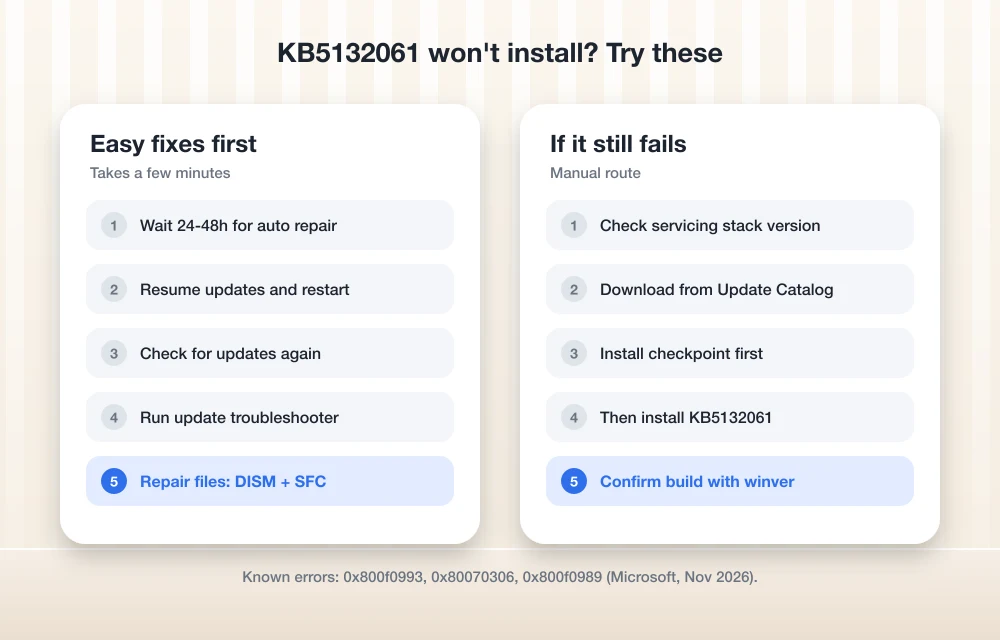
Quick answer: Microsoft lists KB5132061 install failures as a known issue and says it’s rolling out an automatic repair through Windows Update, starting November 11 at 10am PT, that should reach affected PCs within 24 to 48 hours. Keep your PC online, restart, and check for updates again. If it still fails after that window, run the Windows Update troubleshooter, repair system files with DISM and SFC, confirm your servicing stack is current, or install the update by hand from the Microsoft Update Catalog.
What KB5132061 is and which errors you might see
According to Microsoft’s KB5132061 release notes, the update brings Windows 11 to OS builds 26300.9974 (version 26H2), 26200.9974 (25H2) and 26100.9974 (24H2 Enterprise and Education). Besides security fixes, it repairs USB Audio 1.0 devices failing with error code 10, a Remote Desktop certificate mismatch introduced by the October preview, and an error 87 when adding Active Directory printers. That makes it worth installing rather than pausing.
| What you see | What it means for you |
|---|---|
| 0x800f0993 | One of the error codes Microsoft lists for this known issue |
| 0x80070306 | Also listed by Microsoft for the same issue |
| 0x800f0989 | Also listed by Microsoft for the same issue |
| Update keeps retrying after every restart | Microsoft says affected devices may keep retrying the install |
1. Give Microsoft’s automatic repair time to arrive
On the KB page, Microsoft says the fix is delivered automatically to connected devices that use Windows Update, starting November 11, 2026 at 10am PT, and that affected devices should be repaired within 24 to 48 hours. In Microsoft’s words, “No manual action from end-users is required to receive the repair.” In practice, that means leaving the PC switched on and connected for a while, then restarting it so the repair can apply.
2. Restart and check for updates again
After that window, open Settings > Windows Update, click Check for updates, and let it try KB5132061 again. Restart when it asks. If you paused updates earlier, click Resume updates first, since a paused PC won’t pull down the repair.
3. Run the Windows Update troubleshooter
Go to Settings > System > Troubleshoot > Other troubleshooters and click Run next to Windows Update (on newer builds this opens the update troubleshooter in the Get Help app). It resets the update components and clears common blockers. Restart, then try the update again.
4. Repair Windows system files with DISM and SFC
Damaged system files are a common reason cumulative updates fail. Open Command Prompt as administrator and run these two commands, one at a time, letting each finish:
DISM /Online /Cleanup-Image /RestoreHealth
sfc /scannow
The DISM step can sit at a percentage for several minutes, which is normal. Restart when both finish, then go back to Windows Update.
5. Confirm your servicing stack is new enough
KB5132061 includes servicing stack update KB5132688, but Microsoft lists prerequisites. On 24H2 and 25H2 you need an update released on or after June 10, 2025 and servicing stack 26100.4193 or later. On 26H2 you need an update from on or after September 22, 2026 and servicing stack 26100.9539 or later. To check, run this in an elevated Command Prompt:
DISM /Online /Get-Packages | findstr /i "ServicingStack"If your version is older, install the earlier required update first, then try KB5132061 again.
6. Install KB5132061 manually from the Update Catalog
If Windows Update keeps failing, you can skip it. Search for KB5132061 on the Microsoft Update Catalog and download the package that matches your PC (x64 for most Intel and AMD machines, Arm64 for Snapdragon PCs). Microsoft says the download includes a checkpoint update and the target update, and they must be installed in order:
- Create a folder such as C:Packages and put only the KB5132061 .msu files in it.
- Double-click the checkpoint file (KB5043080) first, then the KB5132061 file. If the checkpoint is already installed, Windows will tell you.
- Or let DISM handle both at once from an elevated Command Prompt:
DISM /Online /Add-Package /PackagePath:C:Packagesfollowed by the KB5132061 file name. - Restart when the install finishes.
7. Check that it worked
Press Windows + R, type winver, and press Enter. You should see build 26200.9974 on 25H2, 26300.9974 on 26H2, or 26100.9974 on 24H2. You can also check Settings > Windows Update > Update history for KB5132061.
8. Still stuck after 48 hours? Contact Microsoft
Microsoft’s own guidance on the KB page is that if the problem continues after the 48-hour window, you should contact Microsoft Support or use Windows help and learning. Note the error code and your build number before you do. It saves a lot of back-and-forth.
Why it’s worth getting this update installed
November’s Patch Tuesday fixed a large batch of vulnerabilities, which we covered in our November 2026 Patch Tuesday report. The update also carries fixes for problems you may already be living with. If your USB DAC or headset stopped working, see our guide to fixing USB audio code 10 on Windows 11, and if Remote Desktop has been failing, our Remote Desktop error 0xc000000d fix covers the other common causes.
FAQs
Why does KB5132061 fail to install?
Microsoft lists failed installs, with error codes 0x80070306, 0x800f0989 and 0x800f0993, as a known issue. It hasn’t detailed the cause, but it is pushing an automatic repair through Windows Update.
How long does Microsoft’s automatic fix take?
Microsoft says affected devices should be repaired within 24 to 48 hours from November 11, 2026 at 10am PT, as long as they’re connected and use Windows Update.
Is it safe to install KB5132061 manually?
Yes, if you download it from the Microsoft Update Catalog. Install the checkpoint update first and the KB5132061 package second, or let DISM install both from one folder.
Can I skip KB5132061?
You can pause updates for a short time, but it’s a security update with fixes for audio, Remote Desktop and printing, so it’s better to get it installed once the repair reaches you.
Featured image: Windows on Unsplash.
Disclosure: TheTechHacker has no paid relationship with Microsoft or any company mentioned here.
You might also like
How to Fix USB Headset or Speakers With No Sound (Code 10) on Windows 11
Update (November 11, 2026): Microsoft has now fixed this bug. The November 10 security update, KB5132061 for Windows 11 versions 24H2, 25H2 and 26H2 (KB5132059 on 26H1), fixes USB Audio 1.0 devices failing to start with Code 10, so installing it from Settings > Windows Update is now the first thing to do. More on…
November 2026 Patch Tuesday: Outlook Zero-Day Fixed, USB Audio Code 10 Bug Finally Solved
Patch Tuesday landed on November 10 this month, and for once the Outlook part of the release matters more than the Windows part. Microsoft fixed a spoofing bug in Outlook (CVE-2026-124194) that it says was already being exploited before the patch was ready, and that fix doesn’t come through Windows Update at all, it comes…
How to Fix Windows 11 Widgets Not Working
Windows 11’s Widgets panel gives quick glances at weather, news, stocks, and more right from your taskbar. But if clicking the icon does nothing, shows a blank screen, or fails to load, it’s a common technical glitch. Often tied to missing components like Edge WebView2 or the Windows Web Experience Pack, these fixes get most…
The week in tech, minus the noise.
New reviews, fixes and the stories that matter — once a week, straight to your inbox.
We only use your email to send the newsletter. Unsubscribe any time. See our privacy policy.
Comments