

How to Fix Wi-Fi Connected but No Internet on Windows 11
Your Windows 11 PC shows Wi-Fi as connected, but nothing loads. Here’s the order I’d work through the fixes, from a quick router restart to a full network reset.

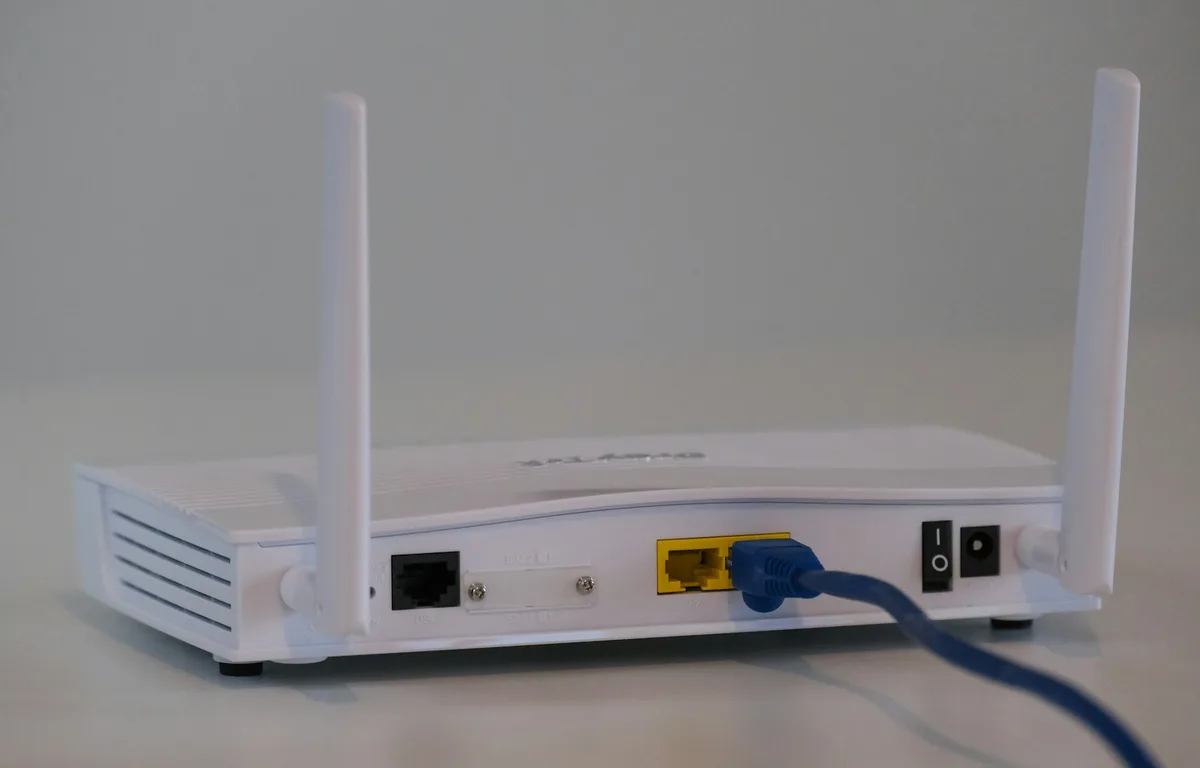
Photo by Compare Fibre on Unsplash
Windows 11 says you’re connected. The Wi-Fi icon is there, the signal bars are full, and nothing loads. Pages spin, apps time out, and your network name has a “No internet” label sitting under it.
You can usually fix this without leaving your desk. The trick is order: cheap, low-risk checks first, and the heavy stuff like a full network reset only when the simple ones don’t work.
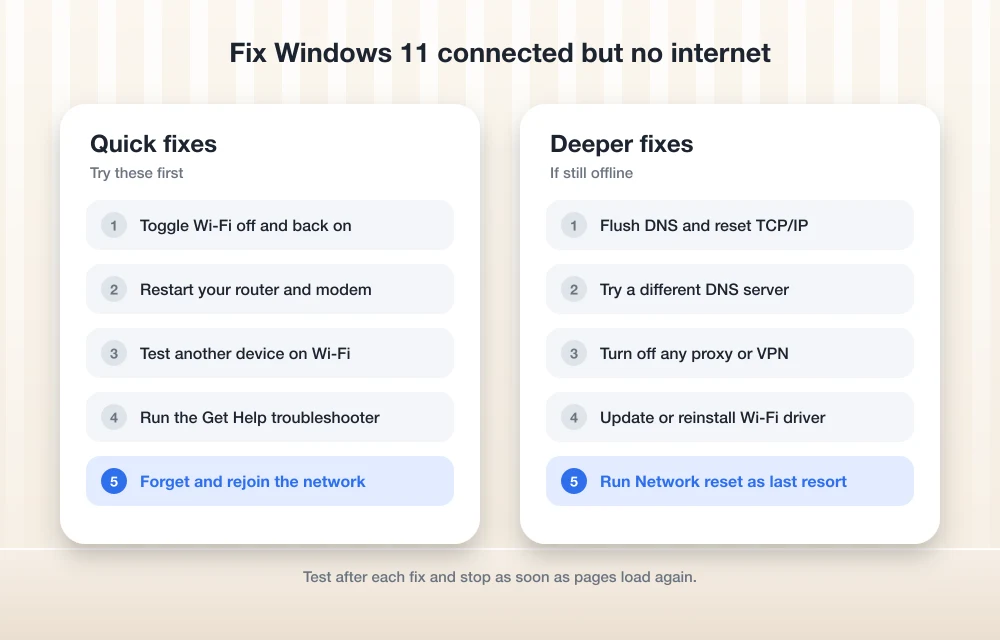
Quick answer: Turn Wi-Fi off and back on, restart your router and modem, and check whether another device can get online. If only your PC is stuck, run the Get Help troubleshooter, forget and rejoin the network, then flush DNS and reset TCP/IP from an admin Command Prompt. Still offline? Try a different DNS server, turn off any proxy or VPN, update or reinstall the Wi-Fi driver, and save Network reset for last.
What “connected but no internet” actually means
Microsoft’s name for this is “limited connectivity.” Your PC can talk to the router just fine. But traffic isn’t making it out to the wider internet, or the replies never come back.
And several different faults look exactly the same from your end. Maybe the router lost its connection to your provider. Maybe your PC is hanging on to a stale IP address (the number that identifies your device on the network). Or DNS is broken. DNS is what turns names like google.com into the numeric addresses computers actually use, so when it dies you’re technically online but can’t reach anything by name. Not ideal.
Each fix below goes after a different link in that chain. That’s why they poke at such different parts of the system.
First, figure out if it’s your PC or your network
Don’t touch any settings yet. Grab a phone or another laptop and connect it to the same Wi-Fi. Microsoft recommends this check too, and it tells you straight away where to look.
- The other device can’t get online either: it’s the router, the modem or your internet provider. Go to the router restart below and skip the PC-specific steps for now.
- The other device works fine: so the problem lives on your Windows 11 PC. Work through the fixes in order.
Fix 1: Toggle Wi-Fi and restart your router
Microsoft’s first suggestion is the obvious one: Wi-Fi off, Wi-Fi on, reconnect. Basic, yes. But it clears minor connection glitches more often than you’d think.
Didn’t help? Restart the router and modem. If more than one device is offline, this is where I’d start anyway.
Turn Wi-Fi off and on
Open Quick Settings from the taskbar and switch Wi-Fi off. Give it a few seconds, switch it back on and reconnect to your network.
Unplug the router and modem
Pull the power on both (or on your combined gateway box, if that’s what you’ve got). There’s no official wait time, so if your provider or router maker gives one, use that.
Power them back up
Modem first. Let its lights settle, then plug in the router. Once your Wi-Fi network shows up again, reconnect your PC.
If you’re rebooting the router every few days, or the signal keeps dropping in certain rooms, your setup might just need an upgrade. The mesh Wi-Fi vs router guide covers when a mesh system makes sense.
Fix 2: Run the network troubleshooter
On current Windows 11, Microsoft sends network problems to the Get Help app. It runs automated checks and can fix common issues without you changing a single setting.
Right-click the network icon
Right-click the Wi-Fi icon on the taskbar and pick “Diagnose network problems.”
Or open Get Help directly
Search for Get Help from Start and open the Network & Internet troubleshooter.
Follow the prompts
Let it finish and apply whatever it suggests. Then check whether pages load.
Will it find anything? Sometimes not. But it takes a minute and costs nothing, so I’d run it before you start typing commands.
Fix 3: Forget the network and reconnect
Windows keeps a saved profile for every network you’ve joined, and if that profile gets corrupted, forgetting the network and rejoining wipes it clean. Have your Wi-Fi password handy first.
Open known networks
Go to Settings > Network & internet > Wi-Fi > Manage known networks.
Forget your network
Find your Wi-Fi network in the list and select Forget.
Reconnect
Pick the network again from Quick Settings and type in the password.
Fix 4: Flush DNS and reset TCP/IP
If only one PC is affected, this is the one I’d bet on. Per Microsoft, its network commands reset the TCP/IP stack (the core software Windows uses to talk over a network), release and renew your IP address, and flush the DNS cache. The exact command list below comes from Intel’s support page.
Open Command Prompt as admin
Search for “command prompt” from Start, right-click it and pick Run as administrator.
Release your IP address
Type ipconfig /release and hit Enter. You’ll drop off the network for a moment. That’s normal.
Flush the DNS cache
Type ipconfig /flushdns and hit Enter.
Renew your IP address
Type ipconfig /renew and hit Enter.
Reset the IP stack
Type netsh int ip reset and hit Enter.
Reset Winsock
Type netsh winsock reset and hit Enter.
Restart properly
Once the last command finishes, restart from Start > Power > Restart.
Fix 5: Change your DNS server
Out of the box, your router passes your PC the DNS servers from your internet provider, and Microsoft recommends leaving that on Automatic (DHCP). But if your provider’s DNS is the thing that’s failing, a public DNS service can get browsing working again.
Google Public DNS is free. Google says to set at least two addresses, so you’ve got a backup.
| Google Public DNS addresses | |
|---|---|
| IPv4 preferred | 8.8.8.8 |
| IPv4 alternate | 8.8.4.4 |
| IPv6 preferred | 2001:4860:4860::8888 |
| IPv6 alternate | 2001:4860:4860::8844 |
Want to double-check these? Google’s Public DNS setup page has the full details.
Open your Wi-Fi properties
Go to Settings > Network & internet > Wi-Fi and look for your connection’s hardware properties.
Find the DNS setting
Look for a DNS server assignment option with an Edit button next to it. I couldn’t confirm this exact label on Microsoft’s pages, so the wording on your PC might be a little different.
Switch to Manual
Change Automatic (DHCP) to Manual, then turn on IPv4 (and IPv6 too, if you use it).
Enter the addresses and save
Put the addresses into Preferred DNS and Alternate DNS, then hit Save.
You’ll also spot DNS over HTTPS options in there, including a “Fallback to plaintext” toggle. Leave them alone, they’re not part of this fix. And if the new DNS doesn’t help, flip back to Automatic so your router hands out DNS again.
Fix 6: Check your proxy and VPN
A forgotten proxy, or a VPN that got stuck halfway through connecting, can leave Windows claiming you’re connected while every bit of traffic is blocked. It’s common on work laptops. Same goes for PCs that just picked up a free VPN app.
Check the proxy
Go to Settings > Network & internet > Proxy. Under Manual proxy setup, look at “Use a proxy server.” If it’s on and you didn’t turn it on yourself, switch it off.
Check your VPN
Go to Settings > Network & internet > VPN and disconnect anything active. Quit any third-party VPN app as well.
Test again
Load a page. If it works now, the VPN or proxy was your culprit.
One catch: each VPN connection in Windows can carry its own proxy settings. So if the problem only shows up while a VPN is running, check that VPN’s settings too. On a work PC, talk to your IT team before you change anything they set up.
Fix 7: Update or reinstall the Wi-Fi driver
The driver is the software layer that lets Windows control your Wi-Fi hardware. Buggy or outdated? You get flaky, erratic connections.
Microsoft’s page says to open Device Manager, expand “Network adapters” and find your Wi-Fi adapter. I couldn’t get the rest of Microsoft’s steps, so past that point the steps just describe what to look for.
Open Device Manager
Search for Device Manager from Start and open it.
Find your adapter
Expand Network adapters. Your Wi-Fi adapter usually has “Wireless” or “Wi-Fi” somewhere in its name.
Look for driver options
Right-click the adapter and look for options to update the driver or uninstall the device.
Get the driver from the maker
For the newest driver, download it from your PC or adapter maker’s support site and install it.
Microsoft also covers a related case: an adapter that doesn’t support the frequency your network uses (say, an older adapter on a newer band). Its advice is to get a Windows driver from the device maker’s website. No updated driver available? Then connect to a different band on your router, if it has one.
If the Wi-Fi option has vanished from Settings entirely, that’s a separate problem. Often a driver issue too, though.
Fix 8: Network reset (last resort)
Windows 11 has a built-in Network reset for when nothing else works. It’s the most disruptive option in this guide, so I’d only reach for it after everything above has failed.
Open Advanced network settings
Go to Start > Settings > Network & internet > Advanced network settings.
Start the reset
Select Network reset, then Reset now, and confirm with Yes.
Let the PC restart
Your PC restarts afterward. Reconnect to Wi-Fi and enter your password again.
Which fix to try, and when
Menu paths here follow Microsoft’s support documentation. Where a label wasn’t listed there, the step says so.
| Fix | Where | Best when |
|---|---|---|
| Toggle Wi-Fi, restart router | Quick Settings, router power | Several devices are offline |
| Get Help troubleshooter | Right-click network icon | You want an automatic check first |
| Forget and reconnect | Wi-Fi > Manage known networks | Only one network gives trouble |
| Flush DNS, reset TCP/IP | Admin Command Prompt | Only your PC is affected |
| Change DNS | Wi-Fi hardware properties | Some sites load, others don’t |
| Proxy and VPN | Network & internet > Proxy / VPN | You use a VPN or a work PC |
| Driver update or reinstall | Device Manager | Problems started after an update |
| Network reset | Advanced network settings | Nothing else worked |
When the problem isn’t your PC at all
Every device in the house drops off at once, and a router restart only buys you a little while? Then it’s probably your provider or the router itself. Call your internet provider and ask about outages or a fault on your line. Microsoft’s Wi-Fi troubleshooting page says the same thing: check with your provider once you’ve ruled out the PC.
If the outages keep coming back, it might be time to look at a different type of service. The comparison of 5G home internet vs cable vs fiber covers what each one does well and where it falls short.
Which fix usually solves “no internet” on Windows 11
Most of the time, one of the first four fixes does it. A router restart deals with network-wide faults, and the Command Prompt commands handle most cases where only your PC is stuck. DNS changes, VPN checks and driver fixes mop up the rest, with Network reset held back until everything else has failed.
Go in order. Test after each one, and stop the moment pages load. If your email still isn’t arriving once you’re back online, the guide on fixing Outlook not syncing picks up from there.
Frequently Asked Questions
Why does Windows 11 say connected but no internet?
Your PC can reach the router, but traffic isn’t getting out to the internet. Microsoft calls it limited connectivity. The cause could be the router or your provider, a stale IP address, DNS problems, a proxy or VPN, or a faulty Wi-Fi driver.
How do I flush DNS on Windows 11?
Search for command prompt, right-click it and choose Run as administrator, then type ipconfig /flushdns and press Enter. Want a fuller fix? Also run ipconfig /release, ipconfig /renew, netsh int ip reset and netsh winsock reset, then restart.
Is it safe to use Google DNS on Windows 11?
Google Public DNS is a free service from Google. For IPv4, use 8.8.8.8 and 8.8.4.4. If you’d rather go back, set your DNS to Automatic (DHCP), which is Microsoft’s recommended default.
Will Network reset delete my files?
No. Network reset touches your network settings, not your personal files. Your PC restarts afterward and you’ll have to reconnect to Wi-Fi, so note your Wi-Fi password and any custom DNS, proxy or VPN settings before you run it.
How do I know if the problem is my PC or my router?
Connect another device, like your phone, to the same Wi-Fi. Can’t get online either? Then it’s the router, modem or your provider. If it works, the problem is on your Windows 11 PC.
Featured image: Compare Fibre on Unsplash.
More guides: See all our Windows 11 fixes.
Disclosure: TheTechHacker has no paid relationship with the companies in this article.
More in How-to
How to Fix the ‘No Internet’ Warning When You’re Actually Online
Learn how to fix the misleading ‘No Internet’ warning in Windows even when you’re connected.

How to Fix ‘No Internet, Secured’ Connection Error
No Internet, Secured is a most common error when you try to connect Windows 10 machine with an active Internet connection. It is a strange error by Windows OS and it shows No Internet even after when you connected to an Internet connection. Why No Internet Secured error occurs? In many types of Windows 10…
Easy Solution to Fix Unable to Connect to Proxy Server Error
You have faced Unable to connect to proxy server error, That’s why you are here now. We all love to browse, But we don’t love to face any errors while browsing. The error in browsing is such an ant in our food. Then, what happens when an Error occurs? You will be definitely frustrated. Especially…
The week in tech, minus the noise.
New reviews, fixes and the stories that matter — once a week, straight to your inbox.
We only use your email to send the newsletter. Unsubscribe any time. See our privacy policy.
Comments