

Mesh Wi-Fi vs a Regular Router: Which Should You Buy? (2026)
Not sure if you need a mesh system or if one good router will do? Here’s when each one makes sense, what Wi-Fi 6E and Wi-Fi 7 change, and how to set things up so your ISP’s box doesn’t get in the way.
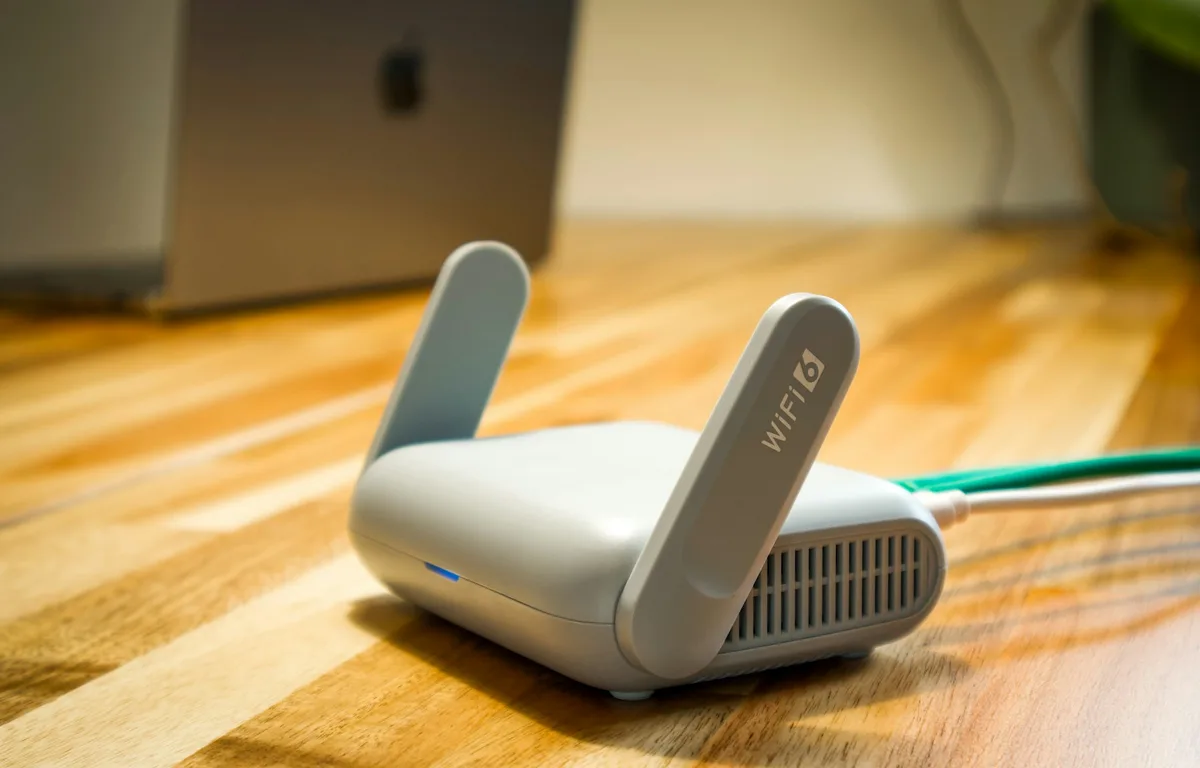
Photo by User_Pascal on Unsplash
Wi-Fi that flies in the living room and then just dies in the back bedroom? Honestly, that’s one of the most annoying home tech problems out there. You restart the router. You walk closer. You blame your phone. And then somebody tells you to “just get mesh,” and now you’re wondering if that’s a real fix or just a pricier box to stare at.
So I’ll walk you through how mesh actually works, when one router is honestly all you need, and when mesh earns its place on the shelf. I’ll also get into what Wi-Fi 6, 6E and 7 change for you, how to stop your internet provider’s box from fighting with your new router, and whether extenders still make any sense.
Quick heads-up first. I’ve only used details I could confirm on official pages. If I couldn’t check something, I’ll just tell you that (no guessing).
Quick answer: If you live in an apartment or a small single-floor home and your router can sit somewhere central, one good router is usually enough. Mesh wins in bigger or multi-floor homes, homes with brick or concrete walls, and anywhere you’ve got stubborn dead zones. If you’re buying now, a Wi-Fi 6E or Wi-Fi 7 system is the sensible pick, and if you can connect the mesh units with Ethernet cable, do it.
How a Regular Router Works (and Where It Struggles)
A regular router is one box. That’s it. It takes the internet coming in from your modem and throws Wi-Fi out from one spot in your home.
Right next to that box, the signal’s great. Walk away and it fades. Every wall and floor in between chips away at it, and thick brick or concrete is especially brutal. So if your router lives in a corner cabinet by wherever the cable comes in, the far end of the house is going to have a rough time.
Here’s the part people forget, though. No router can make your internet faster than the plan you’re paying for. If the connection itself is slow, a shiny mesh kit won’t fix it. Not sure where the bottleneck is? My breakdown of 5G home internet vs cable vs fiber goes through the main home internet types and what you can realistically expect from each.
How Mesh Wi-Fi Works
Mesh splits the work across a few units. People call them nodes or points. One plugs into your modem and acts as the main router, and the rest sit around the house passing the connection back to it.
They all broadcast the same network name, so you’re not switching networks every time you walk from the kitchen to the bedroom. Your phone or laptop just latches onto whichever node makes sense. How smooth that handoff feels can vary a little by device, but you’re never digging through settings hunting for another network.
The link the nodes use to talk to each other is called backhaul. It can run over Wi-Fi or over an Ethernet cable. Remember that word, because it matters a lot later on.
When One Router Is Enough
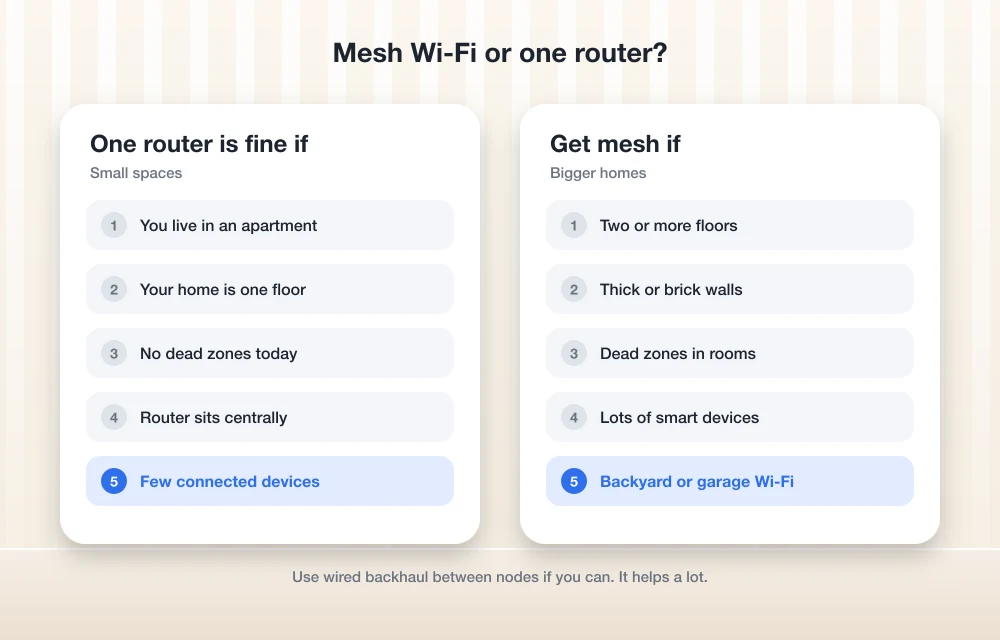
Plenty of people don’t need mesh. At all. If you’re in an apartment, a condo or a small single-story place, one decent router in a good spot will often cover the whole thing.
“In a good spot” is doing a lot of work there. Before you spend a cent, pull your current router out of the cabinet, get it off the floor, and put it somewhere central and open. It costs nothing, and I’ll be real, it fixes more Wi-Fi complaints than you’d expect.
I’d also stay with a single router if the only weak area is one corner you barely use. A whole mesh system for a closet you go into twice a week? That’s overkill.
When Mesh Wins
Mesh starts making real sense when one box simply can’t reach. Usually that means a bigger home, one spread over two or three floors, brick or concrete walls between rooms, or a place where you’ve already moved the router around and still have dead zones.
It’s also handy when you’ve got gadgets far away from the router. A smart doorbell, say, or a Wi-Fi camera out on the garage, or smart home stuff in a back room. Those things are only as reliable as the signal where they’re mounted. Planning cameras? Check the Wi-Fi at each spot first. Once your coverage is sorted, my guide to the best home security cameras with no monthly fee is a good place to start.
Regular Router vs Mesh vs Extender at a Glance
| Regular router | Mesh system | Wi-Fi extender | |
|---|---|---|---|
| Best for | Apartments, small single-floor homes | Large or multi-floor homes, dead zones, thick walls | One weak spot on a budget |
| Number of boxes | One | Two or more nodes | Router plus one extender |
| Network name | One | One across the whole home | Varies by model; some create a separate name |
| Managed from | Router app or web page | One app for all nodes | Often a separate app or page from your router |
| Wired backhaul | Not applicable | Supported on many systems (check the model) | Some models offer an Ethernet option |
Wi-Fi 6 vs 6E vs Wi-Fi 7: What Changes for You
That number on the box tells you which Wi-Fi generation the router supports. So what does each jump actually get you?
Wi-Fi 6 (technically 802.11ax) runs on the 2.4 GHz and 5 GHz bands. It’s been the standard on most newer routers for a while now.
Wi-Fi 6E is basically Wi-Fi 6 stretched into a third band, 6 GHz. That band is less crowded, but only 6E-capable devices can use it. Your older laptop will still connect fine, just on 2.4 or 5 GHz.
Wi-Fi 7 is the newest one I could confirm. The Wi-Fi Alliance (the industry group that certifies Wi-Fi gear) launched Wi-Fi CERTIFIED 7 on January 8, 2024. According to the Alliance’s Wi-Fi CERTIFIED 7 page, the big changes are:
- 320 MHz channels in the 6 GHz band. Think of a channel as a lane for data. Wider lane, more stuff moves through. The Alliance says these give twice the throughput of Wi-Fi 6 and multigigabit speeds for devices.
- Multi-link operation (MLO). A device can send and receive over more than one link at once, and the Alliance says that improves speed and reliability and cuts latency (that lag you notice in games and video calls).
- 4K QAM. A denser way of packing data into the signal. The Alliance puts it at about 20% faster than the 1024 QAM in Wi-Fi 6.
But there’s a catch. Those 320 MHz channels only work in countries that open up the 6 GHz band to Wi-Fi. And your phone, laptop or console has to support Wi-Fi 7 too, or you don’t get the Wi-Fi 7 features. A Wi-Fi 7 router doesn’t magically make your Wi-Fi 6 phone a Wi-Fi 7 phone.
| Generation | Bands | What it adds |
|---|---|---|
| Wi-Fi 6 | 2.4 GHz, 5 GHz | The 802.11ax baseline |
| Wi-Fi 6E | Adds 6 GHz | A less crowded band for 6E-capable devices |
| Wi-Fi 7 | Uses 6 GHz for its widest channels | 320 MHz channels, MLO, 4K QAM |
My take? If most of your devices are a few years old, a good Wi-Fi 6E system is a perfectly sensible buy. If you’re replacing gear anyway and you’ll keep it for years, Wi-Fi 7 gives you more room to grow into.
Wired Backhaul: The Upgrade Most People Skip
Remember backhaul? When mesh nodes chat with each other over Wi-Fi, part of their wireless capacity goes to that chatter instead of your devices. And that link has to push through the exact same walls and floors you bought mesh to get around in the first place. Kind of ironic.
Wired backhaul just means hooking the nodes together with Ethernet cable. Now the node-to-node link doesn’t care about signal at all, and the Wi-Fi is free for your phones and laptops. If you’ve already got Ethernet jacks in a few rooms, honestly, this is the single best upgrade you can make to a mesh setup.
Not every system handles wired backhaul the same way, though, and port speeds differ from model to model. I couldn’t confirm the details for every brand, so check the spec page for whatever system you’re eyeing.
How Many Nodes Do You Need?
Usually fewer than you’d think. Start small. Add one if you still have weak spots.
Vendors put out coverage estimates to help with this. Google, for example, says the Nest Wifi Pro covers up to 2,200 sq ft per router, 4,400 sq ft with a 2-pack and 6,600 sq ft with a 3-pack. Treat numbers like that as the best case. Brick walls, floors and a weird layout will shrink them.
In a multi-floor home, I’d start with one node per floor in mind and tweak from there. In a long single-story home, think about the far ends and where your dead zones really are.
Your ISP’s Gateway, Double NAT and Bridge Mode
This is where a lot of mesh setups go sideways. Lots of internet providers give you a gateway, which is a modem and a router squished into one box. Plug a mesh system into that and boom, you’ve got two routers.
Both of them will try to do NAT (network address translation), which is how a router lets all your devices share one public internet address. Two routers doing it at the same time is called double NAT, and Google’s Nest Wifi help pages list it as a problem you should fix.
The fix Google recommends
Google’s first suggestion is to remove the ISP-provided router. If your gateway is a modem and router in one box, put the gateway in bridge mode so only your Google router handles NAT. Bridge mode pretty much turns the gateway into a plain old modem.
How you turn on bridge mode depends on the gateway, so Google sends you to your ISP’s support site. Look up your exact gateway model there, or just call your provider.
Why not put the mesh in bridge mode instead?
Sometimes you can flip it around, but Google labels bridging its own router as “Not Recommended.” It says bridge mode only works with a single Google device, not a full mesh, and it switches off many of the router’s security protections. Google also notes you can’t bridge the main device if its WAN (internet-facing) address is a public IP; there has to be another router between it and the modem, or the option won’t even show up in the app.
Other brands do this their own way, so check your system’s official support pages before you touch anything.
Setup Tips That Make a Real Difference
A great mesh kit placed badly is still going to disappoint you. This is the order I’d go in for a smooth home network setup:
- Deal with the ISP gateway first. Bridge it, or make sure you won’t end up with double NAT.
- Put the main node near your modem and out in the open. Not in a cabinet, not behind the TV.
- Put the next node roughly halfway between the main node and the dead zone, not in the dead zone itself. It needs a decent signal to pass along.
- Get nodes up off the floor when you can.
- Run Ethernet between nodes if your place has the wiring.
- Once everything’s connected, install firmware updates through the app.
Still got one weak room after all that? Move a node before you go buy another one.
Mesh Systems Worth Looking At
Google Nest Wifi Pro
This is the one I could actually confirm in detail. Per Google’s official Nest Wifi Pro specs page, it’s a Wi-Fi 6E (802.11ax) system with the coverage numbers I mentioned earlier, and you can expand it with IEEE 802.11s mesh. In the box: the router, a 22 W power adapter, a 6.5 ft Ethernet cable and a quick start guide.
One big catch. Google says it doesn’t work with older Nest Wifi or Google Wifi units, so if you’ve got those lying around, you can’t mix them in. I also couldn’t confirm the exact Ethernet port setup from the official page, so double-check that if wired backhaul matters to you.
eero, TP-Link Deco, Netgear Orbi and ASUS ZenWiFi
These are the other big names, and each one sells mesh systems at a bunch of different levels. I wasn’t able to verify their current models, specs or coverage claims on their official pages for this guide, so I’m not going to guess about them here.
When you’re comparing, look at the Wi-Fi generation, how many bands, the Ethernet port speeds, whether wired backhaul is supported, coverage per node, and whether new units play nice with older ones from the same brand. Oh, and check if any features need a paid subscription.
Extenders vs Mesh: Are Extenders Ever Worth It?
An extender is a little box that grabs your router’s signal and repeats it. Cheap, quick, and for one weak room fairly close to the router, it can be fine.
The problem is a lot of extenders work as an add-on, not as part of one system. Some make a separate network name. And since an extender often has to talk to your router and your devices over the same airwaves, speeds drop a lot of the time. Plus now you’re managing two things instead of one.
Mesh is built as one system from day one. One name, one app, nodes made to work together. If you’ve got more than one problem area, or you’re already eyeing a second extender, skip it and just go mesh.
My Take: Which Should You Buy?
Apartment or small home? Move your router somewhere better first and see what happens. If that’s still not enough, a single newer router will usually do the job.
If your home is big, multi-story, built with brick or full of dead zones, mesh is the right call. Get Wi-Fi 6E or Wi-Fi 7, use wired backhaul if you can, and put your ISP gateway in bridge mode so you dodge double NAT.
And if you’re waiting on sales, my Black Friday tech buying guide has tips for spotting real Wi-Fi router deals versus the fake ones.
Mesh systems worth a look on Amazon
If you’ve landed on mesh for your place, these are easy ones to start with. Check the current price on Amazon, and make sure the listing matches the exact model and pack size (they love to mix those up).
- TP-Link Deco BE25 (Deco 7) Wi-Fi 7 Mesh, 3-Pack: dual-band Wi-Fi 7, with 2.5G ports so you can do wired backhaul.
- TP-Link Deco 7 Pro Tri-Band Wi-Fi 7 Mesh: a step up if you’ve got a bigger home or a faster plan.
- TP-Link Deco XE75 Wi-Fi 6E, 3-Pack: a solid Wi-Fi 6E pick if you don’t need Wi-Fi 7 just yet.
As an Amazon Associate, thetechhacker earns from qualifying purchases.
Frequently Asked Questions
Do I still need a modem if I buy a mesh Wi-Fi system?
Yep. Mesh replaces your router, not your modem. If your ISP gave you a gateway that’s a modem and router in one box, Google recommends putting that gateway in bridge mode so only your mesh router handles NAT.
Can I mix the Google Nest Wifi Pro with my older Google Wifi or Nest Wifi units?
No, sadly. Google says the Nest Wifi Pro doesn’t work with older Nest Wifi or Google Wifi devices, so you’d need Nest Wifi Pro units all the way through.
Is Wi-Fi 7 worth it if my phone and laptop only support Wi-Fi 6?
Your devices will still connect just fine, but they won’t get Wi-Fi 7 features like 320 MHz channels or multi-link operation. If you’ll keep the router for years and plan on upgrading devices, Wi-Fi 7 gives you room to grow. If not, a good Wi-Fi 6E system is a sensible choice.
How many mesh nodes do I need?
Start small and only add more if you still have weak spots. In a multi-floor home, one node per floor is a reasonable place to start. Vendor coverage numbers, like Google’s 2,200 sq ft per Nest Wifi Pro router, are best-case estimates, and walls and floors will cut them down.
Should I put my mesh router in bridge mode?
Usually not. Google lists bridging its own router as Not Recommended, since it only works with a single device instead of a full mesh and turns off many security protections. Bridging the ISP gateway is normally the better move.
Featured image: User_Pascal on Unsplash.
You might also like

How To Secure Wifi Network?
Surfing the Internet using neighbors WiFi is enjoyable. But if you’re the owner of an unsecured network, you should be aware of the suspicious activity on your network. If the LED of your wireless router is constantly blinking and none of the family members are using the Internet, this might indicate that someone is stealing…

Making Money With a Tech Website — From Traffic Graph to Actual Income
Building a profitable tech website is like opening a shop on a street that’s slowly getting busier every month. For a while, you’re just happy people are walking past and glancing in. Then one day you look at the footfall and think – wait, shouldn’t this be turning into something? That’s the exact moment every…

Are Electronic Gadgets Good for us? Or are they Bad?
Be it for communication or basic domestic chores, electronic gadgets have become essential for everyone. You can’t imagine life without electrical appliances or electronics being of immense value from a personal, educational, and business viewpoint. But, like every technology, the world of electronics has also downsides despite its scope. Therefore, you should know the Advantages and…
The week in tech, minus the noise.
New reviews, fixes and the stories that matter — once a week, straight to your inbox.
We only use your email to send the newsletter. Unsubscribe any time. See our privacy policy.
Comments