

Best AI Video Editors for YouTube and Shorts in 2026: 6 Picks Compared
Descript, Opus Clip, CapCut, Premiere Pro, VEED and Runway compared for YouTube and Shorts. This guide covers auto captions, clipping and pricing from official vendor pages.


Photo by Alexander Shatov on Unsplash
Editing one YouTube video can eat your whole evening. You scrub through the footage, chop out the ums and the long awkward pauses, fix the audio, add captions. And then? You’re supposed to carve three or four vertical Shorts out of that same recording. That last bit is where a lot of solo creators quietly give up (and I don’t blame them one bit).
AI video editors take a big bite out of all that. But they don’t all do the same job. Some are full editors with AI baked in, some mostly exist to find the best moments in a long video and spit them out as Shorts, and a few lean more toward generating or extending footage than actually cutting it. Worth knowing before you pay for anything.
Quick answer: For most YouTubers, Descript is the best AI video editor for the main long-form video. It’s got an AI co-editor called Underlord, filler-word removal and a clip creator, with paid plans from $16/month billed annually. If Shorts are your priority, Opus Clip is the most focused tool. It finds clips, adds animated captions in 20+ languages and can auto-post to YouTube Shorts, starting at $15/month. CapCut makes the most sense for small teams, at $12.49/month per seat.
Descript
AI cleanup tools, plus a free plan that doesn’t ask for a credit card.
Opus Clip
AI clipping, animated captions and auto-posting to Shorts, TikTok and Reels.
CapCut
Teams pricing is $12.49 per seat per month on the official pricing page.
What actually matters in an AI video editor
Feature lists are a rabbit hole. For a YouTube channel, only a handful of things decide whether a tool saves you real time or just becomes one more subscription you forget to cancel.
Auto captions. The tool listens to your audio and types out the on-screen text for you. For Shorts, I’d call this non-negotiable. People scroll fast, and a line of bold text is often what makes them stop.
Clipping. The AI scans your long video and suggests short bits that could work on their own as Shorts. You’ll still review them, sure. But you’re not hunting through 40 minutes of footage by yourself, which is the part nobody enjoys.
Credits and media hours. Almost none of these tools give you unlimited AI. Think of credits as a monthly allowance that drains every time you use an AI feature. Descript also counts media hours, which is the minutes of media you import or record that Descript processes, counted per editor. Run out and you’re stuck waiting for next month or upgrading. Not ideal. So before you commit, work out how fast a plan’s allowance will disappear at the pace you actually post.
AI video editors compared
These are the three tools whose pricing I could confirm. Every number comes from the companies’ own pages, not from my own testing (it’s all in USD, and it changes often, so treat it as a starting point). If a page didn’t say, the cell tells you. The highlighted cells mark the winner on each row.
| Feature | Descript | Opus Clip | CapCut |
|---|---|---|---|
| Best for | Editing and cleaning up the main video | Turning long videos into Shorts | Small teams who want a general editor |
| Free plan | Yes: 1 media hour, 100 AI credits, 720p export | Yes: 60 credits/month, clips up to 1080p | Not confirmed on pricing page |
| Cheapest paid plan (monthly billing) | $24/month (Hobbyist) | $15/month (Starter) | $19.99/month (Pro) |
| Annual option | $16/month billed annually (Hobbyist) | $14.50/month billed annually (Pro, $174/year) | $179.99/year (Pro) |
| Team pricing | Creator scales to 3, Business to 5 | Pro includes 2 seats | $12.49/month per seat (Teams) |
| Auto captions | Not listed on pricing page | Yes, animated, 20+ languages | Yes |
| Auto-posting to YouTube Shorts | Not confirmed | Yes (Starter and up) | Not confirmed |
| Credit card needed to start | No | No | Not confirmed |
The best AI video editors for YouTube and Shorts
1. Descript
For the main long-form video, Descript is where I’d send most YouTubers. Its AI co-editor is called Underlord, and the paid plans bundle the stuff that saves the most time on talking-head content: Remove Filler Words, a feature called Studio Sound, and Create Clips for pulling shorter pieces out of a longer recording. There’s AI Speech with voice clones too.
The free plan is a decent way to kick the tires. You get 1 media hour and 100 AI credits a month, 720p export, limited Underlord use, and nobody asks for your card. Fine for a trial. But once you’re publishing every week? One media hour goes fast.
Solo creators should look at Hobbyist first. It’s $16 per person per month billed annually, or $24 if you pay monthly, and that gets you 10 media hours, 400 AI credits a month and watermark-free 1080p export. Creator is $24 per person per month billed annually ($35 monthly) and scales to a team of 3, billed separately. The catch is that Descript’s official page doesn’t spell out Creator’s exact media hours and AI credits. So check that before you upgrade.
Free
No credit card needed
- 1 media hour/month
- 100 AI credits/month
- 720p export
- Limited Underlord use
Hobbyist
Per person, billed annually ($24 billed monthly)
- 10 media hours/month
- 400 AI credits/month
- Watermark-free 1080p export
- Underlord, Studio Sound, Remove Filler Words, Create Clips
Creator
Per person, billed annually ($35 billed monthly)
- Scales to a team of 3, billed separately
Business
Per person, billed annually ($65 billed monthly)
- 40 media hours/month
- 1,500 AI credits/month
- Team-wide Brand Studio
- Priority support with an SLA
- Scales to a team of 5
Prices are from Descript’s official pricing page at the time of writing. They can change, so double-check before you buy.
Why it made the list
- Free plan, no credit card required
- Watermark-free 1080p export starts at the Hobbyist tier
- Filler-word removal and clip creation come with the paid plans
- Business adds Brand Studio and priority support for teams
Where it falls short
- Paying monthly costs noticeably more than paying annually
- Media hours are capped, and they’re counted per editor
- The official page is vague about Creator’s hours and credits
2. Opus Clip
Opus Clip does one thing. It turns long videos into short ones, and it goes all in on that. Got a backlog of YouTube uploads or podcast episodes just sitting there? This is the tool I’d try first for Shorts.
Paid plans include AI clipping with a Virality Score (basically the tool’s own guess at how well a clip might do), plus AI animated captions in 20+ languages, filler and silence removal, brand templates and watermark removal. The bit I like most is auto-posting. Opus Clip can publish straight to YouTube Shorts, TikTok and Instagram Reels, so you’re not uploading the same clip three times. Or you can just download the clips.
It all runs on credits. The free plan gives you 60 credits a month with clips up to 1080p, no credit card required. Starter is $15/month with 150 credits, and it’s monthly billing only. Pro is $29/month, or $14.50/month if you pay annually ($174 a year), which gets you 300 credits a month, rollover on unused credits for 2 months, and a team workspace with 2 seats and 2 brand templates. Business? Custom pricing.
Free
No credit card required
- 60 credits/month
- Clips up to 1080p
Starter
Monthly billing only
- 150 credits/month
- AI clipping with Virality Score
- Animated captions in 20+ languages
- Auto-post to Shorts, TikTok and Reels
- Watermark removal
Pro
Billed annually at $174/year ($29 billed monthly)
- 300 credits/month
- Unused credits roll over for 2 months
- Team workspace with 2 seats
- 2 brand templates
Prices are from Opus Clip’s official pricing page at the time of writing. They can change.
Why it made the list
- Auto-posting to YouTube Shorts, TikTok and Reels
- Animated captions in 20+ languages
- Even the free plan renders clips at up to 1080p
- Pro on annual billing is half the monthly price, and your credits roll over
Where it falls short
- Everything runs on credits, so heavy posters will need to watch their balance
- No annual discount on Starter
- It’s built for clipping, and I wouldn’t use it to edit the main video
3. CapCut
CapCut is a general video editor with AI features layered on top, auto captions included. I’d lean toward it in two cases. You want one app for editing Shorts by hand, or you’ve got a small team that needs a few seats without a scary bill.
On the official pricing page, Pro is $19.99/month and Teams is $12.49/month per seat. CapCut’s own Standard vs Pro article puts Pro at $179.99 a year on annual billing. There’s an Ultra tier on the pricing page too. Its price isn’t shown there, though, so I’m not quoting one.
I also couldn’t confirm the exact menu path for auto captions, so check CapCut’s help pages for the current steps. Apps love shuffling these buttons around between updates anyway.
Why it made the list
- Per-seat Teams pricing is the cheapest team option here
- Paying for Pro annually brings the yearly cost down
- Auto captions are part of the feature set
Where it falls short
- The Ultra tier’s price isn’t clearly shown on the official page
- CapCut’s own pages don’t agree on what Teams costs
- I couldn’t confirm whether app store or regional prices differ
4. Adobe Premiere Pro (Generative Extend)
Premiere Pro is Adobe’s desktop video editor, and the AI feature people keep talking about is Generative Extend. It does what the name says: it lengthens a clip that ends a beat too early. Handy when a shot runs short and you’ve got nothing else to cut to.
Now the catch. For this update I couldn’t confirm the details from Adobe’s own pages, including how far it can extend a clip, how many generative credits it eats, which version added it, and what Premiere Pro costs on its own. Same story with Premiere’s other AI tools, like speech-to-text and captions. So no numbers from me. Check Adobe’s Premiere Pro product page and help docs before you decide.
Premiere runs on your own computer, so your hardware matters a lot. Is your laptop already wheezing? My guide to the best laptops for small business covers machines that can handle editing.
5. VEED
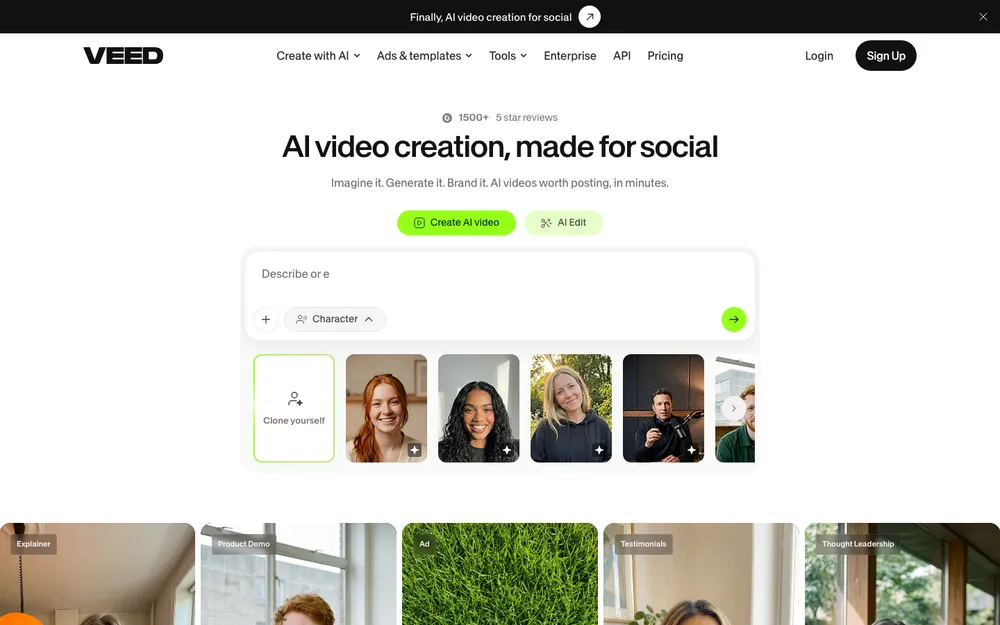
VEED made the list because it comes up constantly when creators talk about subtitles and quick edits. But I couldn’t confirm its current plans, prices, auto-subtitle features or clipping tool from VEED’s official pages for this update.
If captions are your main thing, it’s worth a look. Just line up whatever its pricing page shows today against the confirmed Descript and Opus Clip details above before you pay anything.
6. Runway
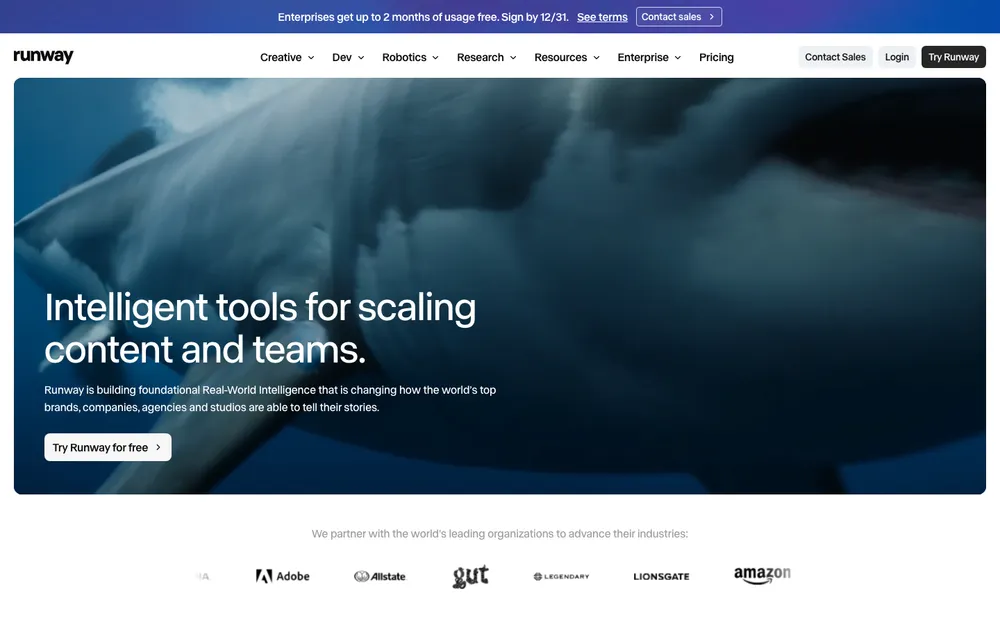
Runway’s a different animal. As far as I know, people mostly use it for AI video generation, not for cutting talking-head videos into Shorts. I couldn’t confirm its plans, credits or features from Runway’s own site, so no prices here.
I’d only add it if you need generated b-roll or visual effects. For captions and clipping, the first three picks simply fit better.
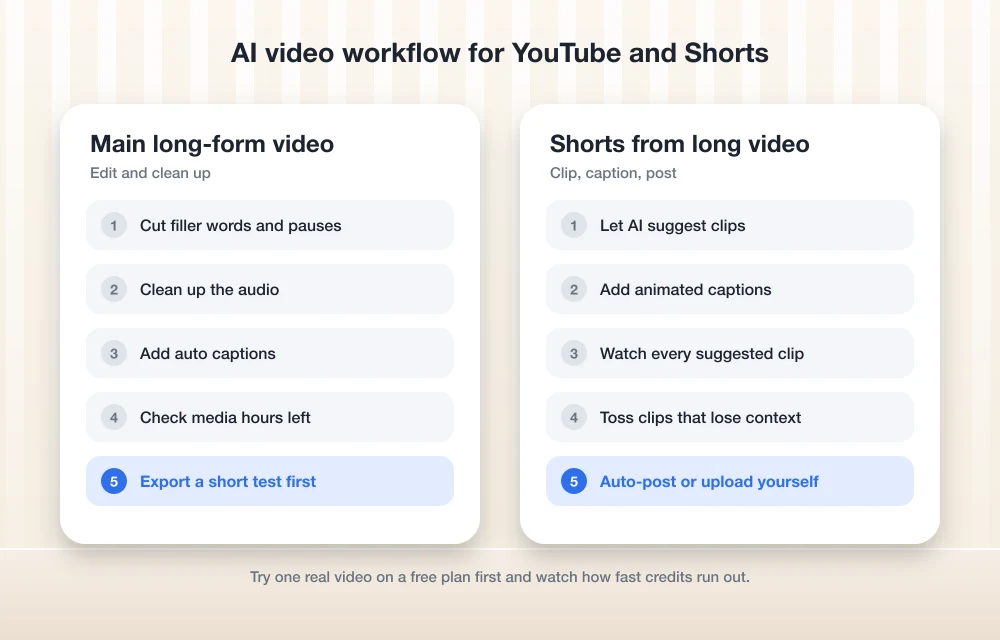
How I’d set up a YouTube and Shorts workflow
You don’t need all six. Really. Two tools cover pretty much everything for most channels, and here’s roughly how I’d split the work between them.
Edit the main video
Use Descript to cut the filler words and tidy up the long-form upload.
Turn it into Shorts
Run the finished video through Opus Clip and let it pull out clips with animated captions.
Review before posting
Watch every suggested clip yourself. Toss anything that stops making sense once it’s pulled out of the full video.
Publish or schedule
Auto-post from Opus Clip, or download the clips and upload them yourself.
Rather tweak every Short by hand? Swap Opus Clip for CapCut in step two. More work per clip, sure, but the edit is completely yours.
Once more than one person is touching the channel, things slip. Fast. A shared board shows you which video’s being edited, which clips got approved and what’s going live this week, so nobody posts the same Short twice. My picks for the best project management software for small teams work nicely as a content calendar.
And don’t let your best clips live only on YouTube. Dropping your strongest Short or newest upload into a weekly newsletter is an easy way to pull people back. No newsletter yet? Have a look at my roundup of the best email marketing software for small businesses.
The two-tool combo I’d start a channel with
Starting a channel today, I’d pick Descript for the main video and Opus Clip for Shorts. Both have free plans. Both have official pricing that’s clear enough that you actually know what you’re signing up for, which is rarer than it should be. CapCut’s the pick if you’re paying for several seats or want to edit each Short yourself.
Premiere Pro, VEED and Runway could be good fits too. I just couldn’t confirm their current pricing and features from official sources this time, so go check their sites directly. Whatever you land on, try the free tier on a real upload first. It’ll tell you way more than any feature list.
Frequently Asked Questions
What is the best AI video editor for YouTube Shorts?
If you’re turning long videos into Shorts, Opus Clip is the most focused option. You get AI clipping, animated captions in 20+ languages and auto-posting to YouTube Shorts, TikTok and Instagram Reels on paid plans starting at $15/month.
Is there a free AI video editor for YouTube?
Yep. Descript’s free plan gives you 1 media hour and 100 AI credits a month with 720p export. Opus Clip’s free plan gives you 60 credits a month with clips up to 1080p. Neither one needs a credit card to start.
How much does Descript cost?
Going by Descript’s official pricing page, Hobbyist is $16 per person per month billed annually ($24 monthly), Creator is $24 billed annually ($35 monthly) and Business is $50 billed annually ($65 monthly). There’s a free plan and an Enterprise plan as well. Prices can change.
Can Opus Clip post directly to YouTube Shorts?
It can. Opus Clip’s paid plans include auto-posting to YouTube Shorts, TikTok and Instagram Reels. You can also just download the clips and upload them yourself.
How much is CapCut Pro?
CapCut’s official pricing page lists Pro at $19.99/month, and CapCut’s own Standard vs Pro article says $179.99/year on annual billing. Teams is $12.49/month per seat. Prices may change, so check at checkout.
Featured image: Alexander Shatov on Unsplash.
Disclosure: TheTechHacker has no paid relationship with the companies in this article.
You might also like

Best Video Editing Software in 2026 for Windows and Mac: 6 Picks Compared
I compare Adobe Premiere, DaVinci Resolve, Final Cut Pro, PowerDirector, Filmora and CapCut desktop on features, learning curve and how each one is sold, so you can pick the right editor for Windows or Mac.

Top Free Video Editors for Creating YouTube Content in 2023
YouTube’s success in 2023 will depend heavily on the creation of interesting video content, and video editing will be an integral part of that process. Unfortunately, it might be difficult to select the correct video editing software, especially for beginners. Creators may now make interesting content without breaking the bank thanks to the availability of…

10 Best Video Editing Softwares
With thousands of beautiful creations on Youtube, Facebook, and other Video streaming websites, video editing software has their own impact in providing the stunning outputs. A good video editor can create a beautiful video by diverting the users in the right path to do so, irrespective of the experience on the field. If you ever needed the…
The week in tech, minus the noise.
New reviews, fixes and the stories that matter — once a week, straight to your inbox.
We only use your email to send the newsletter. Unsubscribe any time. See our privacy policy.
Comments