

Best Video Editing Software in 2026 for Windows and Mac: 6 Picks Compared
I compare Adobe Premiere, DaVinci Resolve, Final Cut Pro, PowerDirector, Filmora and CapCut desktop on features, learning curve and how each one is sold, so you can pick the right editor for Windows or Mac.


Photo by Jakob Owens on Unsplash
Picking video editing software used to be easy. There were, what, two serious options? Now there are dozens, and half of them swear their AI will edit your video for you. That’s a lot of noise when all you really want is to cut a YouTube video, a client reel or a vacation montage without losing your whole weekend to it.
So I’ve narrowed it down to the six editors most people end up stuck between in 2026: Adobe Premiere, DaVinci Resolve, Final Cut Pro, CyberLink PowerDirector, Wondershare Filmora and CapCut on desktop. A couple are made for pros. A couple are made for beginners. And one only runs on a Mac (you can probably guess which).
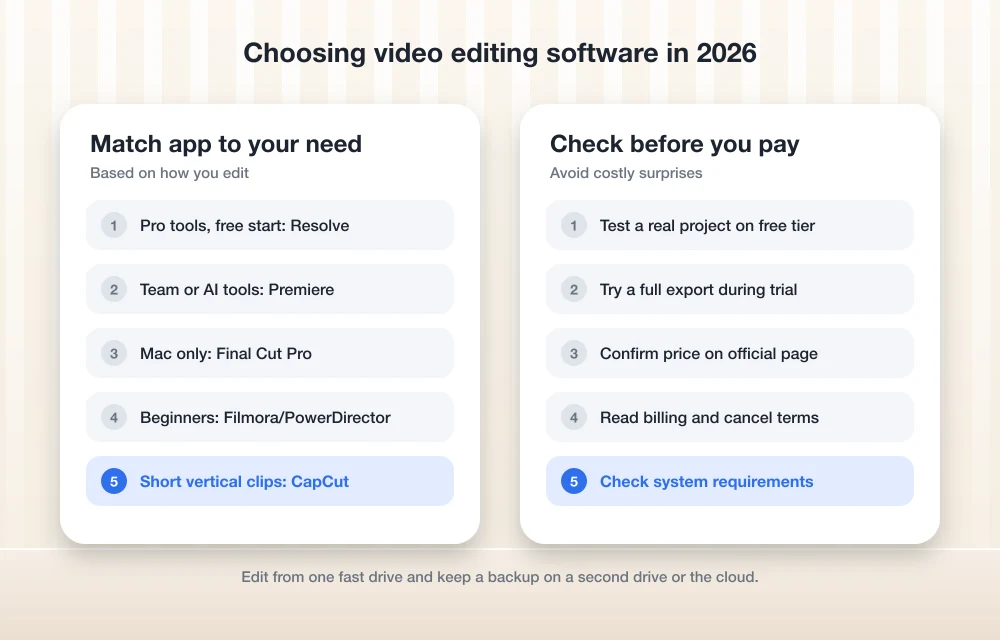
Quick answer: If you want pro-level tools and room to grow, start with DaVinci Resolve, because Blackmagic Design has long offered a free version alongside its paid Studio edition. If you work with other editors or need the newest AI tools, Adobe Premiere is the safer pick, and Mac-only editors should look hard at Final Cut Pro. Beginners who want quick results will be happier with Filmora or PowerDirector, and CapCut desktop is the fastest way to make short vertical videos for social media.
Why these six made the list
I wanted a list for regular people, not just Hollywood. So that meant at least one serious option for professionals, one that Mac folks will feel at home with, a couple of easy editors for beginners and one built for TikTok-style stuff.
For each app I looked at three things: what it’s actually good at, how steep the learning curve is and how you end up paying for it. Nothing fancier than that.
Premiere, Resolve, Final Cut and the rest side by side
Everything in this table comes from the vendors’ own pages, not my own test runs. So no scores, no benchmark charts (sorry, graph fans).
| Feature | Adobe Premiere | DaVinci Resolve | Final Cut Pro | PowerDirector | Filmora | CapCut desktop |
|---|---|---|---|---|---|---|
| Runs on | Windows, Mac | Windows, Mac | Mac only | Windows, Mac | Windows, Mac | Windows, Mac |
| How it’s sold | Subscription | Free version plus paid Studio | Apple purchase | Subscription (365) | Yearly or perpetual plans | Free tier plus Pro |
| Learning curve | Moderate to steep | Steep | Moderate | Gentle | Gentle | Easiest |
| Color grading | Strong | Its biggest strength | Good | Basic to decent | Basic | Basic |
| AI tools | Generative Media Tool, Paper Edit | Some | Some | Heavy AI focus | Heavy AI focus | Built for quick edits |
| Best for | Pros and teams | Serious hobbyists, colorists | Mac creators | Windows beginners | YouTubers starting out | Short-form social video |
The pricing row only tells you the model, not the cost. I couldn’t confirm current prices on the official pricing pages, so I left the numbers out on purpose.
The best video editing software for Windows and Mac
1. Adobe Premiere (formerly Premiere Pro)
First, a name change that trips a lot of people up. Adobe now calls the desktop app “Adobe Premiere,” not “Premiere Pro.” Same editor, though. And it still runs on both Windows and Mac.
Adobe ships updates constantly. Going by the official Adobe Premiere release notes, the newest version is 26.5.2, a bug-fix release from September 2026. Version 26.5 itself landed that same month, after 26.2.2 in May and 26.3.2 in August. There’s also a long-term support release, 25.6.6 LTS from June 2026, for studios that care more about nothing breaking than about shiny new features.
The headline addition in 26.5 is the Generative Media Tool. You type a text prompt, and it makes video or sound effects that drop into your timeline as clips you can edit. You can pick Adobe Firefly or partner AI models. But some features are marked “premium,” so don’t assume it’s all included.
The one most people will actually reach for, though? Paper Edit. You select lines in the transcript inside the Text panel and Premiere builds a sequence out of them, which is a real time saver if you cut interviews or talking-head videos.
Version 26.5 also brought support for Sony FX5 cameras (XAVC and XOCN media, plus 32-bit float Hi-Res audio), better ProRes RAW support, more Object Mask controls, and a Match Source option that now matches audio channels and sample rate too. Earlier in 2026, version 26.2 redesigned the Rectangle, Ellipse and Pen mask tools, sped up thumbnails with GPU acceleration and added OpenTimelineIO (OTIO) import and export. OTIO is an open file format that lets you move timelines between different editing apps. Handy. Very handy, if you hand projects off to other people.
A few other recent additions: a Properties panel with smart tool suggestions, a new Project creation dialog, Content Credentials on export (basically a tag that records how a file was made) and hardware acceleration on NVIDIA Blackwell graphics cards.
What I liked
- Runs on Windows and Mac, so mixed teams can actually share projects
- Paper Edit makes cutting from a transcript quick
- The Generative Media Tool lets you choose Firefly or partner models
- There’s an LTS version if stability matters more to you
What could be better
- It’s subscription only, so you never stop paying
- Some generative features are marked premium
- So many panels to learn if you’re brand new
2. DaVinci Resolve

DaVinci Resolve comes from Blackmagic Design, and it made its name on color grading. Colorists have used it for years, and you can still feel that everywhere. The work is split into separate pages for editing, color, audio and visual effects, all inside one app.
For most people the draw is simple. Blackmagic has long offered a free version alongside a paid Studio edition sold as a one-time license. I couldn’t confirm the current version number, the exact feature split or the Studio price for this guide, so check the official DaVinci Resolve page before you decide.
The catch? The learning curve. Resolve is deep. The color page in particular uses a node-based system (you chain little adjustment boxes together), and it takes a while to click. But once it does, you’ve got tools you won’t outgrow.
What I liked
- Color grading is the thing it’s famous for
- Editing, color, audio and effects all live in one app
- You can get started without paying a thing
What could be better
- The steepest learning curve on this list
- Can feel like overkill for simple social clips
3. Final Cut Pro
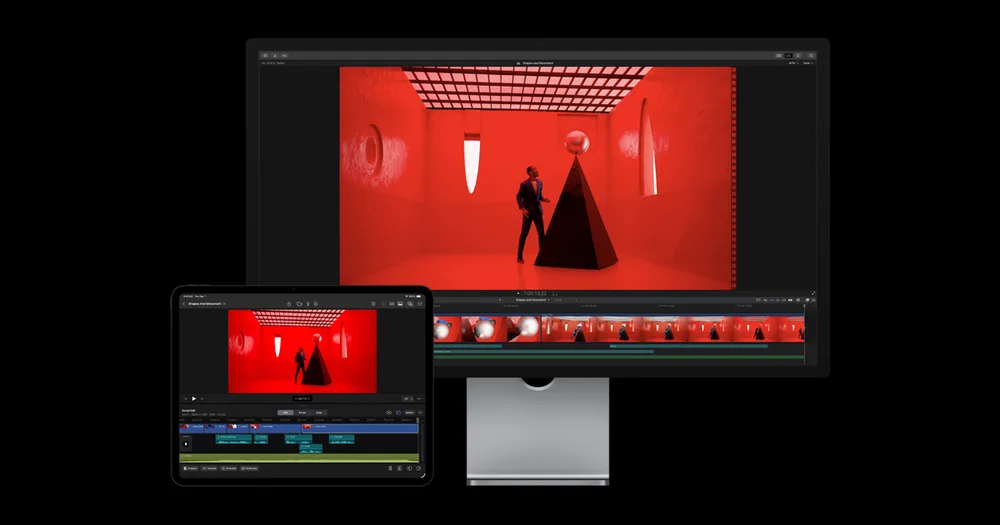
On a Mac and planning to stay there? Then Final Cut Pro deserves a serious look. Apple only makes it for macOS, so Windows folks can skip ahead.
Its signature trick is the magnetic timeline. Clips snap together and shuffle out of the way as you edit. Coming from a traditional track-based editor, that can feel weird at first. Plenty of people end up loving it, though, because you almost never leave accidental gaps.
Historically Final Cut Pro has been a one-time purchase on the Mac App Store, and a lot of people much prefer that to a subscription. Apple may have added other ways to buy it since, and I couldn’t confirm the current price or version, so check Apple’s Final Cut Pro page before you buy.
What I liked
- Made by Apple, for Mac hardware
- The magnetic timeline keeps your edits tidy
- Traditionally a buy-it-once option
What could be better
- Mac only, so no sharing projects with Windows editors
- The timeline style takes some getting used to if you know other editors
4. CyberLink PowerDirector
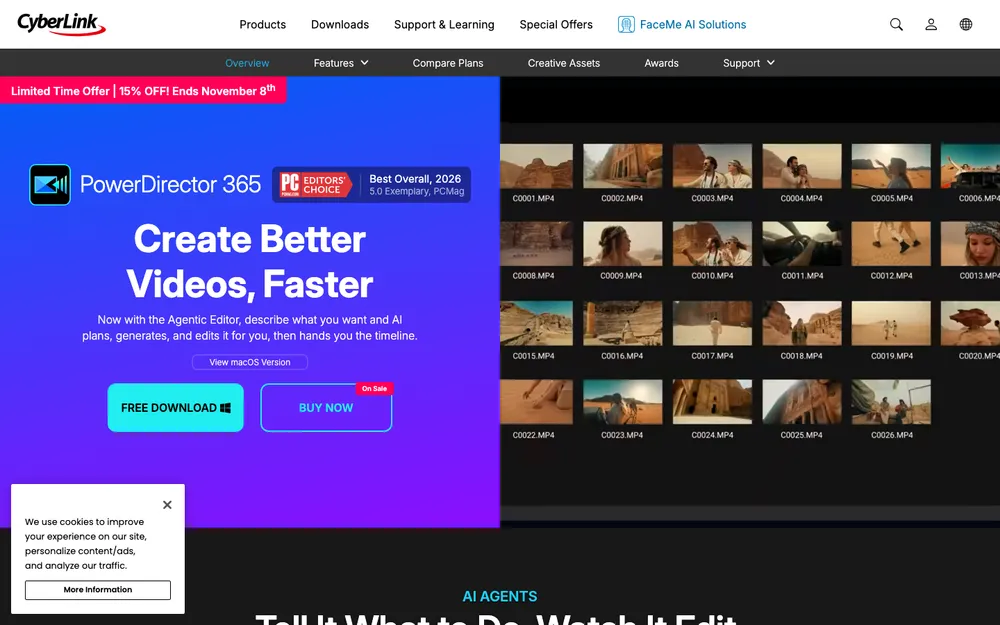
PowerDirector has been around forever. It’s aimed squarely at people who want nice-looking results without becoming “editors.” CyberLink sells it mostly as a subscription called PowerDirector 365, and it leans hard on AI tools, templates and effects.
I couldn’t confirm the current version, the price or the latest AI feature list on CyberLink’s official buy page, so I won’t list specifics. What I will say is that the interface is friendlier than Premiere or Resolve. If you’re on Windows and want polished family, travel or small-business videos without much hassle, it’s a good fit.
5. Wondershare Filmora
Filmora sits in roughly the same spot as PowerDirector. It’s made for beginners and YouTubers who want templates, titles, transitions and effects without learning some pro workflow first. Clean layout. And you can usually get a decent video out the door on day one.
Wondershare has offered both yearly and perpetual plans in the past. I couldn’t confirm the current plans or prices on its official shop page, so read what each plan includes before you pay (especially around exports and add-on effects, which is where I’d look first).
What I liked
- Easy to learn
- Tons of ready-made templates and effects
- Works on both Windows and Mac
What could be better
- The plans can be confusing to compare
- You might outgrow it if you move into pro work
6. CapCut desktop
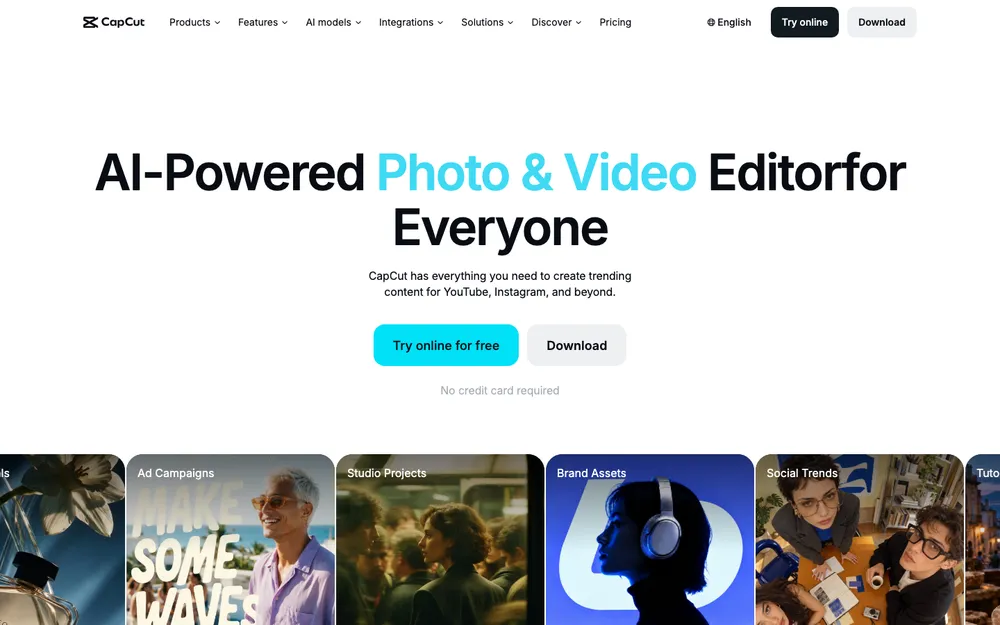
CapCut started as a phone app and became the go-to editor for TikTok, Reels and Shorts. The desktop version brings that same feel to a bigger screen. Quick cuts, text, effects, vertical video. No fuss.
There’s a free tier and a paid CapCut Pro option. I couldn’t confirm exactly which features sit behind the paywall or what Pro costs right now, and that line tends to move around. Not ideal. So check CapCut’s official site before you build your whole workflow around one feature.
Video editing software pricing: what I can and can’t confirm
You won’t find a single dollar figure in this guide. I couldn’t get to the official pricing pages for these apps while putting it together, and prices shift all the time anyway, between sales, regional differences and renewal rates that don’t match the first year.
What I can tell you is how the pricing models shake out. Adobe Premiere is a subscription. DaVinci Resolve has a free version plus a paid Studio license. Final Cut Pro has traditionally been a one-time Apple purchase. PowerDirector is sold mostly as a 365 subscription, Filmora has offered yearly and perpetual plans, and CapCut desktop pairs a free tier with a Pro upgrade.
Hate monthly bills? Then the buy-once routes (Resolve Studio, Final Cut Pro, a perpetual Filmora plan if they still offer one) will appeal to you. But if you want new features the second they ship, a subscription makes more sense.
Learning curve: which one is easiest?
There’s no official way to measure this. So treat it as my general read on how each app is designed.
CapCut desktop is the easiest. It’s built for speed, and most people just figure it out by clicking around. Filmora and PowerDirector come next, with friendly layouts and loads of templates doing the heavy lifting.
Final Cut Pro lands in the middle. It’s approachable, but the magnetic timeline and the organization tools take a bit of practice. Adobe Premiere is another step up, mostly because there are just so many panels and options, though newer touches like the Properties panel and the Project creation dialog do help.
DaVinci Resolve is the hardest to master. The editing page is fine for the basics. Color grading and the deeper pages, though, take real time. The upside? The skills you pick up are the same ones the pros use.
Your computer and storage matter too
Even the best editor feels awful on a slow machine. 4K footage, heavy effects and AI features all lean on your processor, graphics card and memory. If you’re shopping for new hardware, my guide to the best laptops for small business on Windows and Mac is a decent place to start when you need something that can handle editing. And check each app’s official system requirements before you buy, because I couldn’t confirm the current ones for all six.
Storage is the other bottleneck. Video files are huge, and lots of editors keep their footage on an external SSD. Drive suddenly vanished from Finder or File Explorer mid-project? That’s the annoying part, and I’ve got a guide on how to fix an external drive not showing up on Windows 11 or Mac.
And please, back up your projects. If you send cuts to clients or work with a small team, cloud storage makes sharing big video files much easier. I compare the main options in my guide to the best cloud storage for business.
Which editor fits the way you work
Serious about learning to edit but not ready to spend money? I’d grab DaVinci Resolve first. It’s the one you’re least likely to outgrow, as long as you’re patient with it.
If you work with other editors, take client work or want the newest AI stuff like the Generative Media Tool and Paper Edit, Adobe Premiere is still the most practical pick. Mac users who’d rather own their software outright should check out Final Cut Pro.
And if you just want good-looking videos fast? Don’t overthink it. Filmora or PowerDirector will get you there, and CapCut desktop is tough to beat for short vertical clips. Whatever you pick, run the free version or trial on a real project before you pay, and check the official pricing page on the day you actually buy.
Frequently Asked Questions
Is Adobe Premiere Pro still called Premiere Pro?
Not anymore. Adobe now calls the desktop app Adobe Premiere in its official release notes and help pages. Same editor, and it still runs on Windows and Mac. The newest version I could confirm is 26.5.2, a bug-fix release from September 2026.
What is the best free video editing software for Windows and Mac?
I’d try DaVinci Resolve first, since Blackmagic Design has long offered a free version with serious editing and color tools. CapCut desktop has a free tier too, and it’s great for short social videos. Check each official site to see what the free version includes right now.
Can I use Final Cut Pro on Windows?
Nope. Apple only makes Final Cut Pro for Mac. On Windows, look at Adobe Premiere or DaVinci Resolve for pro work, or Filmora, PowerDirector or CapCut desktop if you want something easier.
Which video editing software is easiest for beginners?
CapCut desktop is the easiest to pick up, with Filmora and PowerDirector right behind it thanks to their templates and friendly layouts. DaVinci Resolve and Adobe Premiere are more powerful, but they take longer to learn.
Is a subscription or one-time purchase better for video editing software?
It depends on how you work. A subscription like Adobe Premiere gets you new features as soon as they ship, but the cost never stops. Buy-once options like Final Cut Pro or DaVinci Resolve Studio cost more upfront but skip the monthly bills. Check current prices on the official pages, since they change.
Featured image: Jakob Owens on Unsplash.
Disclosure: TheTechHacker has no paid relationship with the companies in this article.
You might also like

Best Laptops for Small Business in 2026 (Windows and Mac)
My picks for the best small business laptops in 2026, grouped by role, from the MacBook Air M5 to ThinkPad, Dell, HP EliteBook and Surface. You’ll also find what specs to check, Black Friday tips and fleet management basics.
10 Best Video Editing Softwares
With thousands of beautiful creations on Youtube, Facebook, and other Video streaming websites, video editing software has their own impact in providing the stunning outputs. A good video editor can create a beautiful video by diverting the users in the right path to do so, irrespective of the experience on the field. If you ever needed the…
Top 12 Audacity Alternatives
Editing Audio is the most important task after video editing, and when it comes to the best in class Videos, audio has to be mixed well and edited to the best level. There are many software’s out in the market which works the same in a better way, more refined way, and there are even…
The week in tech, minus the noise.
New reviews, fixes and the stories that matter — once a week, straight to your inbox.
We only use your email to send the newsletter. Unsubscribe any time. See our privacy policy.
Comments