

How to Fix YouTube TV Channels Missing From the Google TV Live Tab
If YouTube TV channels suddenly disappeared from the Live tab on your Google TV, other people have hit the same problem. Starting around November 11, users reported that the YouTube TV channel guide vanished from the Live tab on Google TV sets, Chromecast with Google TV and other Google TV devices, according to Android Authority…

Image: Google
If YouTube TV channels suddenly disappeared from the Live tab on your Google TV, other people have hit the same problem. Starting around November 11, users reported that the YouTube TV channel guide vanished from the Live tab on Google TV sets, Chromecast with Google TV and other Google TV devices, according to Android Authority and Cord Cutters News. The YouTube TV app itself kept working, so the problem was with the link between YouTube TV and Google TV, not the service. Cord Cutters News later added an update saying Google told it the issue has been resolved. It has happened before, though, and these steps fix it if your channels are still missing, so you’re set for Thanksgiving football.
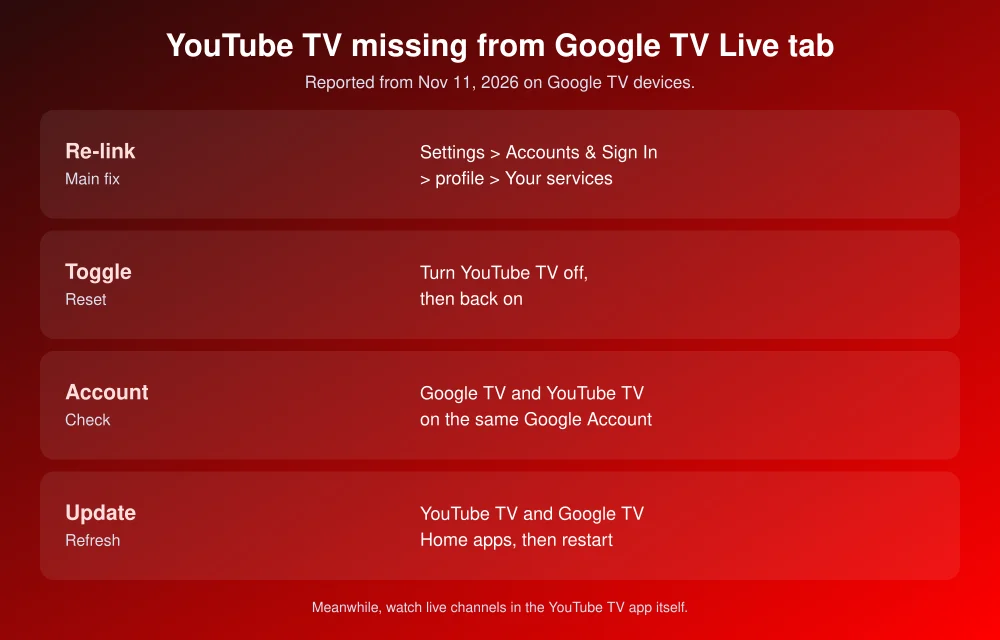
Quick answer: On your Google TV, go to Settings > Accounts & Sign In, choose your profile, then Your services. Turn YouTube TV off, then back on, even if it’s already on. Make sure your Google TV and YouTube TV use the same Google Account, and update the YouTube TV and Google TV Home apps. Then restart the TV or streamer. Until the guide comes back, open the YouTube TV app directly from your Apps row. Live channels work there.
Why YouTube TV channels vanish from the Live tab
The Live tab doesn’t show YouTube TV channels on its own. Google TV pulls them in from YouTube TV through the services linked to your Google TV profile. When that link breaks, the Live tab goes empty or shows only free channels while the YouTube TV app keeps working. Sony documents the same symptom on some of its Google TV models, which shows this problem keeps coming back.
How to fix YouTube TV missing from the Live tab
1. Turn YouTube TV off and on in Your services
From Google’s manage your services help page:
- On the Google TV home screen, go to Settings > Accounts & Sign In.
- Select your profile, then Your services.
- Scroll right to YouTube TV and turn it off.
- Scroll left to save and exit, then go back in and turn it on again.
Cord Cutters News reports that turning it off and back on helped users even when YouTube TV already showed as on. You can also manage services in the Google TV phone app: tap your profile picture, then Manage services.
2. Check that both use the same Google Account
Google’s YouTube TV on Google TV help page says YouTube TV links automatically only when your Google TV account has an active YouTube TV subscription. If your household pays for YouTube TV on a different Google Account, the Live tab won’t fill in. To fix it, do one of these:
- Switch the device’s main account to the one that pays for YouTube TV.
- Add the YouTube TV account to your Google TV.
- Share your membership with YouTube TV family sharing, which links up to 5 other Google Accounts.
3. Update the apps
Google says to keep the Google TV Home app updated for the Live tab to work. On your TV, open the Google Play Store, go to your profile, then Manage apps & games, and update YouTube TV and Google TV Home.
4. Clear the YouTube TV app’s cache
Go to Settings > Apps > See all apps > YouTube TV > Clear cache, then restart. Menu names vary a little by TV brand. Users report mixed results with this step, so try it after the steps above.
5. Restart and send feedback
Unplug your TV or streamer for 30 seconds and plug it back in. If channels are still missing, report it at Settings > System > About > Send feedback, as Android Authority suggests.
Watch while it’s broken
The YouTube TV app has its own Live guide. Open it from the Apps row or search for it. YouTube TV costs $82.99 a month for the Base Plan, per Google’s YouTube TV pricing page, and it includes CBS, FOX and NBC. That covers all three NFL Thanksgiving games on November 26:
- Bears at Lions: 1 p.m. ET on CBS
- Eagles at Cowboys: 4:30 p.m. ET on FOX
- Chiefs at Bills: 8:20 p.m. ET on NBC
The schedule is from the NFL. For other ways to watch, see how to watch the NFL Thanksgiving games without cable and the Macy’s Thanksgiving Day Parade. To cut your bill, check our list of 2026 streaming price increases and how to pay less.
FAQs
Why are YouTube TV channels not showing on Google TV?
The link between YouTube TV and your Google TV profile has broken, or the subscription is on a different Google Account. Turn YouTube TV off and on in Settings > Accounts & Sign In > your profile > Your services.
Is the YouTube TV Google TV Live tab bug fixed?
Cord Cutters News added an update saying Google told it the issue has been resolved. If your Live tab is still empty, use the steps above.
Does YouTube TV still work if the Live tab is empty?
Yes. Open the YouTube TV app directly to watch live channels and use its own guide.
Can I add YouTube TV to the Live tab if someone else pays for it?
Yes, if they add you to YouTube TV family sharing, or if you add their Google Account to your Google TV.
Featured image: Google.
Disclosure: TheTechHacker has no paid relationship with Google, YouTube or any company mentioned here.
More in How-to
How to fix YouTube Vanced not working?
YouTube Vanced, the popular app that brings ad-free viewing and background playback to the table, might suddenly leave you feeling like a lost explorer in the YouTube desert. This is the most common problem for Android users when they try to get access to Vanced. Fear not, fellow YouTube fans! We’re here to guide you…

How to Fix Emails Bouncing When You Send to Outlook.com and Hotmail Addresses
You send an invoice and it bounces back, then a quote bounces too, and when you look closer the customers involved all have @outlook.com, @hotmail.com or @live.com addresses. Meanwhile your Gmail and company-domain contacts are getting your mail without any trouble. If this started around early November 2026, the timing isn’t a coincidence, because since…
How to Enable YouTube Dark Mode in Google Chrome, Firefox and Edge
YouTube has some special features, one of them is dark mode. This mode is for those who want a dark background in the YouTube interface. For regular video watchers, a white and red background is pretty bright and dominating at night. Luckily, YouTube is offering Dark Mode for users like me and you to get…
The week in tech, minus the noise.
New reviews, fixes and the stories that matter — once a week, straight to your inbox.
We only use your email to send the newsletter. Unsubscribe any time. See our privacy policy.
Comments