

How to Enable YouTube Dark Mode in Google Chrome, Firefox and Edge
YouTube has some special features, one of them is dark mode. This mode is for those who want a dark background in the YouTube interface. For regular video watchers, a white and red background is pretty bright and dominating at night. Luckily, YouTube is offering Dark Mode for users like me and you to get…


How to Enable YouTube Dark Mode in Google Chrome, Firefox and Edge
YouTube has some special features, one of them is dark mode. This mode is for those who want a dark background in the YouTube interface. For regular video watchers, a white and red background is pretty bright and dominating at night. Luckily, YouTube is offering Dark Mode for users like me and you to get a pleasant experience. If you want Dark Mode on YouTube, you are a few steps away to get it.
In this article, you will learn How to Enable YouTube Dark Mode in Google Chrome, Mozilla Firefox, and Edge browsers.
How To Enable YouTube Dark Mode in Google Chrome?
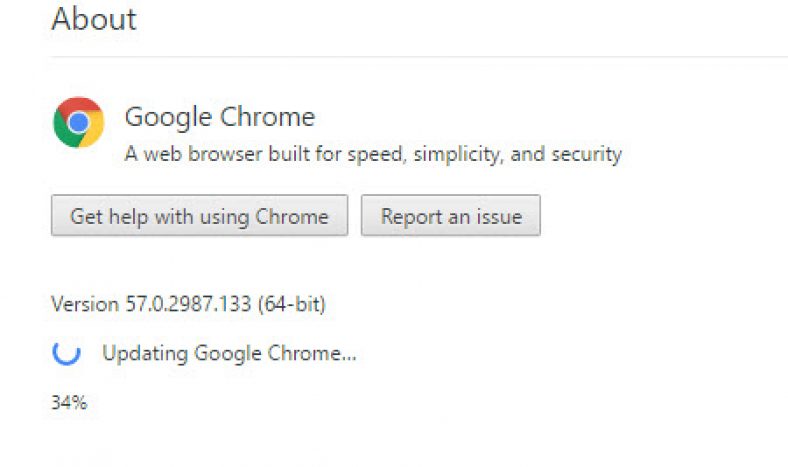
- Open Google Chrome and update it to the latest version. You can check the Google Chrome version by going to Help > About Google Chrome.
- After updating, open YouTube and click on the Ctrl+Shift+I to open Chrome’s Developer Tools option.
- Here, click on the “Console” tab, and paste the following command:
document.cookie=”VISITOR_INFO1_LIVE=fPQ4jCL6EiE”and hit Enter. - After entering the command, click on your profile in YouTube and you will find a “Dark Mode” option. Click on it and then, enable it “Activate Dark Mode“.
- That’s it, the YouTube Dark Mode is enabled in your Google Chrome web browser.
How To Enable YouTube Dark Mode in Firefox?
Enabling YouTube Dark Mode in Firefox is pretty much same as Google Chrome.
- Open Firefox and launch YouTube website.
- Here click Ctrl+Shift+K to open up “Web Console” developer options.
- Now enter the below command in the console box:
document.cookie=”VISITOR_INFO1_LIVE=fPQ4jCL6EiE” - After entering the code, refresh the YouTube page in Firefox.
- Now you will find the Dark Mode option in your YouTube profile.
How To Enable YouTube Dark Mode in Edge?
The process is similar to both Chrome and Firefox.
- Open Edge browser and open YouTube link.
- Now hit the Fn+F12 buttons to open the Edge Developer Tools.
- Here in the Console tab paste the following code and enter:
document.cookie=”VISITOR_INFO1_LIVE=fPQ4jCL6EiE” - After doing the above step just refresh the YouTube page.
- Now you will see Dark Mode option in your YouTube profile.
Now enjoy your YouTube with Dark Mode option. The option is pretty cool and liked by many. Please do share your views and tips in the below comment box.
You might also like

How To Enable Dark Mode On Facebook?
Dark mode is a favourite option for many users. The easy to read and soothing effect to the eye is the main reason for people adoption of dark mode in almost all apps. Mail, news reading and even few browsers are the early adopters of the dark mode in both Android and iOS platforms. Now…

How to Enable Chrome Extensions in Incognito Mode
Enable Google Chrome Extensions in Incognito In our previous articles, we already discussed Incognito mode in all browsers and uses. Incognito mode allows you to browse the web securely by not allowing to store cookies and search queries.
How to try Google Chrome for Daydream VR handsets
Google has been focusing on the Virtual Reality side of things for a long time now. We have known that the company emphasis on creating and optimizing content for VR headsets. Recently, Google released Daydream VR platform which supports VR headsets and apps can run on this platform. Now, we have received the information that…
The week in tech, minus the noise.
New reviews, fixes and the stories that matter — once a week, straight to your inbox.
We only use your email to send the newsletter. Unsubscribe any time. See our privacy policy.
Comments