

How to Fix Wireless Android Auto Battery Drain
Wireless Android Auto is handy until you park and find your phone at 30%. Engadget reports that an hour of wireless use with everything running can take up to 16 percent, though it doesn’t cite a test. The reasons are simple. Wi-Fi and Bluetooth stay on for the whole drive, navigation keeps using GPS and…

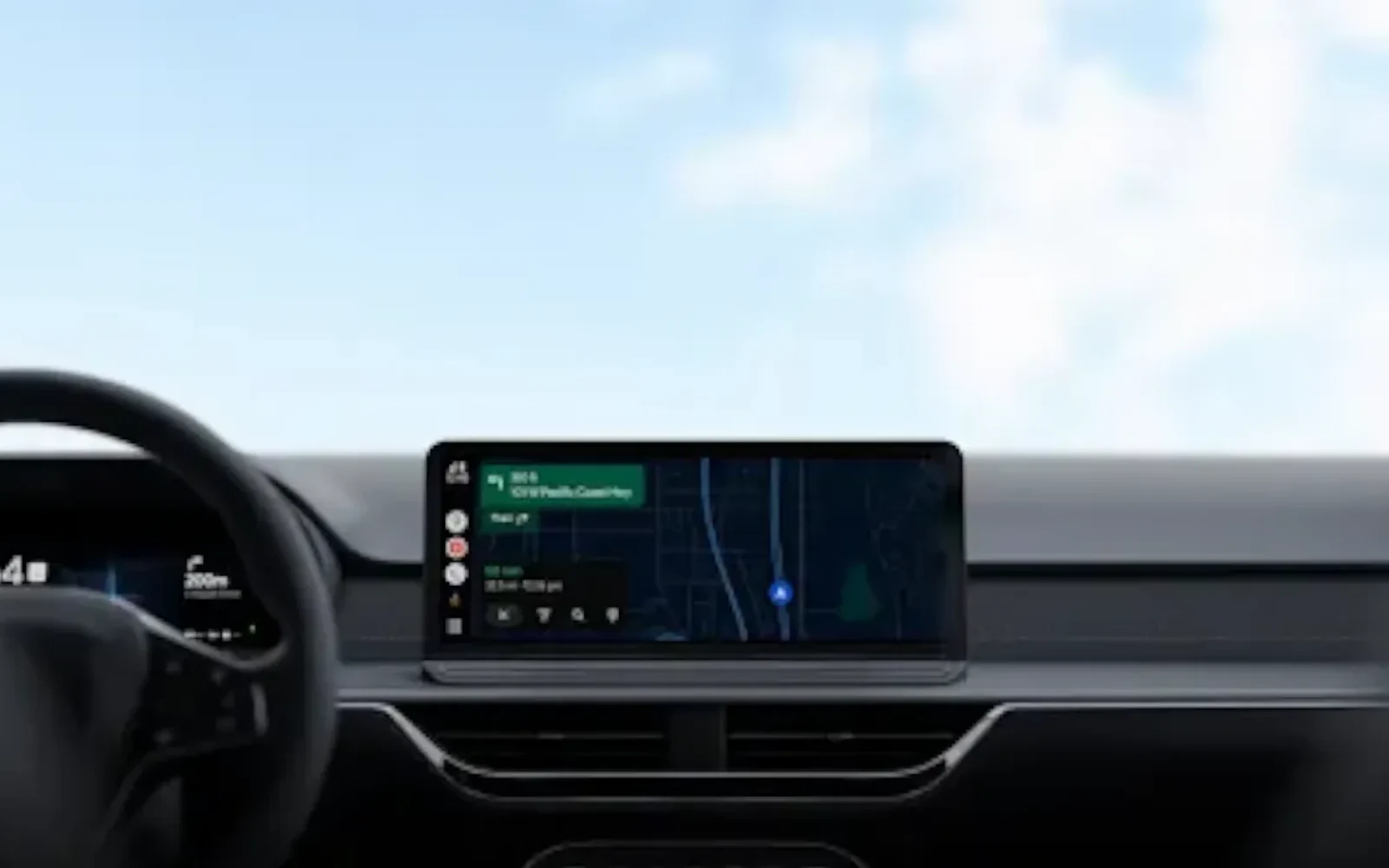
Image: Google
Wireless Android Auto is handy until you park and find your phone at 30%. Engadget reports that an hour of wireless use with everything running can take up to 16 percent, though it doesn’t cite a test. The reasons are simple. Wi-Fi and Bluetooth stay on for the whole drive, navigation keeps using GPS and data, and a hot phone charges slowly. You can fix most of it without giving up Android Auto. Start with the cable, then work through heat, the mobile network and background apps.
Quick answer: To fix wireless Android Auto battery drain, plug in with a USB cable on long drives. If you stay wireless, keep the phone cool and out of the sun, since heat can slow or pause charging. Try LTE instead of 5G, download offline maps, lower the phone’s brightness, and check Settings > Battery > Battery usage for apps running in the background. Battery Saver doesn’t help while charging, because it turns off when you plug in.
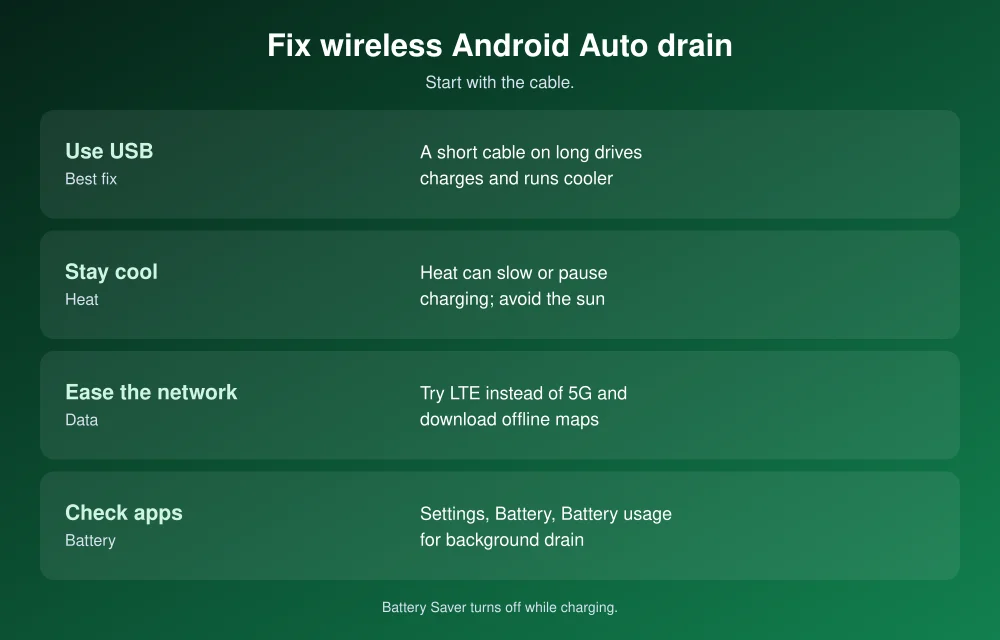
Why wireless Android Auto drains your battery
- Two radios stay on. It needs Wi-Fi and Bluetooth at the same time.
- Navigation is heavy. Google’s heat guide lists long navigation, streaming over mobile data and a hot car as causes of a warm phone.
- Heat limits charging. Google says a hot Pixel may reduce charging speed, and wireless charging might pause.
1. Use a USB cable on long drives
A cable removes the Wi-Fi link and charges the phone. Engadget says it generally runs cooler and charges better than a wireless pad, although some car ports are too slow to keep up. If yours is, try another port. Google recommends a good cable under 3 feet long, with no hubs or extensions.
2. Keep the phone cool
- Take it off the wireless pad if it feels hot, and move it out of direct sun.
- Remove a thick case while charging wirelessly.
- On a Pixel 6 or later, check Settings > Battery > Battery diagnostics > Phone is very warm.
Own a Pixel 10? Google says Qi2 Pixel 10 phones can charge on and off on some older Qi1 car pads. Remove the case and center the phone, or use a cable.
3. Switch from 5G to LTE
Engadget says this appears to help most. On Samsung, go to Settings > Connections > Mobile networks > Network mode and pick an LTE option. On a Pixel, you can use Settings > Network & internet > Adaptive connectivity, which manages connections to save battery. Switch back later if you want faster data.
4. Download offline maps
- In Google Maps, tap your profile picture, then Offline maps.
- Tap Select your own map, choose the area and tap Download.
This cuts data use, but Google notes that offline driving directions don’t include traffic or alternate routes. While parked, you can also turn off 3D buildings in Maps settings on the car screen.
5. Lower the phone’s own screen use
Your car has the map, so the phone screen can stay off. If it lights up, lower it in Settings > Display & touch > Brightness level on a Pixel, or turn on Adaptive brightness in Display settings on Samsung. Dark theme helps too.
6. Check background apps
- On a Pixel, go to Settings > Battery > Battery usage > View by apps.
- Tap an app that uses a lot and review Allow background usage. Google recommends leaving most on Optimized.
- On Samsung, open Settings > Battery > View details.
Don’t put Android Auto or Google Maps in Samsung’s Deep sleeping apps, since those never run in the background. Google also says extra drain after a system update is normal for a while.
7. Stop Android Auto starting on short trips
In Android Auto settings, turn off Start Android Auto while locked. Engadget says this can stop it launching while your phone is locked, and Bluetooth calls still connect. The trade-off is that wireless may not connect by itself, so leave it on if you like the automatic connection.
8. Turn off wireless completely
The normal wireless switch was removed in version 8.7, Engadget says. It’s still in the hidden developer settings, per Android Authority:
- Open Android Auto in your phone’s settings.
- Scroll down and tap the version repeatedly, about 10 times, until you see Allow development settings?
- Tap OK, then the three-dot menu > Developer settings.
- Turn off Wireless Android Auto. Leave everything else alone.
What not to do
- Don’t turn off Location. Navigation stops working properly.
- Don’t tap Forget all cars unless you want to set up every car again.
- Don’t factory reset for this. It erases your phone.
If it’s dropping the connection instead, see how to fix Android Auto not connecting after One UI 9. For drain away from the car, use our Pixel battery drain or One UI 9 battery drain guides.
FAQs
Does wireless Android Auto use more battery than wired?
Usually, yes. Wireless keeps Wi-Fi and Bluetooth on, while a cable charges the phone. A slow car port may still not keep up.
Why is my phone not charging on the car’s wireless pad?
Heat is a common reason. Google says a warm phone can charge slowly or pause wireless charging. Move it somewhere cooler or use a cable.
Will Battery Saver help with Android Auto?
Only when the phone isn’t charging. Google says Battery Saver turns off while it’s charging.
Can I turn off Wi-Fi while using wireless Android Auto?
No. Wireless Android Auto needs both Wi-Fi and Bluetooth.
Featured image: Google.
Disclosure: TheTechHacker has no paid relationship with Google, Samsung or any company mentioned here.
More in How-to
How to Stop Android Auto Overheating Your Phone: 5 Fixes That Actually Work
If you’ve ever reached for your phone after a long drive and felt like you were picking up a hot baked potato, you aren’t alone. A quick search for “Android auto makes phone hot reddit” shows thousands of drivers dealing with the exact same issue every single day. Whether you are experiencing a Samsung S22…
How to Fix One UI 9 Battery Drain and Freezing on Samsung Galaxy Phones
Battery draining faster or your Galaxy stuck on a setup or error screen after One UI 9? Here’s what Samsung has confirmed, the checks to do first, and the workarounds people are using until the next patch.
How to Fix Android Auto Not Connecting After the One UI 9 Update
Android Auto stopped working after your Galaxy phone got One UI 9? Here’s what Google said about its fix, how to make sure you get it, and the wired and wireless workarounds worth trying while you wait.
The week in tech, minus the noise.
New reviews, fixes and the stories that matter — once a week, straight to your inbox.
We only use your email to send the newsletter. Unsubscribe any time. See our privacy policy.
Comments