

How to Fix Pixel 10 Battery Drain After an Update (Works on Pixel 9 Too)
Pixel 10 or Pixel 9 losing charge fast after an update? Here’s why it happens and the Google-backed steps I’d try, in order, before contacting support.

Fix-Pixel-10-Battery-Drain
You install the Pixel update, plug in, go to sleep. Morning comes and the battery is somehow way lower than it should be. Sound familiar? Idle drain has been one of the biggest Pixel gripes all through 2026, and it pops up again after almost every monthly update on the Pixel 10 and Pixel 9.
Good news first: most of this drain goes away by itself. Bad news: sometimes it doesn’t, and then you have to figure out if it’s an app, a setting or the battery. I’ve taken Google’s own advice and lined it up in the order I’d actually try it. Saves you a weekend of guessing.
This works on both the Pixel 10 and Pixel 9 series. Menu names move around a bit between Android versions, so I’ll flag where yours might look different.
Quick answer: Give your Pixel a few days after an update, because Google says a little extra drain is normal while the phone readjusts to your usage. If it doesn’t settle, open Settings > Battery > Battery usage to find the app or system function eating power, restrict heavy apps, keep Adaptive Battery on, and run Battery diagnostics. If the drain still continues after a few days and these steps don’t help, test in safe mode and then contact Google support.
Why your Pixel battery drains after an update
Google actually admits this. On its Pixel battery drain help page, it says a bit of extra drain after a software update is normal. Your Pixel keeps learning how you use it, so an update that shuffles things around can mess with that for a while.
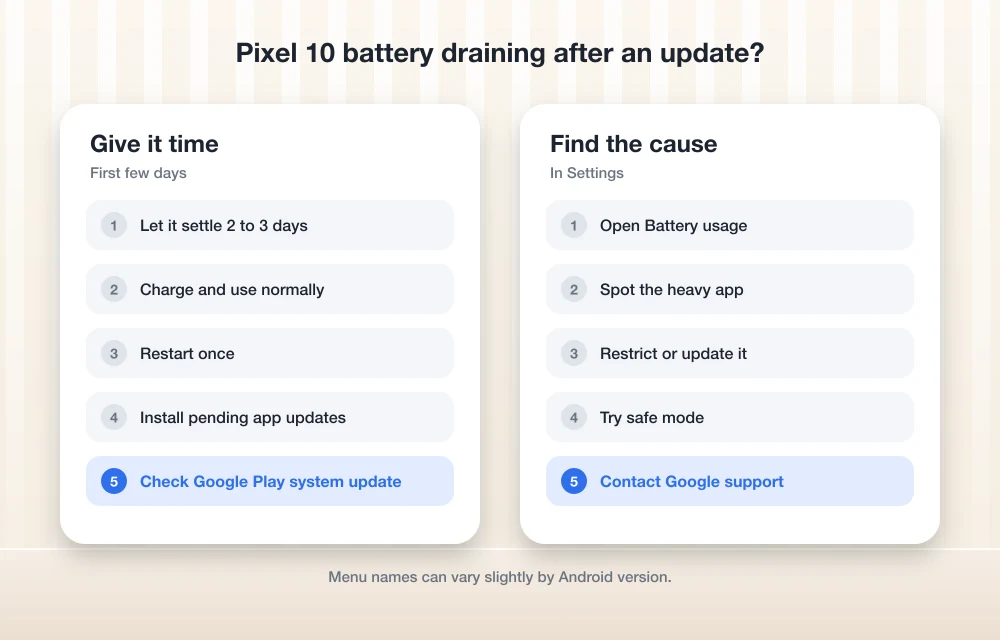
So treat the first few days as a settling-in period. My rule: don’t panic on day one. Still weird after a few days? Then dig in. That’s also when Google says to get in touch with them.
The other possibility is more annoying. An actual bug. Loads of owners saw heavy idle drain this year, with the phone losing charge while just sitting there. Reports say Google’s Issue Tracker marked a nasty idle drain bug as fixed in a mid-2026 update, but I couldn’t confirm that with Google, so take it with a pinch of salt. If it is a bug, the latest update (Step 8) is your best shot.
Step 1: Wait a few days, but track it properly
Don’t change anything yet. First, make sure you can see what’s happening. Turn on the battery percentage at Settings > Battery > Battery percentage. On newer Pixel 10 software, the Battery menu may be labeled Battery and charging instead, so look for either.
Now just use the phone like you normally would. Google says if a system or Google app ate more than 10% of your battery, watch it for 2 to 5 days of regular use. Quite often the problem just sorts itself out in that time.
Step 2: Check Battery usage to find the culprit
This screen is your best friend for battery trouble. Go to Settings > Battery > Battery usage. You get two views:
- View by apps shows how much battery each app used.
- View by systems shows usage by system functions instead.
One app way ahead of the rest, maybe one you hardly opened? That’s probably your guy.
The AI summary on Pixel 10
Pixel 10 owners get a nice bonus here. Go to Settings > Battery and charging > Battery usage > Summary and you’ll get an AI summary of your battery use, along with the apps using the most. Google says it needs the latest AI Core and turns on automatically, so you shouldn’t have to switch anything on. If you’re curious about what else the Pixel 10 does differently, I covered it in my Google Pixel 10 review.
Step 3: Run Battery diagnostics
From the Pixel 6 onwards there’s a built-in checker that walks you through the usual suspects. Go to Settings > Battery > Battery diagnostics > Battery draining too quickly and follow what it suggests.
Watch out for one thing. If the battery icon shows a question mark (“?”), Google says take it to an authorized repair center. No setting is going to fix that.
Step 4: Restrict apps that drain in the background
Once you know which app is misbehaving, go to Settings > Apps > App battery usage. From there you can restrict apps with high background or overall usage, or uninstall them if you don’t really need them.
Careful though. Google says keep battery optimization on for everything and only restrict background use for some apps. I’d only restrict apps that don’t need to run in the background. Restrict WhatsApp, say, and your messages might start arriving late. That’s a whole new headache.
Step 5: Keep Adaptive Battery on
Adaptive Battery learns which apps you use and holds back the ones you rarely touch. Google wants you to keep it on, same as battery optimization.
Google’s help page lists it under Settings > Battery > Battery Saver > Adaptive Battery. That page is older, though, so the exact location may be different on current Android versions. If you can’t find it, type “Adaptive Battery” into the search bar at the top of Settings.
Turned it off at some point? Switch it back on and give it a few days to relearn your habits.
Step 6: Adjust the display and a few hidden extras
Google suggests switching off Smooth Display on Pixel 4 and newer, Folds included. I couldn’t confirm the exact menu path, so just search “Smooth Display” in Settings. You lose a little scrolling smoothness, you gain some battery.
Google also mentions a few small things:
- Turning off Now Playing, the feature that identifies songs playing around you.
- Removing extra accounts you no longer use.
- Removing extra user profiles on the phone.
None of these will work miracles alone. But if three old accounts are syncing away in the background, it’s worth a minute to clean up.
And if your drain mostly happens in the car while navigating, the problem may be specific to that setup. My guide on how to stop Android Auto overheating your phone covers that situation.
Step 7: Check your Wi-Fi and network
Here’s one hardly anyone thinks of. Google’s product experts say hidden Wi-Fi networks, the ones that don’t show their name, drain more battery. If your home or office router hides its name, that might be part of it.
What about 5G or Adaptive connectivity? I couldn’t find a Google page with the current menu path on the Pixel 9 or 10, so no guessing from me. If Battery usage shows the mobile network as a big drain, mention it to Google support.
Step 8: Install the latest system update
If it’s a bug, the fix will usually come in a later update. Go to Settings > System > Software updates and follow the on-screen steps. Google recommends connecting to Wi-Fi and charging to at least 75% before you update.
To see what you’re currently running, go to Settings > About phone > Android version. That screen shows your Android version, security update, Google Play system update and build number. Note these down. Support will ask.
Google Play system updates are separate from the main Android update. I don’t have Google’s exact install path for those on Pixel, so just check About phone to see which one you’re on.
Step 9: Test in safe mode
Safe mode boots your Pixel with just the built-in apps. If the drain stops there, one of your own apps is almost certainly behind it. Google explains the process on its Pixel safe mode help page.
Take a screenshot of your Home screen first. Safe mode wipes some widgets, and you’ll want to know where everything went. It also switches on airplane mode by itself.
On the Pixel 6 and later, including the Pixel 9 and Pixel 10:
- Press and hold the Power and Volume up buttons together.
- Touch and hold Power off or Restart until the phone starts in safe mode.
- Check that “Safe mode” appears at the bottom of the screen.
- Use the phone lightly for a while and watch the battery percentage.
- To exit, press and hold Power and Volume up, then tap Restart.
Google’s product experts say to watch the battery in safe mode for a while before restarting. Much better battery? Start removing your newest apps one by one.
Step 10: Clear Device Health Services data (advanced)
This tip comes from Google’s product expert community, not an official help page, so only try it if nothing else worked. Device Health Services is the system app that handles a lot of the Pixel’s battery predictions.
- Go to Settings > Apps and find Device Health Services in your app list.
- Tap Storage & cache.
- Tap Clear cache, then Clear storage.
- Restart your phone.
Your battery estimates will be a bit off for a few days after this, because the phone is learning from zero again.
Check battery health and calibrate
Sometimes the update is a red herring and the battery is simply getting old. Check the estimated capacity at Settings > Battery > Battery health > Battery capacity. If you have a Pixel 8a or later, you can also see the battery’s cycle count there.
For what it’s worth, Google says the Pixel 3 through Pixel 8 Pro and Pixel Fold keep up to 80% capacity for about 800 cycles. I couldn’t find the official figure for the Pixel 9 and 10, so I won’t make one up.
If the battery percentage seems to jump around, Google suggests calibrating it: restart the phone, charge it to 100%, then let it drain completely. And if you want to protect long-term health, Pixel 6a and later phones can limit charging to 80% under Settings > Battery > Battery health > Charging optimization.
Quick reference: where to find each setting
| What you want | Where to find it |
|---|---|
| See which apps use battery | Settings > Battery > Battery usage |
| AI battery summary (Pixel 10) | Settings > Battery and charging > Battery usage > Summary |
| Run a battery check | Settings > Battery > Battery diagnostics |
| Restrict apps | Settings > Apps > App battery usage |
| Battery capacity | Settings > Battery > Battery health > Battery capacity |
| Limit charging to 80% | Settings > Battery > Battery health > Charging optimization |
| Install updates | Settings > System > Software updates |
| Check build and versions | Settings > About phone > Android version |
Remember that on newer Pixel 10 software, “Battery” may show up as “Battery and charging.”
When to contact Google support
Google keeps it simple: still draining after a few days and nothing helped? Contact them. Keep your build number and a screenshot of Battery usage handy. Makes the chat a lot quicker.
One case where you skip all of this: a bulging or swollen phone. Stop right there and contact Google Support. Same for that question mark on the battery icon, which means a repair center visit.
And if battery health shows your phone is simply worn out, a replacement battery or a new phone may be the honest answer. If you’re on an older Pixel, check whether it still gets updates. My piece on the Pixel 6 and 6 Pro reaching end of support explains how Google’s support window works.
My final take
Most post-update drain on the Pixel 10 and 9 settles down in a few days. If not, Battery usage nearly always points at the culprit, and restricting it does the trick. Safe mode and the newest update handle most of the rest. Done all that and your phone still dies by lunch? Don’t put up with it. Get Google to take a look.
Frequently Asked Questions
Is it normal for a Pixel to drain battery after an update?
Yes. Google says it’s normal for a Pixel battery to drain a little more than usual after a software update while it readjusts to your usage. Keep Adaptive Battery and battery optimization on so it can relearn your habits, and contact support if unusual drain continues after a few days.
How long should I wait for my Pixel battery to settle after an update?
Give it a few days of normal use. If a system app or Google app used more than 10% of your battery, Google suggests watching the phone during your normal routine for 2 to 5 days.
How do I see which app is draining my Pixel battery?
Go to Settings > Battery > Battery usage and tap View by apps or View by systems. On the Pixel 10, Settings > Battery and charging > Battery usage > Summary also gives an AI summary of what’s using the most power.
How do I put my Pixel 10 or Pixel 9 in safe mode?
Press and hold Power and Volume up, then touch and hold Power off or Restart until the phone starts in safe mode. Take a screenshot of your Home screen first, because safe mode removes some widgets and turns on airplane mode.
When should I contact Google about Pixel battery drain?
Contact Google if the drain continues after a few days and the troubleshooting steps don’t help. If your phone is bulging or swelling, contact Google Support right away, and if the battery icon shows a question mark, take it to an authorized repair center.
You might also like
How to Fix One UI 9 Battery Drain and Freezing on Samsung Galaxy Phones
Battery draining faster or your Galaxy stuck on a setup or error screen after One UI 9? Here’s what Samsung has confirmed, the checks to do first, and the workarounds people are using until the next patch.
How to Fix Wrong or Missing Battery Percentage on iPhone
If your iPhone battery percentage is missing, showing the wrong level, or behaving inconsistently, it is usually a settings issue or a temporary iOS glitch. In some cases, the battery indicator can also become inaccurate after an update, especially when the system has not fully stabilized yet. The good news is that this problem is…
How to Fix iPhone 18 Pro and Pro Max Overheating
Is your iPhone 18 Pro or Pro Max running hot? Here’s how to tell normal warmth from a real problem, what Apple’s temperature guidance says, and the checks to try before you book a repair.
The week in tech, minus the noise.
New reviews, fixes and the stories that matter — once a week, straight to your inbox.
We only use your email to send the newsletter. Unsubscribe any time. See our privacy policy.
Comments