

How to Fix One UI 9 Battery Drain and Freezing on Samsung Galaxy Phones
Battery draining faster or your Galaxy stuck on a setup or error screen after One UI 9? Here’s what Samsung has confirmed, the checks to do first, and the workarounds people are using until the next patch.

Samsung Galaxy phone with low battery after the One UI 9 update
If your Galaxy phone started acting strangely after the One UI 9 update, you’re not imagining it. Since Samsung began rolling out One UI 9, its version of Android 17, some owners have reported faster battery drain. A smaller group have had phones freeze on the setup screen or on an error screen right after updating.
Before you worry, here’s the calm part. Most people who updated haven’t reported any bugs at all. Samsung hasn’t confirmed a battery bug, and the freezing problem it did acknowledge is fairly specific. In this guide I’ll walk you through what’s actually confirmed, the battery checks I’d do first, and the workarounds people are using while we wait for Samsung’s next update.
I’ll also be upfront about what isn’t confirmed, because there’s a lot of half-true advice floating around right now.
Quick answer: For One UI 9 battery drain, give the phone a few days after the update, then open Settings > Device care > Battery (called Battery and device care on some versions), tap the battery graph to find the app using the most power, and put heavy background apps to sleep. For a phone stuck on the setup, “Cannot load webpage” or “Access Denied” screen, Samsung suggests updating your browser, signing in over Wi-Fi, or signing in to your Samsung Account on its website. If that doesn’t work, many users have got past it by booting into Safe Mode, turning on Airplane Mode and restarting. Don’t factory reset; Samsung has reportedly said a fix is coming in the next update.
What’s actually going wrong after One UI 9
One UI 9 first appeared on the Galaxy Z Fold 8, Z Fold 8 Ultra and Z Flip 8 in July 2026, and the Galaxy S26 FE shipped with it. Samsung confirmed the stable rollout around 16 September 2026, starting with the S26, S26+ and S26 Ultra, according to 9to5Google. Samsung’s list also includes the S25 and S25 FE, S24 and S24 FE, S23 and S23 FE, the Z Fold and Flip 7, 6 and 5, and several Galaxy Tab models.
In the US, it had reached the S25, Z Fold 7, Z Flip 7, S24, Z Fold 6 and Z Flip 6 by about 6 October, as How-To Geek reported, and the S23 rollout had started by mid-October. Samsung hasn’t published a single global schedule, and timing for the Galaxy A series isn’t confirmed.
Now, the problems. There are really two separate issues, and it helps to keep them apart.
Battery drain reports
Most battery complaints come from Galaxy S24 and S25 owners. Android Authority highlighted one S24 Ultra owner who lost 95% in just over five hours with about 3 hours 15 minutes of screen time, and some people say they’re charging three or four times a day. Android Central covered an S24 that dropped 40% in about 11 hours while sitting idle.
That sounds bad, but Samsung has not publicly confirmed a One UI 9 battery bug, and plenty of users report no change at all (TechRepublic).
The freezing bug Samsung acknowledged
This one is more specific than “my phone is freezing.” Some phones, mainly the Galaxy S26 Ultra, get stuck on the setup screen after the update, or on a “Cannot load webpage” or “Access Denied” error screen. A Samsung moderator on the South Korean community forum acknowledged the problem and reportedly linked it to the WebView component (the part of Android that shows web pages inside apps) and to loading Samsung Account policies, as Android Police reported. Similar startup freezes and “Access Denied” errors have been reported on the S24 Ultra and S25 Ultra too.
The exact cause isn’t confirmed. One tipster has blamed a server-side change Samsung made to stop firmware leaks, but Samsung hasn’t said that.
One more thing: I couldn’t find Samsung acknowledging general lag during everyday use. If your phone feels sluggish rather than stuck, that’s a different issue. If typing is the main problem, my guide on how to fix Samsung Keyboard lagging might help.
| Problem | Confirmed by Samsung? | What to try first |
|---|---|---|
| Faster battery drain | No | Wait a few days, then check Battery usage for a culprit app |
| Stuck on setup, “Cannot load webpage” or “Access Denied” screen | Yes (via a community moderator) | Samsung’s steps, then the Safe Mode + Airplane Mode workaround |
| General lag in daily use | No | Update apps, restart, check for heavy background apps |
Why battery is often worse for a few days after a big update
This part is general Android advice, not something Samsung has said about One UI 9. After a major Android update, your phone often does a lot of work in the background for a while. Apps get updated and re-optimised for the new system, and that extra activity can make the battery drop faster than usual for the first few days.
So my honest advice is: if the drain is mild, use the phone normally and charge it as usual for a few days before you start changing settings. Many people find it settles down on its own.
If it’s severe, like losing a big chunk overnight while the phone does nothing, don’t wait. Go straight to the checks below.
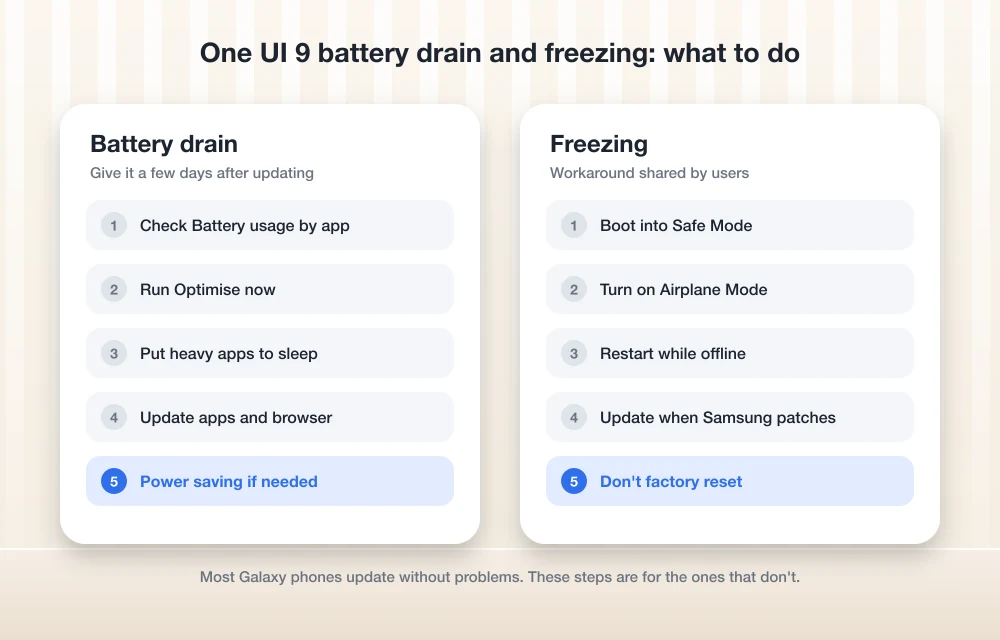
How to fix One UI 9 battery drain
A quick note on menu names first. Samsung’s own support pages use different names depending on the Android version. Older pages say Settings > Battery and device care > Battery, while newer US and Australian pages say Settings > Device care > Battery. I couldn’t find a Samsung page showing the exact One UI 9 path, so look for whichever one your phone shows.
1. Find the app that’s draining your battery
This is the single most useful check. Samsung’s battery optimisation guide explains how:
- Open Settings.
- Go to Device care (or Battery and device care).
- Tap Battery.
- Tap the battery graph to see usage per app.
Look for anything that seems out of place, like an app you barely opened sitting near the top. That’s often your culprit.
2. Run Optimise now
Back on the Device care screen, tap Optimise now. Samsung says this checks for apps with high background use. It takes a few seconds and costs you nothing.
3. Put heavy apps to sleep
If one app is clearly eating battery in the background, you can limit it:
- Go to Device care > Battery and tap the graph.
- Choose the app.
- Tap Background usage limits.
- Pick Put to sleep or Put in deep sleep.
Deep sleep is stricter, so the app may not send notifications until you open it. I’d avoid using it on messaging apps you rely on.
4. Update your apps and browser
After a big Android update, some apps need their own updates to behave properly. I’d open the Google Play Store and the Galaxy Store and install any pending updates. To be clear, I couldn’t find a Samsung page specifically recommending this for One UI 9 battery drain; it’s simply sensible housekeeping. Samsung did recommend updating your browser as part of its fix for the freezing bug, which I cover below.
5. Use Power saving mode if you need to get through the day
Samsung’s path for this is Settings > Battery and device care > Battery > Power saving mode (on newer versions, start from Device care instead). Samsung notes that it reduces performance and may delay notifications, so treat it as a stopgap rather than a fix.
6. What about Adaptive battery?
Adaptive battery is a feature that learns how you use apps and limits the ones you rarely open. I wasn’t able to confirm where it lives in One UI 9, so I won’t give you a path that might be wrong. The easiest way to check is to tap the search icon at the top of Settings and type “Adaptive battery.”
7. Run a battery check in Samsung Members
The Samsung Members app has a Phone diagnostics feature that includes a battery status check, according to Samsung US support. If you’re worried your battery itself is the problem rather than the update, this is a good place to look.
How to fix the One UI 9 freezing or error screen
If your phone is stuck on the setup screen, or showing “Cannot load webpage” or “Access Denied” after the update, start with Samsung’s own advice.
Samsung’s suggested steps
According to Android Headlines, Samsung’s temporary suggestions are:
- Update your browser.
- Sign in over Wi-Fi rather than mobile data.
- Sign in to your Samsung Account on Samsung’s website.
The Safe Mode + Airplane Mode workaround
This one didn’t come from Samsung. It was shared by a Reddit user and on the Samsung Community forum, and SamMobile wrote it up. Safe Mode starts the phone with only its built-in apps running, which can help it get past whatever is blocking setup.
- Hold Volume Down + Power to force a restart.
- When the Samsung logo appears, let go of Power but keep holding Volume Down. The phone boots into Safe Mode.
- Turn on Airplane Mode so Wi-Fi and mobile data are both off.
- Restart the phone normally.
If your phone can still reach the power menu, there’s an easier way into Safe Mode: long-press Power off until the Safe Mode prompt appears, then tap it.
Don’t factory reset
This is the big one. Samsung has reportedly advised against factory resetting while it works on a fix, per Sammy Fans. A reset wipes your phone and may not even solve this problem. If you ever do end up needing one later, make sure your photos are backed up first; I looked at a private option in my TonfotosSync review.
Haven’t updated yet?
SamMobile suggests turning on Airplane Mode before installing the update to avoid the error screen. It’s a simple precaution if you’re nervous.
Can you still clear the cache partition?
Old Samsung fix guides often tell you to “wipe cache partition” from Recovery Mode. On current phones, that option is gone. Samsung removed it from the Galaxy S25 series around the February 2026 security update, and its R&D team said on the Samsung Community forum that this was planned and normal.
I couldn’t confirm whether S26 phones on One UI 9 have it, but I’d assume they don’t. So if a guide tells you to do this, skip that step.
When to wait for Samsung’s patch, and when to contact Samsung
Samsung has reportedly said the freezing bug will be fixed in the next over-the-air (OTA) update, meaning one you download directly on the phone. No date has been given. Keep an eye on Settings for software updates and install them when they arrive.
For battery drain, there’s no confirmed fix coming because Samsung hasn’t confirmed a bug. If you’ve waited a few days, checked Battery usage, limited heavy apps and updated everything, and the drain is still severe, it’s worth contacting Samsung support through its official website or running Phone diagnostics in Samsung Members so you have something concrete to show them.
If your problem is Android Auto, that’s a separate known issue. Google said on 3 November 2026 that a fix for connection problems on Samsung phones with One UI 9 is rolling out. If your phone also gets hot in the car, my guide on stopping Android Auto overheating covers that.
My take
One UI 9 isn’t a disaster. Most Galaxy owners updated without trouble, and the problems that do exist fall into two clear buckets. Battery drain is unconfirmed by Samsung and often has a findable cause, so give it a few days and then check your Battery usage screen. The setup and error-screen freeze is real and acknowledged, and while Samsung’s own steps or the community’s Safe Mode trick usually get people through it, the proper fix should come in the next update.
Above all, don’t rush into a factory reset. Patience and a couple of simple checks will sort out most of this.
Frequently Asked Questions
Has Samsung confirmed a One UI 9 battery drain bug?
No. Samsung has not publicly confirmed a battery bug in One UI 9. Reports mostly come from Galaxy S24 and S25 owners, and many users say their battery life hasn’t changed.
Is the Safe Mode and Airplane Mode fix from Samsung?
No. It was shared by users on Reddit and the Samsung Community forum. Samsung’s own suggestions are to update your browser, sign in over Wi-Fi, or sign in to your Samsung Account on its website.
Should I factory reset my Galaxy if it freezes after One UI 9?
Samsung has reportedly advised against factory resetting while it works on a fix. Try Samsung’s suggested steps or the Safe Mode workaround first, and wait for the next software update.
Can I wipe the cache partition on my Galaxy S25 or S26?
Samsung removed the Wipe cache partition option from the Galaxy S25 series around the February 2026 security update. It’s not confirmed for the S26, but you should assume the option isn’t there.
When will Samsung fix the One UI 9 freezing bug?
Samsung has reportedly said the fix will come in the next over-the-air update, but it hasn’t given a date.
You might also like
How to Fix Samsung Keyboard Lagging on an Android Phone
Samsung phones and tablets come with Samsung Keyboard as the default keyboard. For many users, it works well for messaging, searches, emails, and everyday typing. But sometimes the keyboard starts responding slowly, misses taps, freezes briefly, or takes a moment to appear. That can make even a simple message frustrating. You could switch to Gboard…
How to Fix Android Auto Not Connecting After the One UI 9 Update
Android Auto stopped working after your Galaxy phone got One UI 9? Here’s what Google said about its fix, how to make sure you get it, and the wired and wireless workarounds worth trying while you wait.
How to Fix Galaxy S26 Ultra Stuck at Samsung Account Sign-In on One UI 9
Is your Galaxy S26 Ultra frozen or looping at the Samsung Account sign-in screen during setup on One UI 9? Here are the workarounds Samsung and other owners have shared, and why you shouldn’t reach for a factory reset.
The week in tech, minus the noise.
New reviews, fixes and the stories that matter — once a week, straight to your inbox.
We only use your email to send the newsletter. Unsubscribe any time. See our privacy policy.
Comments