

How to Get the Best GTA 6 Performance on PS5 and Xbox Series X|S
GTA 6 runs at 30 frames per second on PS5, PS5 Pro and Xbox Series X|S, and Rockstar has said even the PS5 Pro isn’t powerful enough for 60 fps. You can’t unlock more performance, but you can make sure your console isn’t running worse than it should. Stutter outside of big fights usually means…

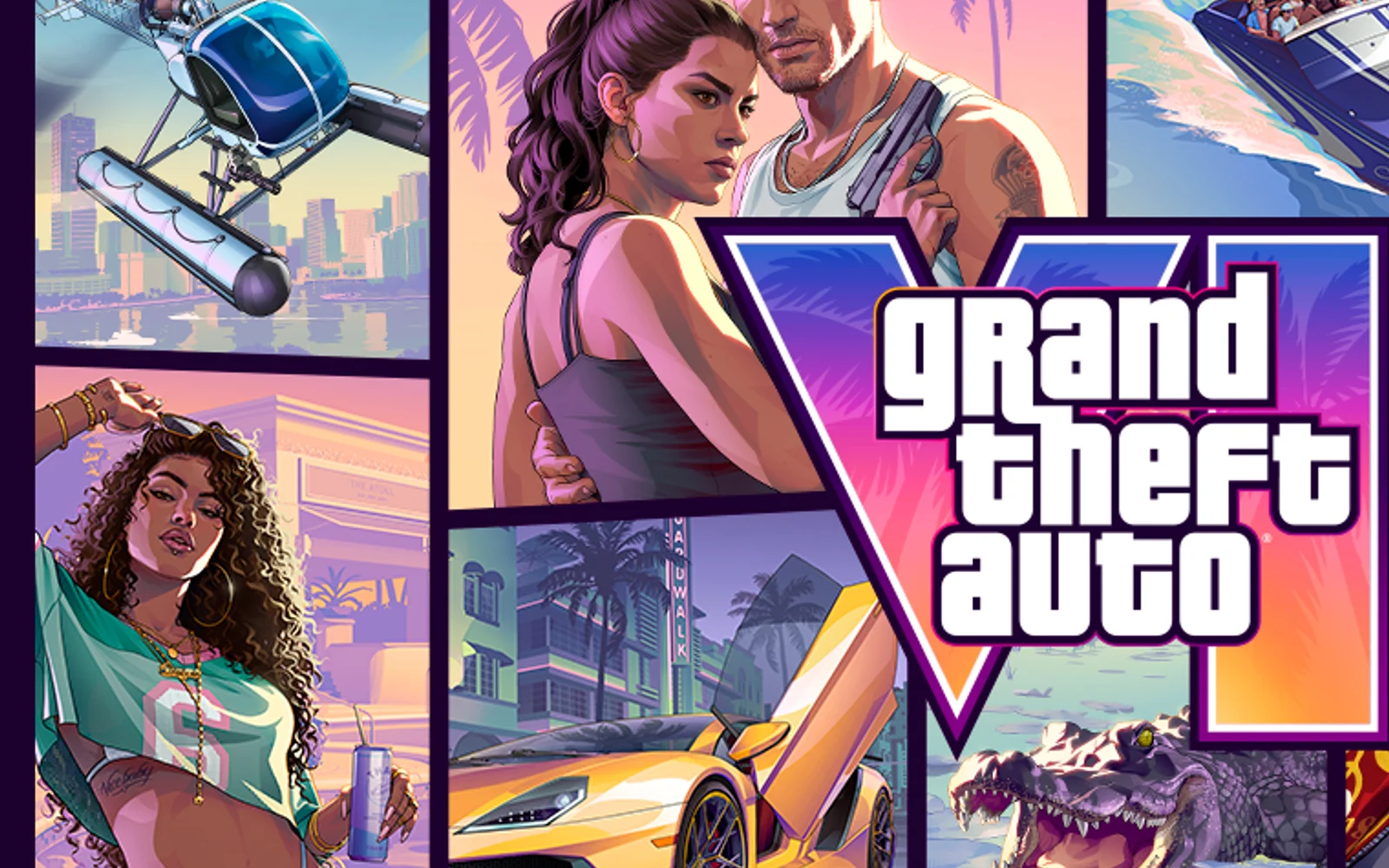
GTA 6 Performance PS5 Xbox
GTA 6 runs at 30 frames per second on PS5, PS5 Pro and Xbox Series X|S, and Rockstar has said even the PS5 Pro isn’t powerful enough for 60 fps. You can’t unlock more performance, but you can make sure your console isn’t running worse than it should. Stutter outside of big fights usually means something on your side.
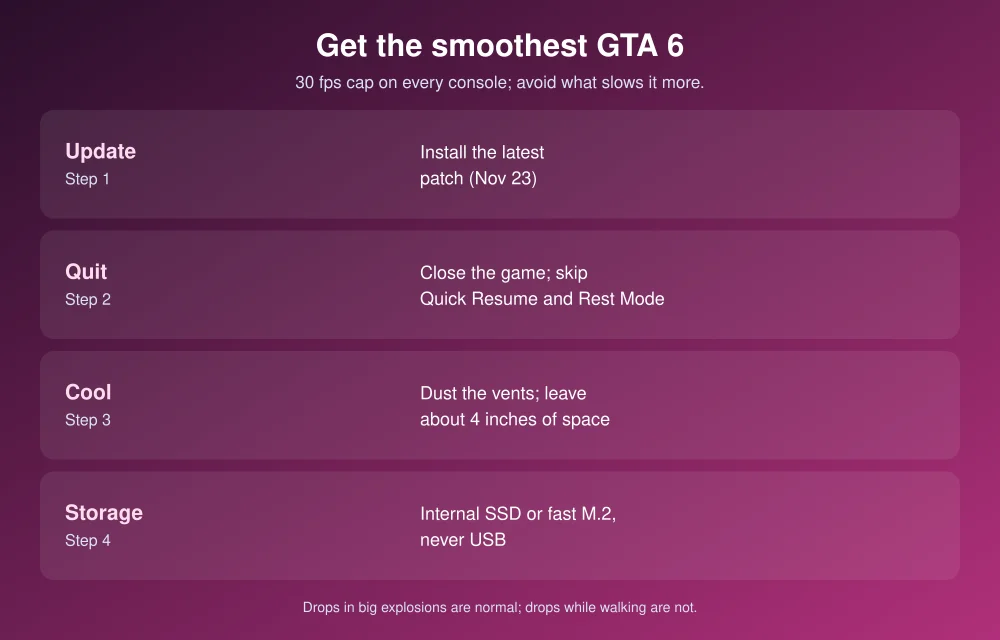
Quick answer: To get the smoothest GTA 6 on PS5 or Xbox: install the latest game update (the first patch came November 23), fully quit the game instead of using Quick Resume or Rest Mode, clean dust and give the console space to breathe, and play from internal storage or a fast M.2 SSD, never a USB drive. Some drops in heavy explosions are normal; drops while walking or in cutscenes are not, Engadget notes.
What Frame Rate Should You Expect?
| Console | Typical performance (reported) |
|---|---|
| PS5 Pro | Holds 30 fps; around 24 fps in extreme car pile-ups |
| PS5 | Mostly 30 fps; dips in city drives and to about 23 fps in big explosions |
| Xbox Series X | Generally 30 fps; slips in busy scenes |
| Xbox Series S | 25 to 30 fps, as low as 18 to 20 in heavy action (720p internal) |
1. Update GTA 6
- PS5: highlight GTA 6 on the home screen, press Options and select Check for Update.
- Xbox: go to My games & apps > Manage > Updates.
GTA 6 is a 212GB install, Engadget reports, and Sony warns that installing data can need about twice the install size in free space. If an update won’t install, free up storage first.
2. Quit Instead of Resuming
- Xbox: press the Xbox button, highlight GTA 6, press Menu > Quit. You can also turn off Quick Resume for the game in Manage game and add-ons > Quick Resume settings.
- PS5: highlight GTA 6, press Options > Close Game, or fully turn off the console. Save before you do.
Avoid the Xbox “uncapped frame rate” trick. Digital Foundry found it averages only about 36 fps on Series X and makes cars and animations run too fast, and it can cause crashes.
3. Keep the Console Cool
- Leave about 4 inches of space around a PS5, and keep it out of closed cabinets and off thick carpet, Sony advises.
- Unplug the console and dust the vents with a soft, dry cloth.
- Overheating doesn’t directly lower the frame rate, but it can crash the game or shut the console down. Microsoft lists overheating as a cause in its Xbox shutdown guide.
4. Play From Fast Storage
Run GTA 6 from internal storage or a supported M.2 SSD on PS5 (Sony recommends 5,500MB/s or faster with a heatsink), or the Storage Expansion Card on Xbox. USB drives can’t run it. Our guide on playing GTA 6 from an external drive explains the options.
5. Still Crashing?
If you see error CE-108255-1 on PS5, Sony’s troubleshooting suggests updating system software, starting a new save, and reinstalling the game as a last resort. See PlayStation hardware support and our fixes for GTA 6 crashing on Xbox and autosave not working.
That’s all for now. Please do share your views and feedback in the comment box below.
FAQs
Can GTA 6 run at 60 fps on PS5 Pro?
No. Rockstar says even the PS5 Pro’s processor isn’t powerful enough for 40 or 60 fps.
Why does GTA 6 stutter on my console?
Some drops in big fights are normal. Stutter while walking or in cutscenes points to an outdated game, overheating or slow storage.
How big is GTA 6?
About 212GB, Engadget reports, and updates may need extra free space.
Should I use the Xbox uncapped frame rate trick?
No. It only averages about 36 fps and can make the game run too fast or crash.
Featured image: Rockstar Games.
Disclosure: TheTechHacker has no paid relationship with Rockstar Games, Sony or Microsoft.
More in How-to
Can You Play GTA 6 From an External Hard Drive on PS5 or Xbox? How to Make Room
GTA 6 is a huge install, and many PS5 and Xbox owners are running out of space. A cheap USB hard drive looks like the easy answer. It helps, but not in the way most people expect: you can store GTA 6 on an external drive, but you can’t play it from there. Quick answer:…
How to Fix GTA 6 Autosave Not Working on PS5 and Xbox (First Update)
Rockstar released Grand Theft Auto VI’s first update on November 23, 2026, four days after launch, and it targets the bug that stopped the game from autosaving. The patch also fixes crashes, weather that wouldn’t change, and story phone calls that failed. It’s reported as version 1.002.002 on PS5 and 1.0.2.2 on Xbox Series X|S.…

GTA 6 PC Release Date: What Rockstar Has Said So Far
If you game on PC, this week stings a little. GTA 6 arrives on November 19, 2026, but only on PS5 and Xbox Series X|S. So when is the PC version coming? The honest answer: Rockstar has not said. Quick answer: There is no official GTA 6 PC release date. Rockstar and Take-Two have announced…
The week in tech, minus the noise.
New reviews, fixes and the stories that matter — once a week, straight to your inbox.
We only use your email to send the newsletter. Unsubscribe any time. See our privacy policy.
Comments