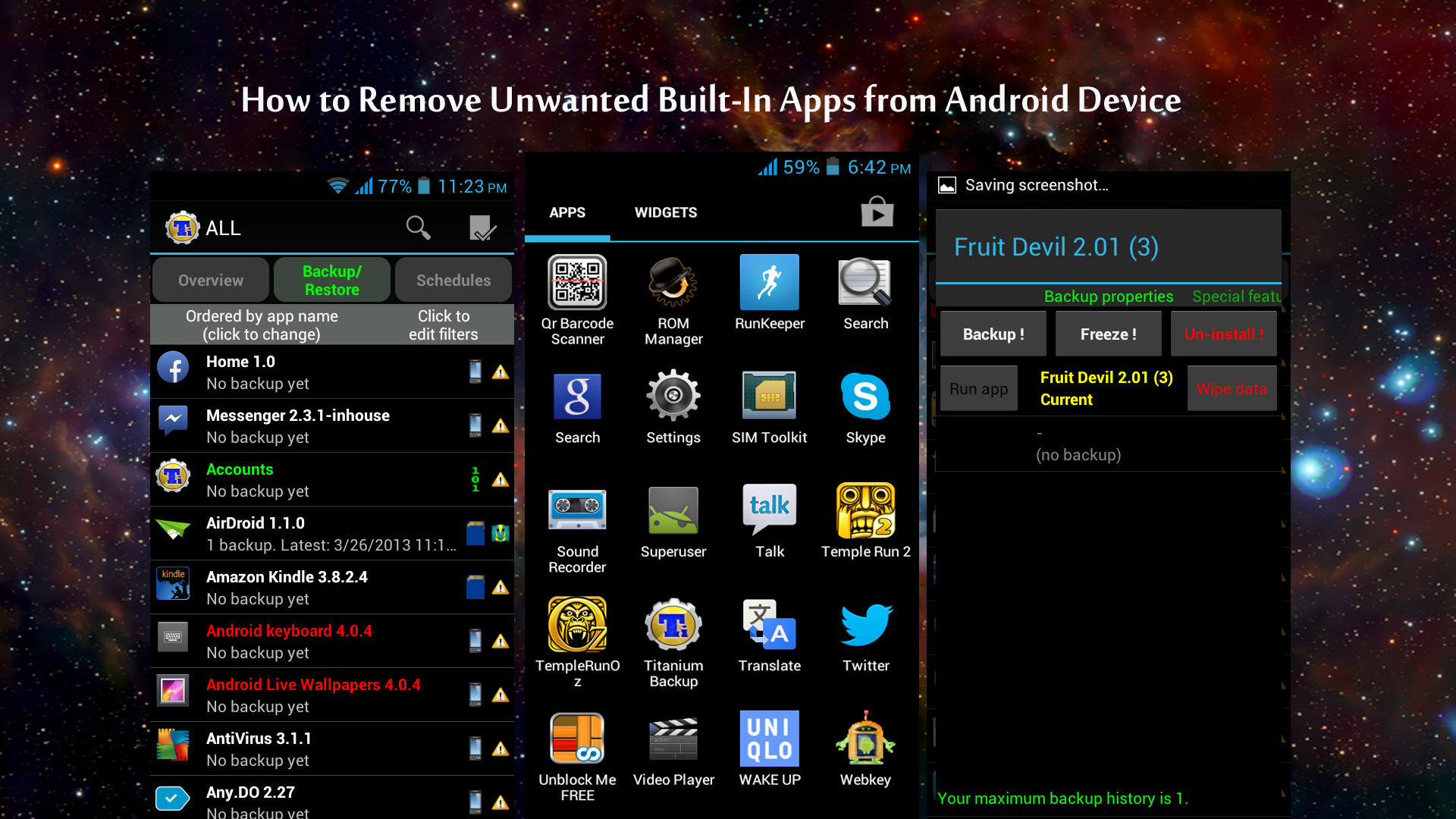
Many smartphone manufacturers are installing their default apps and sponsors apps on their devices. Only a few of them are useful, and many are consuming a lot of space on your device without productivity. Nowadays every Android phone comes with built-in apps; most probably they are not required by regular usage. These apps consume a lot of internal phone storage, for large storage capacity devices it is negligible but for low-end Android storage adjustment is a tough task. Also, pre-installed apps take a lot of space on your home screen and as well as consuming background Internet data and RAM.
This is the main reason for everyone wants to remove built-in apps from their device. If you are trying to remove pre-installed apps from your device using a traditional method (System Settings > Manage Apps (Application Manager), you may end with trying. Titanium Backup can remove unwanted apps fro your phone. Once the app is deleted, even a factory reset will not recover them. To remove unwanted built-in apps follow these simple steps.
Titanium Backup is the most powerful backup tool on Android, and then some.You can backup, restore, freeze (with Pro) your apps + data + Market links. This includes all protected apps & system apps, plus external data on your SD card.
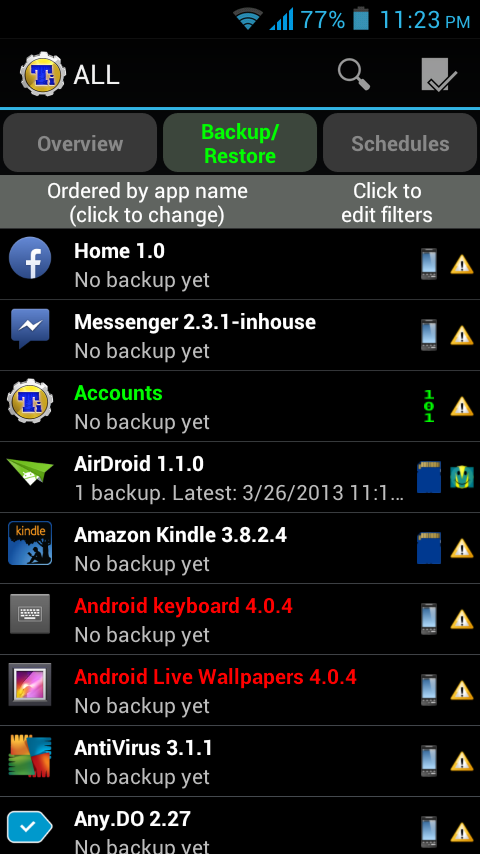
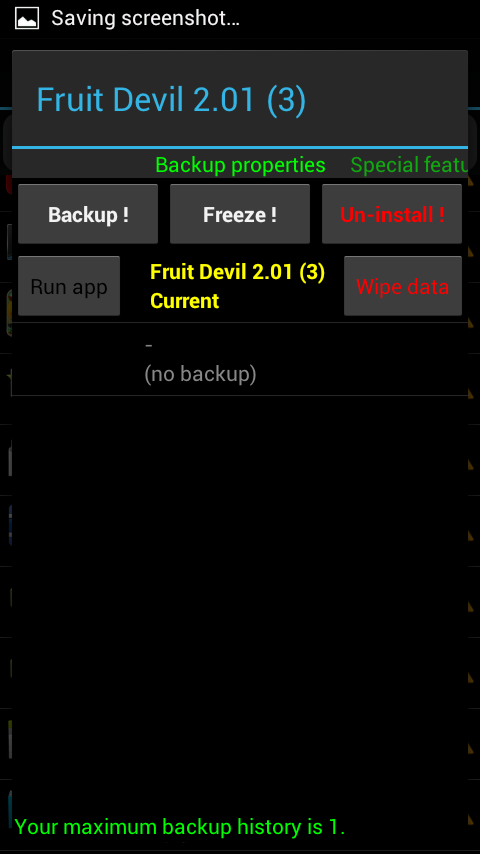
How To Uninstall Default (Pre-Installed) Apps From Your Android Phone
- To remove unwanted apps, your device must be rooted first.
- After rooting install Titanium Backup app from Google Play Store.
- Open Titanium Backup app and go to Back/Restore Tab.
- In the tab, you’ll see all installed apps list.
- Click on the unwanted app and now click on the Un-Install option.
The Titanium Backup comes in free and paid versions. Few features will vary with the premium version of the app. For the basic uninstalling, free versions work well.
That’s all for now. Please do share your views in the comment box below.
I don’t understand.
Simple, Install Titanium Backup on your Android device and start uninstalling unwanted programs.
I don’t understand.
what if later we want it back asi t was before???
First make a backup of app, if you want the app back simply click on restore.